Work with Coverage Results
No matter what type of coverage analysis you perform, coverage of unit tests, coverage of an application, or coverage of tests on server side, dotCover saves coverage results in a coverage snapshot. You can then further investigate these results using one of the following ways:
Coverage Results Browser window (available in both Visual Studio and dotCover standalone application) - this tool window allows opening coverage snapshots recorded during application coverage run or saved in a file.
If the current snapshot contains assemblies that correspond to the current solution, you can navigate to source code of any item within the snapshot by double-clicking on it.
Unit Test Coverage window (available only in Visual Studio) - this tool window displays coverage tree and synchronizes it with unit tests from Unit Test Sessions window.
You can quickly view coverage results for the currently opened file by looking at the "shield" icon
 on the ReSharper marker bar:
Depending on the results, the icon will look differently: all statements covered, statements are partly covered, statements are partly covered but some tests fail, and so on.
The icon shows the same results that are currently shown in the Unit Test Coverage window.
If you hover over the icon, you will get more details on total coverage percentage and the number of failed tests.
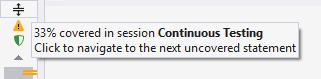
Clicking the icon navigates you through the uncovered statements.
The ways of exploring and studying coverage results include:
Visualize Code Coverage right in the editor according to the coverage results.
Detect Hot Spots to quickly find potential risk areas.
Navigate to Covering Tests that cover a particular statement in your code.
Locate Code Items in Coverage Tree (types, methods, and so on) to see how well they are covered in the current snapshot.
Search Coverage Tree to quickly find code items in the coverage tree.
Save and Open Coverage Snapshot to return to the analyzed results later or to share the results.
Exclude Nodes from Coverage Snapshot to recalculate coverage statistics.
View Coverage of Unit Tests to recalculate the total coverage.
Match Coverage Snapshot with Project Structure that makes navigation within a snapshot more comfortable.
Export Coverage Results into reports in one of the following formats: HTML, XML, JSON, and XML for NDepend.