Search and replace a target within a project
You can search for a text string within a project, use different scopes to narrow your search process, find occurrences, and exclude certain items from the search.
Find the search string in a project
Press Ctrl+Shift+F or select from the main menu.
In the search field, type your search string. Alternatively, in the editor, highlight the string you want to find and press Ctrl+Shift+F or from the context menu, select Find in Files. IntelliJ IDEA places the highlighted string into the search field.
To see a list of your previous searches, press Alt+Down.
Specify additional options, if needed.
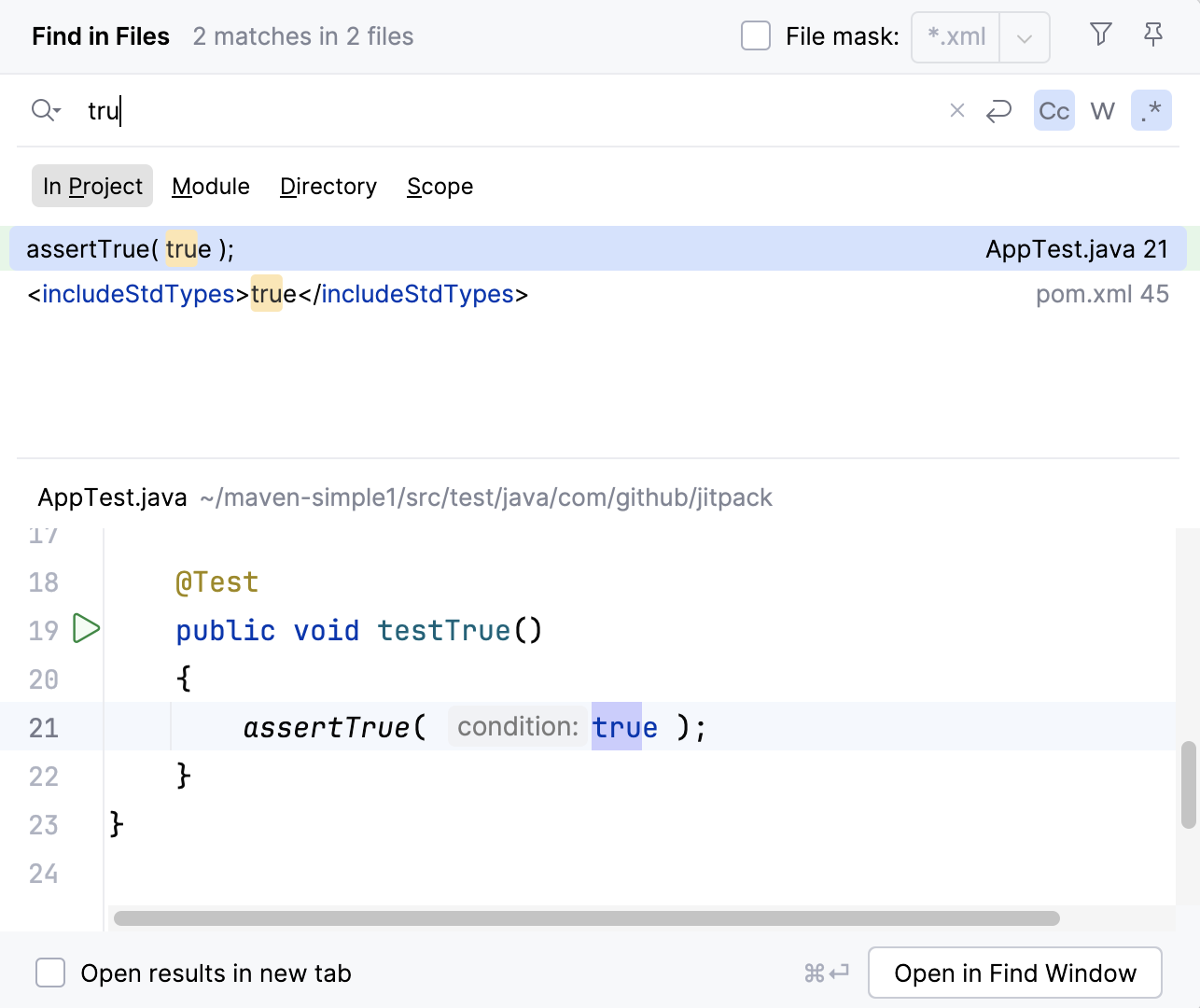
IntelliJ IDEA lists the search strings and the files that contain them. If the search string is found several times on the same line of code, IntelliJ IDEA merges the results in one line.
To do a multi-line search, click the
 icon to enter a new line, and press Ctrl+Alt+Down/Ctrl+Alt+Up to browse through occurrences.
Check the results in the preview area of the dialog where you can replace the search string or select another string, press Ctrl+Shift+F again and start a new search.
To see the list of occurrences in a separate tool window, click Open in Find Window. Use this window and its options to group the results, preview them, and work with them further.
If you want to see each new search result in a separate tab in the Find tool window, select the Open Results in New Tab checkbox on the bottom of the Find in Files dialog.
Copy paths or references of the found files
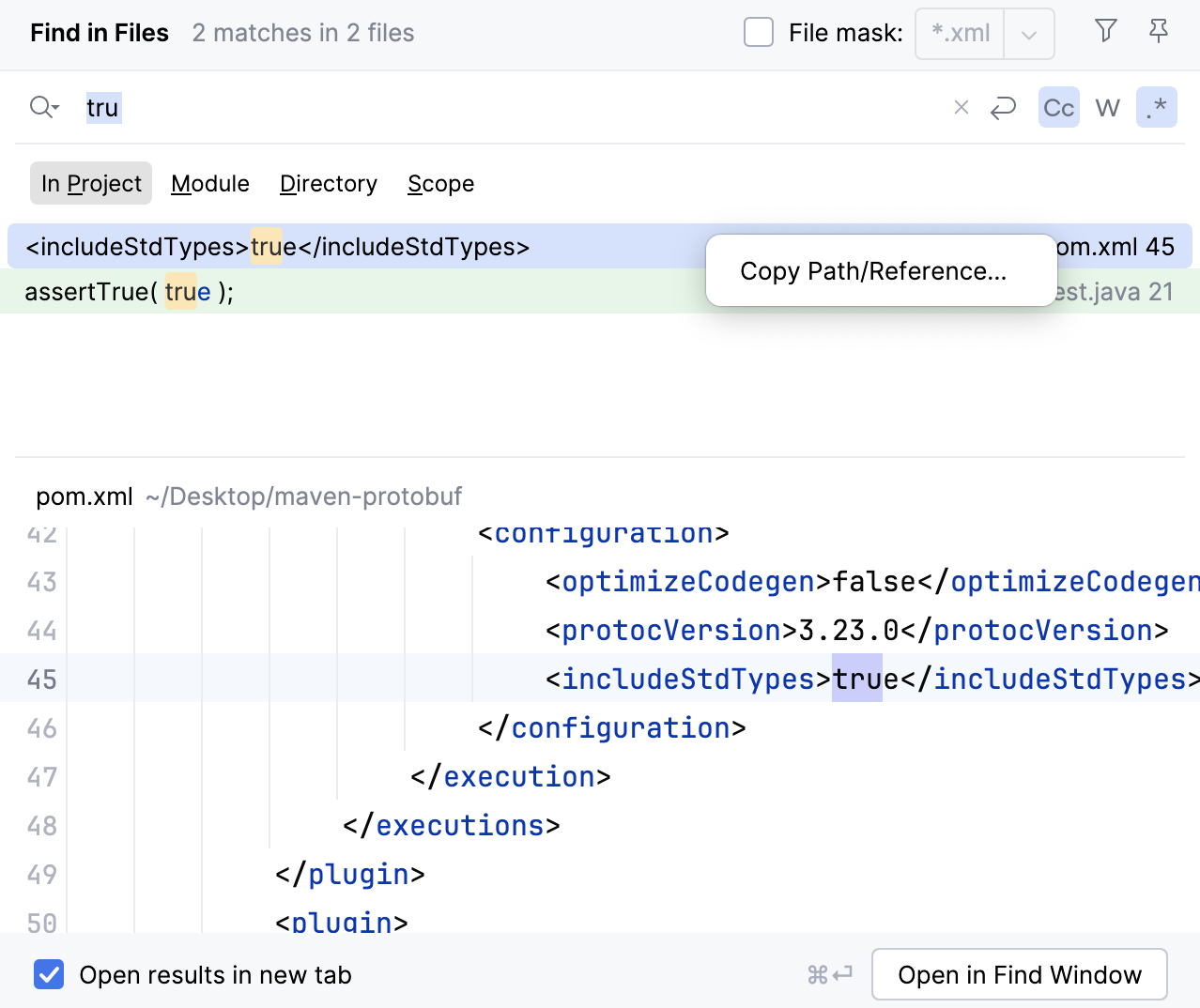
In the list of search results, right-click the result for which you want to copy a path and click Copy/Reference.
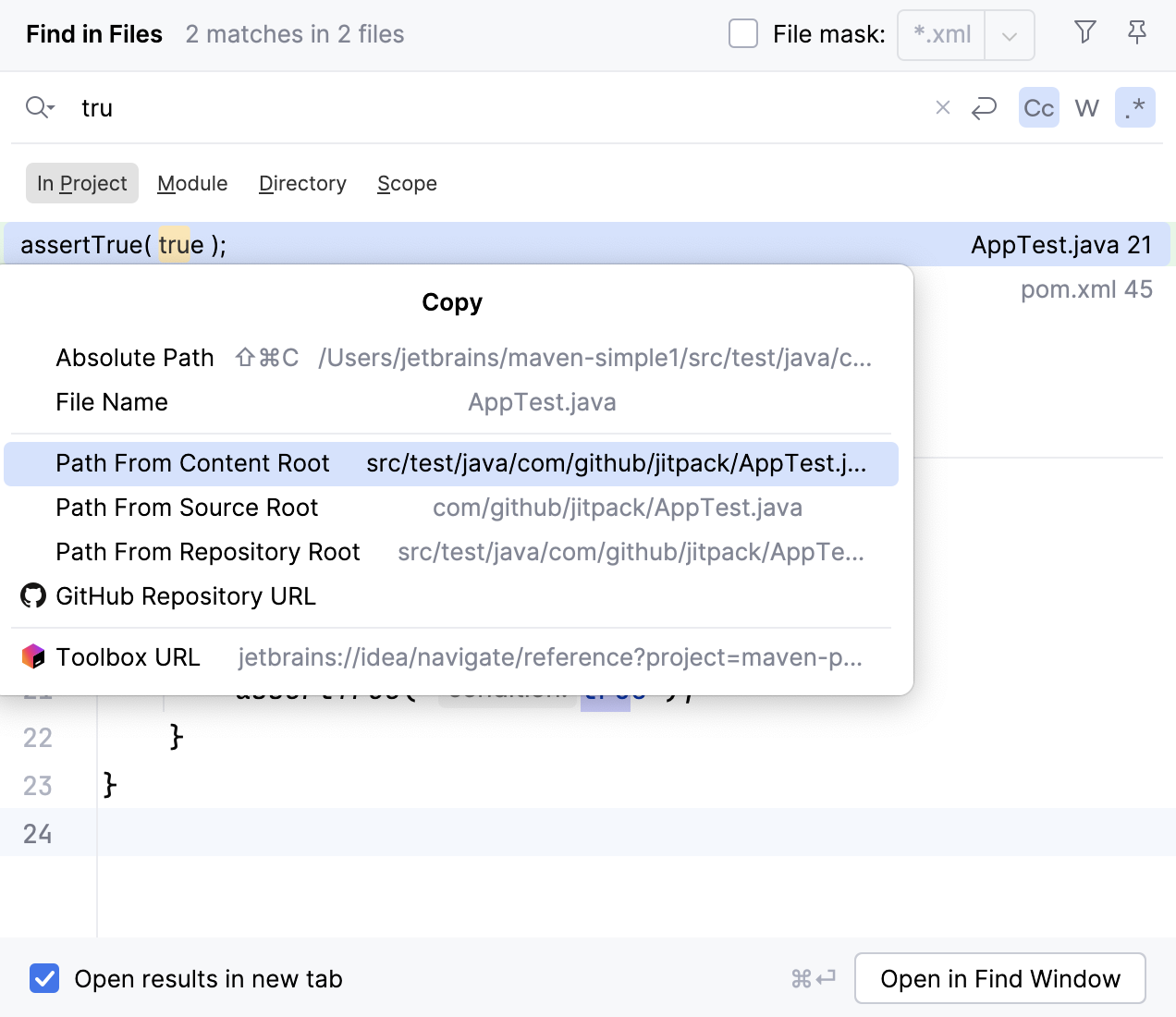
In the Copy window, select the path or reference you need.
Narrow your search
You can use different options in the Find in Files dialog to adjust your search process.
Select options such as Words (
 ) or Match case (
 ) to find the exact word in a project or match the letter case.
With
 selected, IntelliJ IDEA automatically escapes special regex symbols with backslash
 \when you search for a text string that contains them.For more information about regex, refer to the search with regex documentation.
Click the
 icon to filter your search. For example, you can filter the search to omit comments or search only in comments instead.
Select one of the displayed options such as Module or Directory to limit your search.
Moreover, you can select the Scope option that offers you a list of predefined scopes for your search. For example, you can limit your search only to the open files in your project or you can search in a class hierarchy.
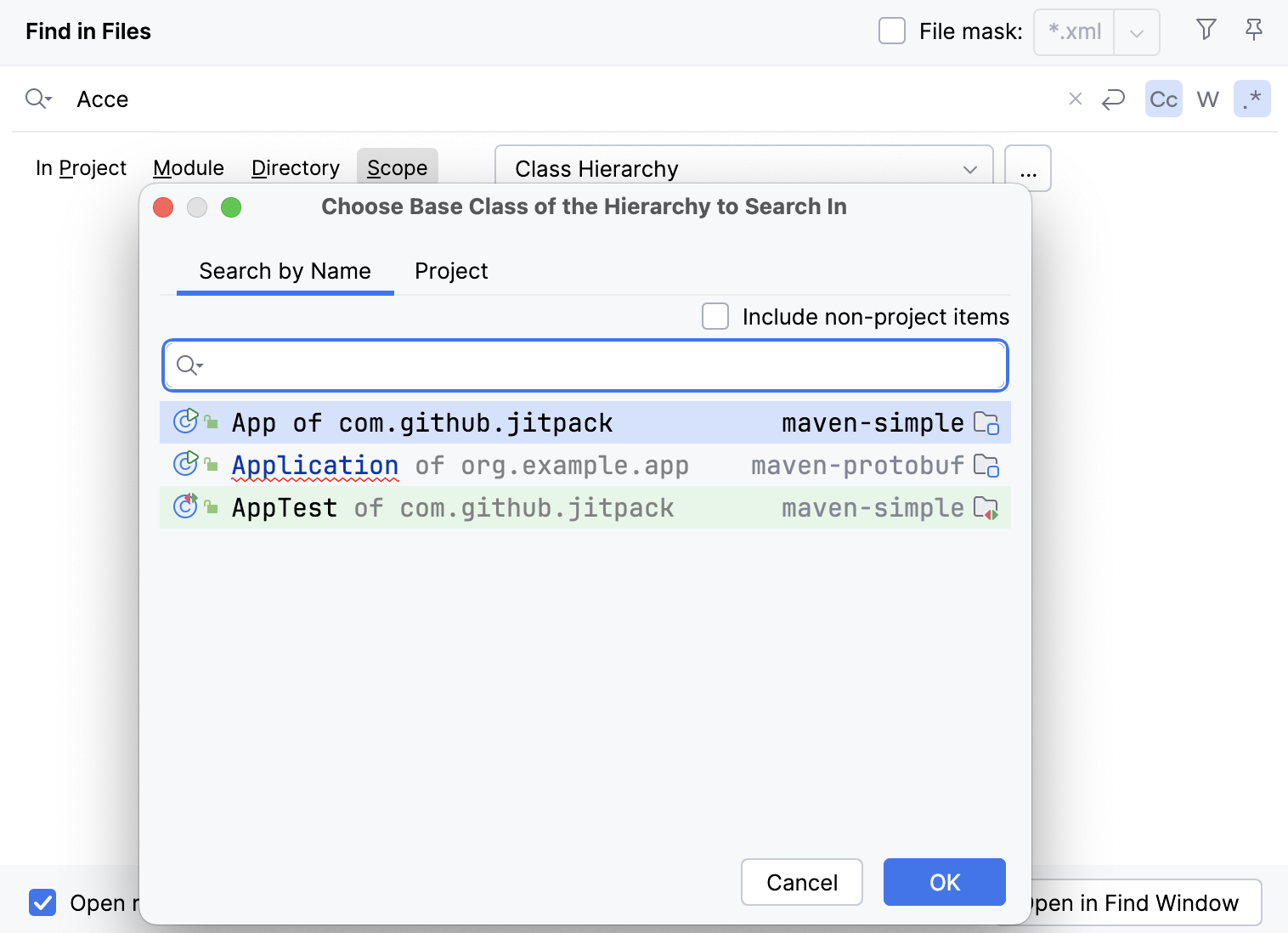
If you work without tabs, the scope Recently Viewed Files or Recently Changed Files option might become useful. You can also create your own custom scope, click the Browse icon (
 ) to open the Scopes dialog.
Search in the specific file types
Use the File mask option to narrow your search to a specific file type. You can select the existing file type from the list, add a new file type, or add an additional file mask syntax to search for file types with certain patterns.
The following syntax is supported:
*: any number of any symbol.For example,
*.jsincludes all.jsfiles, ortest.*includes all the files named "test".?: any single character.For example,
test??.*will match all the files having any 2 chars after "test" in their name, such astestAB.js,test01.txt, and so on.,: pattern delimiter, use it to limit the search with multiple patterns.For example,
*.js,????.tsmatches all the.jsfiles and all.tsfiles with 4 characters in their names.!: exclude (Keep in mind that it works for the whole pattern, not for a single character or part of the pattern).For example,
*.js,!test*.jsmatches all the.jsfiles except those starting with "test".
In the Find in Files dialog, select the File mask checkbox and from the list of file types, select the one you need.
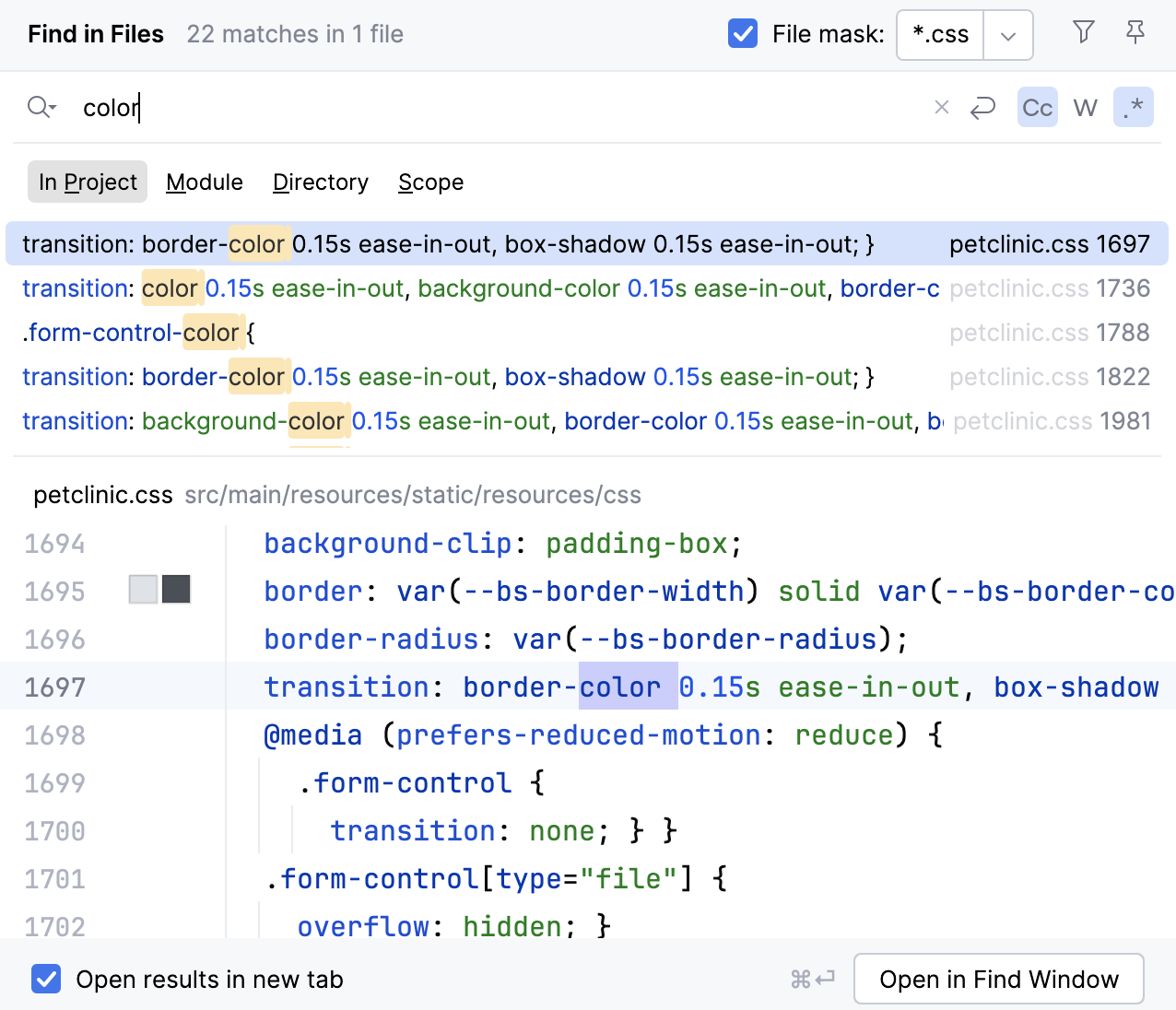
IntelliJ IDEA limits its search to the specified type.
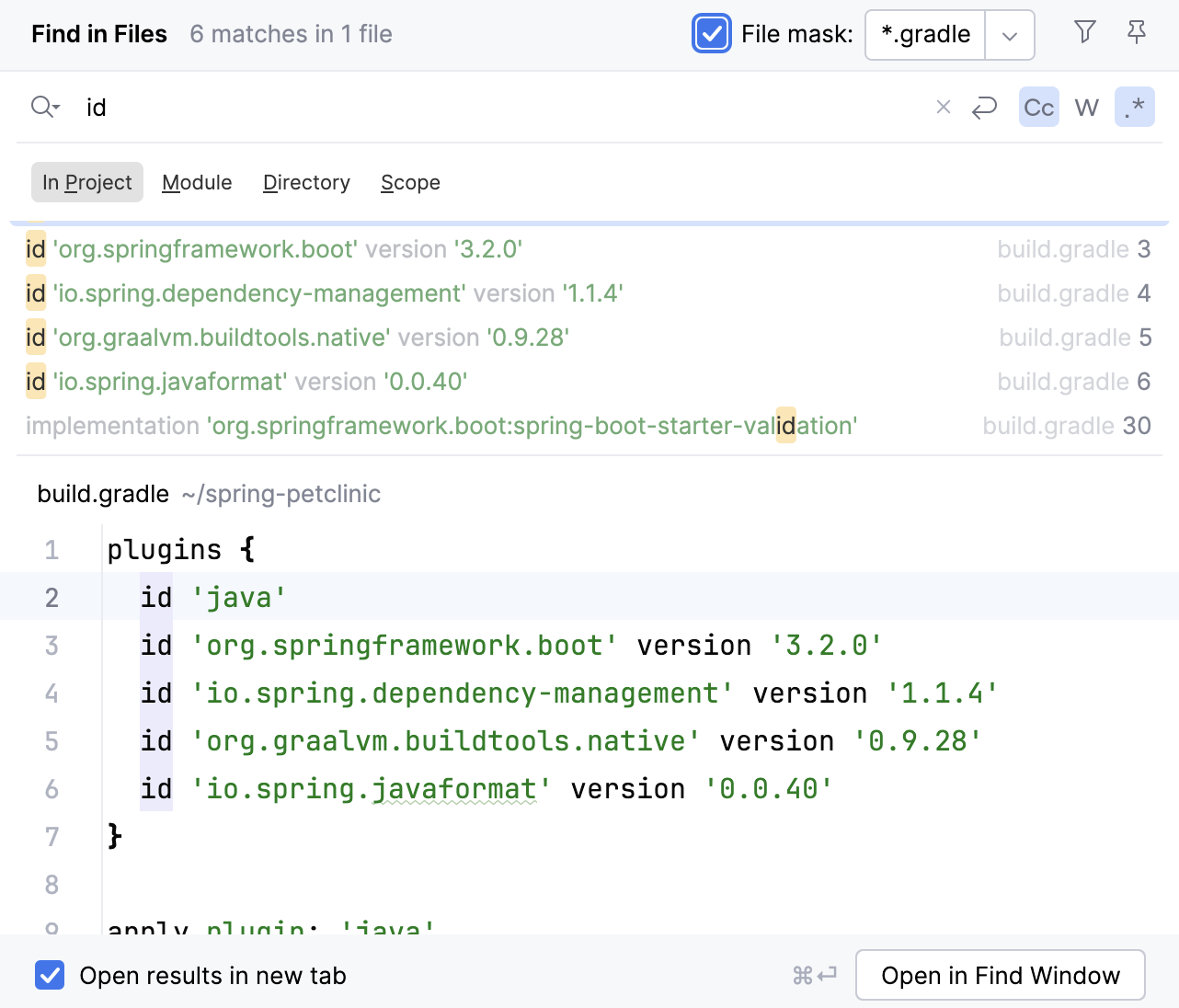
If you don't find the file type you need in the list, enter your file type in the File mask field.
For example, use the following syntax to search only in gradle files: *.gradle.
You can manually add a file mask in the search field. If necessary, specify several file types separating them with commas.
Replace the search string in a project
Press Ctrl+Shift+R to open the Replace in Path dialog.
In the top field, enter your search string. In the bottom field, enter your replacement string.
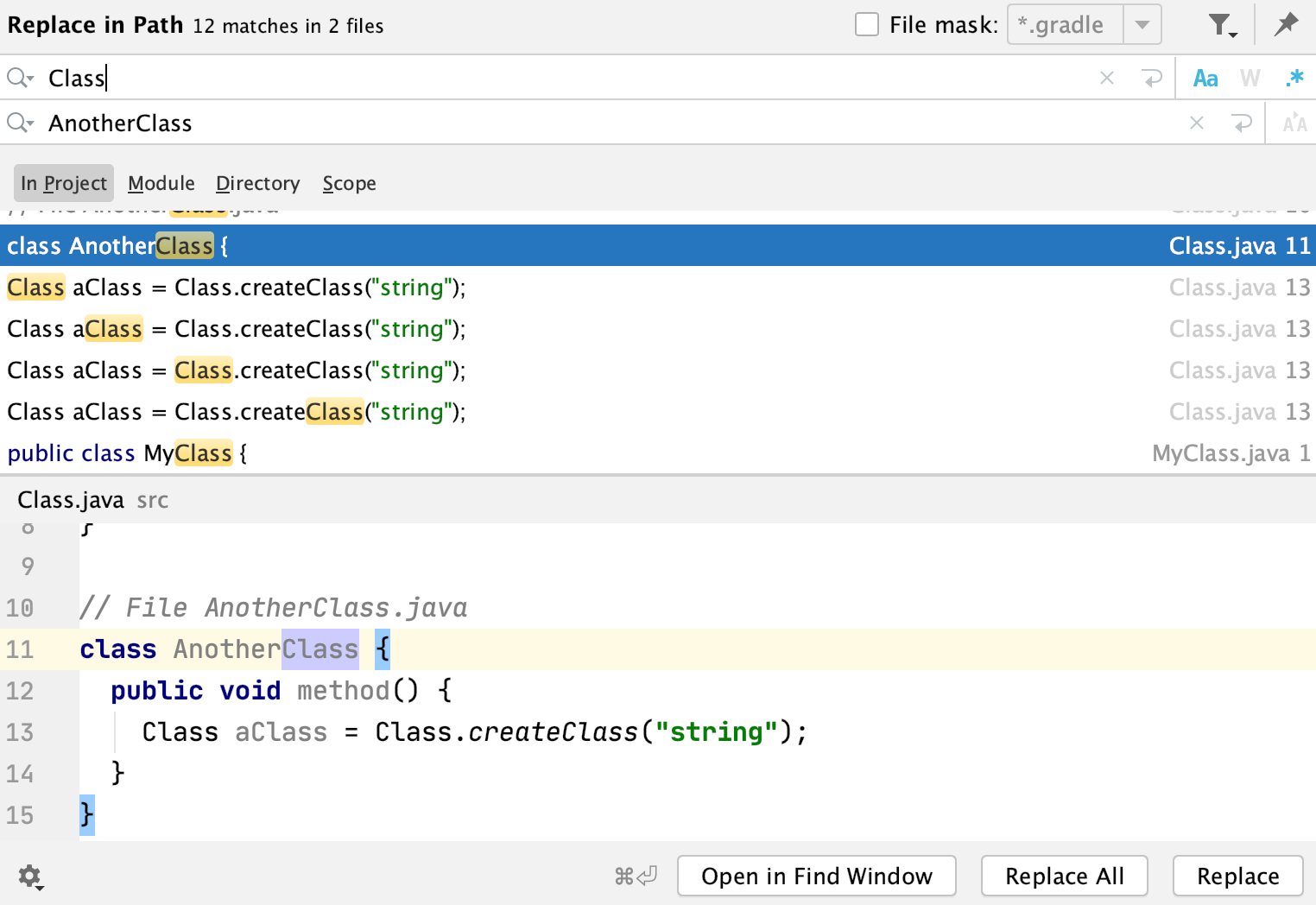
For example, if you want to replace a variable name with a new name for a large project, use the Replace in path instead of the Rename refactoring since your variable can appear in the config files as well.
Click one of the available Replace commands.
Work with the search results in the Find tool window
In the Find in Files dialog, click Open in Find Window to open the list of the search results in a separate window.
Using icons and context menu in the Find tool window, you can sort entries, exclude directories, navigate to the source code, and so on.
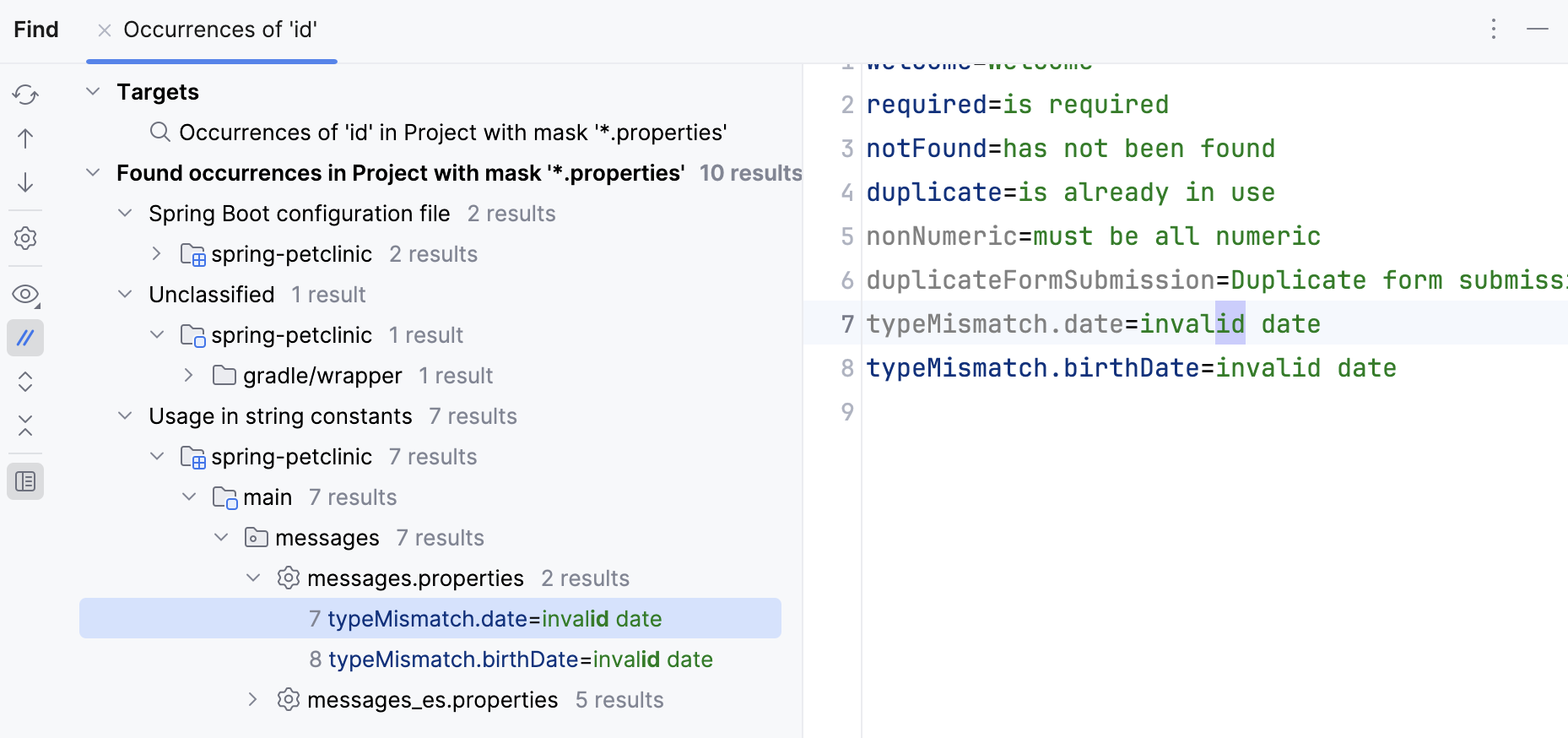
Check the following popular options:
If you want to exclude a directory from the results, select a directory and from the context menu, select Exclude.
To locate the result of the search in the editor, use the Jump to Source option from the context menu.
To return back to the Find in Files dialog, click
 on the left toolbar.
To sort the search entries, select in Show Options Menu (
).
For more information about the options and icon references of the Find tool window, refer to the Find tool window reference section.