File Colors
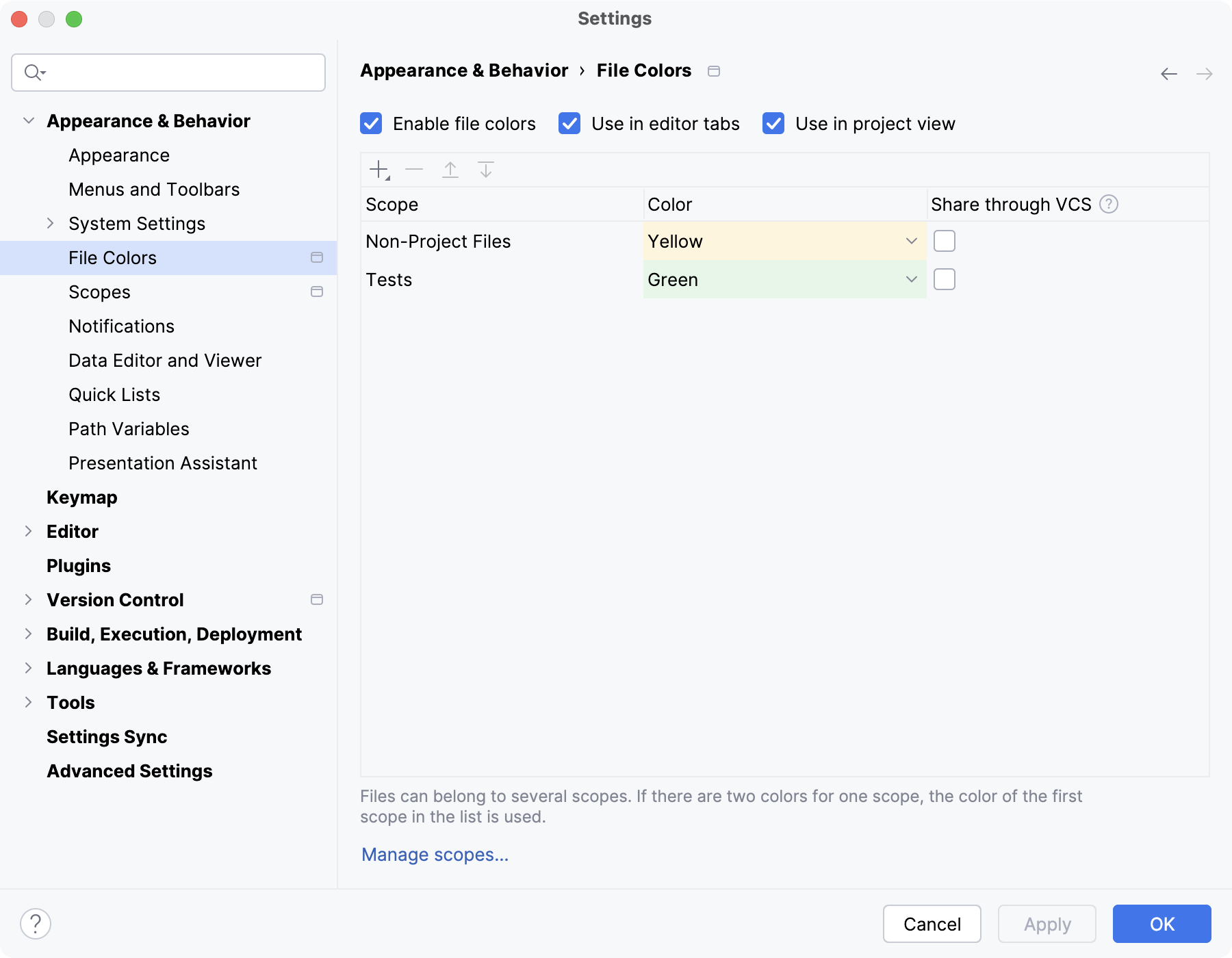
Use this page to set colors for distinguishing project files of specific scopes.
Item | Description |
|---|---|
Enable file colors | Select this checkbox to enable the feature. |
Use in editor tabs | Enable colors in editor tabs. |
Use in project view | Enable colors in the Project tool window (Alt+1) and in search results (for example, in the Find in Files dialog Ctrl+Shift+F). |
Manage scopes… | Click this button to define the required scopes. |
Configure colors
Similarly to scopes, color associations can be local and shared.
Local colors are only visible to you and are not shared through VCS.
Item | Tooltip | Description |
|---|---|---|
| Add | Open a list with the available scopes. Click |
| Remove | Remove the selected color-scope association. |
| Up / Down | Sort the color-scope associations and change the order in which they are applied. |
Share through VCS | Share the selected local scope through VCS. |

 next to the necessary scope in the list and select a color.
 /
/
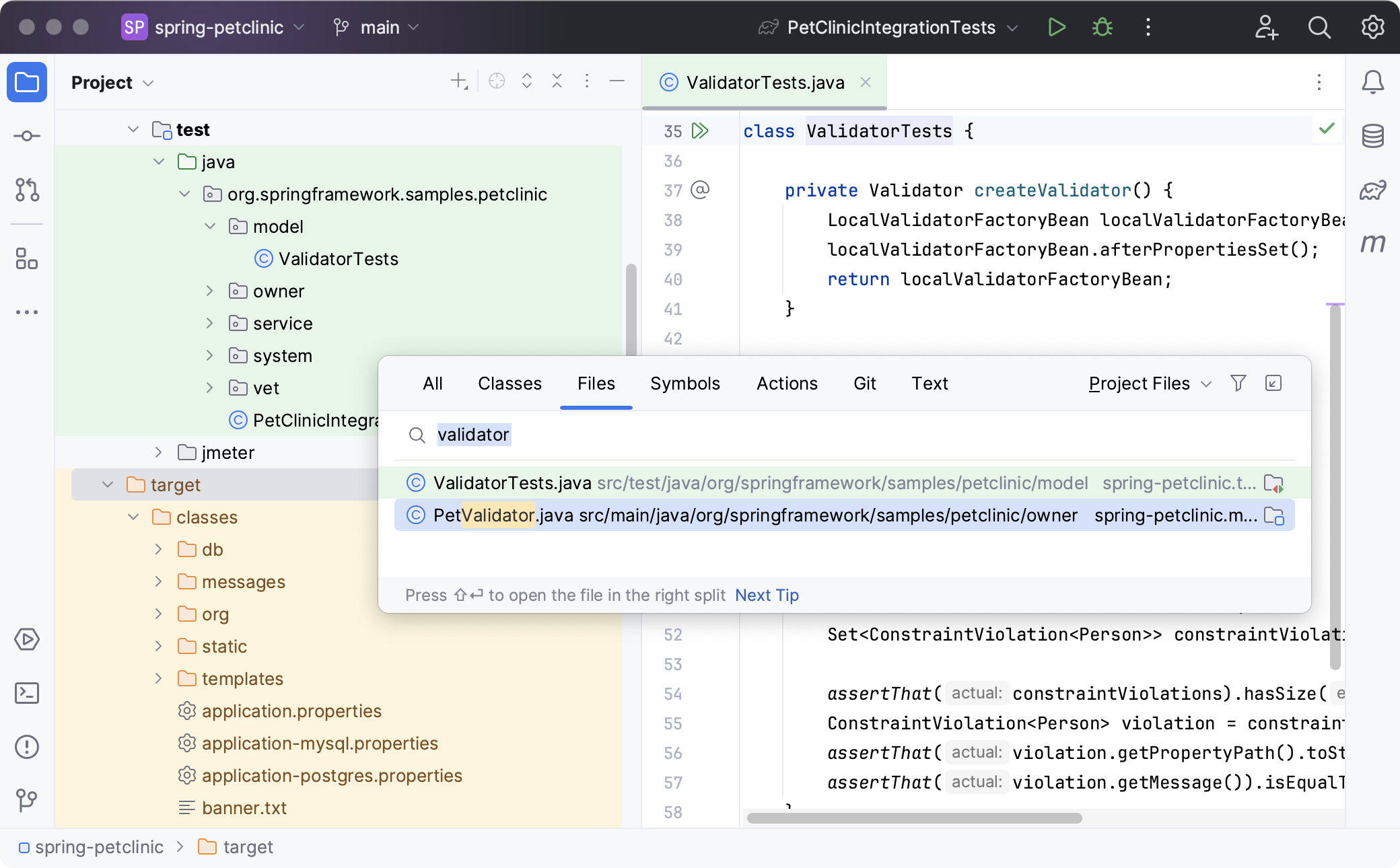
Apply the changes and close the dialog. After that you will see colors in the selected areas in the interface: