Change signature
The Change Signature refactoring combines several modifications that can be applied to a method signature or a class signature.
For a class, this refactoring can turn a class into a generic and manipulate its type parameters. It automatically corrects all calls, implementations and overriding of the class.
For a method, this refactoring can change the method name, add, remove, reorder, and rename parameters and exceptions, and propagate new parameters and exceptions through the hierarchy of calls.
Change signature in place
In the editor, start adding or editing the parameter of a class or a method. IntelliJ IDEA will display the Change Signature inlay hint in the editor.
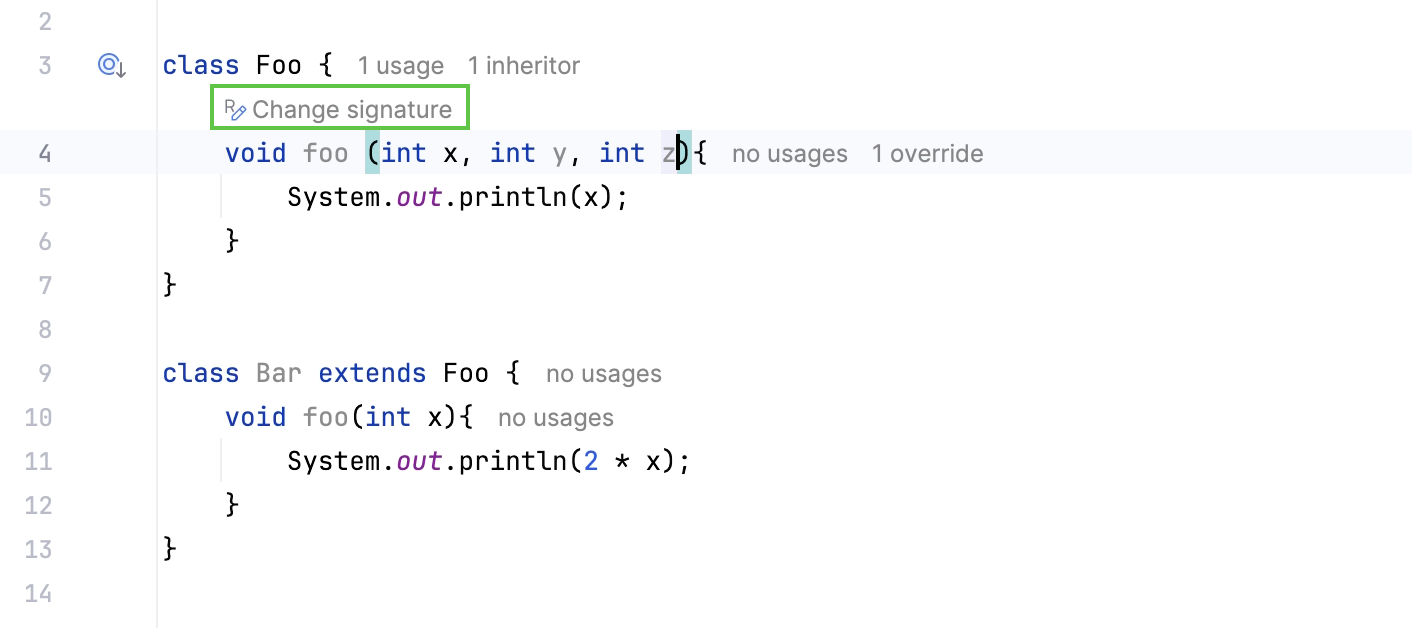
Click the inlay hint or press Alt+Enter.
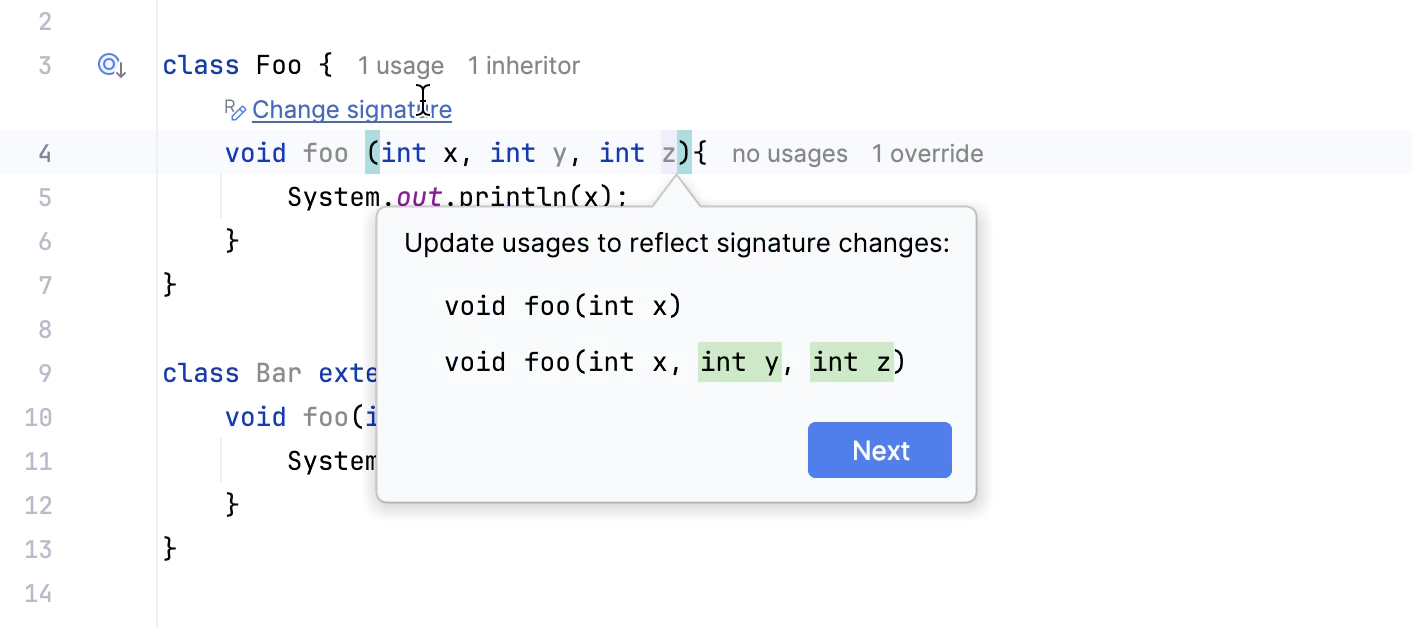
If you are editing a parameter, IntelliJ IDEA will offer to update the usages for you. Click Next to apply suggestions.
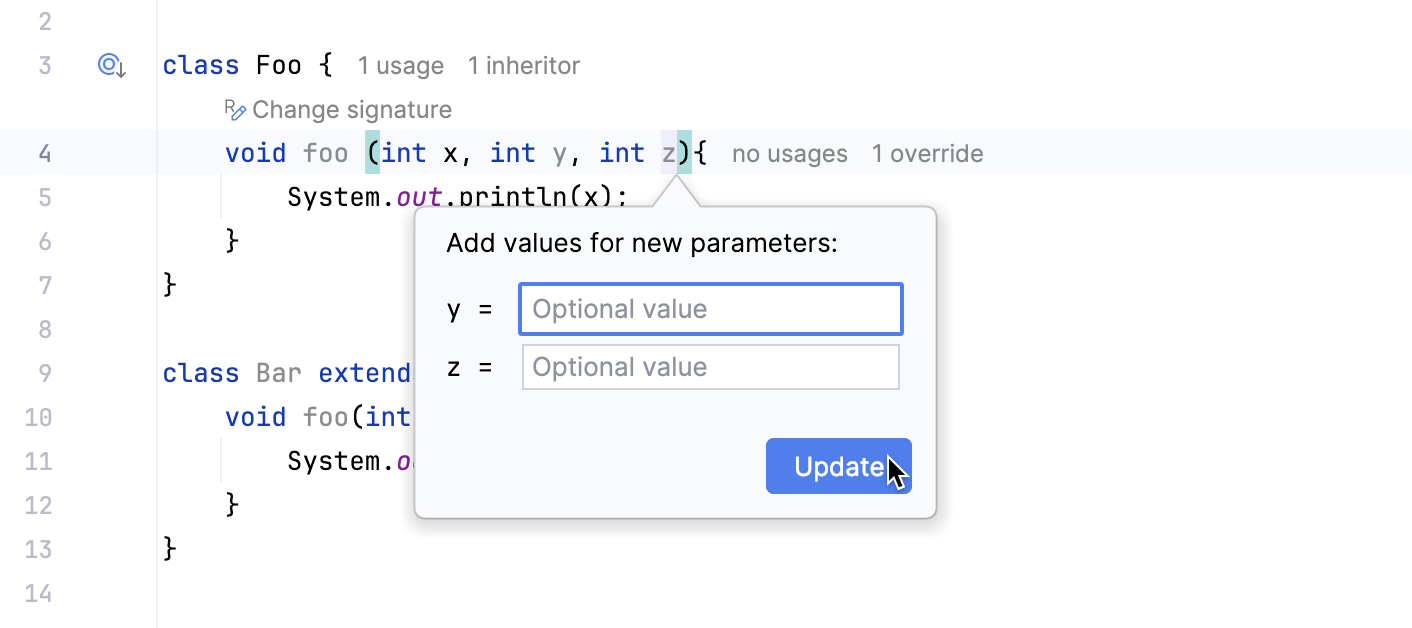
If you are adding a new parameter, IntelliJ IDEA will offer you to add a default value for it as well as update the usages. Click Update to apply default values.
Invoke the Change Signature dialog
Select method or a class for which you want to change signature.
From the context menu, select (Ctrl+F6).
In the dialog that opens depending on what you're changing signature for, specify the appropriate options and click Refactor. If you want to see a preview of your potential changes, click Preview.
Change Class Signature example
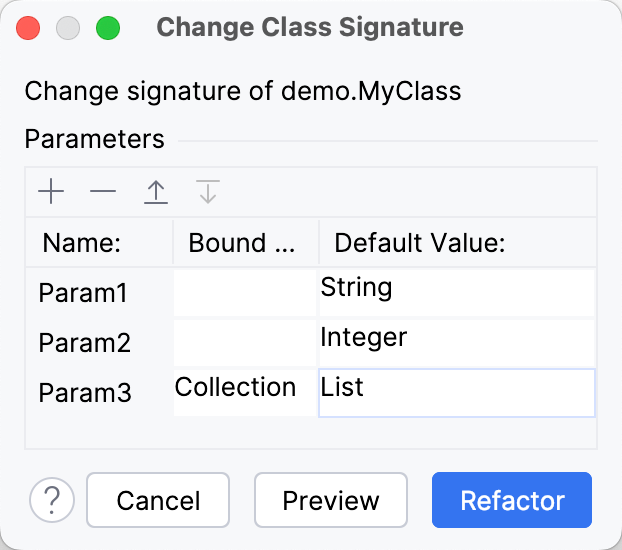
Let's add type parameters Param1, Param2 to a class MyClass.
String and Integer are default values that were specified in the Change Class Signature dialog for Param1 and Param2 respectively.
You can also add a bounded value for a parameter to put some restrictions on what gets passed to the type parameter. For example, add Param3 with default value List and bounded value Collection
Before | After |
|---|---|
public class MyClass {
public class MyOtherClass {
MyClass myClass;
void myMethod(MyClass myClass) {
}
}
}
|
public class MyClass<Param1, Param2, Param3 extends Collection> {
public class MyOtherClass {
MyClass<String, Integer> myClass;
void myMethod(MyClass<String, Integer, List> myClass) {
}
}
}
|
Change Method Signature example
You can add parameters to a method and specify different options in the Change Method Signature dialog to have different results.
You can also add exceptions to a method, and they will be propagated in a call hierarchy.
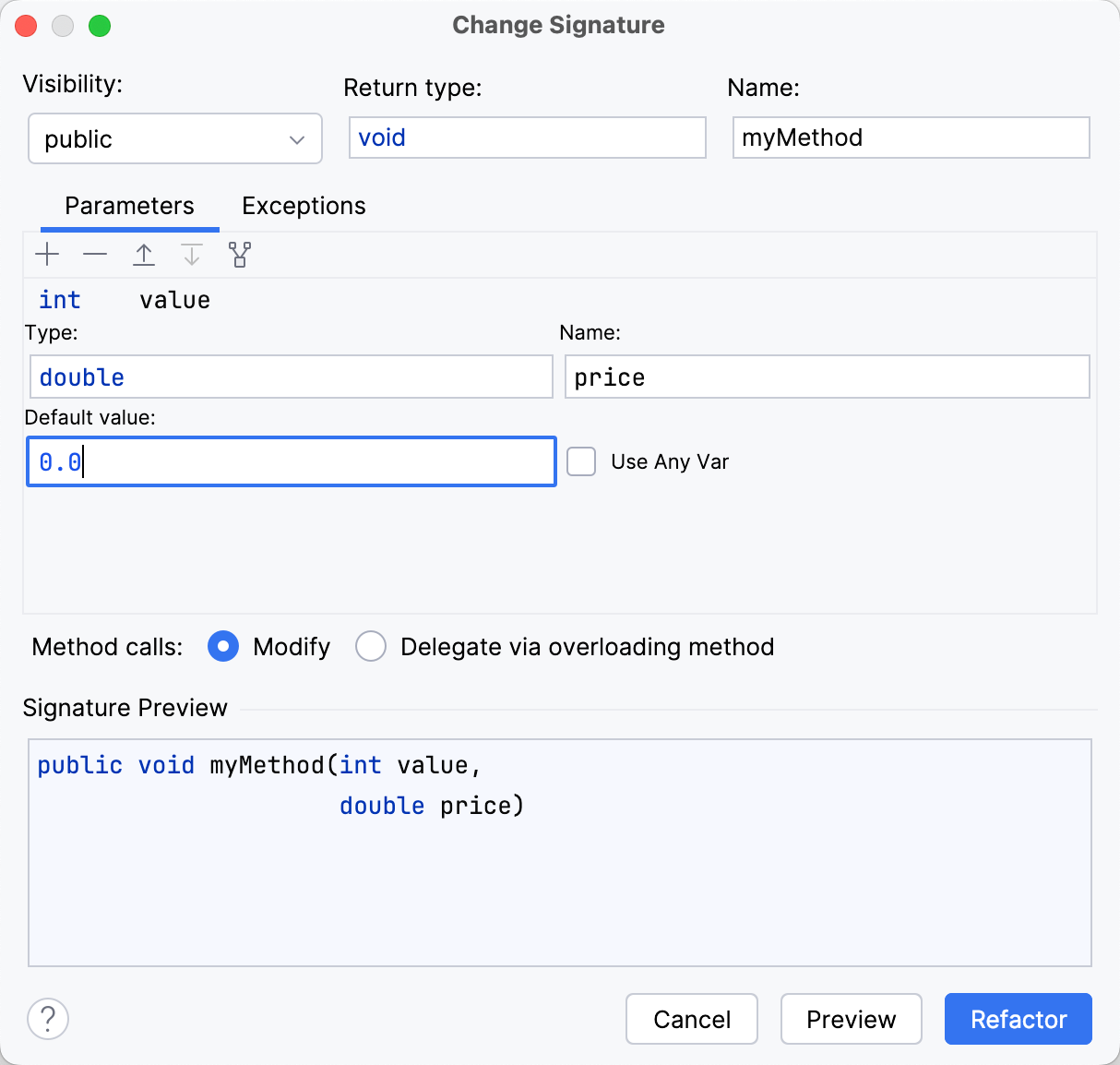
Add parameters
Let's add a parameter with a name price, type double, and a default value 0.0.
IntelliJ IDEA adds parameters to the method, updates method calls and specifies the default parameter value.
Before | After |
|---|---|
public class MyClass {
public void myMethod(int value) {
}
public class MyOtherClass {
public void myMethodCall(MyClass myClass) {
double d = 0.5;
myClass.myMethod(1);
}
}
}
|
public class MyClass {
public void myMethod(int i, double price) {
}
public class MyOtherClass {
public void myMethodCall(MyClass myClass) {
double d = 0.5;
myClass.myMethod(1, 0.0);
}
}
}
|
Use any variable
Let's update all the method calls and look for a variable of the appropriate type near the method call and pass it to the method. To achieve that check the Use Any Var option.
As a result, IntelliJ IDEA finds the variable d which has the same type as the new parameter and uses it in the method call.
Before | After |
|---|---|
public class MyClass {
public void myMethod(int value) {
}
public class MyOtherClass {
public void myMethodCall(MyClass myClass) {
double d = 0.5;
myClass.myMethod(1);
}
}
}
|
public class MyClass {
public void myMethod(int i, double price) {
}
public class MyOtherClass {
public void myMethodCall(MyClass myClass) {
double d = 0.5;
myClass.myMethod(1, d);
}
}
}
|
Overloading method
Let's ask IntelliJ IDEA to keep the method calls unchanged but create a new overloading method which will call the method with the new signature. To achieve that use the Delegate via overloading method option.
Note that the new overloading method has the old signature. However, it calls the method with the new signature. 0.0 was specified as the default parameter value when performing the refactoring.
Before | After |
|---|---|
public class MyClass {
public void myMethod(int value) {
}
public class MyOtherClass {
public void myMethodCall(MyClass myClass) {
double d = 0.5;
myClass.myMethod(1);
}
}
}
|
public class MyClass {
public void myMethod(int i) {
myMethod(i, 0.0);
}
public void myMethod(int i, double price) {
}
public class MyOtherClass {
public void myMethodCall(MyClass myClass) {
double d = 0.5;
myClass.myMethod(1);
}
}
}
|
Propagate parameters
Let's propagate  Alt+G the new parameter to the method call through the calling method
 myMethodCall().
As a result, the new parameter price propagates to the method call through the calling method and changes the method call accordingly.
Before | After |
|---|---|
public class MyClass {
public void myMethod(int value) {
}
public class MyOtherClass {
public void myMethodCall(MyClass myClass) {
double d = 0.5;
myClass.myMethod(1);
}
}
}
|
public class MyClass {
public void myMethod(int i, double price) {
}
public class MyOtherClass {
public void myMethodCall(MyClass myClass, double price) {
double d = 0.5;
myClass.myMethod(1, price);
}
}
}
|
Propagate exceptions
Let's add a method read that throws an exception IOException to a class MyClass.
Then let's create a new class ExtendsMyClass that will extend MyClass and override the original read method.
Now if we go back to MyClass and decide to add another exception, for example, TimeOutException through this refactoring, the method read will be updated the sub class as well.
Before | After |
|---|---|
public class MyClass {
public void read() throws IOException {
}
public void myMethod(int value) {
}
public class MyOtherClass {
public void myMethodCall(MyClass myClass) {
double d = 0.5;
myClass.myMethod(1);
}
}
}
//Let's create a new class "ExtendsMyClass".
public class ExtendsMyClass extends MyClass {
@Override
public void read() throws IOException {
super.read();
}
}
|
public class MyClass {
public void read() throws IOException, TimeOutException {
}
public void myMethod(int value) {
}
public class MyOtherClass {
public void myMethodCall(MyClass myClass) {
double d = 0.5;
myClass.myMethod(1);
}
}
}
//As you see, "TimeOutException" was added.
public class ExtendsMyClass extends MyClass {
@Override
public void read() throws IOException, TimeOutException {
super.read();
}
}
|
Add parameters
Click the
returnvalue that is highlighted in red color.Press Alt+Enter and select Create {0} ''{1}''.
In the Change Signature dialog, adjust parameter settings or accept suggested settings.
Click Refactor.
Change signature dialog
Item | Description |
|---|---|
Name | Name of a function, method, or a method specification. |
Parameters | List of parameters in the signature. In the Parameters field, you can perform the following actions with parameters:
|
 : Adds a new parameter. You can specify properties of the new parameter in the corresponding table row (a name, type, and a default value).
 : Removes a parameter.
 and
and  icons: Reorders parameters.
Java specific and Scala specific dialogs are available.