Quality Tools
PHP_CodeSniffer
In this section, enable and configure the PHP_CodeSniffer quality tool.
Item | Description |
|---|---|
Configuration | Select the required interpreter from the list. The list contains all the currently configured local and remote PHP interpreters. For more information, refer to Configure local PHP interpreters and Configure remote PHP interpreters. Clicking |
Show ignored files | Click to open the PHP_CodeSniffer Ignored Files dialog, which lists the files that PHP_CodeSniffer skips. PhpStorm suggests adding a new file to the list during inspection when waiting for response from the PHP_CodeSniffer exceeds the limit specified in the Tool process timeout field. This is done to prevent slowing down processing. For each file, PhpStorm displays its name and location.
|
Check files with extensions | Provide a comma-separated list of file extensions that should be checked by PHP_CodeSniffer. |
Show warnings as... | To have PHP_CodeSniffer report warnings in addition to errors, select the checkbox and choose the severity degree from the list. Clear the checkbox to have only errors reported and suppress reporting warnings. |
Show sniff name | Select the checkbox to have the corresponding sniff's name displayed in the editor or the inspection results in addition to the inspection summary. |
Installed standard paths | If you are relying on a custom third-party coding standard (for example, Coder or Joomla Coding Standards), you need to integrate it with PHP_CodeSniffer prior to using it. To do this, select the Installed standard paths checkbox, click |
Coding standard | Appoint the coding standard to apply.
|
 and locate the desired file in the dialog that opens.
 .
. .
. and select the custom standard installation directory in the dialog that opens.
PHP_CodeSniffer Dialog
The dialog opens when you click  next to the Configuration list on the PHP_CodeSniffer page.
Use this dialog to configure the used PHP interpreter, path to the PHP_CodeSniffer executable file, as well as PHP_CodeSniffer's behaviour. For more information, refer to PHP_CodeSniffer.
Item | Description |
|---|---|
Interpreters pane | The left-hand pane of the dialog shows the default PHP interpreter to use the PHP_CodeSniffer from. To add a different interpreter, click |
PHP_CodeSniffer path | In this field, specify the location of the PHP_CodeSniffer script: phpcs.bat for Windows or phpcs for Linux and macOS. PhpStorm detects the path to the PHP_CodeSniffer executable file in the To check that the specified path to phpcs.bat or phpcs ensures interaction between PhpStorm and PHP_CodeSniffer, that is, the tool can be launched from PhpStorm and PhpStorm will receive problem reports from it, click the Validate button. This validation is equal to running the |
Tool process timeout | In this field, specify how long you want PhpStorm to wait for a result from PHP_CodeSniffer. If the timeout is exceeded, the process is terminated to prevent excessive CPU and memory usage. This lets you fine-tune the PHP_CodeSniffer process behavior depending on the configuration of your computer and the rule sets used. |
PHP Code Beautifier and Fixer Settings | In this area, provide a custom path to the PHP Code Beautifier and Fixer tool in the Path to phpcbf field. Type the path manually or click PHP Code Beautifier and Fixer lets you automatically fix many of the errors detected by PHP_CodeSniffer. |
PHP CS Fixer
In this section, enable and configure the PHP CS Fixer quality tool.
Item | Description |
|---|---|
Configuration | Select the required interpreter from the list. The list contains all the currently configured local and remote PHP interpreters. For more information, refer to Configure local PHP interpreters and Configure remote PHP interpreters. Clicking |
Show ignored files | Click to open the PHP CS Fixer Ignored Files dialog, which lists the files that PHP CS Fixer skips. PhpStorm suggests adding a new file to the list during inspection when waiting for response from the PHP CS Fixer exceeds the limit specified in the Tool process timeout field. This is done to prevent slowing down processing. For each file, PhpStorm displays its name and location.
|
Allow risky rules for built-in rulesets | Select the checkbox to allow risky rules, that is, the rules that can change code behavior. By default, risky rules are not allowed. |
Ruleset | Appoint the ruleset to apply.
|
PHP CS Fixer Dialog
The dialog opens when you click next to the Configuration list on the PHP CS Fixer page.
Use this dialog to configure the used PHP interpreter, path to the PHP CS Fixer executable file, as well as PHP CS Fixer's behaviour. For more information, refer to PHP CS Fixer.
Item | Description |
|---|---|
Interpreters pane | The left-hand pane of the dialog shows the default PHP interpreter to use the PHP CS Fixer from. To add a different interpreter, click |
PHP CS Fixer path | In this field, specify the location of the PHP CS Fixer script: php-cs-fixer.bat for Windows or php-cs-fixer for Linux and macOS. PhpStorm detects the path to the PHP CS Fixer executable file in the To check that the specified path to php-cs-fixer.bat or php-cs-fixer ensures interaction between PhpStorm and PHP CS Fixer, that is, the tool can be launched from PhpStorm and PhpStorm will receive problem reports from it, click the Validate button. This validation is equal to running the |
Tool process timeout | In this field, specify how long you want PhpStorm to wait for a result from PHP CS Fixer. If the timeout is exceeded, the process is terminated to prevent excessive CPU and memory usage. This lets you fine-tune the PHP CS Fixer process behavior depending on the configuration of your computer and the rule sets used. |
Laravel Pint
In this section, enable and configure the Laravel Pint quality tool.
Item | Description |
|---|---|
Configuration | Select the required interpreter from the list. The list contains all the currently configured local and remote PHP interpreters. For more information, refer to Configure local PHP interpreters and Configure remote PHP interpreters. Clicking |
Show ignored files | Click to open the Laravel Pint Ignored Files dialog, which lists the files that Laravel Pint skips. PhpStorm suggests adding a new file to the list during inspection when waiting for response from the Laravel Pint exceeds the limit specified in the Tool process timeout field. This is done to prevent slowing down processing. For each file, PhpStorm displays its name and location.
|
Reformat only uncommitted files | Select the checkbox to only modify the files that have uncommitted changes. |
Path to pint.json | Specify the path to your own |
Ruleset | Select one of Laravel Pint's predefined group of rules. |
Laravel Pint Dialog
The dialog opens when you click next to the Configuration list on the Laravel Pint page.
Use this dialog to configure the used PHP interpreter, path to the Laravel Pint executable file, as well as Laravel Pint's behaviour. For more information, refer to Laravel Pint.
Item | Description |
|---|---|
Interpreters pane | The left-hand pane of the dialog shows the default PHP interpreter to use the Laravel Pint from. To add a different interpreter, click |
Laravel Pint path | In this field, specify the location of the Laravel Pint script: pint.bat for Windows or pint for Linux and macOS. PhpStorm detects the path to the Laravel Pint executable file in the To check that the specified path to pint.bat or pint ensures interaction between PhpStorm and Laravel Pint, that is, the tool can be launched from PhpStorm and PhpStorm will receive problem reports from it, click the Validate button. If validation passes successfully, PhpStorm displays the information on the detected Laravel Pint version. |
Tool process timeout | In this field, specify how long you want PhpStorm to wait for a result from Laravel Pint. If the timeout is exceeded, the process is terminated to prevent excessive CPU and memory usage. This lets you fine-tune the Laravel Pint process behavior depending on the configuration of your computer and the rule sets used. |
PHP Mess Detector
In this section, enable and configure the Mess Detector quality tool.
Item | Description |
|---|---|
Configuration | Select the required interpreter from the list. The list contains all the currently configured local and remote PHP interpreters. For more information, refer to Configure local PHP interpreters and Configure remote PHP interpreters. Clicking |
Show ignored files | Click to open the Mess Detector Ignored Files dialog, which lists the files that Mess Detector skips. PhpStorm suggests adding a new file to the list during inspection when waiting for response from the Mess Detector exceeds the limit specified in the Tool process timeout field. This is done to prevent slowing down processing. For each file, PhpStorm displays its name and location.
|
Options |
|
Mess Detector Dialog
The dialog opens when you click next to the Configuration list on the Mess Detector page.
Use this dialog to configure the used PHP interpreter, path to the Mess Detector executable file, as well as Mess Detector's behaviour. For more information, refer to PHP Mess Detector.
Item | Description |
|---|---|
Interpreters pane | The left-hand pane of the dialog shows the default PHP interpreter to use the Mess Detector from. To add a different interpreter, click |
Mess Detector path | In this field, specify the location of the Mess Detector script: phpmd.bat for Windows or phpmd for Linux and macOS. PhpStorm detects the path to the Mess Detector executable file in the To check that the specified path to phpmd.bat or phpmd ensures interaction between PhpStorm and Mess Detector, that is, the tool can be launched from PhpStorm and PhpStorm will receive problem reports from it, click the Validate button. This validation is equal to running the |
Tool process timeout | In this field, specify how long you want PhpStorm to wait for a result from Mess Detector. If the timeout is exceeded, the process is terminated to prevent excessive CPU and memory usage. This lets you fine-tune the Mess Detector process behavior depending on the configuration of your computer and the rule sets used. |
Psalm
In this section, enable and configure the Psalm quality tool.
Item | Description |
|---|---|
Configuration | Select the required interpreter from the list. The list contains all the currently configured local and remote PHP interpreters. For more information, refer to Configure local PHP interpreters and Configure remote PHP interpreters. Clicking |
Show ignored files | Click to open the Psalm Ignored Files dialog, which lists the files that Psalm skips. PhpStorm suggests adding a new file to the list during inspection when waiting for response from the Psalm exceeds the limit specified in the Tool process timeout field. This is done to prevent slowing down processing. For each file, PhpStorm displays its name and location.
|
Configuration file | Provide the path to the Psalm configuration file. If the file is not present, PhpStorm displays the notification prompting you to create it. 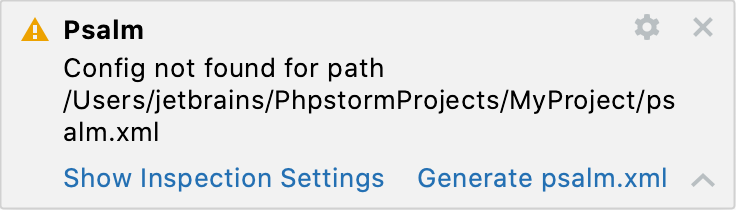 |
Show info | Select the checkbox to have Psalm report the errors that are at a lower level than the errorLevel specified in the configuration file. If the checkbox is not selected, such errors will be ignored. |
Find unused code | Select the checkbox to have Psalm report the located unused code (including unused variables). |
Find unused @psalm-suppress annotations | Select the checkbox to have Psalm report all unused @psalm-suppress annotations. |
Psalm Dialog
The dialog opens when you click next to the Configuration list on the Psalm page.
Use this dialog to configure the used PHP interpreter, path to the Psalm executable file, as well as Psalm's behaviour. For more information, refer to Psalm.
Item | Description |
|---|---|
Interpreters pane | The left-hand pane of the dialog shows the default PHP interpreter to use the Psalm from. To add a different interpreter, click |
Psalm path | In this field, specify the location of the Psalm script: psalm.bat for Windows or psalm for Linux and macOS. PhpStorm detects the path to the Psalm executable file in the To check that the specified path to psalm.bat or psalm ensures interaction between PhpStorm and Psalm, that is, the tool can be launched from PhpStorm and PhpStorm will receive problem reports from it, click the Validate button. This validation is equal to running the |
Tool process timeout | In this field, specify how long you want PhpStorm to wait for a result from Psalm. If the timeout is exceeded, the process is terminated to prevent excessive CPU and memory usage. This lets you fine-tune the Psalm process behavior depending on the configuration of your computer and the rule sets used. |
PHPStan
In this section, enable and configure the PHPStan quality tool.
Item | Description |
|---|---|
Configuration | Select the required interpreter from the list. The list contains all the currently configured local and remote PHP interpreters. For more information, refer to Configure local PHP interpreters and Configure remote PHP interpreters. Clicking |
Show ignored files | Click to open the PHPStan Ignored Files dialog, which lists the files that PHPStan skips. PhpStorm suggests adding a new file to the list during inspection when waiting for response from the PHPStan exceeds the limit specified in the Tool process timeout field. This is done to prevent slowing down processing. For each file, PhpStorm displays its name and location.
|
Full project run (batch mode only) | Use the option to select whether the entire project or only its source roots are included in the inspection run scope. |
Editor mode (requires PHPStan 1.12.27+ / 2.1.17+) | With the checkbox selected, PhpStorm runs PHPStan checks with the For more information about editor mode in PHPStan, see PHPStan documentation. |
Level | Provide the desired Rule Level against which the PHPStan checks are performed. Note that if a configuration file is provided, PhpStorm relies on the level value specified in this file, and the Level field is ignored. |
Configuration file | Provide the path to the PHPStan configuration file. |
Autoload file | Provide the path to the autoloader. Note that if a configuration file is provided, PhpStorm relies on the autoload-file value specified in this file, and the Autoload file field is ignored. |
Memory limit | Provide the maximum amount of RAM PHPStan is allowed to allocate. You can either provide an explicit integer value in bytes or use a shorthand notation ( |
PHPStan Dialog
The dialog opens when you click next to the Configuration list on the PHPStan page.
Use this dialog to configure the used PHP interpreter, path to the PHPStan executable file, as well as PHPStan's behaviour. For more information, refer to PHPStan.
Item | Description |
|---|---|
Interpreters pane | The left-hand pane of the dialog shows the default PHP interpreter to use the PHPStan from. To add a different interpreter, click |
PHPStan path | In this field, specify the location of the PHPStan script: phpstan.bat for Windows or phpstan for Linux and macOS. PhpStorm detects the path to the PHPStan executable file in the To check that the specified path to phpstan.bat or phpstan ensures interaction between PhpStorm and PHPStan, that is, the tool can be launched from PhpStorm and PhpStorm will receive problem reports from it, click the Validate button. This validation is equal to running the |
Tool process timeout | In this field, specify how long you want PhpStorm to wait for a result from PHPStan. If the timeout is exceeded, the process is terminated to prevent excessive CPU and memory usage. This lets you fine-tune the PHPStan process behavior depending on the configuration of your computer and the rule sets used. |
External formatters
In this section, you can set up some of the code quality tools to be used as an external formatter during code reformatting.
Item | Description |
|---|---|
External formatters | The following code quality tools can be used as external formatters:
|