External tools
Configure third-party command-line applications as external tools to run them from IntelliJ IDEA.
For example, your workflow may require running a specific script, code generator, analyzer, preprocessor or postprocessor, some database utility, and so on. By configuring it as an external tool, IntelliJ IDEA provides a dedicated action for it, which you can run from the main menu, from certain context menus, assign a shortcut to it, or run it when launching a specific run configuration.
You can use built-in IDE macros to pass context-dependent command-line arguments to the tool, such as the current file or your project source path. If necessary, IntelliJ IDEA will print the tool's output to the console.
IntelliJ IDEA supports the following types of external tools:
Local tools run locally on your computer.
Remote tools are executed on a remote server over SSH.
Add a local external tool
This example demonstrates how to add Emacs as an external tool and use it to open and edit files in your project.
Press Ctrl+Alt+S to open settings and then select .
Click
 and specify the tool's settings.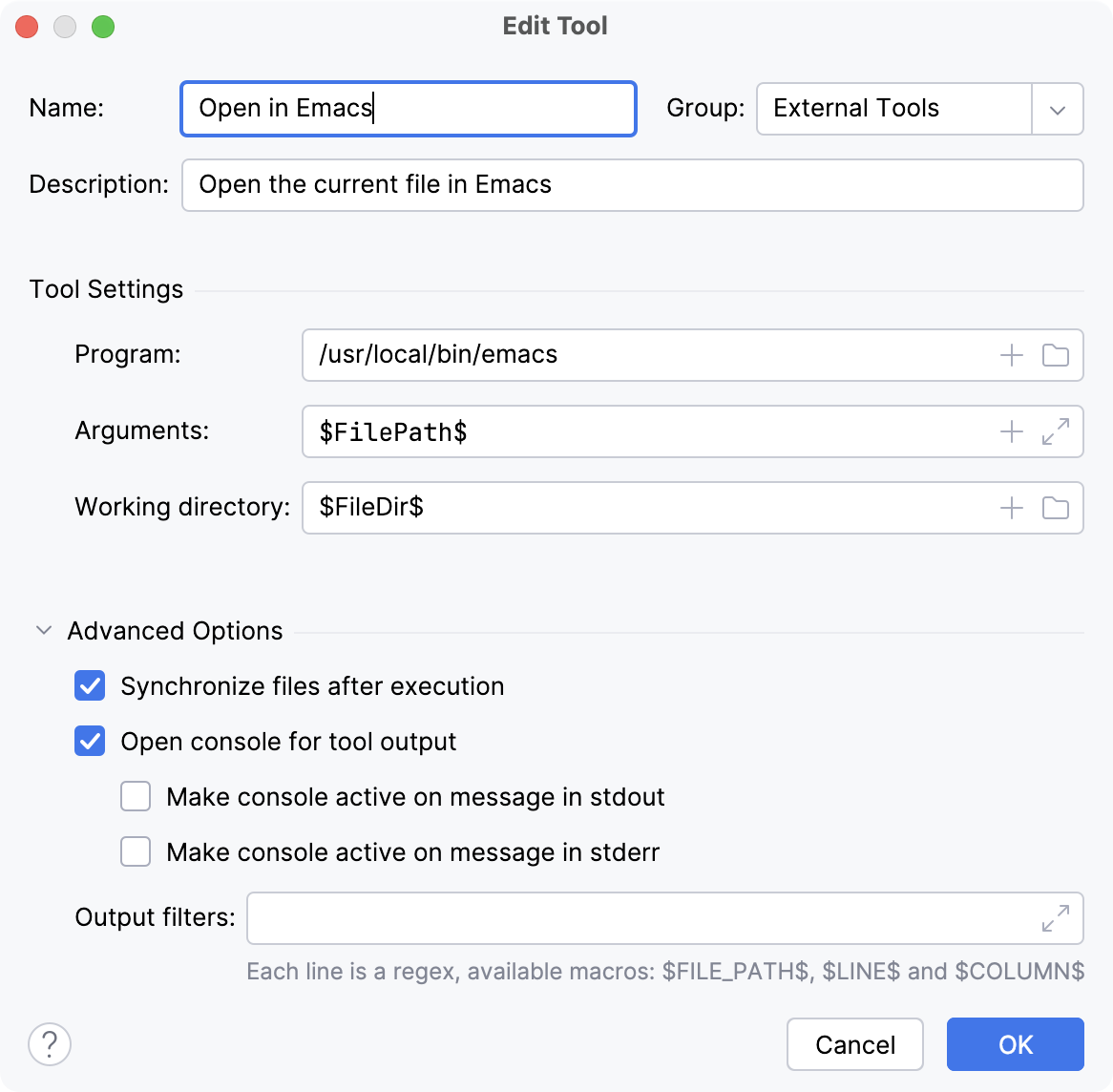
For more information, refer to External tools settings.
Click OK to add the tool and then apply the changes.
Run the added local external tool
To open the selected file in the newly added Emacs tool, do one of the following:
In the main menu, go to .
Right-click a file in the Project tool window and select from the context menu.
Create a shortcut to run the tool.
Press Ctrl+Alt+S to open settings and then select . Find the Emacs action under the External Tools node, and assign a shortcut for it.
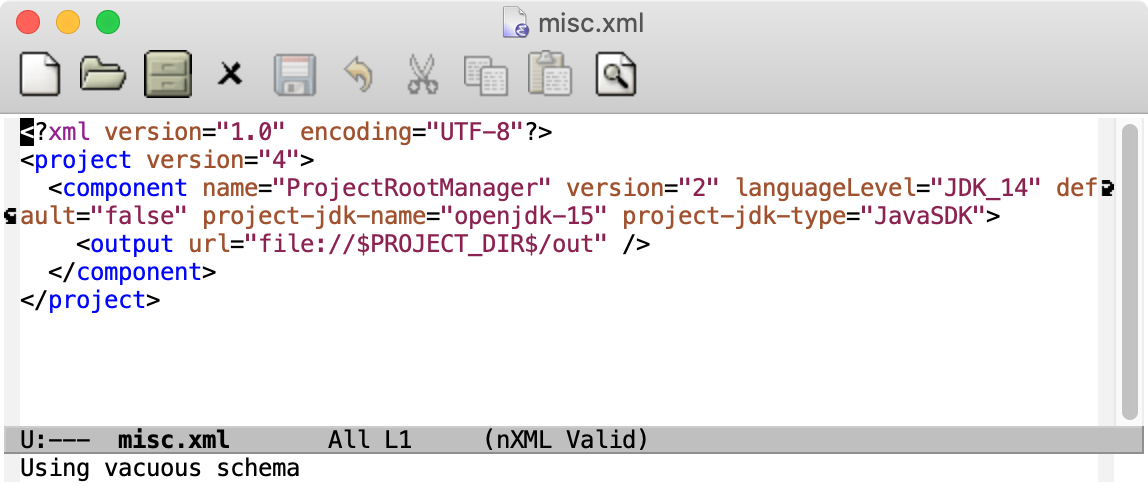
When you run the tool, the selected file opens in a separate window.
Add a remote external tool
This feature is available only in IntelliJ IDEA Ultimate
Remote SSH external tools are configured similarly to local external tools, but also define the remote server on which they are executed and require credentials for connecting to it via SSH.
This example demonstrates how to add date as a remote SSH external tool that is executed on a remote server over SSH and returns the current date and time on it.
Press Ctrl+Alt+S to open settings and then select .
Click
to open the Create Tool dialog.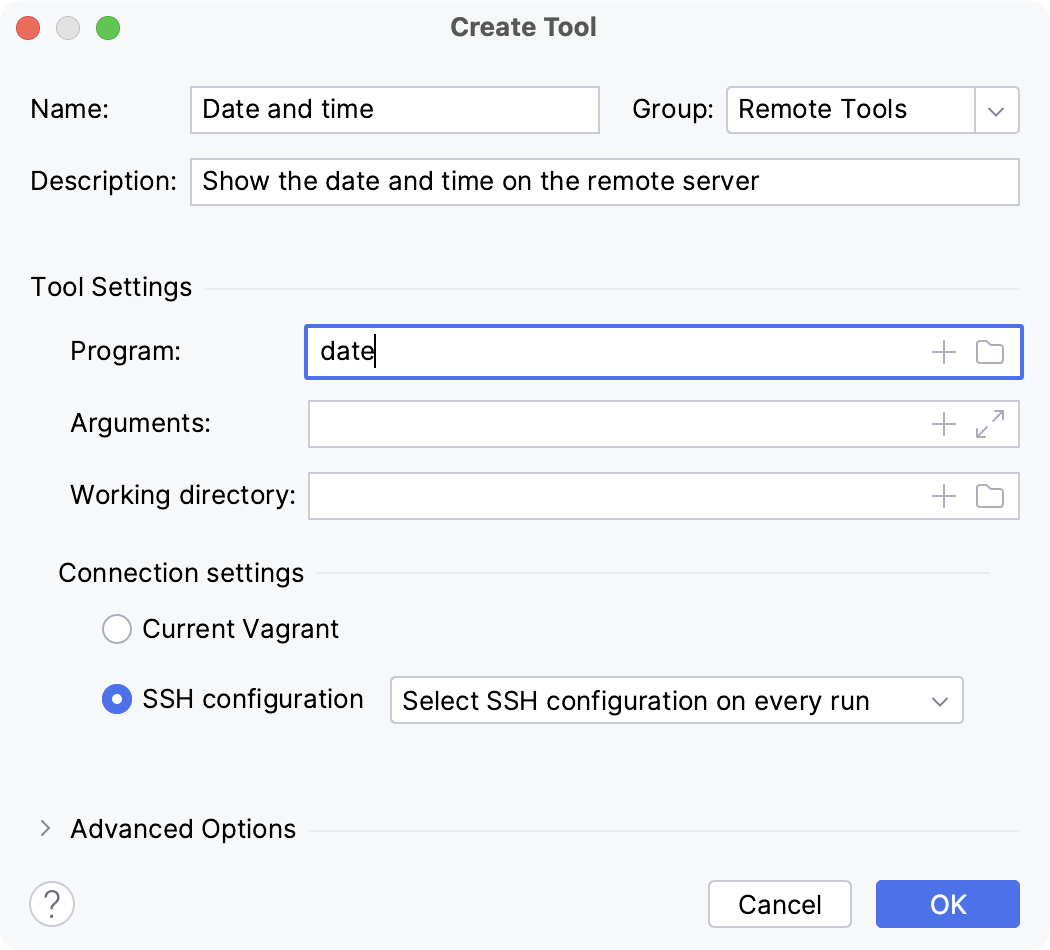
This dialog provides the same set of settings as when you add a local external tool, but also allows you to select a remote connection. If you don't specify the connection settings, IntelliJ IDEA will ask you for the host, port, and relevant SSH credentials every time you run the tool on the server. For more information, refer to Remote external tools settings.
Click OK to add the tool and then apply the changes.
Run the added tool on a remote server
This feature is available only in IntelliJ IDEA Ultimate
Do one of the following:
In the main menu, go to and the name of the added remote external tool.
Create a shortcut to run the tool.
Press Ctrl+Alt+S to open settings and then select . Find the action with the name of your configured remote external tool, and assign a shortcut for it.
After you specify the host, port, and credentials, IntelliJ IDEA will connect to the server via SSH and run the date command, returning the output to the Run tool window in IntelliJ IDEA.
Web browsers
You can use a web browser to open any file from your project. By default, it is used to preview the output of an HTML file or run and debug web applications.
Open a file in a web browser
To open a file that is intended to be rendered by a web browser (HTML, XML, JSP, and so on), do one of the following:
Open the file in the editor and press Alt+F2.
Right-click the file in the Project tool window and select Open in Browser.
In the main menu, go to View | Open in Browser.
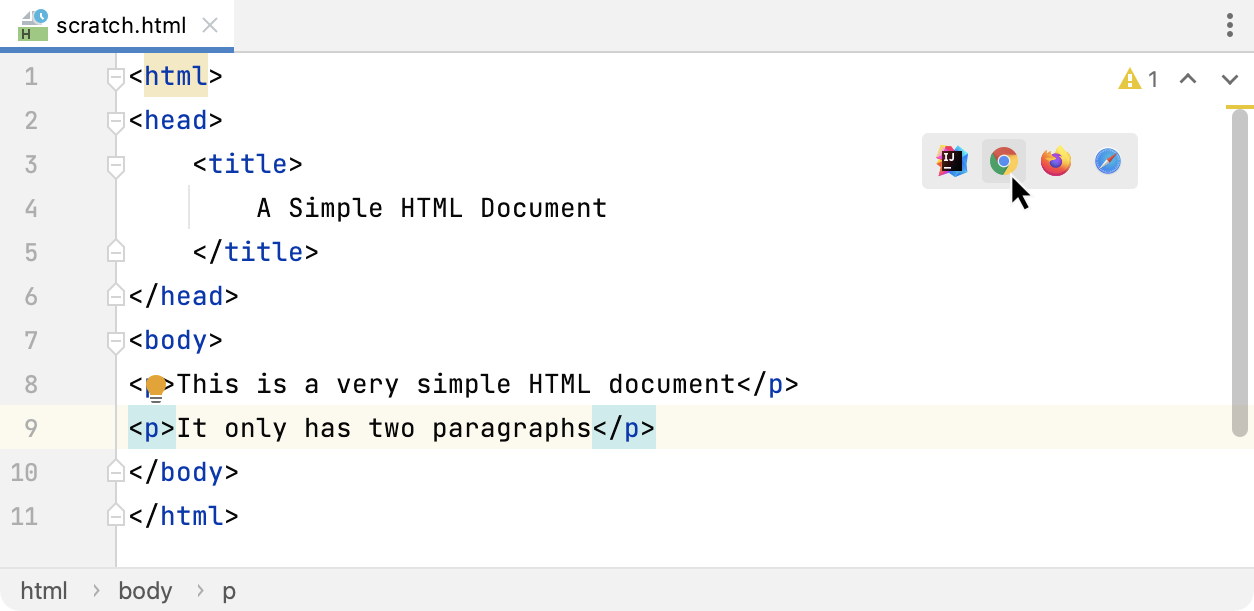
Use the browser popup in the top right part of the editor window (appears on hover). Click the browser button to open the web server file URL, or Shift+Click it to open the local file URL.
The Open in Browser action is not available for other file types. However, you can still execute it using Find Action Ctrl+Shift+A.
View and configure the list of browsers
In the Settings dialog (Ctrl+Alt+S) , select Tools | Web Browsers and Preview.
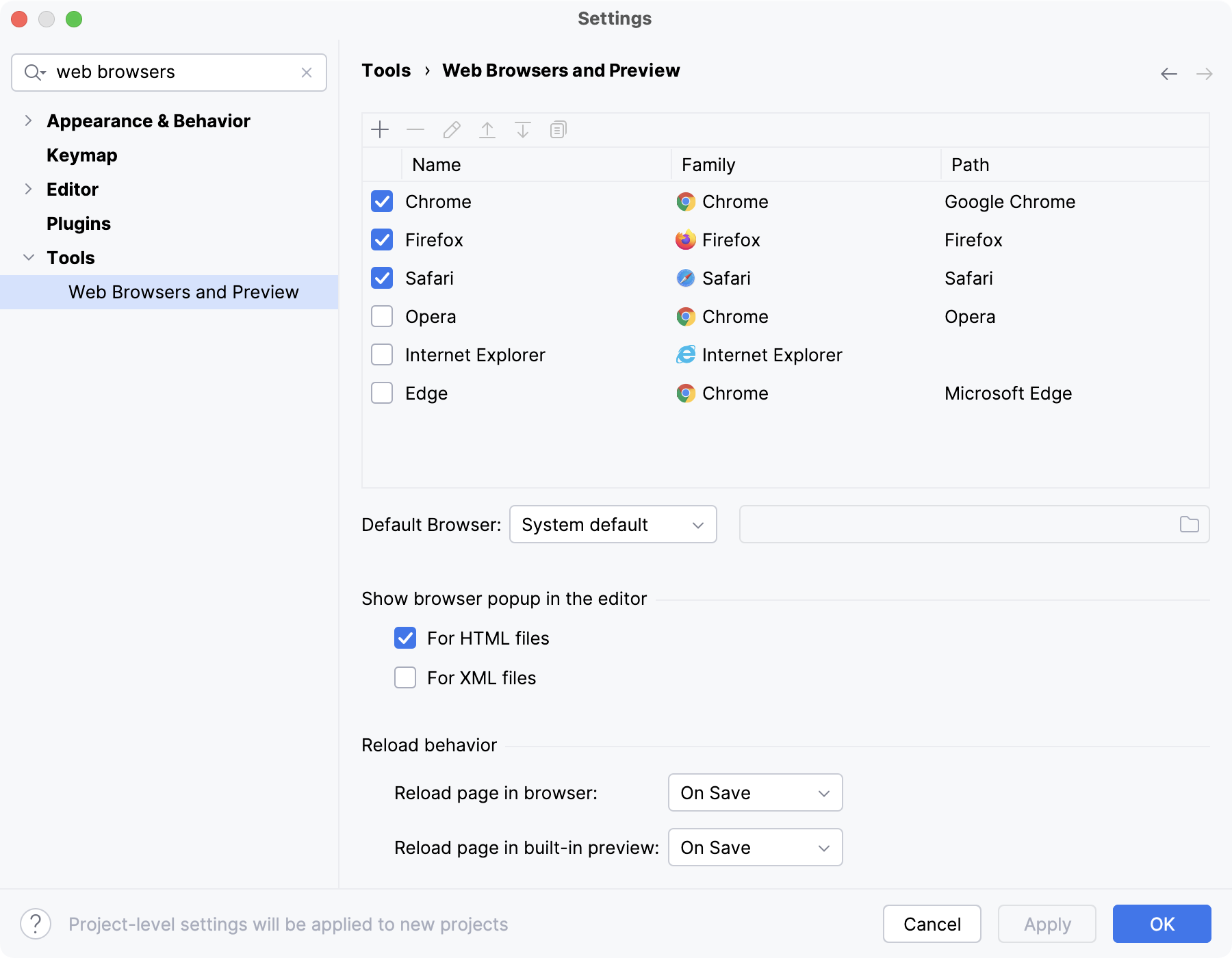
If a browser was installed using a standard procedure, the alias in the Path field should point to the right location. If it does not, specify the path to the corresponding executable file.
Use custom profile and settings
You can configure custom profiles for Firefox and Chrome family browsers.
In the Settings dialog (Ctrl+Alt+S) , select Tools | Web Browsers and Preview.
Select the browser in the list and click
 .
.For Firefox, specify the path to the profiles.ini file and choose the profile to use. For more information, refer to Firefox browser profile.
For Chrome, select Use custom user data directory and specify the location of the user data directory.
You can also specify additional command-line options to use when running Chrome from IntelliJ IDEA. For more information, open
chrome://flagsin the Chrome address bar.