Configure annotation processors
You can configure IntelliJ IDEA to process custom annotations during the compilation time. The process of generating code at compile time to handle the annotations is called Annotation Processing.
The annotation processor can validate, generate, and modify your code based on the annotations, which help you significantly reduce the amount of code you need to write. The annotation processor could be stored inside your project. In this case IntelliJ IDEA obtains it from the classpath. If the annotation processor is stored outside the project then you need to add a path of the annotation processor JAR manually.
When you add annotation processors through the build scripts in Maven or Gradle projects, IntelliJ IDEA automatically enables the annotation processing and adds the appropriate paths in the annotation processor settings.
Annotation processing profile
An annotation profile is a set of configuration options for annotation processing. The options include a location of the annotation processing output, specific annotation processors, and their parameters.
The default profile always exists. All the modules comprising a project use the default profile. You can create a new profile, group several modules under it and configure annotation processing for the specified group of modules.
Configure an annotation profile
Press Ctrl+Alt+S to open settings and then select .
On the Annotation Processors page, click
 on the bottom of the page.
In the Create new profile dialog, specify the profile name.
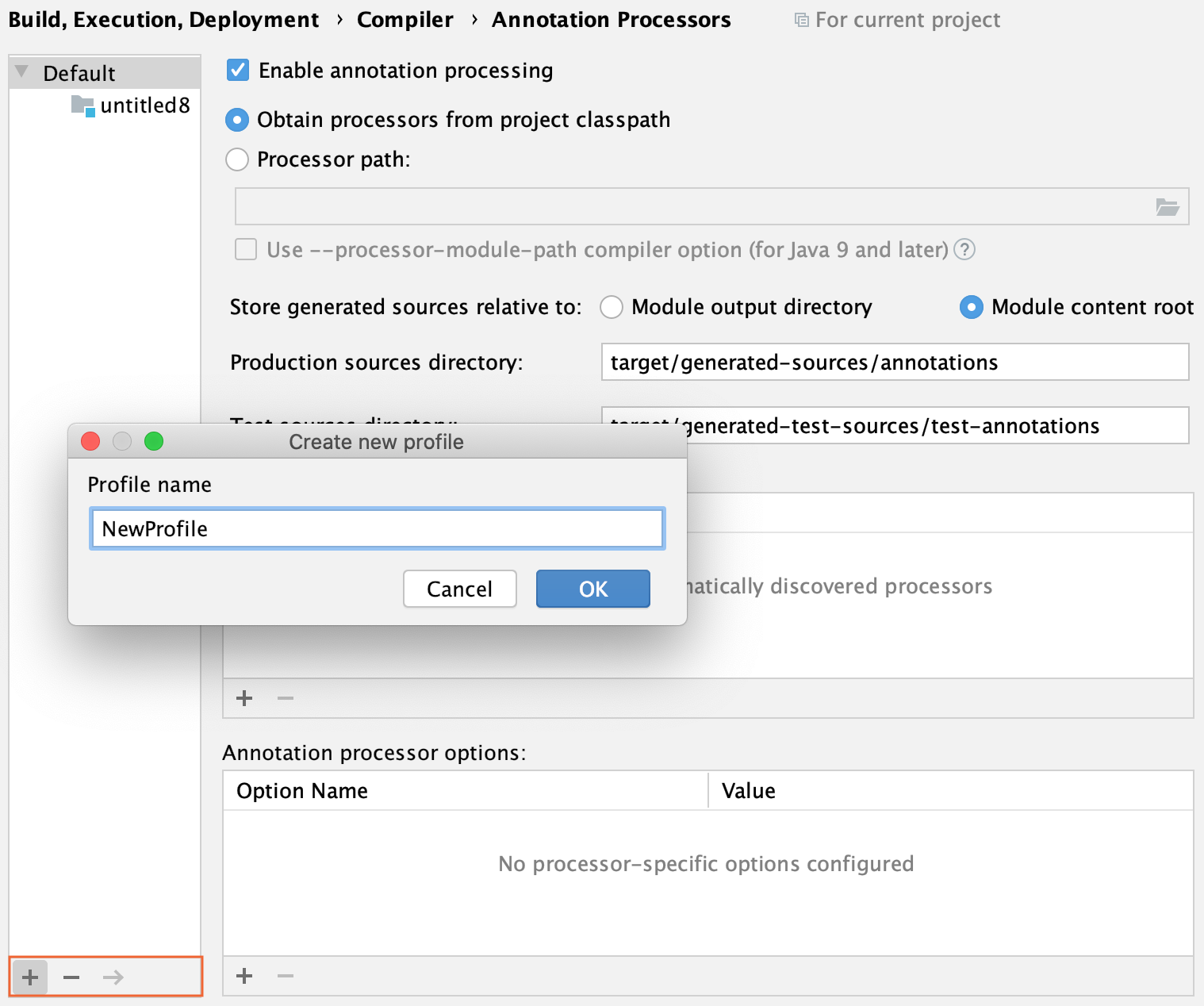
To move a module to the created profile, select the module you need, click
 (F6) and select the target profile.
Configure the annotation processing for a profile
Select the desired annotation profile.
Select Enable annotation processing and configure the following options:
Obtain processors from project classpath: leave this option enabled if you use a custom annotation processor as part of your project, or if the processor is stored in a .jar file attached to all the corresponding modules as a library.
Processor path: select this option and specify the path to the annotation processor if it is stored outside the project.
In case of a Gradle project that has the
annotationProcessordependency specified in the build.gradle file, this field will contain a path to annotation processor used by Gradle when you import your Gradle project. When you build such project with Gradle, IntelliJ IDEA generates the appropriate subdirectories inside the build directory in the Project tool window.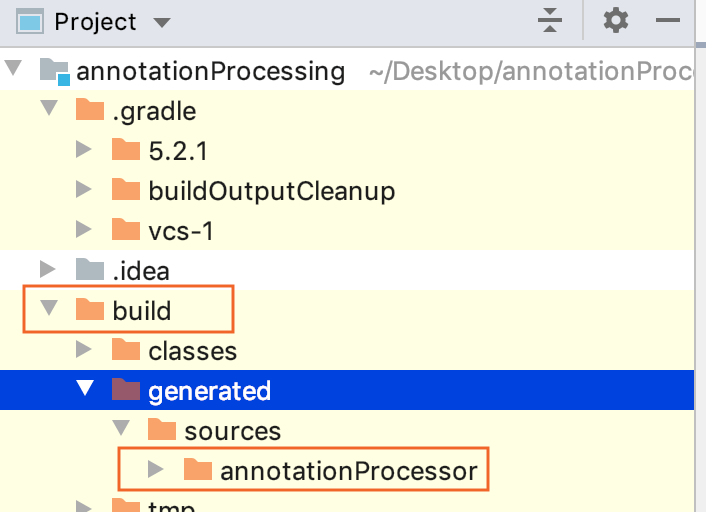
In case of a Maven project, the field will contain a path to annotation processor specified in pom.xml.
Use --processor-module-path compiler option (for java 9 and later): assume that the specified path is a module path: a path of JARs or directories containing packaged Java modules. In order to be discovered and run from the module path, an annotation processor should be packaged as a Java module and registered with the ServiceLoader in the module declaration.
Store generated sources relative to: use the Module output directory and Module content root options to define where the sources generated by the annotation processors are stored, and to override the default behaviour for a profile.
Production sources and Test sources: use these fields to specify the name of the directory where the annotation processor output will be stored. If the field is left blank, the files generated by the annotation processor will be stored under the project output directory. When the name is specified, the directory with this name will be created under the content root after automatic annotation processing.
Processor FQ Name: specify the fully qualified names of the processors to be launched. If nothing is specified, then IntelliJ IDEA will launch all the processors detected in the specified location.
Annotation processor options: use this area to configure processor run options either as
-key=value, orkey=value. Use spaces to separate individual options.