Use this page to specify the default code folding settings. For shortcuts on how to expand or collapse code elements, refer to the code folding section.
Item
Description
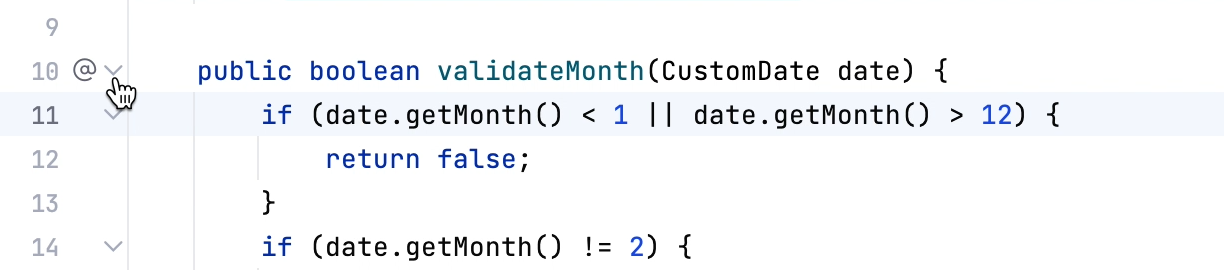
Show code folding arrows
Display code folding icons in the editor.
From the list, select the way in which the icons for unfolded areas should be displayed:
Always: code folding icons are always displayed in the gutter.
On mouse hover: code folding icons appear only when you hover over the gutter.
Show bottom arrows: display the bottom folding arrows in the gutter as well. Otherwise, only the top arrows are shown.
Fold by default
Select the code fragments that should be folded by default, that is, when a file is first opened in the editor.
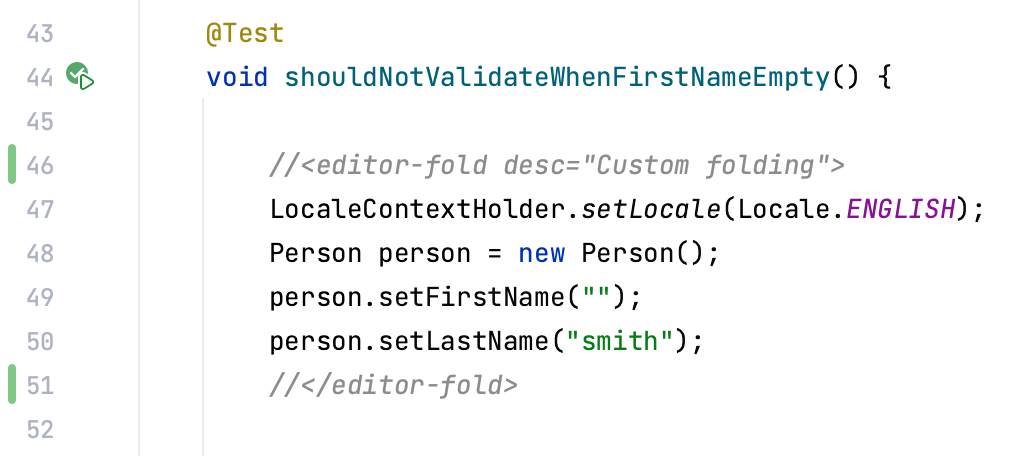
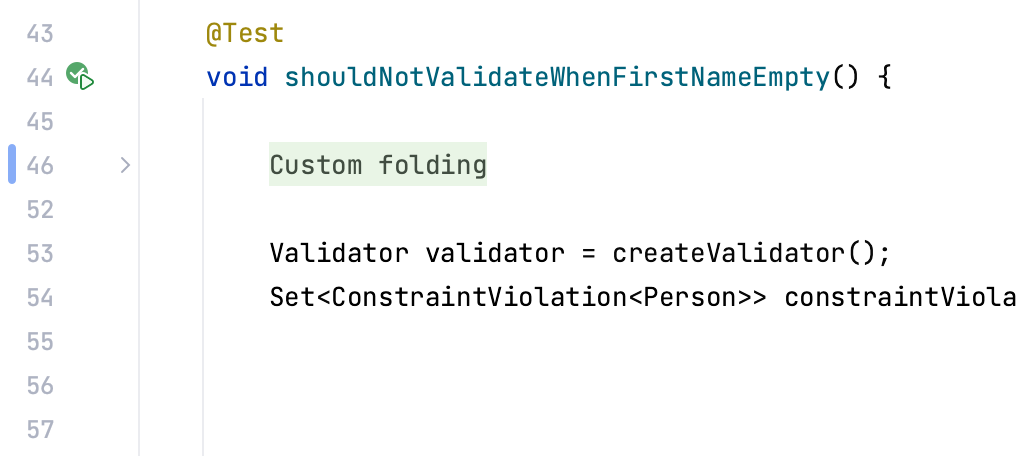
Custom folding regions: blocks of code within matched pairs of curly braces {}, learn more from Expand or collapse code elements.
For example, select a block of code for which you want to create a folding region, press Ctrl+Alt+T, select either <editor fold> or region...endregion comments depending on the style you need, and name the created custom region. Now, when you select the Custom folding regions option, IntelliJ IDEA will fold such regions when you open your file in the editor.
Android: language-specific code fragments in Android
JavaScript: language-specific code fragments in JavaScript and TypeScript
Java: language-specific code fragments in Java
Properties: code in .properties files
Use the Fold '{0}','{1}' ... placeholders to corresponding context expressions from Java/Kotlin code option to show folded substitutions for property key values. Note that using these settings might potentially slow down the .properties file loading.