Copyright
Your project may contain files that you want to protect by copyright. Instead of adding a copyright notice to each file separately, you can use copyright profiles.
A profile defines copyright notice text and a set of files (a scope) in which this text will be incorporated.
You may need several different copyright notices for files within the same project. In this case, you can configure several profiles and associate them with different scopes.
Configure copyright profiles
In IntelliJ IDEA, copyright profiles can be local and shared.
Shared profiles are stored in the .idea/copyright in .xml files and are available to other members of your team through VCS.
Local copyright profiles are stored on the IDE level and are available in all projects that you open in the current IDE instance.
Create a new copyright profile
A profile allows you to define a copyright text that you can later insert across the project or add to specific files only.
Press Ctrl+Alt+S to open settings and then select .
To configure the default profile for all newly created projects, select and go to .
Click
 and name the new profile.
Select Share through VCS to place this profile in the .idea folder and share it with your team or deselect the checkbox to keep this profile locally and make it available in all projects.
Enter the copyright notice text.
You can enter plain text or configure a Velocity template. For the template, use variables, and click Validate to make sure that it is configured correctly.
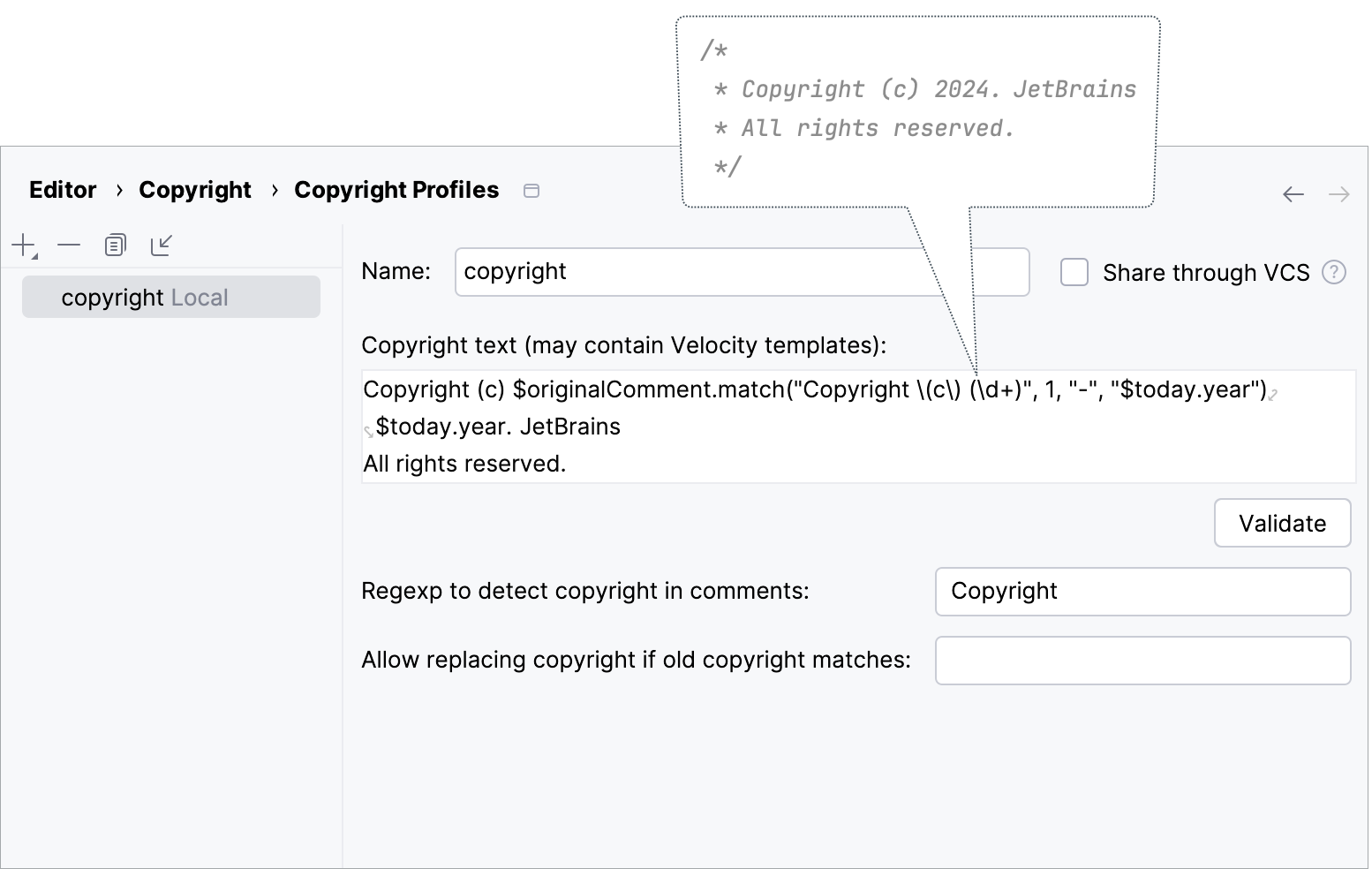
Once the profile is configured, you can select the scope of files to which you want to add the text or set this profile as the default profile for all files in the project that are not included in any scope.
Copyright variables
Currently, the following variables are available in the Velocity context:
Name | Type | Comment |
|---|---|---|
|
| The current date and time. |
|
| The name of the currently opened file where the notice is to be generated. |
|
| The complete path and name of the currently opened file where the notice is to be generated. |
|
| The name of the currently opened Java file where the notice is to be generated. |
|
| The fully qualified name of the currently opened file where the notice is to be generated. |
|
| The date and time when the current file was last changed. |
|
| The name of the current project. |
|
| The name of the current module. |
|
| The name of the current user. |
| ||
|
| The current year. |
|
| The current month (1-12). |
|
| The current date of month (1-31). |
|
| The current hour (0-11). |
|
| The current hour (0-23). |
|
| The current minute of the hour (0-59). |
|
| The current second of the minute (0-59). |
| ||
|
| Date and time formats that are specified by date and time pattern strings. See java.text.SimpleDateFormat format options. |
Examples of the copyright template text
Example 1:
Example 2:
Example 3:
Dates in the copyright template
By default, the copyright template contains two years: the original year that and the current year.
If you insert a new copyright notice, the original year is going to match the current year, so only one year is going to be added (for example, 2021). The next year, when you update your copyright, you will be able to regenerate the notice, so that the original year is going to appear alongside the current year (2021 – 2022). This way you don't have to add the year manually every time you update the copyright.
In the template, the original year is pulled with the $originalComment.match("Copyright \(c\) (\d+)", 1, "-") code, and the current year is inserted with $today.year. Learn more from the source code on GitHub.
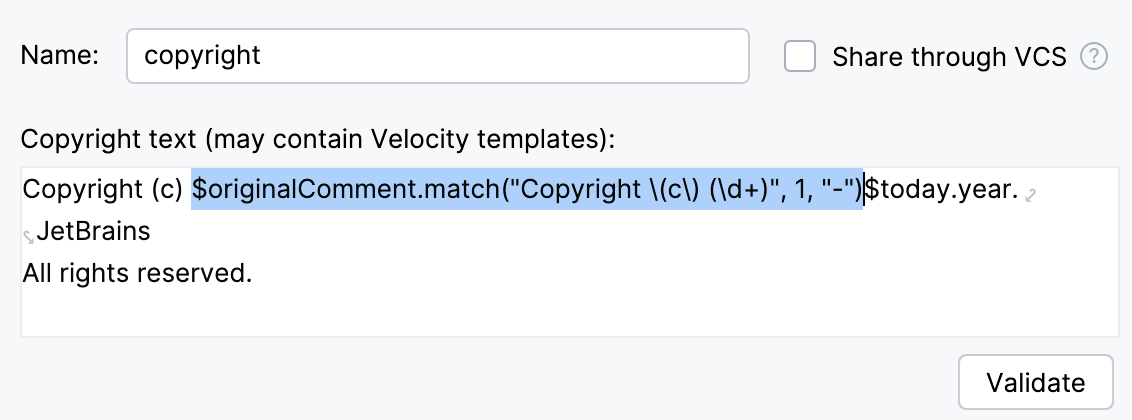
Note that the year is going to update correctly if the format of the new copyright matches the format of the previous copyright in the template. So, make sure to edit the part of the template that pulls the year from files so that it matches the format of the original copyright.
For example, if your original notice was Copyright 2019-2021 MongoDB, Inc., remove the copyright sign (c) from the template: $originalComment.match("Copyright (\d+)", 1, "-").
Assign a profile to a scope of files
Select the scope of files to which you want to add the configured copyright text:
Press Ctrl+Alt+S to open settings and then select .
Click
(or press Alt+Insert), and select an existing shared scope from the list.You can define a new scope if necessary. Click the Select Scopes to add scopes or modify existing ones link in the lower part of the page.
From the Copyright list, select the profile that you want to link with the scope.
Apply the changes and close the dialog.
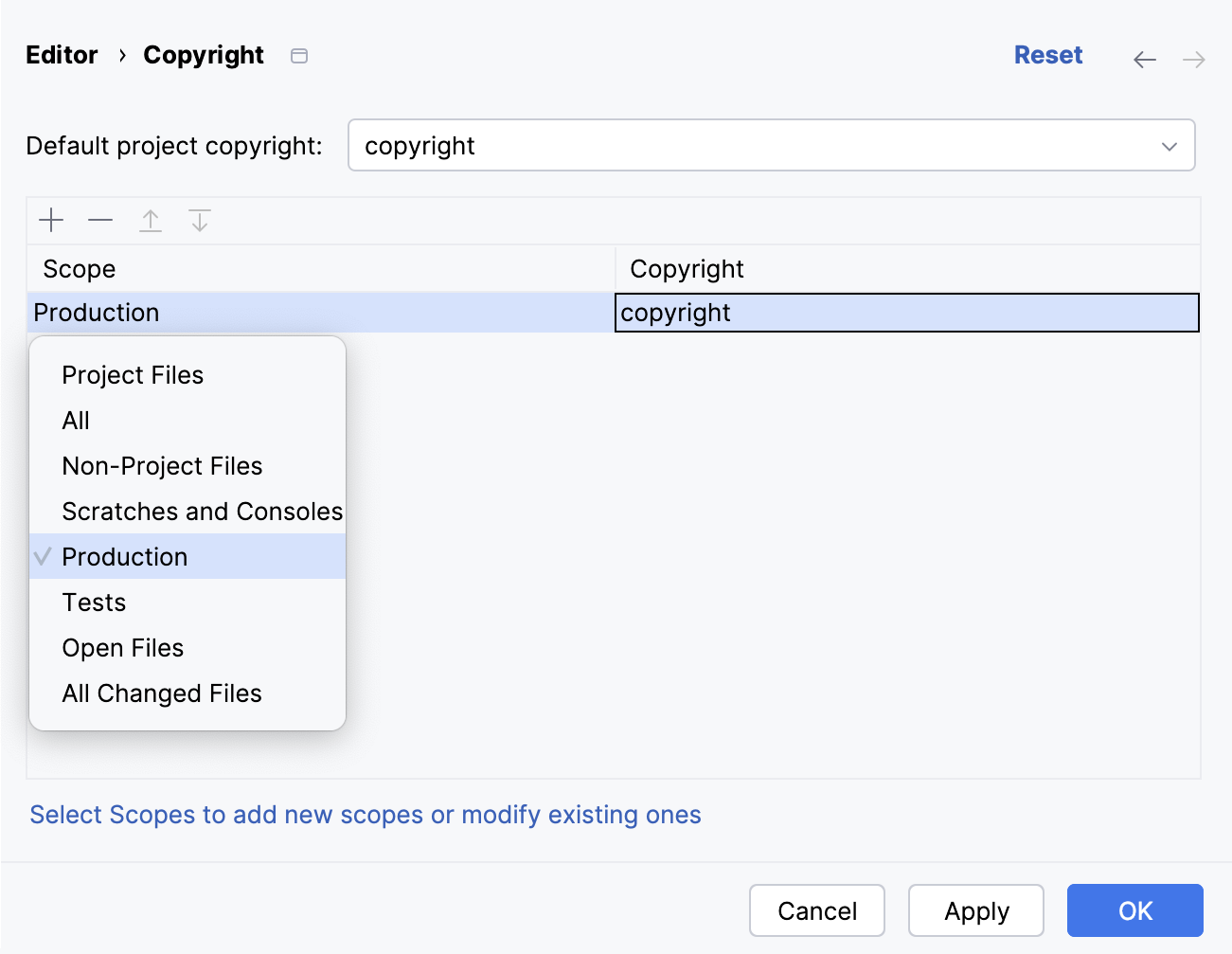
After that, you can add the copyright to the necessary files.
Set the default copyright profile
The settings of the default profile will be applied to files that are not explicitly included in any scope covered by a profile.
Press Ctrl+Alt+S to open settings and then select .
From the Default project copyright list, select the profile you want to use as the default profile.
Apply the changes and close the dialog.
After that, you can add the copyright to the necessary files.
Configure the copyright text format
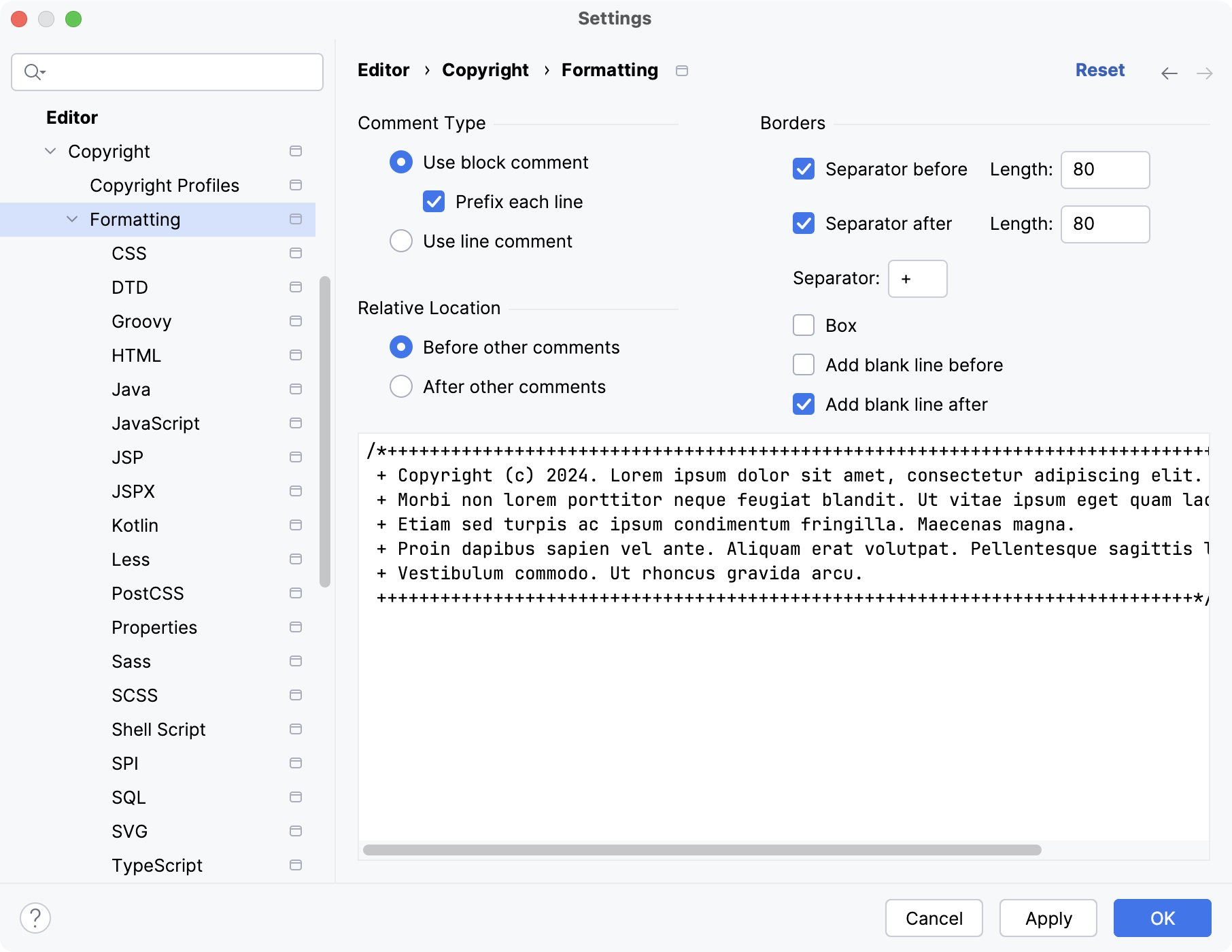
By default, the IDE pastes a block comment before other comments with a prefix in each line and adds a blank line after the block.
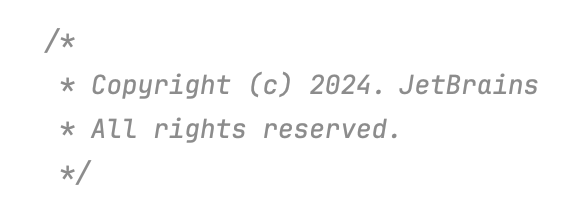
You can change the default format for all files or for each file type separately:
Press Ctrl+Alt+S to open settings and then select .
On this page, you can configure the formatting for all types of files.
To change the formatting for a specific file type, select it under the Formatting node.
Configure the formatting options. Use the preview section to make sure that the new formatting looks as intended.
Import a copyright profile
If you want to use a profile in another project, copy the .xml file with the profile settings to a different location and then import it:
Press Ctrl+Alt+S to open settings and then select .
Click
 and in the dialog that opens, select the .xml file containing the profile that you want to use.
Change the name of the profile if necessary and click OK.
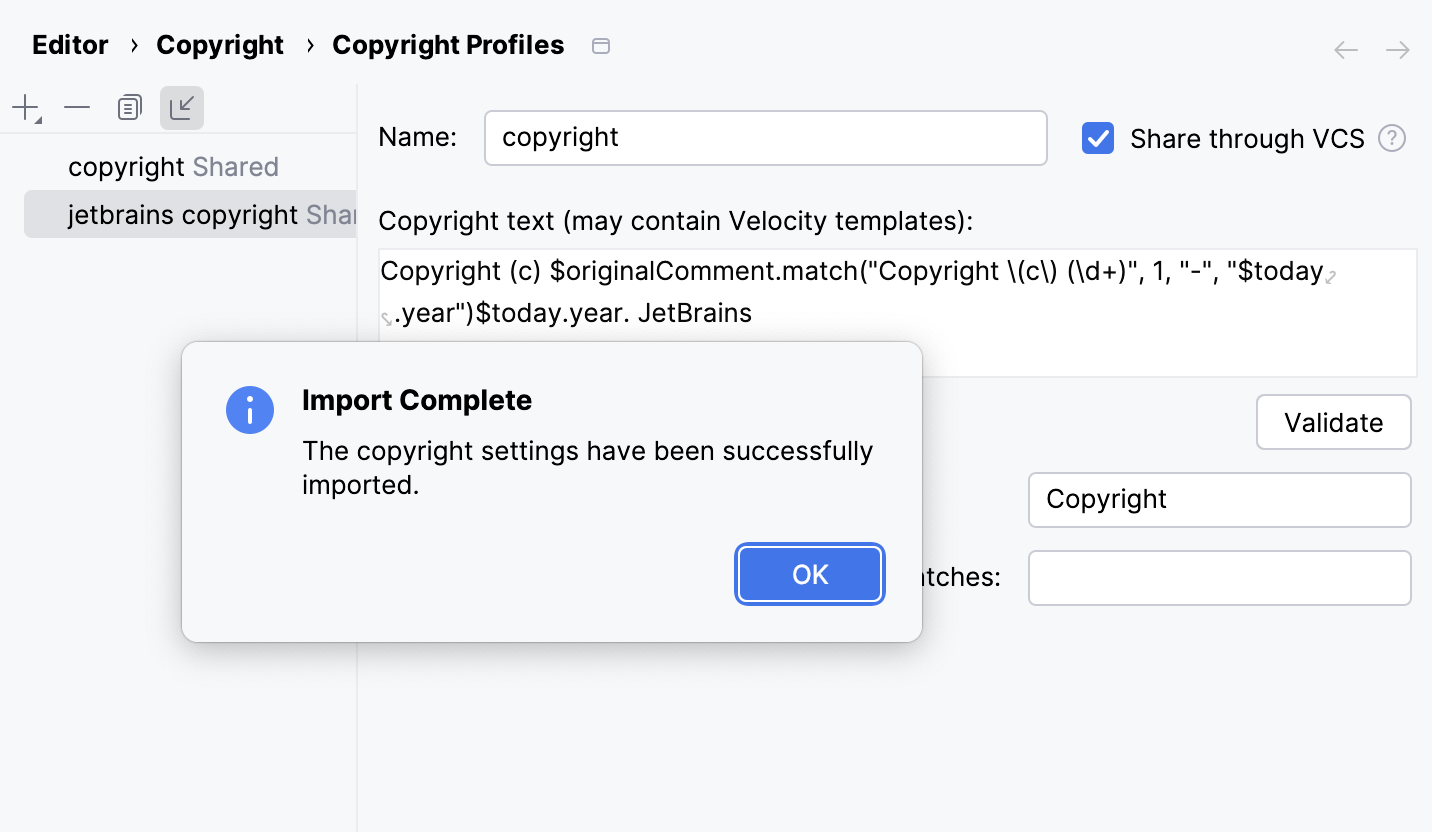
If the settings are imported successfully, you will see a confirmation popup.
Insert copyright text into files
To insert the text in a single file, open it in the editor, press Alt+Insert, and select Copyright from the popup.
To insert the text into a group of files, right-click a node in the Project tool window, and select Update Copyright. You will be prompted to select in which scope you want to update the notice.
A node may include files that belong to different scopes. In this case, copyright notices will be generated according to the assigned profiles.
If a node contains a file that doesn't belong to any scope, the IDE will assign the default profile to it.
Update copyright notices
Update copyright text
Press Ctrl+Alt+S to open settings and then select .
Select the necessary profile and edit the copyright text.
In the Regex to detect copyright in comments field, specify a regular expression that will be used to find existing copyright notices in files.
The IDE will use this expression to identify the copyright comment among other comments. For example, such comments normally contain the word
Copyright.In the Allow replacing copyright if old copyright matches field, specify a regular expression that the IDE will use to search for the files in which the copyright text should be updated.
For example, if you want to update the copyright text in all files that contain years 2000-2006 and 2010-2016 in their copyright, specify
20[0-1][0-6].Apply the changes and close the dialog.
In the Project (Alt+1) tool window, right-click the node for which you want to update the text, and select Update Copyright.
Update copyright on save
You can configure the IDE to update copyright notices every time the IDE saves your changes.
Press Ctrl+Alt+S to open settings and then select .
Select the Update copyright notice checkbox.
The checkbox is available if you have configured at least one copyright profile and specified a scope of files to which this profile is applied.
If you haven't configured a profile yet, click the Configure… link.
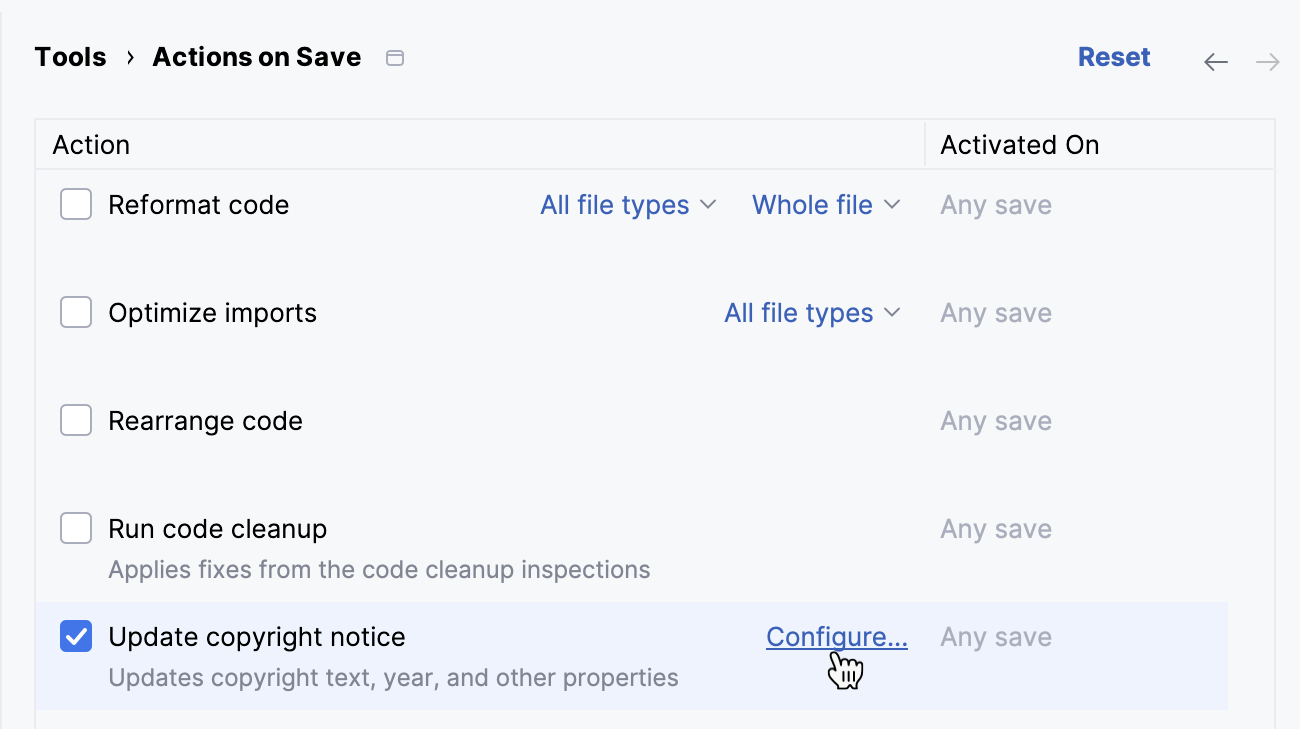
When the profile is configured, return to and enable the Update copyright notice checkbox.
Apply the changes and close the dialog.
For more information about actions that you can enable on save, refer to Trigger actions when saving changes.