Diagrams
In the Diagrams menu, you can configure the default visibility settings and layout for diagrams.
For the information on how to create class diagrams, refer to UML class diagrams.
Content pane
Select the checkboxes next to the elements to be shown on diagrams.
Item | Description |
|---|---|
Show Difference | |
Details | If this checkbox is selected, all the specified details of the elements will be shown in the UML class diagram for a revision. If this checkbox is not selected, only node elements will be included in the diagram. |
Java Class Diagrams | |
Class Elements | Select the checkboxes to show members (fields, constructors, methods, properties and inner classes) within the node elements:  On the diagram, use toolbar buttons |
Dependencies | Select the checkboxes below to show dependency links in diagram. |
DB Diagrams | |
Key columns | For the primary key columns to be shown when a diagram opens, select this checkbox. When viewing a diagram in the editor, use |
Columns | For the columns other than the primary key columns to be shown when a diagram opens, select this checkbox. When viewing a diagram in the editor, use |
Graphical Explain Plan | |
Attributes | Toggles the display of query attributes on a query map. These attributes can be a number of rows, index names, or any other additional information about the query. 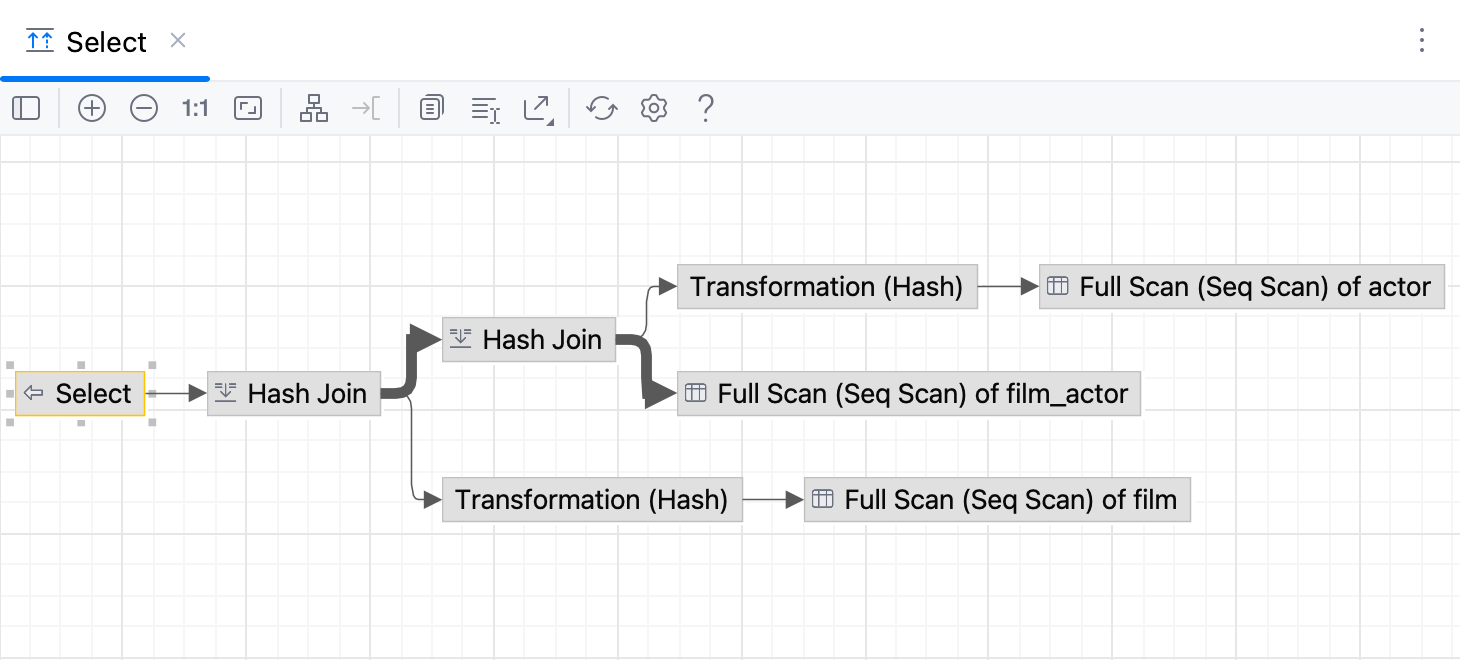 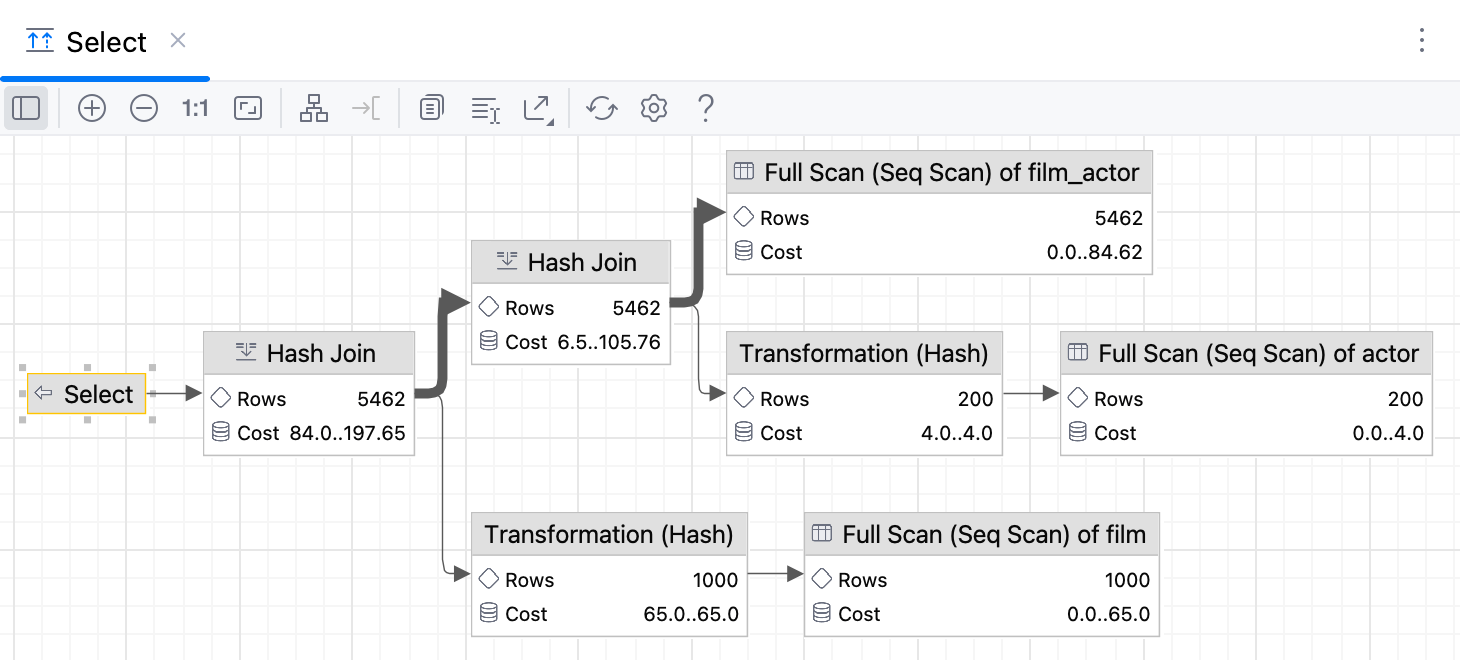 |
Project Modules | |
Libraries | If this checkbox is selected, libraries will be shown in UML diagrams for modules. |
JPA ER Diagram | |
Properties | If this checkbox is selected, properties of entity classes are shown when a JPA ER diagram opens. When viewing a diagram in the editor, you can show or hide these properties by using |
Embeddables | If this checkbox is selected, embeddable objects are shown when a JPA ER diagram opens. When viewing a diagram in the editor, you can show or hide the embeddables by using |
Superclasses | If this checkbox is selected, superclasses of entity classes are shown when a JPA ER diagram opens. When viewing a diagram in the editor, you can show or hide the superclasses by using |
BPMN 2.0 Diagram | |
Details | For element details to be shown when a BPMN diagram opens, select this checkbox. |
CDI Dependencies Diagram | |
@Inject | If this checkbox is selected, injection points are shown when a CDI dependency diagram opens. When viewing a diagram in the editor, you can show or hide the injection points by using |
@Produces | If this checkbox is selected, producer methods and fields are shown when a CDI dependency diagram opens. When viewing a diagram in the editor, you can show or hide the producer methods and fields by using |
@Decorator | If this checkbox is selected, decorator bean classes are shown when a CDI dependency diagram opens. When viewing a diagram in the editor, you can show or hide the decorators by using |
Spring | |
Local context | If this checkbox is selected, local context will be shown in diagrams. To enable showing local context in the Diagram tab in the editor, click |
Properties | If this checkbox is selected, property files will be shown in diagrams. To enable showing property files in the Diagram tab in the editor, click |
Spring Integration | |
Show Labels | If this checkbox is selected, labels will be shown in diagrams. To enable showing labels in the Diagram tab in the editor, click |
 ,
,  ,
,  ,
,  , and
, and  .
. on the toolbar to show or hide the corresponding columns.
 on the toolbar to show or hide the corresponding columns.
 on the toolbar.
 on the toolbar.
 on the toolbar.
 on the toolbar.
 on the toolbar.
 on the toolbar.
 .
. .
. .
.Controls
Item | Description |
|---|---|
Default layout | Select the desired layout from the Default layout list. Node elements in newly created diagrams will be arranged according to the selected layout. |
Default scope | Select scope from the Default scope list. Specifying a scope helps you avoid showing in diagram the unnecessary hierarchies. You can define scopes for your project in the Scopes page of the Settings (Ctrl+Alt+S) dialog. |
Fit content after layout | If this checkbox is selected, then after applying a layout selected on the diagram context menu, all diagram elements will be resized to fit into the current diagram area. In diagram, use the |
Do relayout when new elements were added | If this checkbox is selected, diagram layout will be performed automatically after adding new elements. |
 toolbar button.