Colors and fonts
As a developer, you work with a lot of text resources: the source code in the editor, search results, debugger information, console input and output, and so on. Color and font styles are used to format this text and help you better understand it at a glance.
IntelliJ IDEA lets you choose between configurable color schemes that define colors and fonts used in IDE text.
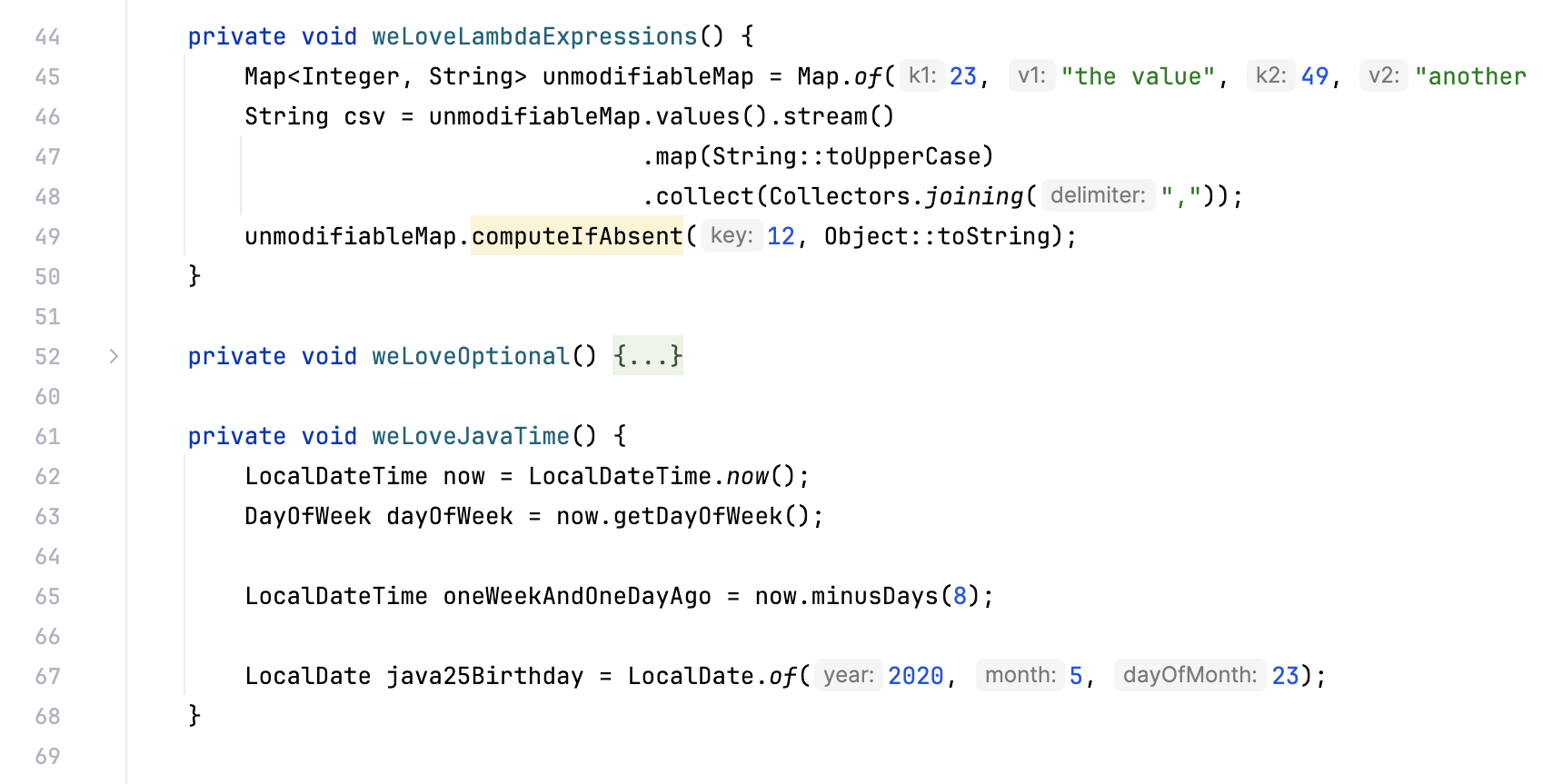
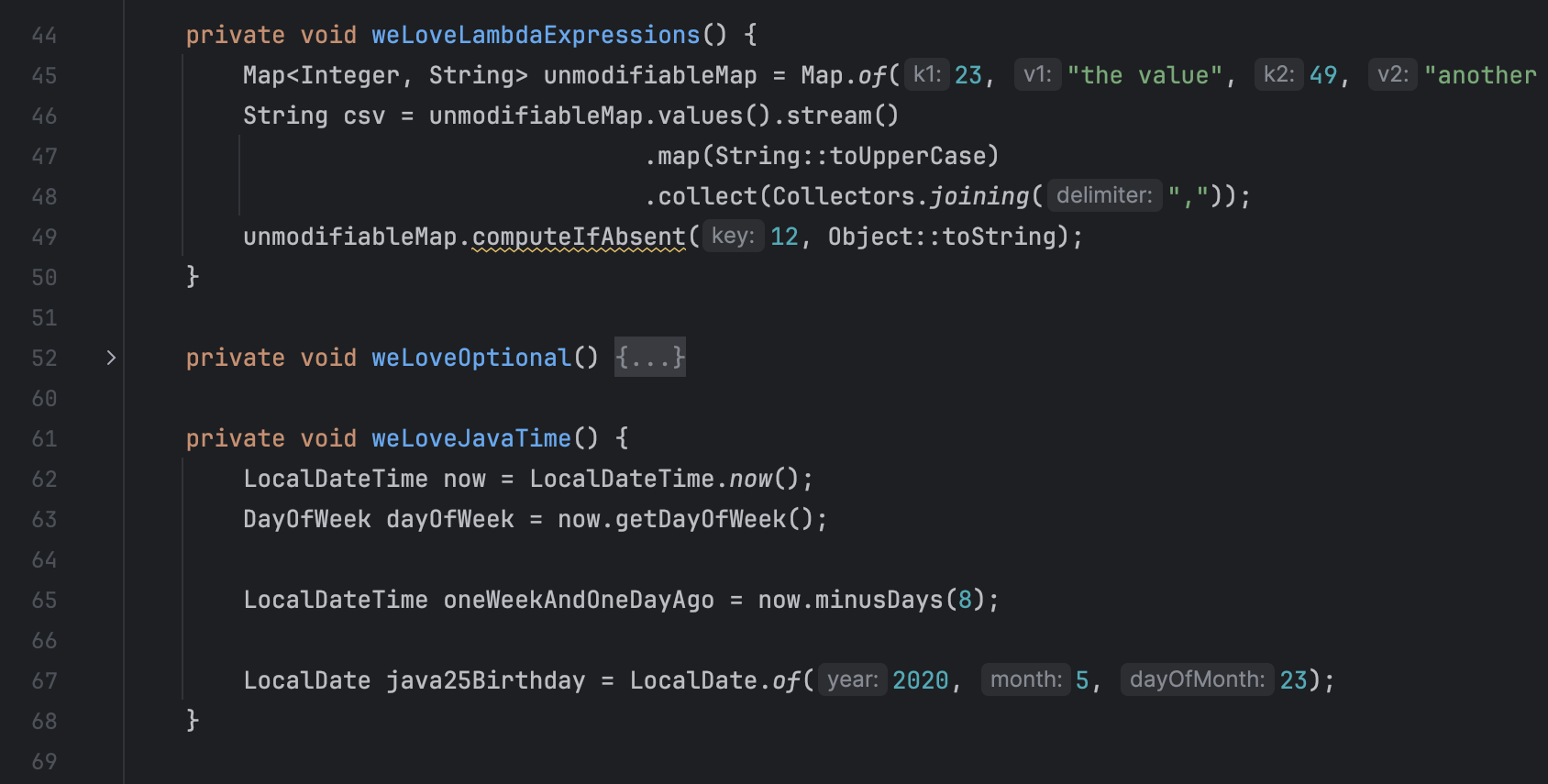
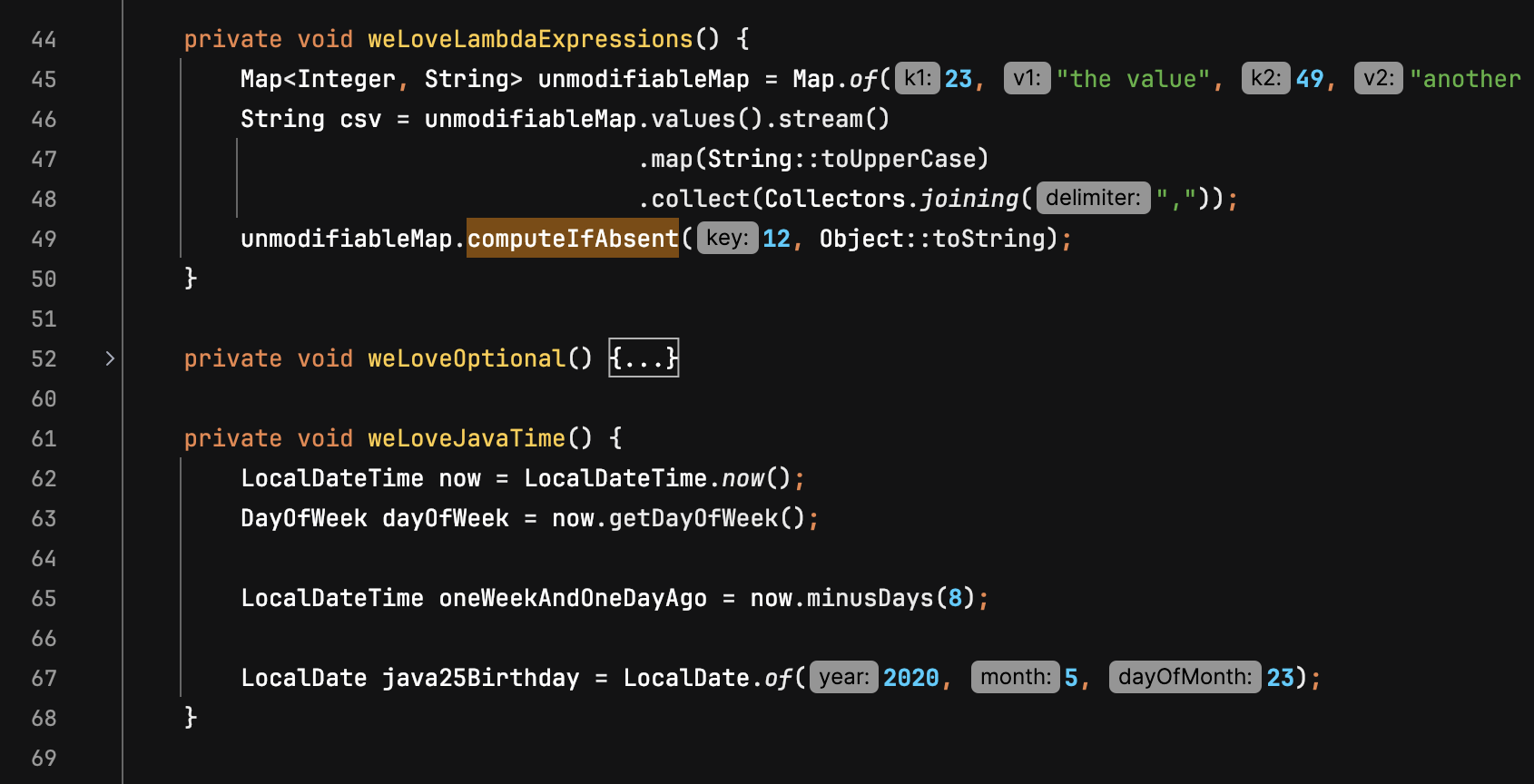
You can use a predefined color scheme or customize it to your liking. It is also possible to share schemes.
Select a color scheme
Press Ctrl+Alt+S to open settings and then select .
Alternatively, you can select a scheme on the page.
Use the Scheme list to select a color scheme.
The default color scheme for the current interface theme is indicated in the list.
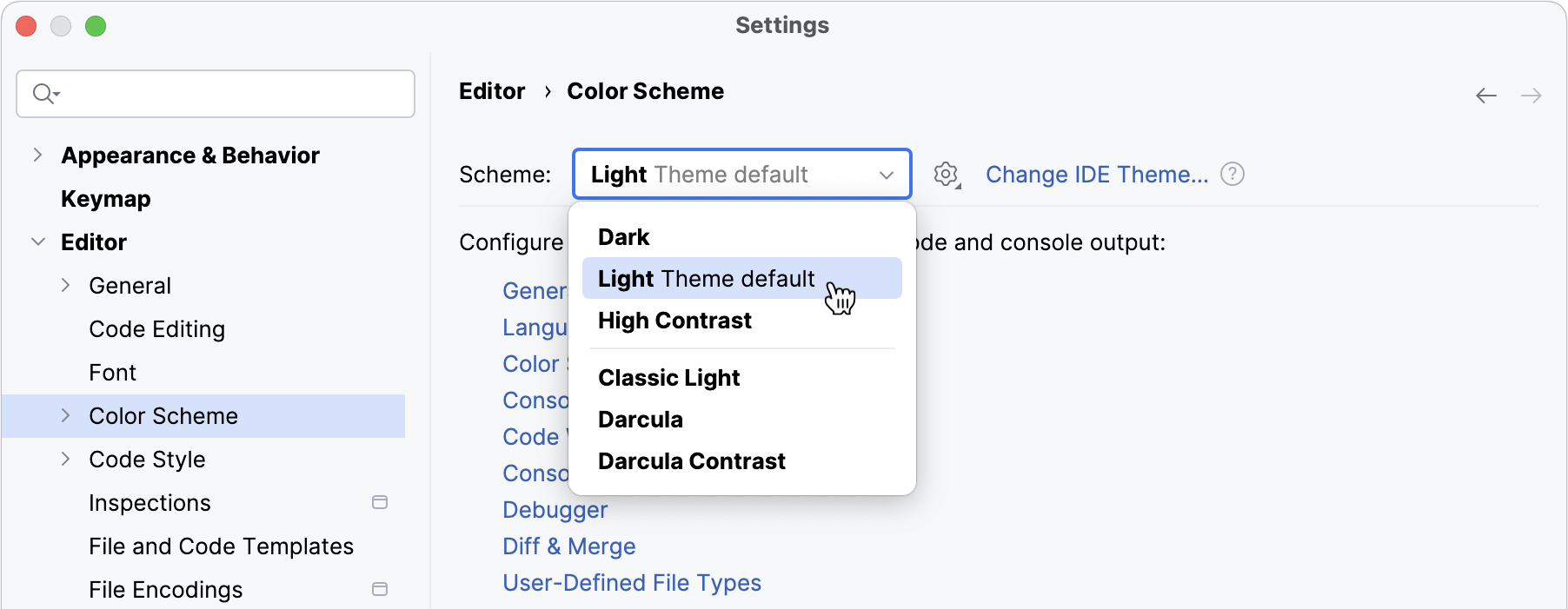
Click Change IDE Theme to navigate to the page in settings where you can configure an interface theme.
Among the predefined color schemes are:
Dark: designed for the Dark interface theme
Light: designed for the Light and Light with Light Header interface themes
High Contrast: designed for the High contrast interface theme (recommended for users with sight deficiency)
Classic Light: designed for the macOS Light and Windows 10 Light interface themes
Darcula: designed for the Darcula interface theme
Darcula Contrast: high-contrast scheme designed for the Darcula interface theme
Customize a color scheme
You can customize a predefined color scheme, but it is recommended that you create a duplicate for your custom color and font settings:
Duplicate a color scheme
Press Ctrl+Alt+S to open settings and then select .
Select a color scheme, click
 , and then click Duplicate….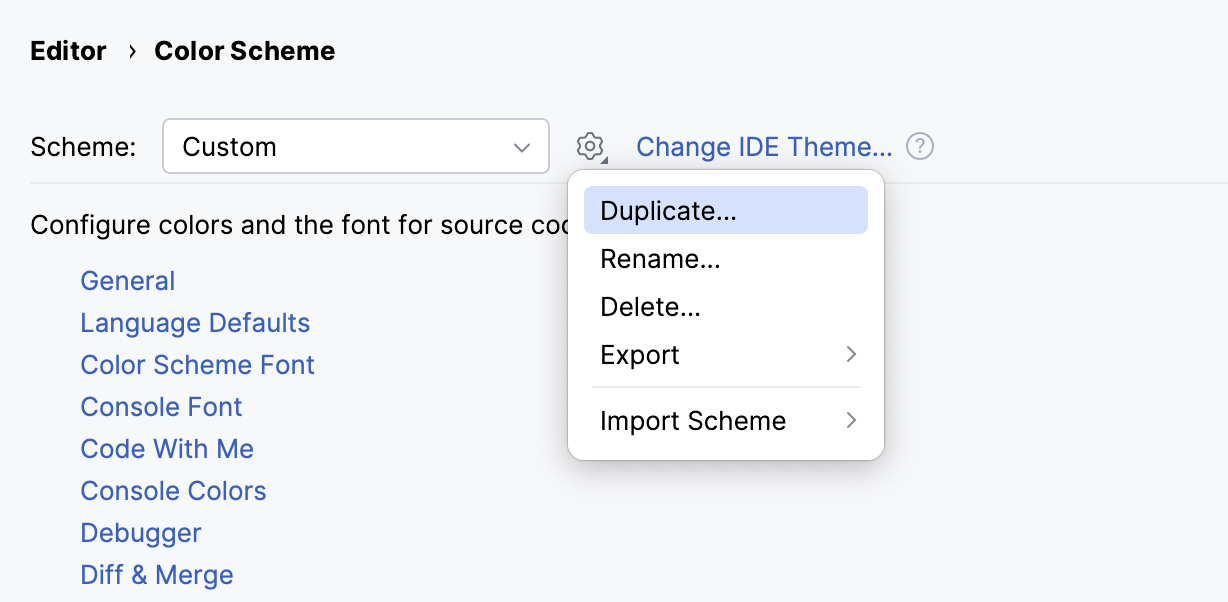
(Optional) To rename your custom scheme, click
and select Rename….
To define color and font settings, open the Editor | Color Scheme settings page Ctrl+Alt+S.
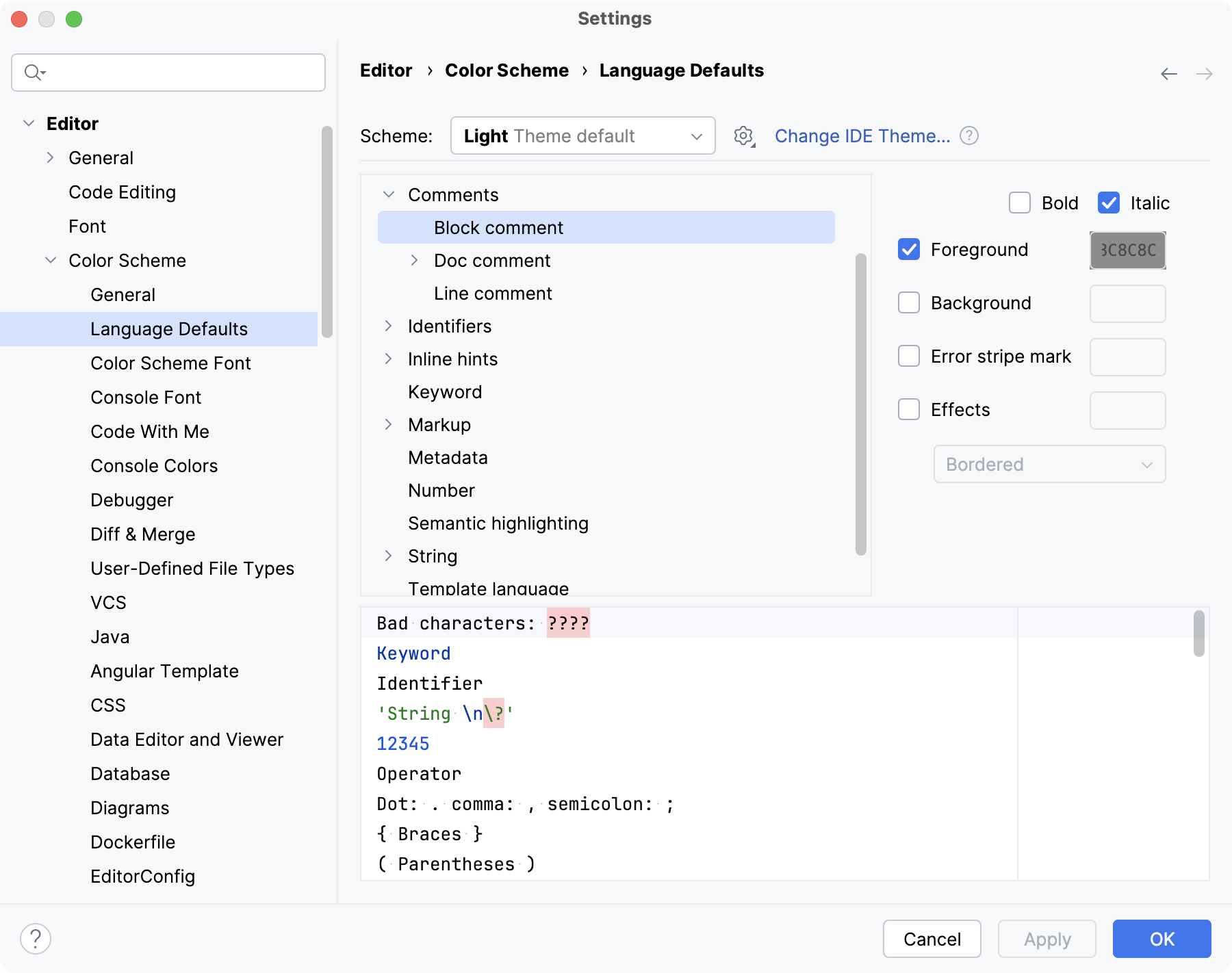
The settings under are separated into sections. For example, the General section defines basic editor colors, such as the gutter, line numbers, errors, warnings, popups, hints, and so on. The Language Defaults section contains common syntax highlighting settings, which are applied to all supported programming languages by default.
In most cases, it is sufficient to configure Language Defaults and make adjustments for specific languages if necessary. To change inherited color settings for an element, clear the Inherit values from checkbox.
Edit font and color settings
Press Ctrl+Alt+S to open settings and then select .
The settings under are grouped in sections.
Expand the Color Scheme node and select the required section.
Change the settings in the right pane.
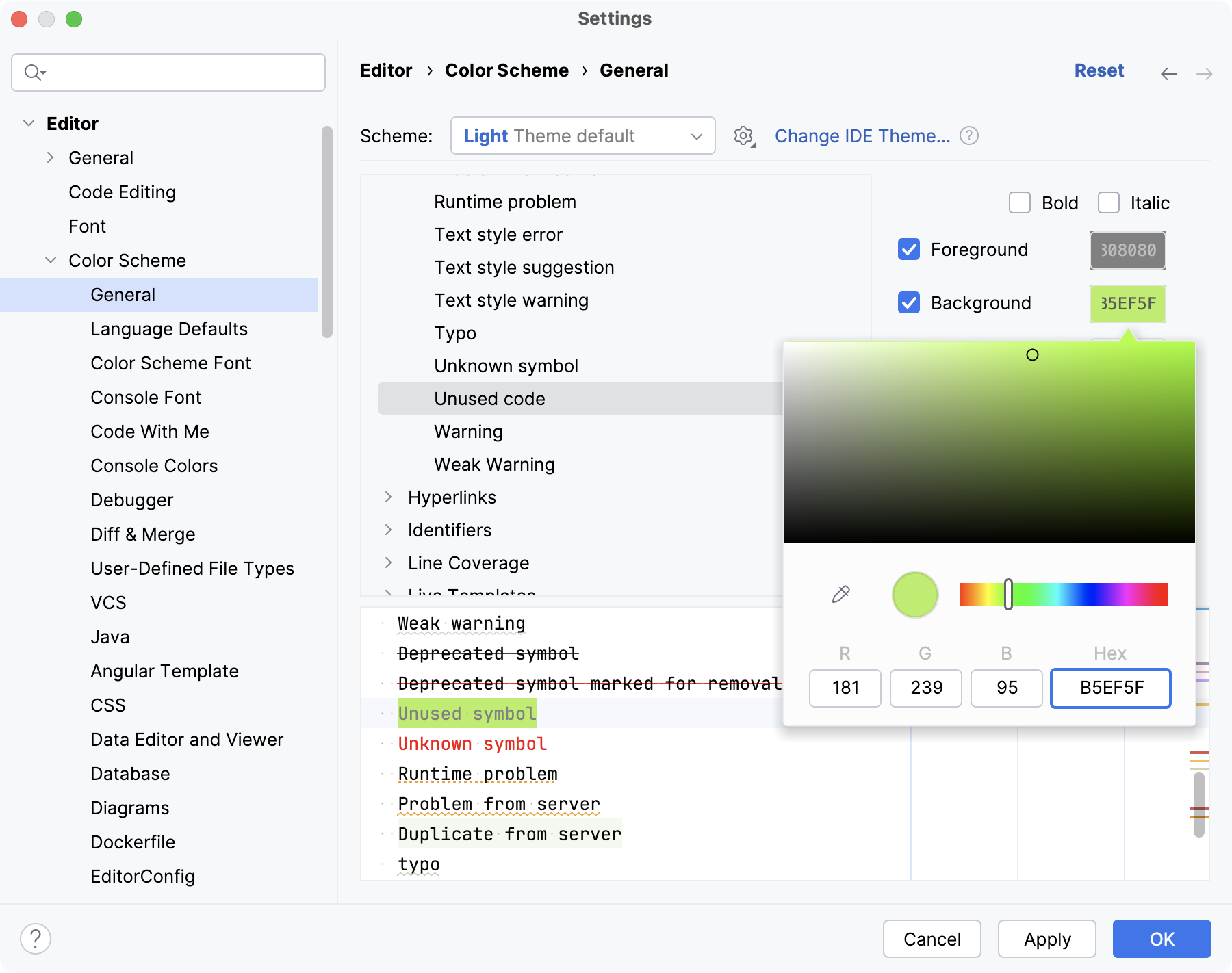
You can change the font style, add effects, and modify color settings. To change the colors, click the field with color code. The color picker popup opens, allowing you to choose the color as you like.
For example, you can change the unused code highlighting:
Semantic highlighting
By default, the color scheme defines syntax highlighting for reserved words and other symbols in your source code: operators, keywords, suggestions, string literals, and so on. If you have a function or method with many parameters and local variables, it may be hard to distinguish them from one another at a glance. You can use semantic highlighting to assign different random colors to each parameter and local variable.
Enable semantic highlighting
Press Ctrl+Alt+S to open settings and then select .
Select Semantic highlighting and customize the color ranges if necessary.
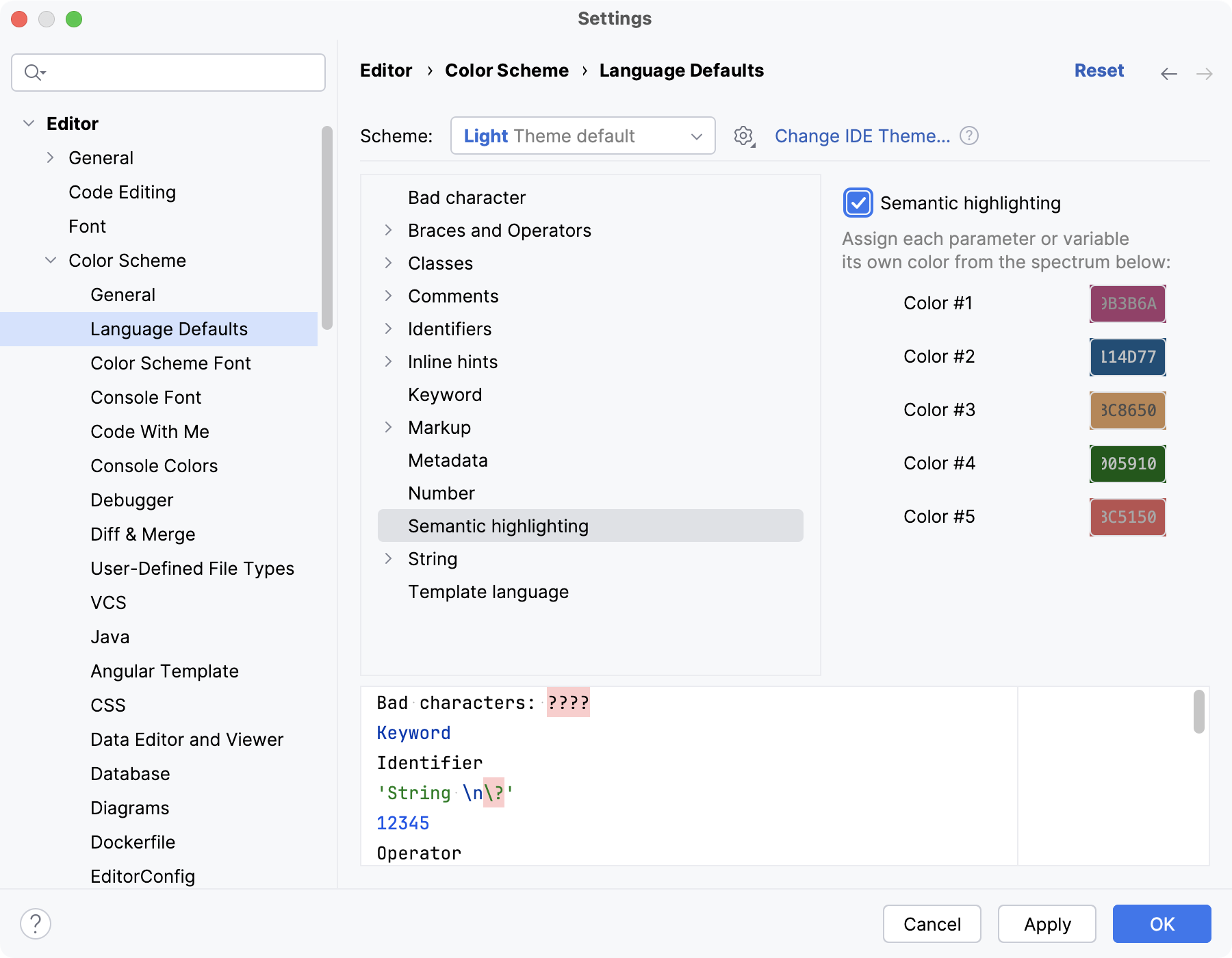
This will enable semantic highlighting for all languages that inherit this setting from Language Defaults. To enable it for a specific language instead (for example, Java), go to the Editor | Color Scheme | Java | Semantic highlighting settings page Ctrl+Alt+S, clear the Inherit values from checkbox, and select the Semantic highlighting checkbox.
Share color schemes
If you are used to a specific color scheme, you can export it from one installation and import it to another one. You can also share color schemes with other developers. If necessary, you can import your favorite color settings from Eclipse.
Export a color scheme as XML
IntelliJ IDEA can save your color scheme settings as an XML file with the .icls extension. You can then import the file to another installation.
Press Ctrl+Alt+S to open settings and then select .
From the Scheme list, select a color scheme, click
, then click Export and select IntelliJ IDEA color scheme (.icls).Specify the name and location of the file and save it.
Export a color scheme as a plugin
The plugin can be uploaded to the plugin repository for others to install. This format has several benefits over an XML file, including metadata, feedback, download statistics, and versioning (when you upload a new version of the plugin, users will be notified about it).
Press Ctrl+Alt+S to open settings and then select .
From the Scheme list, select a color scheme, click
, then click Export and select Color scheme plugin .jar.In the Create Color Scheme Plugin dialog, specify the version details and vendor information. Then click OK.
Import a color scheme
Press Ctrl+Alt+S to open settings and then select .
From the Scheme list, select a color scheme, click
, then click Import Scheme.
Fonts
Customize the default editor font
This font will be used and inherited in all color schemes by default.
Press Ctrl+Alt+S to open settings and then select .
Select the font from the Font list.
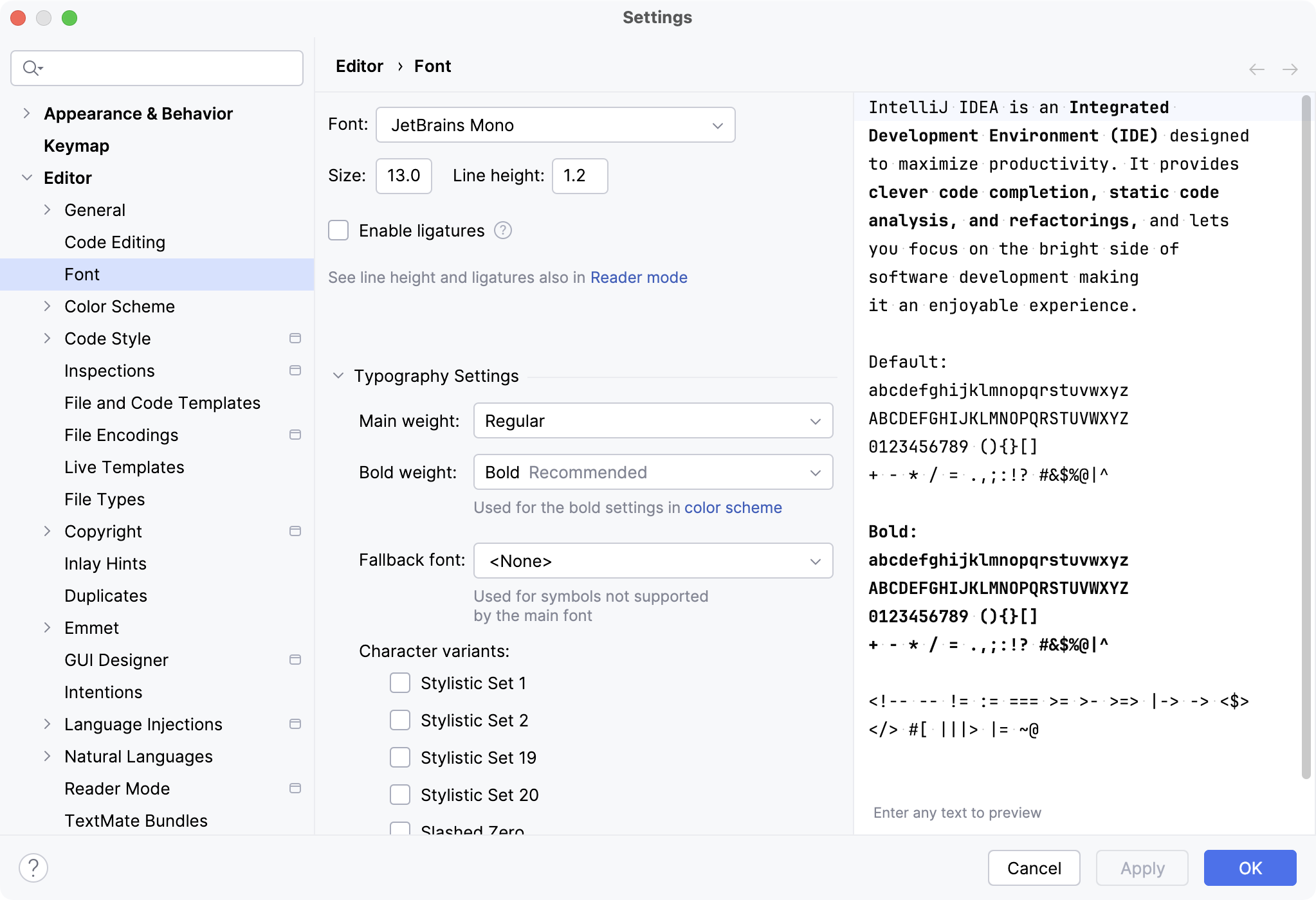
Click Apply to save the settings.
For more information, refer to Font settings.
Customize the color scheme font
Set a different font for your current scheme if necessary.
Press Ctrl+Alt+S to open settings and then select .
Select the Use color scheme font instead of the default checkbox.
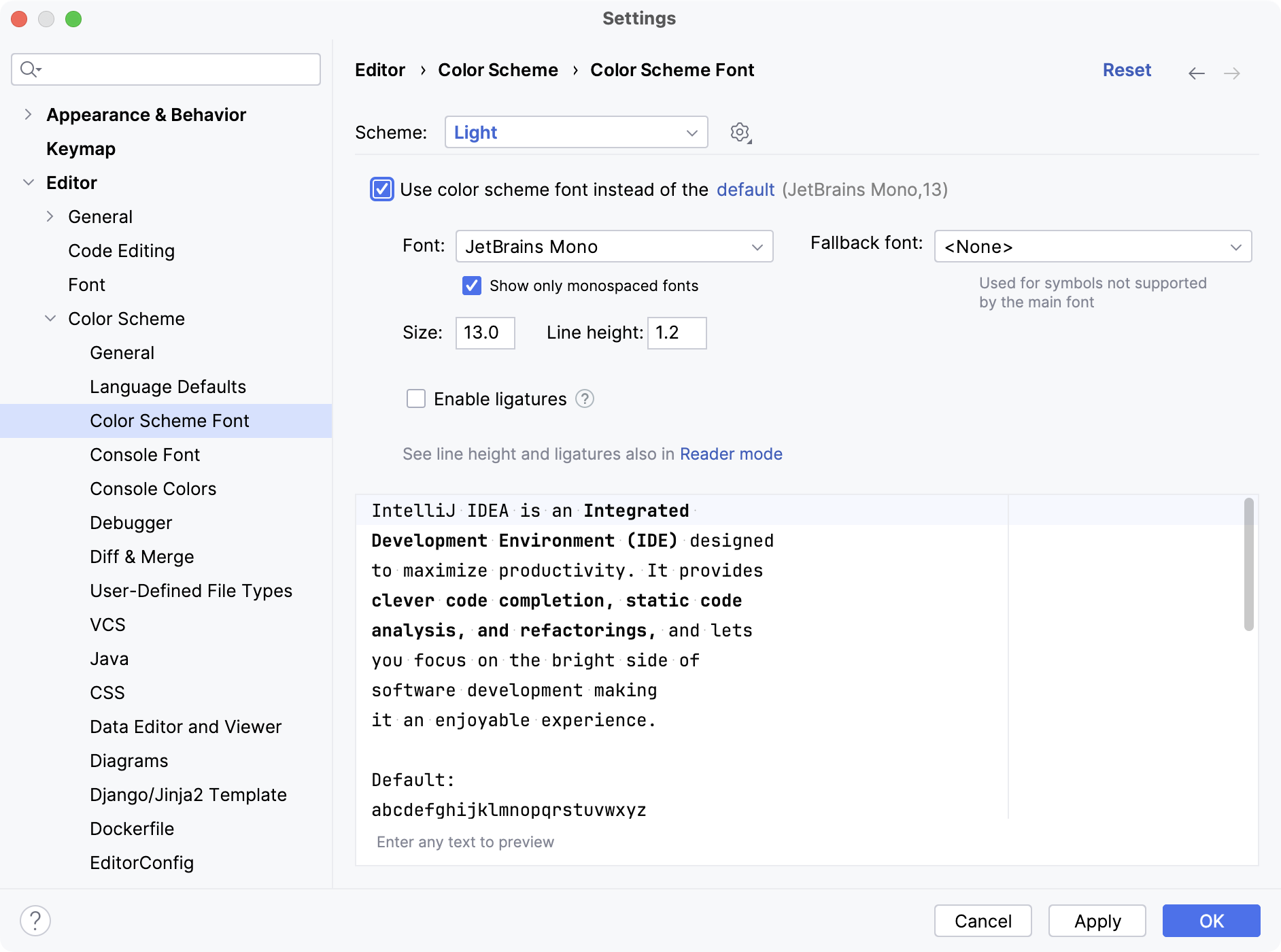
For more information, refer to Color Scheme.
Customize the console font
By default, the text in the console uses the same font as the color scheme. To use a different font in the console:
Press Ctrl+Alt+S to open settings and then select .
Select the Use console font instead of the default checkbox.
Install a new custom font
IntelliJ IDEA can use any font that is available in your operating system or in the Java runtime that is used to run IntelliJ IDEA. If you want to add another font, you need to install it in your OS, and IntelliJ IDEA will discover it after a restart.
Download the desired TTF font package and unzip it to extract font files (.ttf). For the font to work correctly, it should have at least 4 files: Normal, Bold, Italic, and Bold Italic.
Depending on your operating system, do one of the following:
Select all font files, right-click the selection, and choose Install.
Select all font files, double-click the selection to open the Font Book preview, then click Install Font at the bottom.
Unpack fonts to ~/.local/share/fonts for the current user or to /usr/share/fonts to install fonts system-wide, and then run
fc-cache -f -v.Restart IntelliJ IDEA and then select the installed font on the Editor | Font settings page Ctrl+Alt+S.
Productivity tips
See which fonts are currently used in the editor
Press Ctrl+Shift+A, find the Show Fonts Used by Editor action, and execute it.
This opens the Fonts Used in Editor dialog with a list of fonts.
Use the quick switcher
Press Ctrl+` or select from the main menu.
In the Switch popup, select Editor Color Scheme, and then select the desired color scheme.