Command-line interface
Use IntelliJ IDEA features from the command line: open files and projects, view diffs, merge files, apply code style, formatting, and inspect the source code.
Launcher for a standalone instance
The installation directory contains batch scripts and executables for launching IntelliJ IDEA, formatting the source code, and running inspections. To use them from the Command Prompt cmd.exe, add the location of the IntelliJ IDEA bin folder to the PATH environment variable. For example, if you installed IntelliJ IDEA to C:\Program Files\JetBrains\IntelliJ IDEA, you can use the following command:
This command changes the PATH environment variable for the current shell only (the current instance of cmd.exe).
To make this change permanent:
If you are installing IntelliJ IDEA, select Add "bin" folder to the PATH in the installer.
Alternatively, add the IDE's bin directory to the Path user environment variable using the Windows Environment Variables dialog.
Otherwise, if you prefer a command-line solution, you can use PowerShell:
[Environment]::SetEnvironmentVariable('PATH', $env:PATH + ';C:\Program Files\JetBrains\IntelliJ IDEA\bin', 'User')
After you configure the PATH variable, you can run the executable from any working directory in the Command Prompt:
Alternatively, you can use the batch script:
To run IntelliJ IDEA from the shell, use the open command with the following options:
-aSpecify the application.
-nOpen a new instance of the application even if one is already running.
--argsSpecify additional arguments to pass to the application.
For example, you can run IntelliJ IDEA.app with the following command:
You can create a shell script with this command in a directory from your PATH environment variable. For example, create the file /usr/local/bin/idea with the following contents:
Make sure you have permissions to execute the script and since /usr/local/bin should be in the PATH environment variable by default, you should be able to run idea from anywhere in the shell.
If you do not have permissions to execute the script, run the following:
On Linux, the installation directory contains the launcher shell script idea.sh under bin. For example, if you installed IntelliJ IDEA to /opt/idea, you can run the script using the following command:
You can create a symbolic link to the launcher script in a directory from the PATH environment variable. For example, if you want to create a link named idea in /usr/local/bin, run the following command:
Since /usr/local/bin should be in the PATH environment variable by default, you should be able to run the idea command from anywhere in the shell.
If you installed IntelliJ IDEA as a snap package, you can use the corresponding launcher: intellij-idea.
Shell scripts generated by the Toolbox App
If you are using the Toolbox App to install and manage JetBrains products, you can use shell scripts for launching your IDEs from the command line.
Toolbox App generates shell scripts automatically and places them to the following folders:
By default, the Toolbox App puts shell scripts in a directory from the system PATH environment variable, so you can run the name of the script as a command to launch IntelliJ IDEA from any working directory.
Change shell scripts location
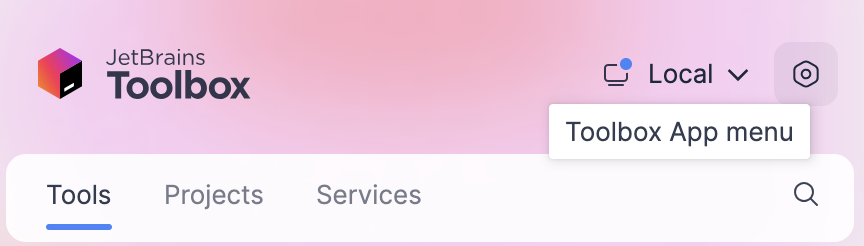
Open the Toolbox App, click the Toolbox App menu icon in the top right corner, and select Settings.
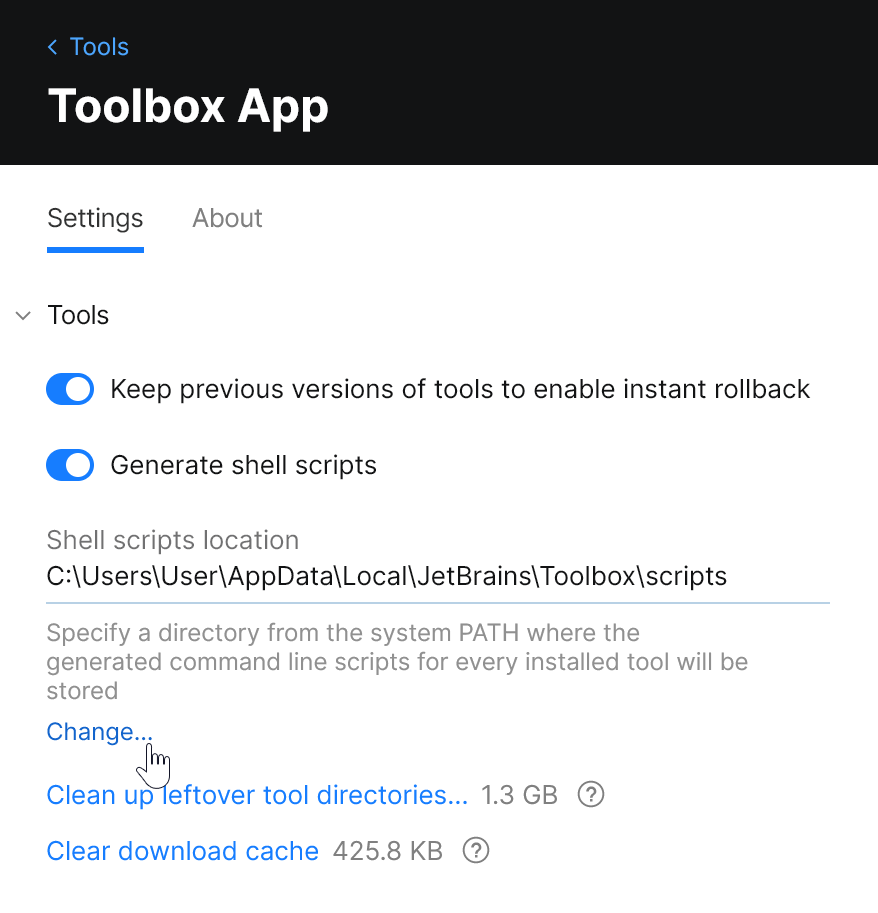
On the Settings tab, expand the Tools section, and specify another folder in the Shell scripts location field.
Rename shell scripts
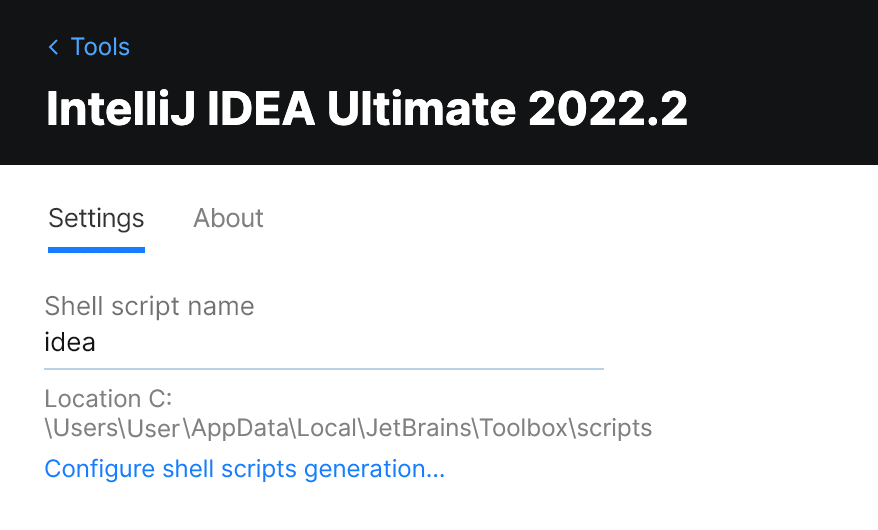
If you have several versions of the same IDE, the Toolbox App generates a shell script for each version with a unique name. You can change the name of the shell script for an IDE instance in the settings for this specific instance.
Open the Toolbox App.
Click
 next to an IDE instance and select Settings.
At the bottom of the Configuration section, change the Shell script name field.
or
By default, the Toolbox App puts shell scripts in a directory from the system PATH environment variable, so you can run the name of the script as a command to launch IntelliJ IDEA from any working directory.
Change shell scripts location
Open the Toolbox App, click the Toolbox App menu icon in the top right corner, and select Settings.
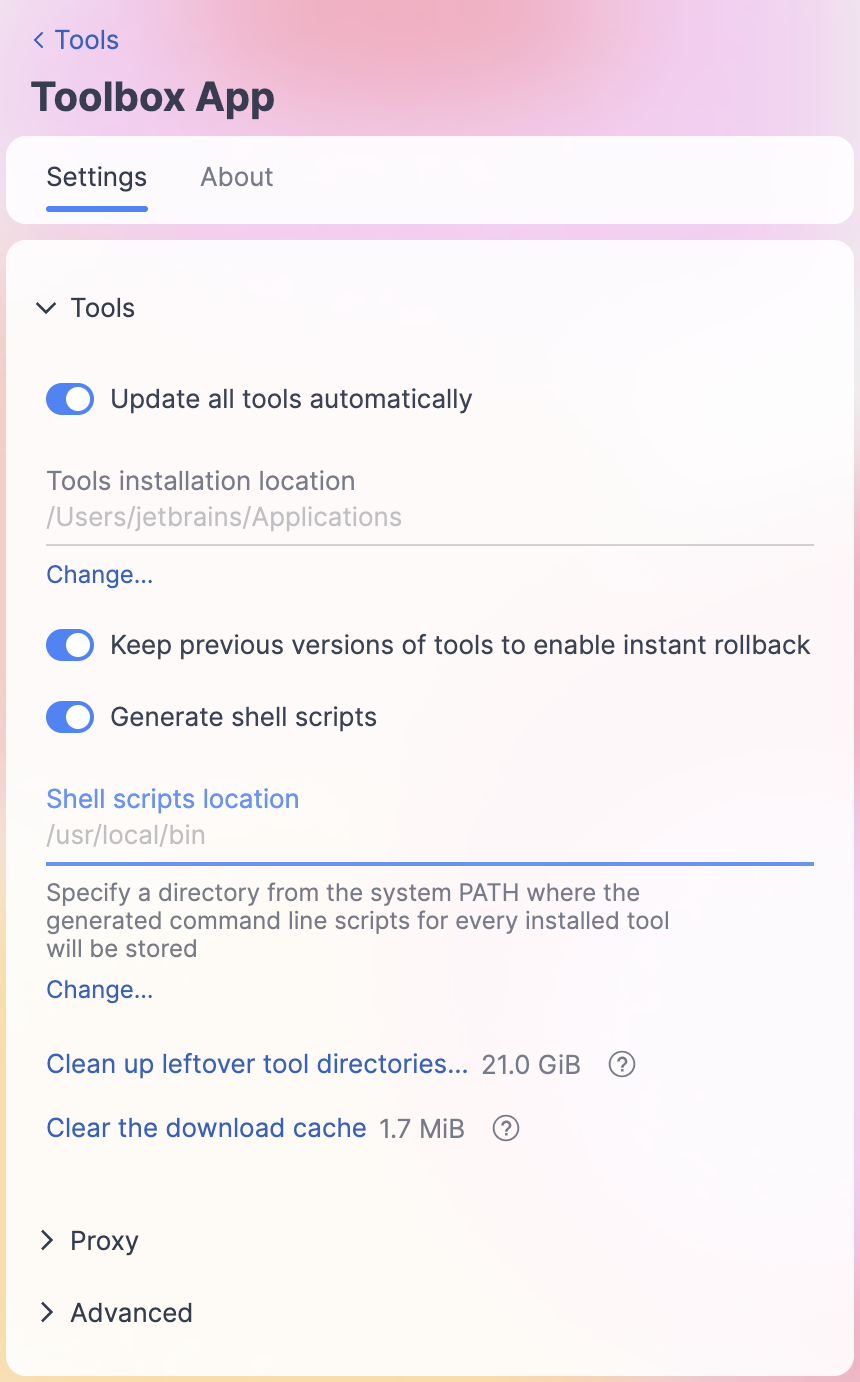
On the Settings tab, expand the Tools section, and specify another folder in the Shell scripts location field.
Rename shell scripts
If you have several versions of the same IDE, the Toolbox App generates a shell script for each version with a unique name. You can change the name of the shell script for an IDE instance in the settings for this specific instance.
Open the Toolbox App.
Click
next to an IDE instance and select Settings.At the bottom of the Configuration section, change the Shell script name field.
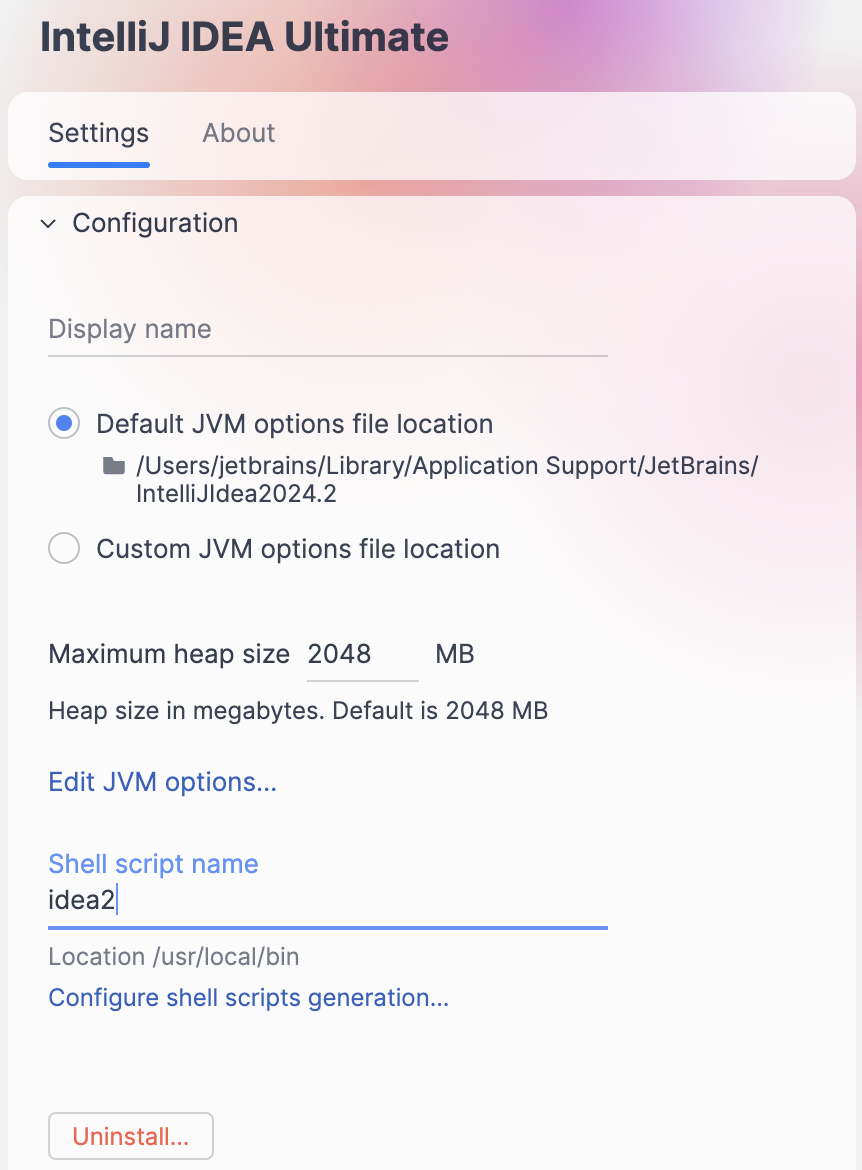
By default, the Toolbox App puts shell scripts in a directory from the system PATH environment variable, so you can run the name of the script as a command to launch IntelliJ IDEA from any working directory.
Change shell scripts location
Open the Toolbox App, click the Toolbox App menu icon in the top right corner, and select Settings.
On the Settings tab, expand the Tools section, and specify another folder in the Shell scripts location field.
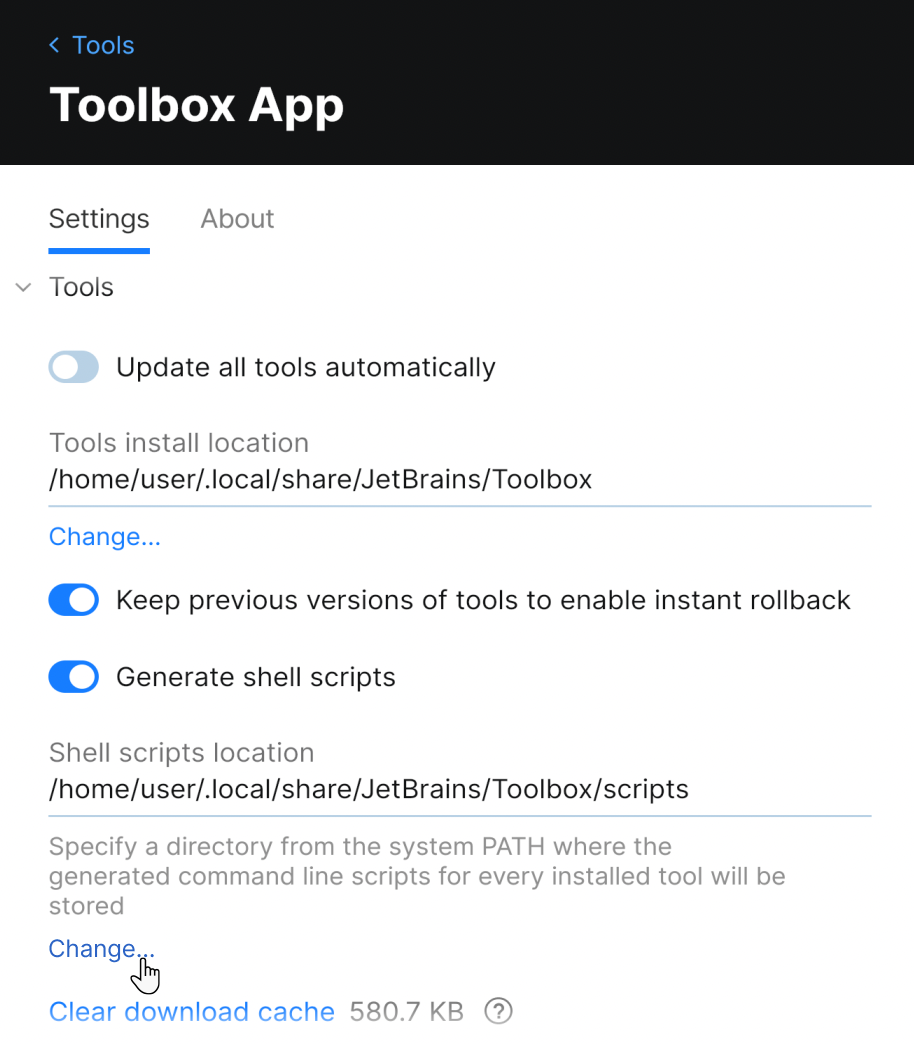
Rename shell scripts
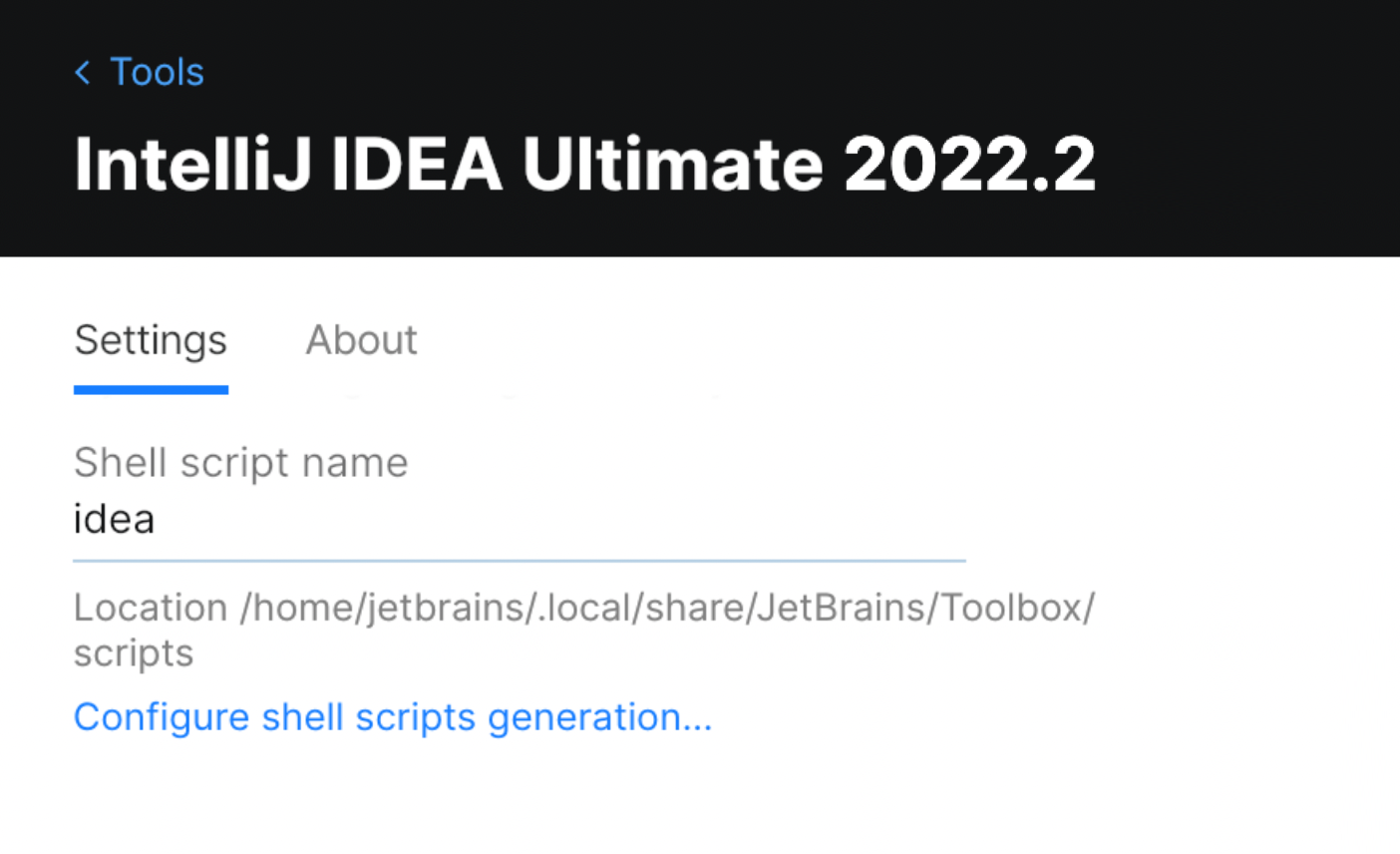
If you have several versions of the same IDE, the Toolbox App generates a shell script for each version with a unique name. You can change the name of the shell script for an IDE instance in the settings for this specific instance.
Open the Toolbox App.
Click
next to an IDE instance and select Settings.At the bottom of the Configuration section, change the Shell script name field.
Command-line arguments
The launcher script accepts commands, options, and other arguments to modify its behavior. Without any arguments, the script launches IntelliJ IDEA. If you specify the path to a file or directory, IntelliJ IDEA will open the specified file or directory. For more information, refer to Open files from the command line.
Commands
diffOpen the diff viewer to see the differences between two specified files.
For more information, refer to Compare files from the command line.
mergeOpen the Merge dialog to merge the specified files.
For more information, refer to Merge files from the command line.
formatApply code style formatting to the specified files.
For more information, refer to Format files from the command line.
inspectPerform code inspection on the specified project.
For more information, refer to Run code inspections from the command line.
installPluginsInstall plugins by plugin ID from the JetBrains Marketplace or a custom plugin repository.
For more information, refer to Install plugins from the command line.
Options
nosplashDo not show the splash screen when loading IntelliJ IDEA.
dontReopenProjectsDo not reopen projects and show the welcome screen. This can help if a project that was open crashes IntelliJ IDEA.
disableNonBundledPluginsLaunch IntelliJ IDEA without loading manually installed plugins. This option doesn't remove or permanently disable plugins. This can help if a plugin that you installed crashes IntelliJ IDEA. You will be able to start the IDE and either disable or uninstall the problematic plugin.
--waitWait for the files to be closed before returning to the command prompt.
For example, you can open file.txt with the following command:
idea --wait file.txtThe shell will be waiting until file.txt is closed.