Enable web service client development support
To develop a web service client in IntelliJ IDEA, configure the corresponding module and supply all required libraries. The instructions on this page are applicable for developing a web service client of the following types:
GlassFish/JAXWS2.X RI/Netro 1.X/JWSDP2.0
Apache Axis
RESTful Web Service
Install the Jakarta EE: Web Services (JAX-WS) plugin
This functionality relies on the plugin, which you need to install and enable.
Press Ctrl+Alt+S to open settings and then select .
Open the Marketplace tab, find the Jakarta EE: Web Services (JAX-WS) plugin, and click Install (restart the IDE if prompted).
Create a project for a web service client application
Click New Project on the Welcome screen or select .
From the Generators list, select Jakarta EE.
Name the new project, select a build tool, a language you want to use, and select the Web application project template.
Select the Create Git repository option to place the new project under version control.
From the JDK list, select the JDK that you want to use in your project.
If the JDK is installed on your computer, but not defined in the IDE, select
 Add JDK from Disk… and specify the path to the JDK home directory.
If you don't have the necessary JDK on your computer, select
 Download JDK.
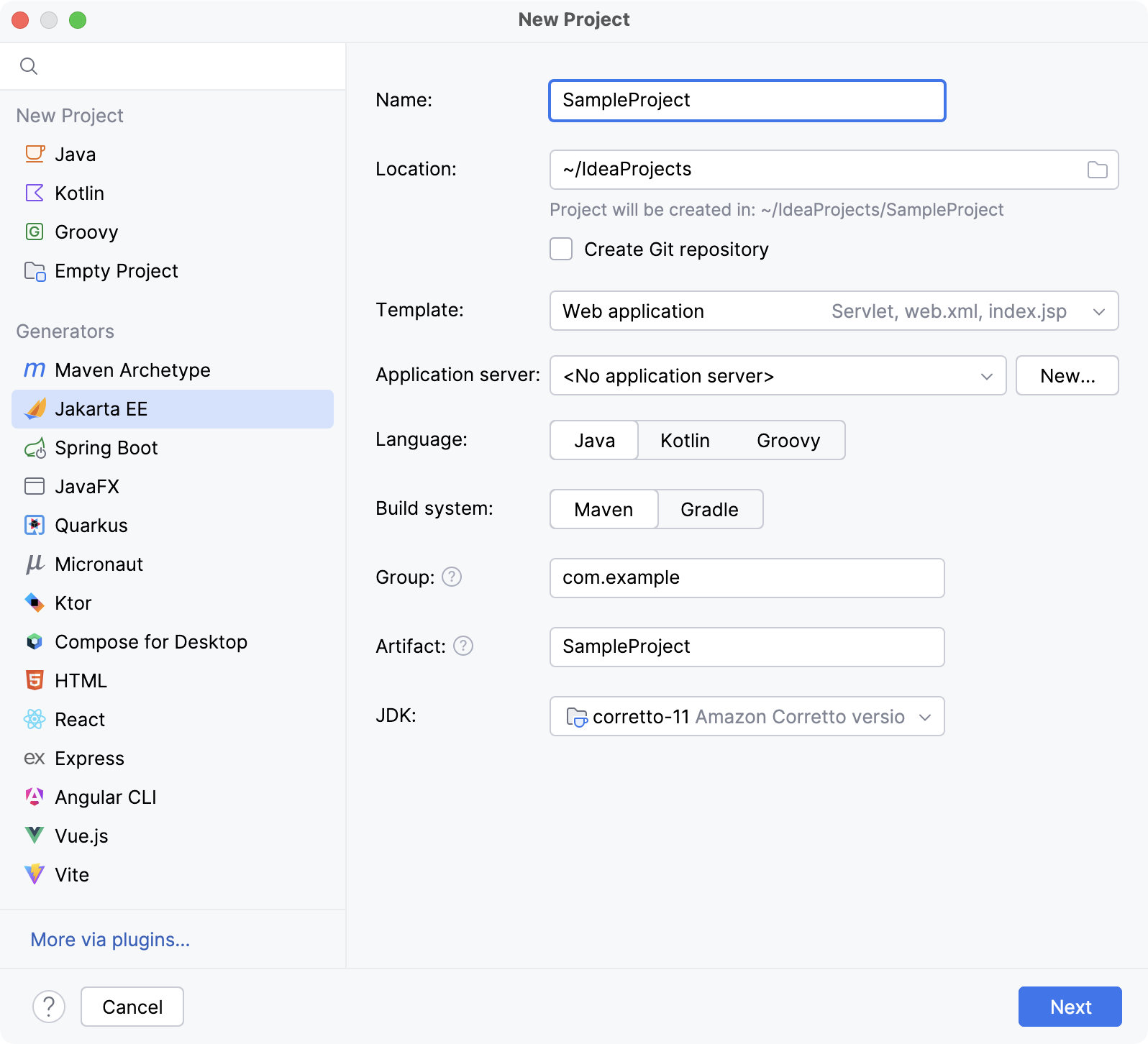
On the next step of the wizard, select the Jakarta EE version to be supported.
From the Dependencies list, select XML Web Services.
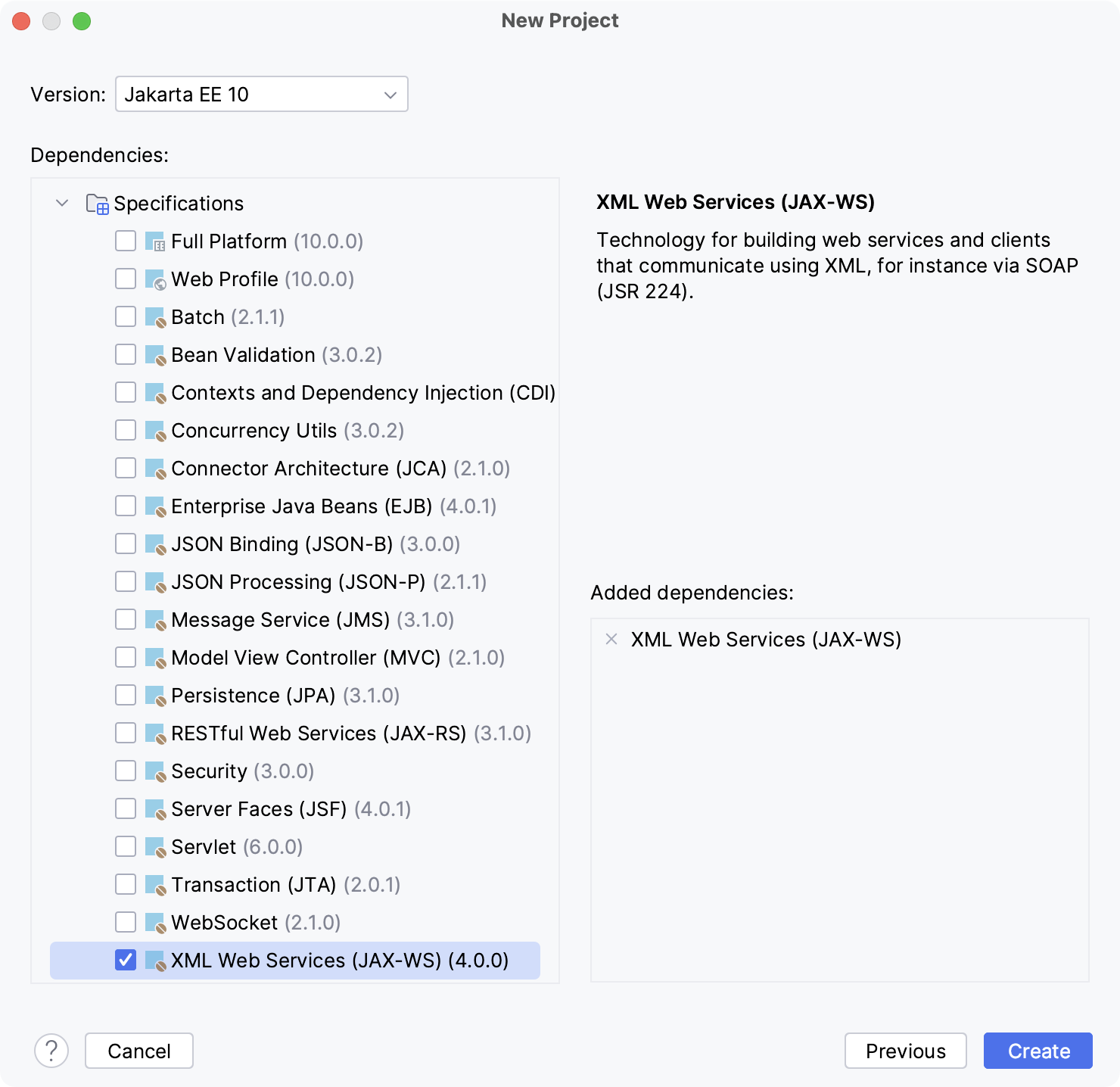
Click Create.
Add web service client to an existing project
Open the build file in the editor (pom.xml or build.gradle depending on the build tool used in your project).
Add the web service client dependency, and make sure the version matches the rest of your project:
- Jakarta EE
- <dependency> <groupId>jakarta.xml.ws</groupId> <artifactId>jakarta.xml.ws-api</artifactId> <version>3.0.1</version> <scope>provided</scope> </dependency>
- Java EE
- <dependency> <groupId>javax.xml.ws</groupId> <artifactId>jaxws-api</artifactId> <version>2.3.1</version> <scope>provided</scope> </dependency> <dependency> <groupId>javax.jws</groupId> <artifactId>javax.jws-api</artifactId> <version>1.1</version> <scope>provided</scope> </dependency>
- Jakarta EE
- compileOnly('jakarta.xml.ws:jakarta.xml.ws-api:3.0.1')
- Java EE
- compileOnly('javax.xml.ws:jaxws-api:2.3.1') compileOnly('javax.jws:javax.jws-api:1.1')
Press Ctrl+Shift+O to import the changes.
For more information about working with build tools, refer to Maven or Gradle.
Enable support for any web service engine
IntelliJ IDEA uses facets to enable support for the most common web service engines. However, you can enable any web service engine or implementation version, even if it is not supported by IntelliJ IDEA facets.
Download the desired web service engine implementation.
Press Ctrl+Alt+S to open settings and then select . Specify the path to the external web service engine, desired server name and port, and other options For more information, refer to Web Services.