Notifications
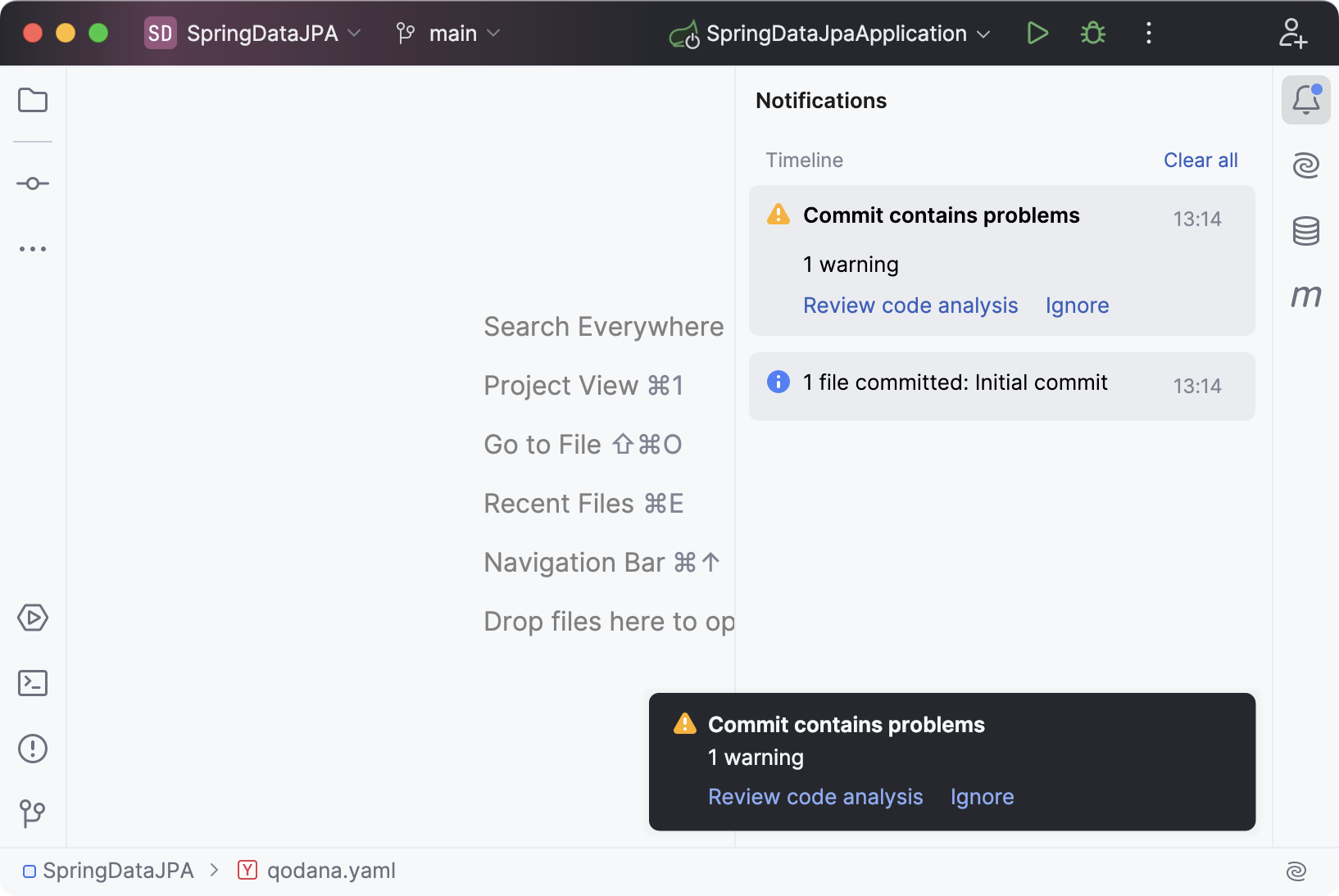
Whenever there is an important event or a suggestion in the IDE, you will see a notification balloon that pops up in the bottom right corner of IntelliJ IDEA. You can also access all notifications and events in the Notifications tool window.
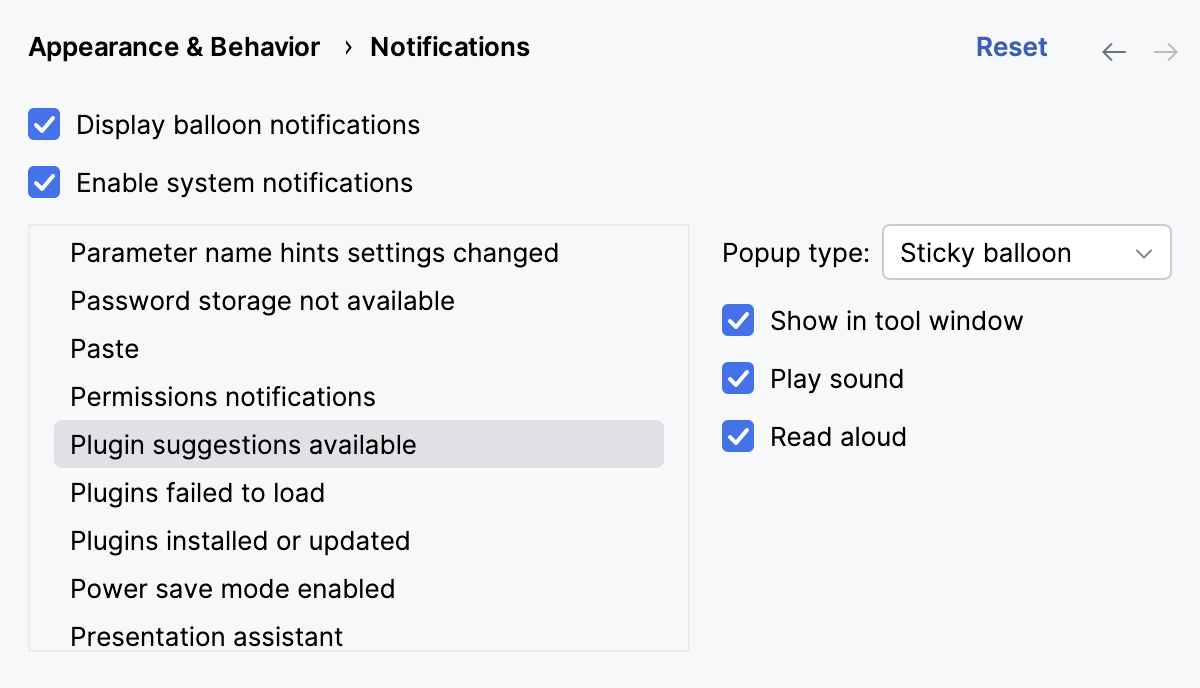
IntelliJ IDEA allows you to configure notification settings for every group of events individually. For example, you can disable all VCS notifications or enable sound notifications to inform you that your application has been built.
Configure notifications per event group
Press Ctrl+Alt+S to open the IDE settings and select .
Select the event group for which you want to configure notification settings.
From the Popup type list, select one of the following options for balloon notifications:
Balloon: notification balloons appear on the screen for a short period of time and then disappear automatically.
Tool window balloon: notifications appear in popups. This type of notifications is available only for those event groups for which there is a corresponding tool window.
For example, notifications on skipped breakpoints are related to the Debug tool window.

Sticky balloon: notification balloons stay on the screen until you close them.
No popup: balloon notifications do not appear.
Enable the Show in tool window option to display notifications for the selected event group in the Notifications tool window.
Select Play sound to enable sound notifications or select Read aloud (macOS only) to generate voice notifications from the notification text.
Notification balloons
Balloon notifications show up in the bottom right corner of the IDE and inform you about important events and suggestions.
If you prefer to work without distractions, you can disable all balloon notifications at once.
Disable all balloon notifications
Press Ctrl+Alt+S to open settings and then select .
Disable the Display balloon notifications option.
You can also configure or completely disable balloon notifications for specific event groups using the Popup type list.
Notifications tool window
You can open the tool window by clicking the corresponding tool window bar or by selecting from the main menu.
The tool window can also open messages that you can see in the status bar: click a message to view it in the tool window.
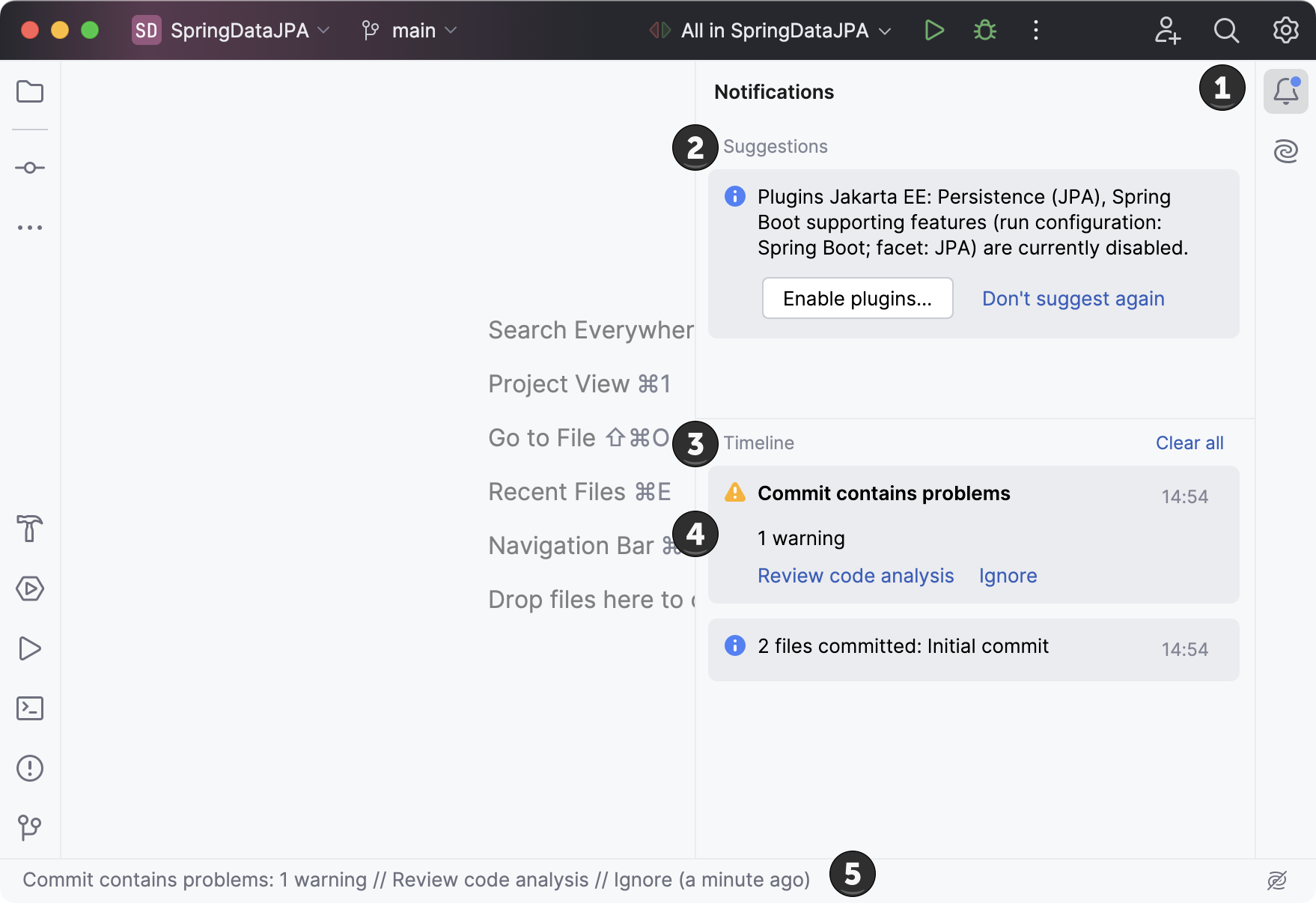
The Notifications icon. Click it to quickly open the tool window.
The indicator next to the tool window title marks new notifications and their importance: a blue dot marks regular events and unimportant suggestions. A red dot marks errors and important suggestions.
The area with important suggestions. For more information, refer to Suggestions.
Regular events and notifications. For more information, refer to Timeline.
New (unread) notifications.
A status bar message. Click a message to view it in the tool window. For more information, refer to Status bar.
Notifications remain in the tool window until you manually clear them or until you reopen your project.
Suggestions
Suggestions help you optimize your work with the IDE. They inform you about missing components, plugins, and disabled options and prompt you to change the configuration accordingly.
Don't show suggestions
If a suggestion is not relevant, you can hide it:
Click
 in the suggestion that you want to hide and select Don't show again or Don't show again for this project.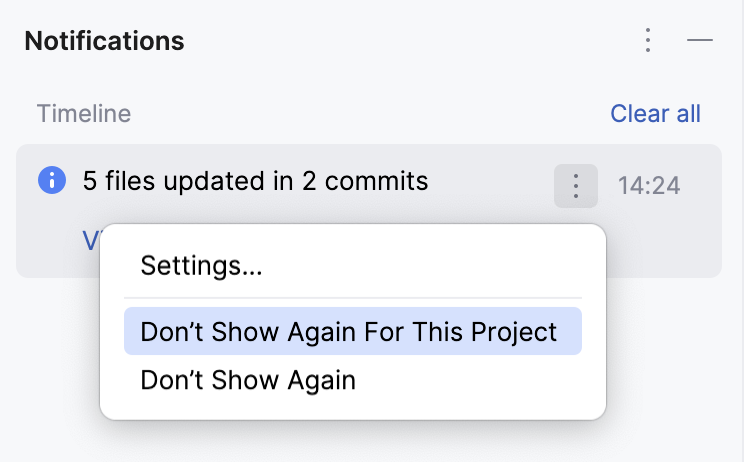
Restore hidden suggestions
If you change your mind, you can restore the disabled suggestions in the settings:
Press Ctrl+Alt+S to open settings and then select .
In the Don't ask again notifications table, locate the required suggestion and click
 .
.
Timeline
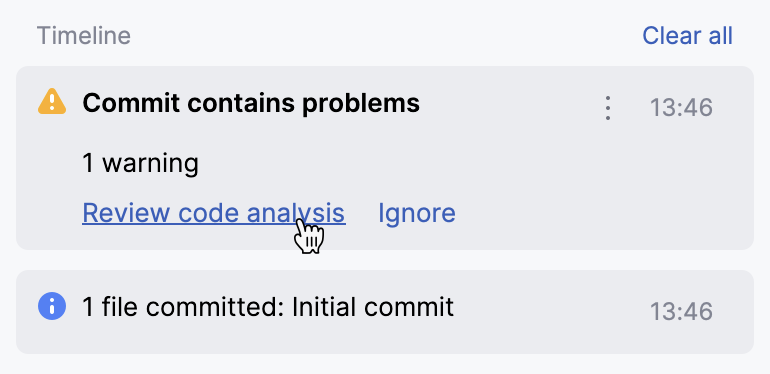
The Timeline area lists notifications and events that take place in IntelliJ IDEA in sequential order.
When an error occurs, its description is provided with a link that opens another dialog or a tool window in which you can examine the problem in detail.