IntelliJ IDEA 11.1 Web Help

9.0+

File | Settings | File Colors

Ctrl+Alt+SCommand Comma

settings

IntelliJ IDEA | Preferences | File Colors

Ctrl+Alt+SCommand Comma

settings

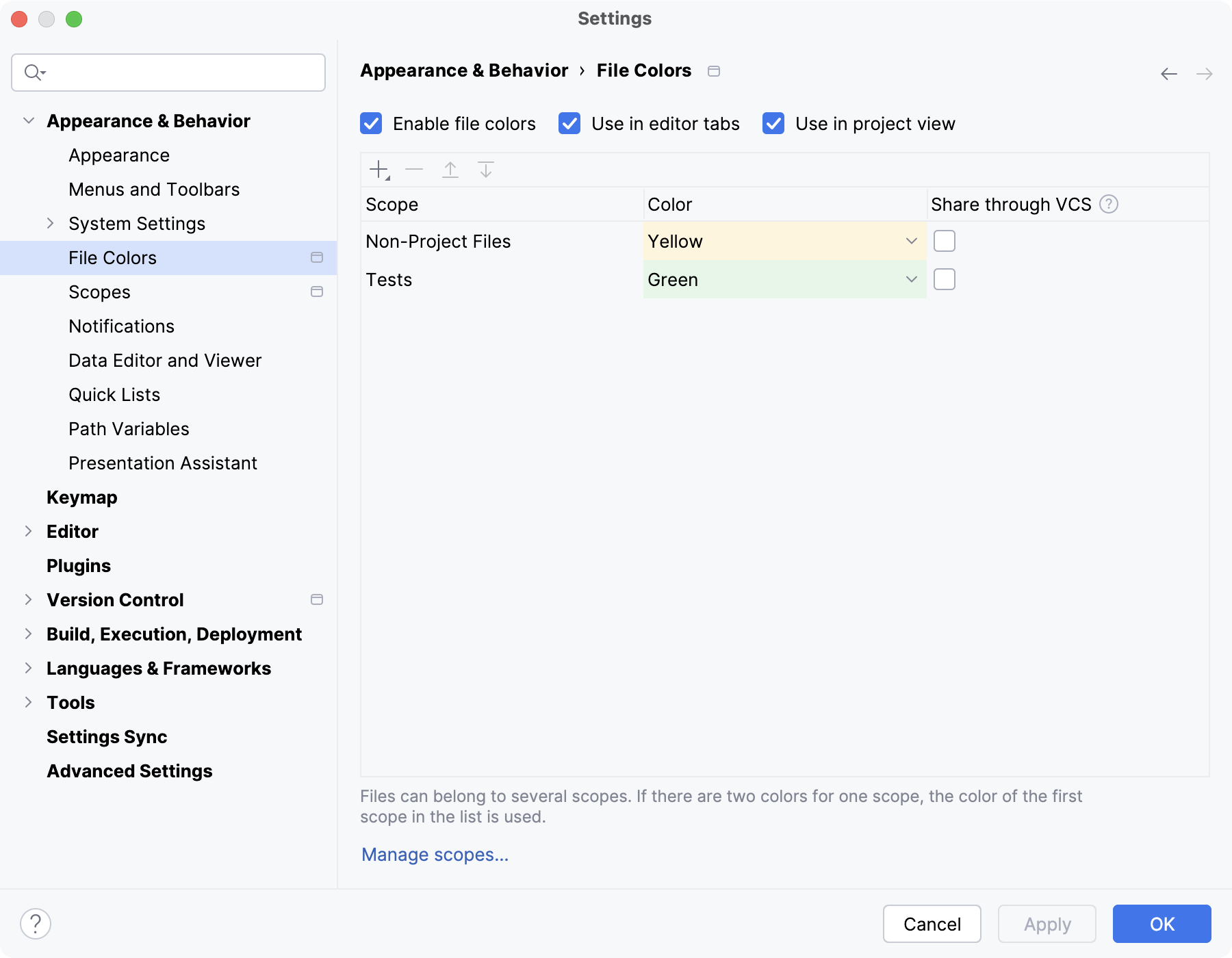
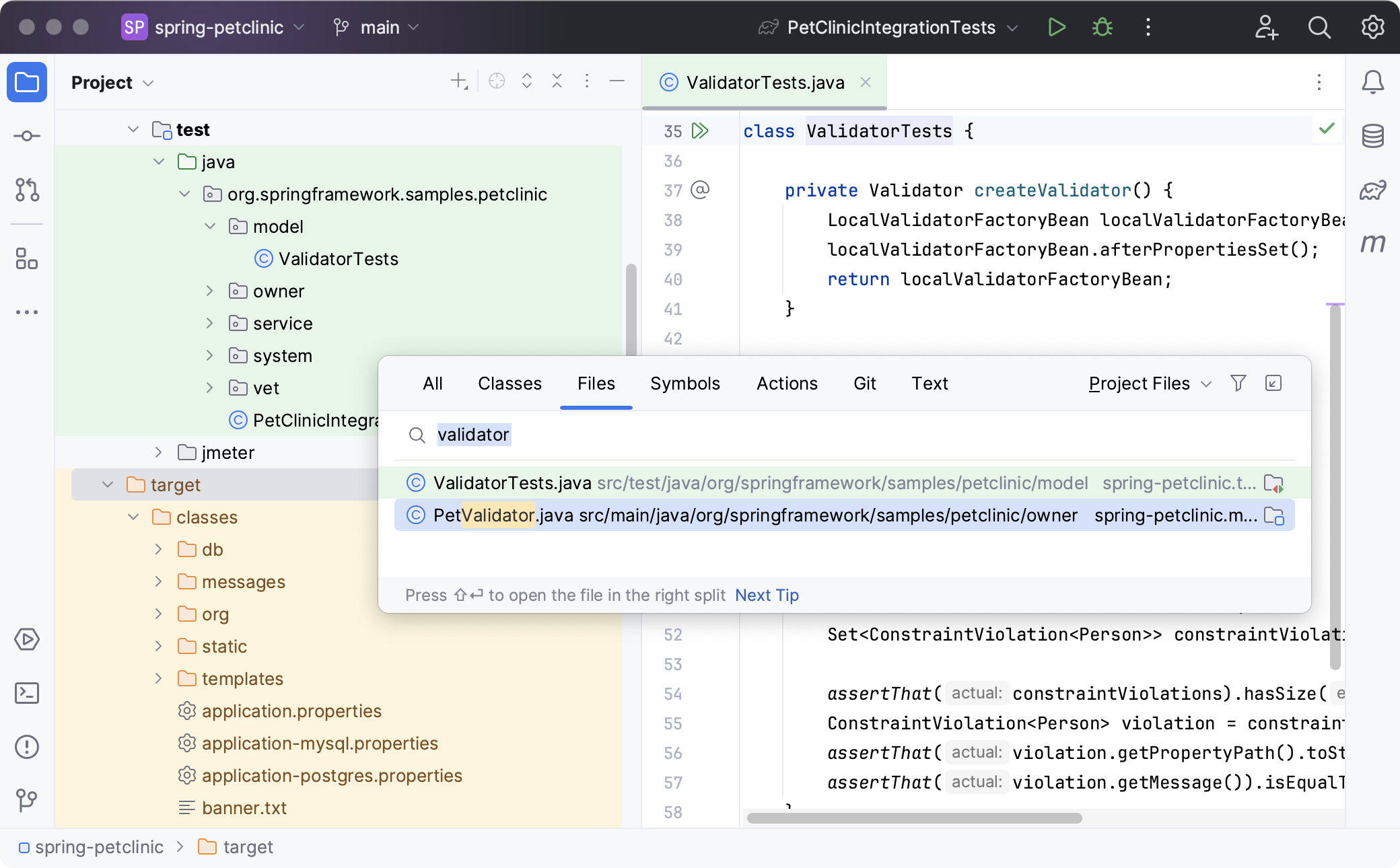
Use this dialog box to set background colors for displaying names of project files, folders, and packages of specific scopes. The settings apply to the following UI elements:

In this section:

Common Options

Item Description
Enable File Colors Select this check box to apply background color settings to navigation lists.
Enable Colors in Editor Tabs Select this check box to apply background color settings to the headers of editor tabs.
Manage Scopes Click this button to open the Scopes dialog box, where you can define custom scopes for various actions.

Local Colors

In this area, configure the color-scope associations to be applied locally.

Note

Once defined, a color-scope association cannot be changed. To re-assign a color to a scope, remove the existing association and define a new one.

Item Tooltip and shortcut Description
Scope This read-only field shows the scope to apply the color setting to.
Color This read-only field shows the color to be applied to the corresponding scope.
add Add Click this button to open the Add Color Label dialog box, where you can configure a new color-scope association.
delete Remove Click this button to remove the selected color-scope association.
arrowUp
arrowDown
Move up/
Move down
Use these buttons to resort the color-scope associations and thus determine the order in which they are applied.
iconShareColorScopeAssociation Share Click this button to have the selected scope-color association shared among the members of the team.

Note

The selected association will be accordingly moved to the list in the Shared Colors area.

Shared Colors

Use the controls in this area to configure the color-scope associations to be shared among all the members of the team.

Note

Once defined, a color-scope association cannot be changed. To re-assign a color to a scope, remove the existing association and define a new one.

Item Tooltip and shortcut Description
Scope This read-only field shows the scope to apply the color setting to.
Color This read-only field shows the color to be applied to the corresponding scope.
add Add Click this button to open the Add Color Label dialog box, where you can configure a new color-scope association.
delete Remove Click this button to remove the selected color-scope association.
arrowUp
arrowDown
Move up/
Move down
Use these buttons to resort the color-scope associations and thus determine the order in which they are applied.
iconUnshareColorScopeAssociation Unshare Click this button to have the selected scope-color association applied only locally.

Note

The selected association will be accordingly moved to the list in the Local Colors area.

See Also

Concepts:

Procedures:

Reference:

Web Resources: