Search for a target within a file
You can quickly find and replace text strings in the current document. Using different options, you can narrow your search process, use regular expressions in your search, and manage your search results.
Find the search string in a file
Open your file in the editor.
Press Ctrl+F or select from the main menu.
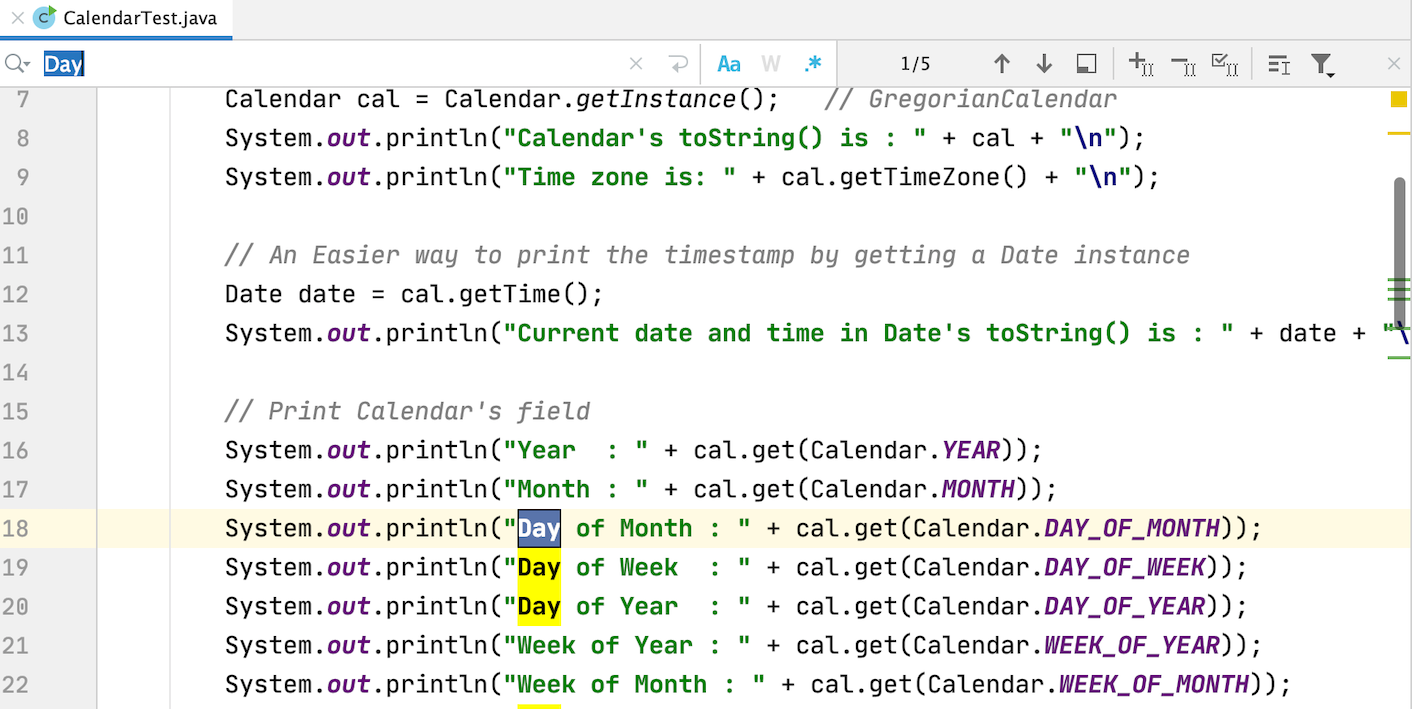
In the search field that opens, enter your search string. IntelliJ IDEA highlights the results of your search in the file. Alternatively, in the editor, highlight the string you want to find and press Ctrl+F. IntelliJ IDEA places the highlighted string into the search field.
Find in selection
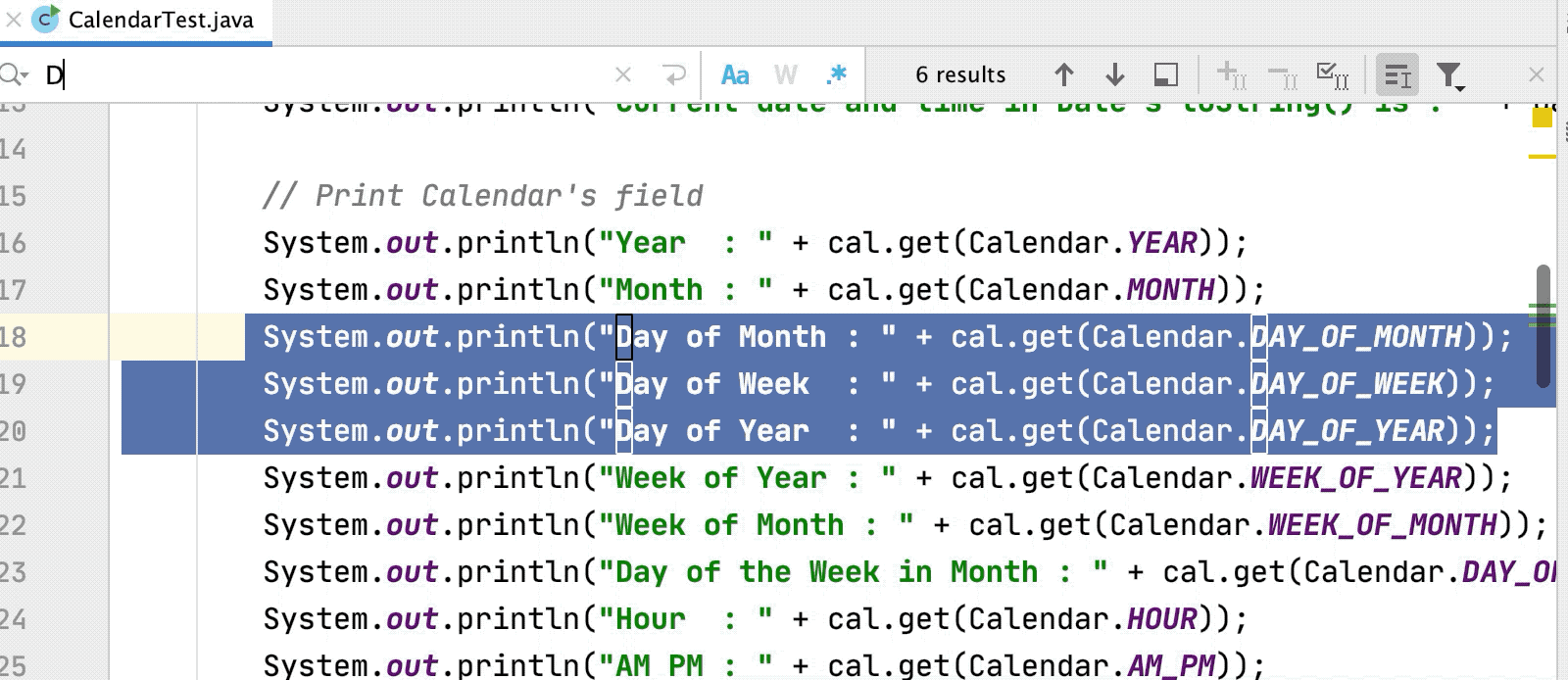
You can search for a text string inside a multi-line selection.
Select a multi-line fragment and press Ctrl+F.
Click
 , set a tick next to Search In Selection and type your search string. IntelliJ IDEA will search for the target inside the selected fragment first.
If you remove the tick next to Search In Selection, IntelliJ IDEA will switch the search process back to the whole file.
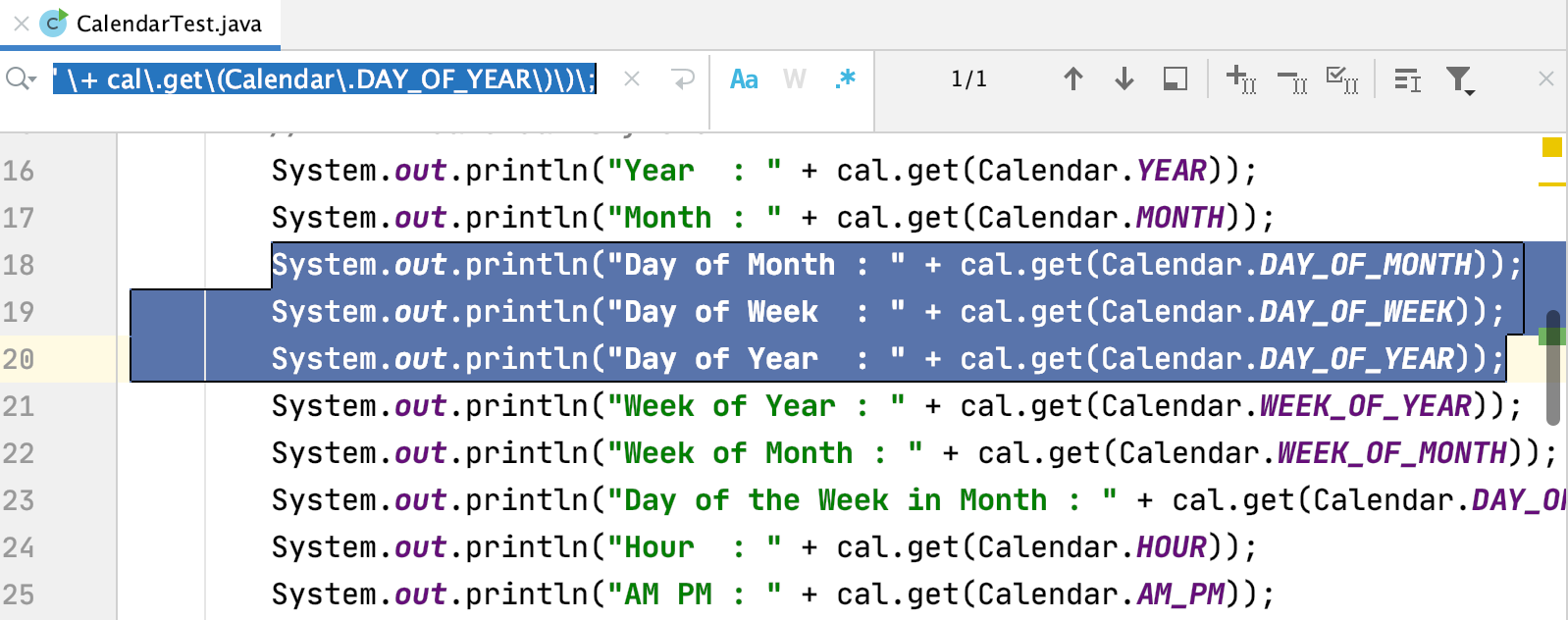
If you want to search for the multi-line fragment itself, select it and press Ctrl+F.
Manage your search
IntelliJ IDEA lets you adjust your search process and perform various actions with the displayed search results.
The editor automatically scrolls while you type a search query. To disable this behavior, click
 and uncheck the Scroll to Results During Typing option.
If you want to see the list of previous searches, press ⌥↓ in the search field.

If you want to enter a multi-line string, click the
 icon in the search field for a new line.
With
 selected, IntelliJ IDEA automatically escapes special regex symbols with backslash
 \when you search for a text string that contains them.For more information about regex, refer to the search with regex documentation.
Use the
 and
and  arrows to navigate to the previous or the next occurrence.
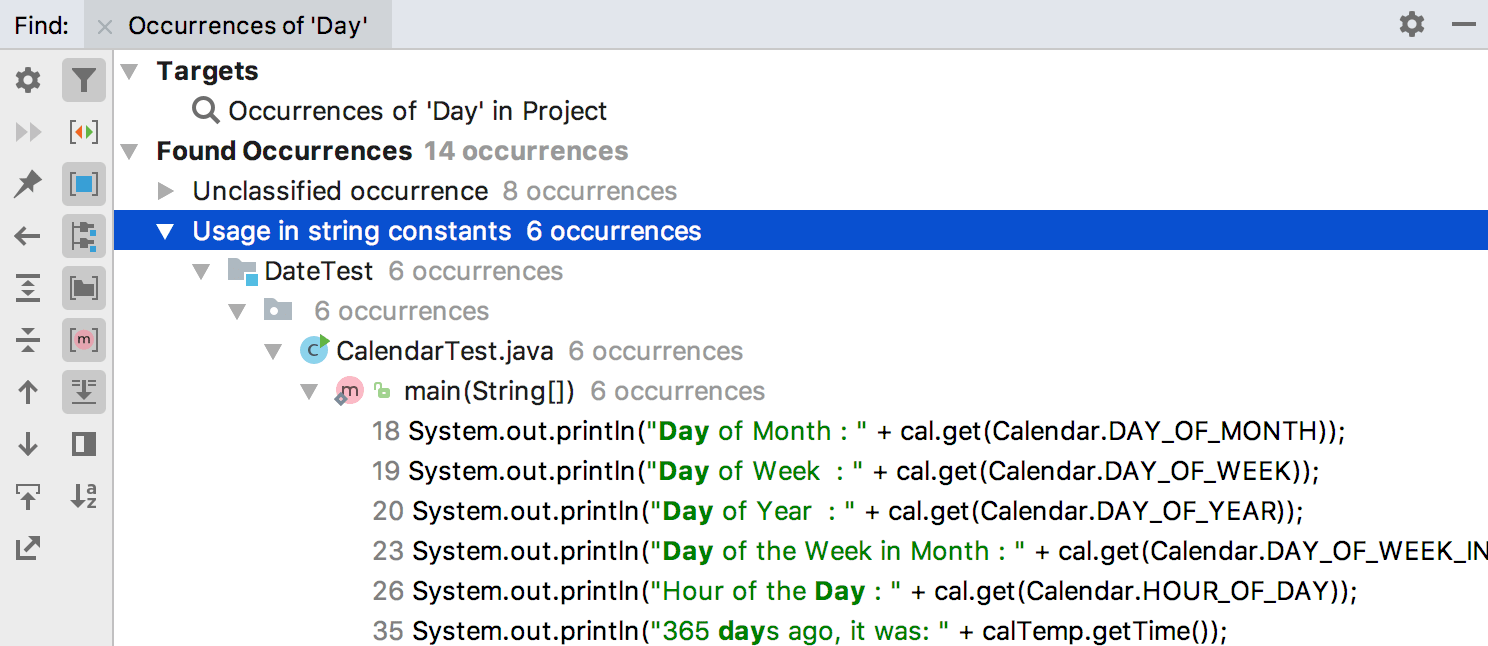
Work with the list of occurrences Alt+F7 in the Find tool window, where you have other options, for example, to group your results or to open them in a separate window.
Click
for Multiple Cursors selection options: to add a selection of the next occurrence (Alt+J) or to deselect the previous occurrence (Alt+Shift+J).If you want to quickly replace the target of your search in the whole file, press Ctrl+Alt+Shift+J and type a new string.
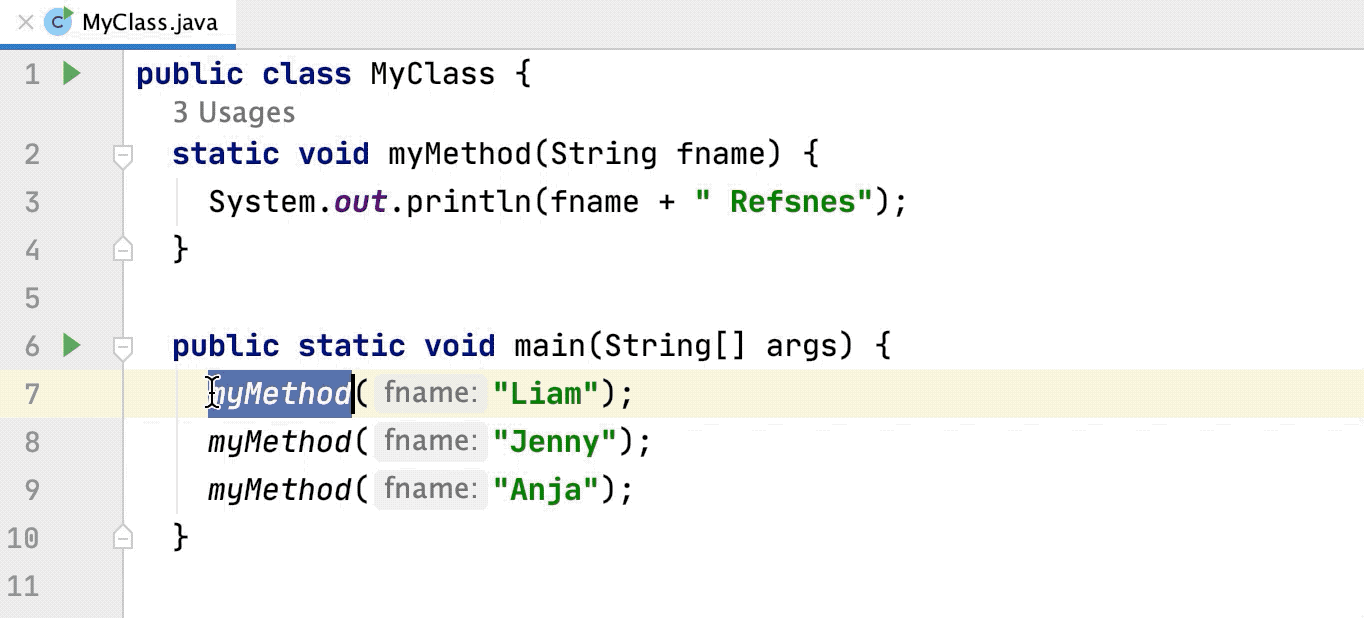
You can narrow your search when you click
 ,
,  in the search field, or click to select a scope for your search.
You can press ^⌥X (previously known as ⌥G) to quickly toggle
the Regex option. You can use regular expressions to opt for more challenging searches.Press Ctrl+F7 to see usages of any element in the opened file.
If you don't want IntelliJ IDEA to highlight all found usages in the file, open the Settings dialog (Ctrl+Alt+S) and on the page, under the section, clear the Usages of element at caret option.
Press Alt+F7 to search for usages beyond the current file or Ctrl+Alt+F7 to open the search results in a separate popup. If you need to configure some options before the search, press Ctrl+Alt+Shift+F7 to open the Find Usages dialog.
Replace the search string in a file
Press Ctrl+R or select from the main menu to open the Replace in File window.
In the top field, enter your search string. In the bottom field, enter your replacement string. If you need to preserve the case, click
 located in the replace field.
Click
for a multi-line replace. For example, if you want to replace a comma with a comma and a new line, enter a comma in the search field and a comma and the new line in the replace field.Click Replace to replace items one by one, Replace all to replace all items in your file, and Exclude to omit some items from replacing.
The options that appear in the Replace window, are similar to the Find window and you can refer to the manage the search results section.