Jakarta Persistence (JPA)
Jakarta Persistence (JPA), formerly known as Java Persistence API, is a Java specification for managing relational data in Java Enterprise applications.
Enable the Jakarta EE: Persistence (JPA) plugin
This functionality relies on the Jakarta EE: Persistence (JPA) plugin, which is bundled and enabled in IntelliJ IDEA by default. If the relevant features are not available, make sure that you did not disable the plugin.
Press Ctrl+Alt+S to open settings and then select .
Open the Installed tab, find the Jakarta EE: Persistence (JPA) plugin, and select the checkbox next to the plugin name.
IntelliJ IDEA provides the following:
Coding assistance specific to JPA.
A dedicated facet for managing the JPA configuration persistence.xml and object-relational mapping orm.xml files.
The Persistence tool window for managing your JPA project items, creating configuration files and persistent classes, navigating to related source code in the editor, opening diagrams and consoles, and more.
Entity-relationship (ER) diagrams that you can access from the Persistence tool window.
An ability to generate managed entity classes and object-relational mappings for them by importing a database schema or an EJB deployment descriptor file ejb-jar.xml.
The JPA console for writing and running JPQL queries, and analyzing the query results.
Create a new Jakarta EE project with JPA
Open the New Project wizard:
If you are on the Welcome screen, click New Project.
If you are in the IDE, go to .
From the Generators list, select Jakarta EE.
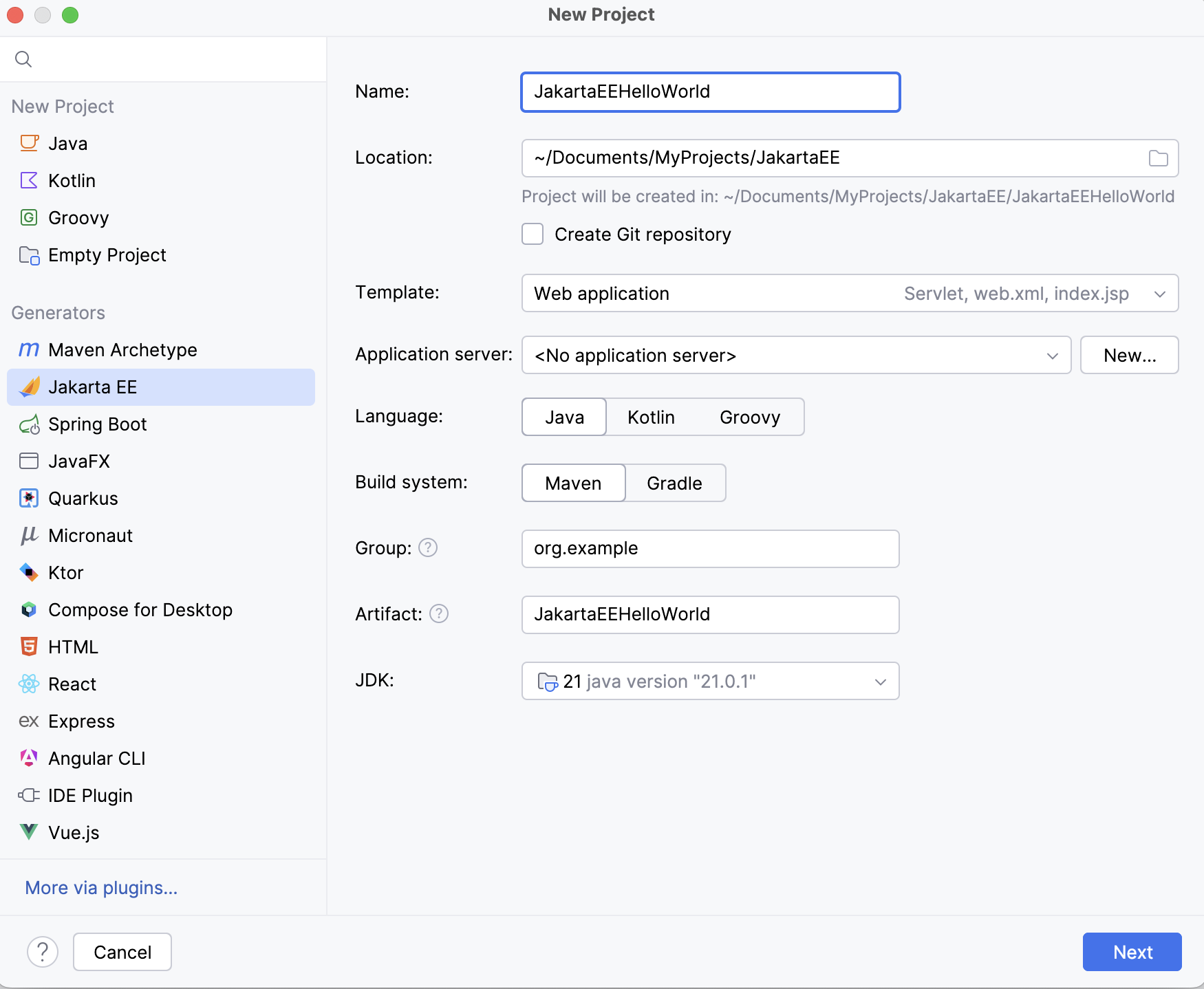
Set up the Jakarta EE project settings.
Go to the next step of the wizard. In the upper-left corner, select the Jakarta EE version you want to use.
From the Specifications list, select Persistence (JPA).
If you are not going to implement all the interfaces of the JPA specification yourself, you also need to include a persistence framework. By default, IntelliJ IDEA provides support for the following persistence frameworks:
EclipseLink is the reference implementation. Select it if you are just trying things out.
Hibernate is the most popular implementation. For more information, refer to Hibernate.
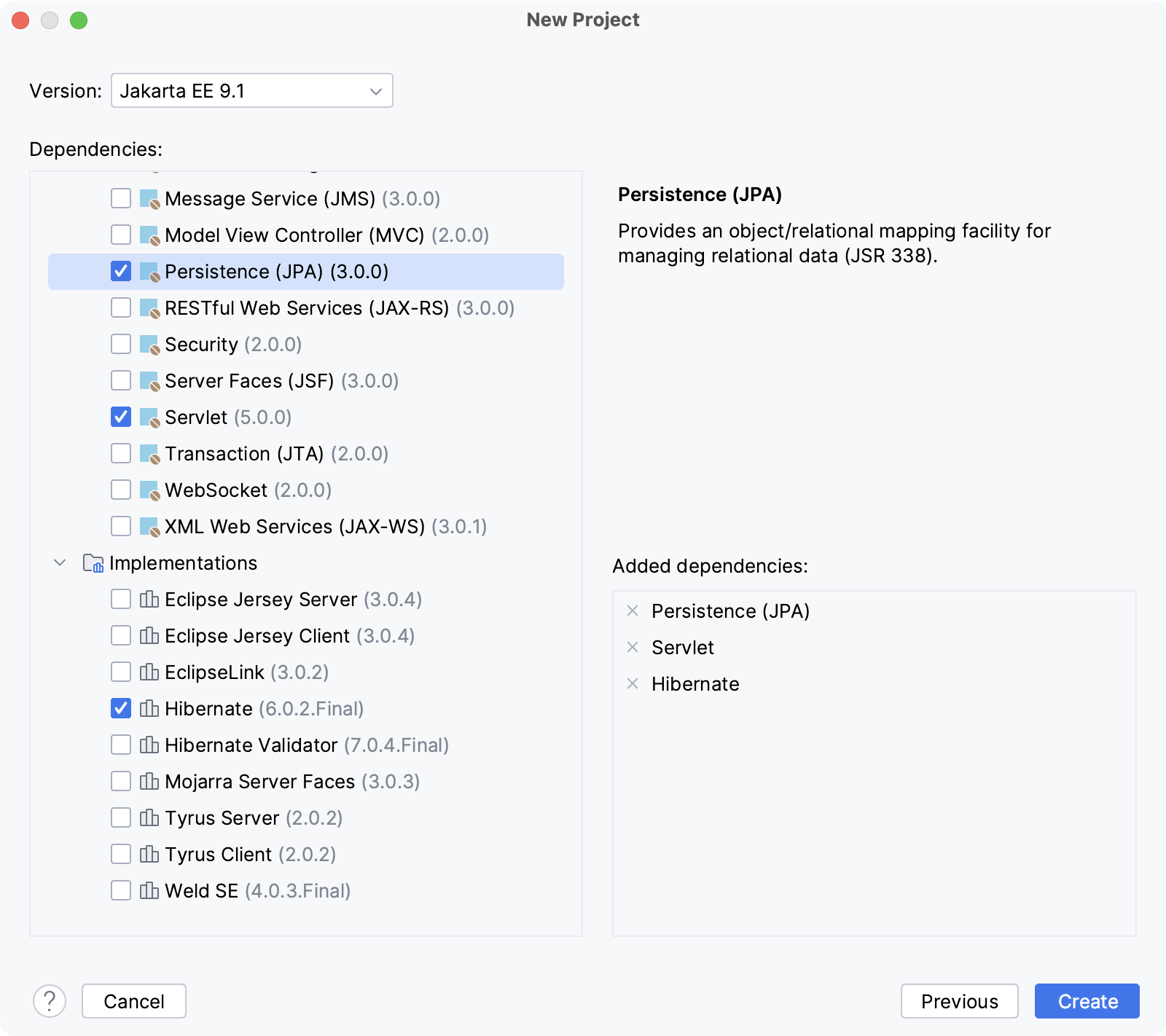
Click Create.
For more information about creating Jakarta EE projects, such as how to set up an application server, refer to Tutorial: Your first Jakarta EE application.
Add JPA to an existing project
Open the build file in the editor (pom.xml or build.gradle depending on the build tool used in your project).
Add the JPA dependency, and make sure the version matches the rest of your project:
- Jakarta EE
- <dependency> <groupId>jakarta.persistence</groupId> <artifactId>jakarta.persistence-api</artifactId> <version>3.1.0</version> </dependency>
- Java EE
- <dependency> <groupId>javax.persistence</groupId> <artifactId>javax.persistence-api</artifactId> <version>2.2</version> <scope>provided</scope> </dependency>
- Jakarta EE
- implementation 'jakarta.persistence:jakarta.persistence-api:3.1.0'
- Java EE
- compileOnly('javax.persistence:javax.persistence-api:2.2')
Press Ctrl+Shift+O to import the changes.
Once the dependency has been added, Jakarta Persistence features, such as the Persistence tool window, become available right away.
For more information about working with build tools, refer to Maven or Gradle.
Share facet settings
You can change and share settings by creating custom facets and adding a module file with the .iml extension to the version control system.
For example, to share a selected data source for JPA within your team, you can create a JPA facet and commit its settings.
In the main menu, go to or press Ctrl+Alt+Shift+S. Then select Modules.
Make sure the module to which you want to add a facet is selected and click
 above the list of modules. From the list of available facets, select JPA.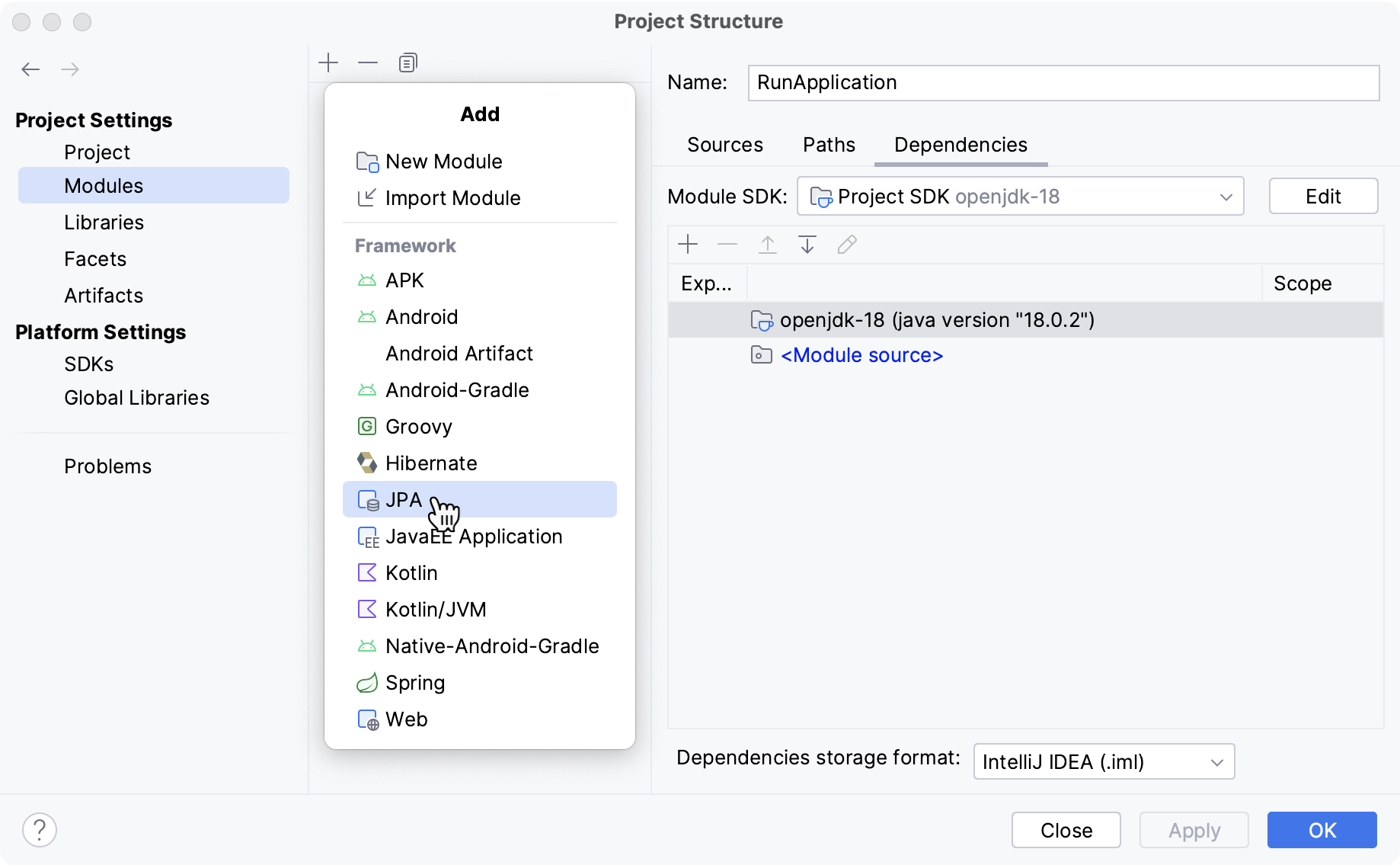
The Descriptors section becomes available on the right.
In the Descriptors section, click
and select a descriptor type. Create a new file or specify the path to an existing one.Reopen the project. After that, the changes will appear in the .iml file of the module to which you have added the facet.
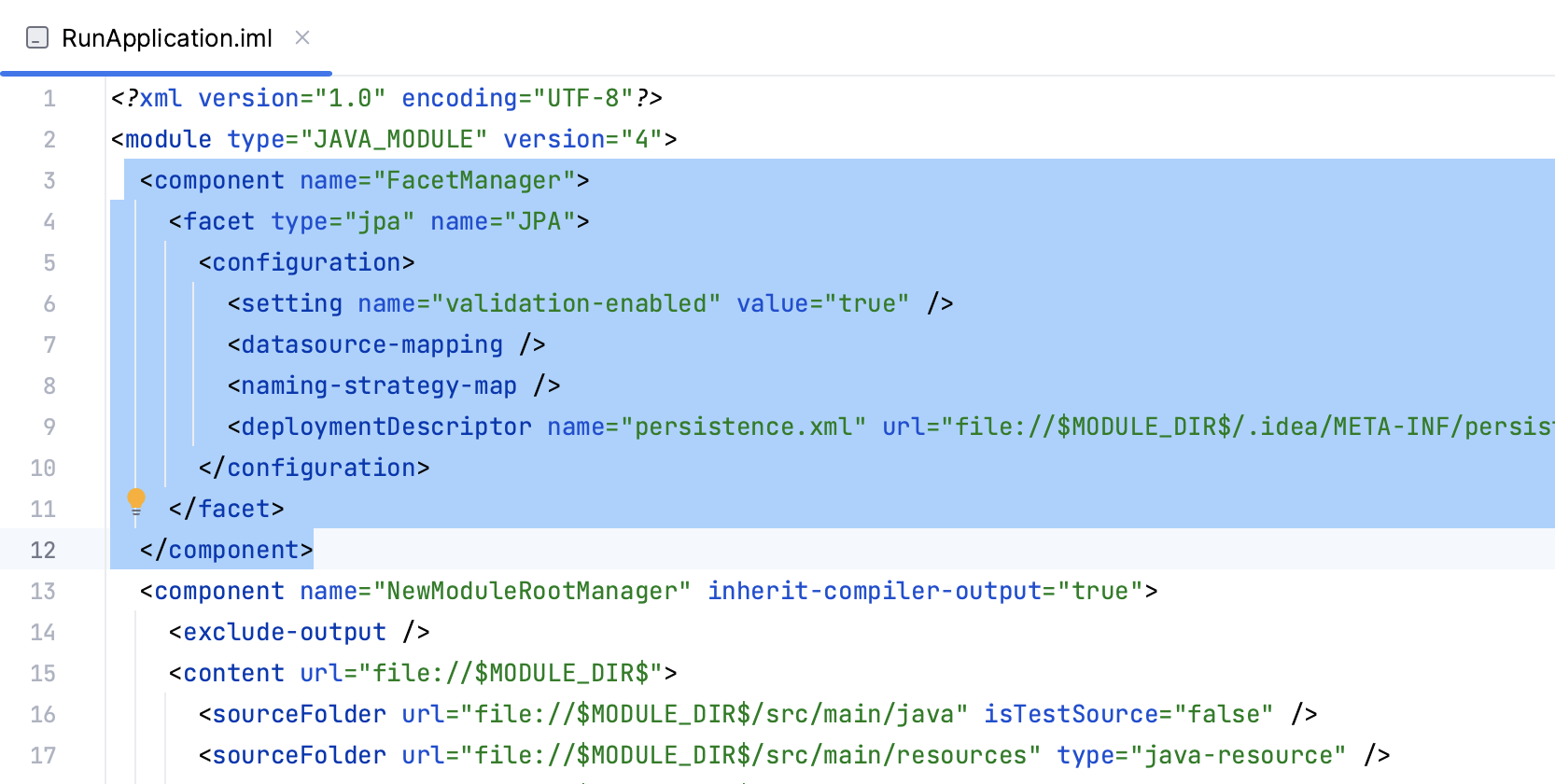
Add the .iml file to your version control system.