IntelliJ IDEA 11.0 Web Help

File | Settings | IDE Settings | Live Templates

Ctrl+Alt+SMeta Comma

settings

IntelliJ IDEA | Preferences | IDE Settings | Live Templates

Ctrl+Alt+SMeta Comma

settings

Use this page to create, manage, and edit live templates.

In this topic:

List of available live templates

Item Tooltip and shortcut Description
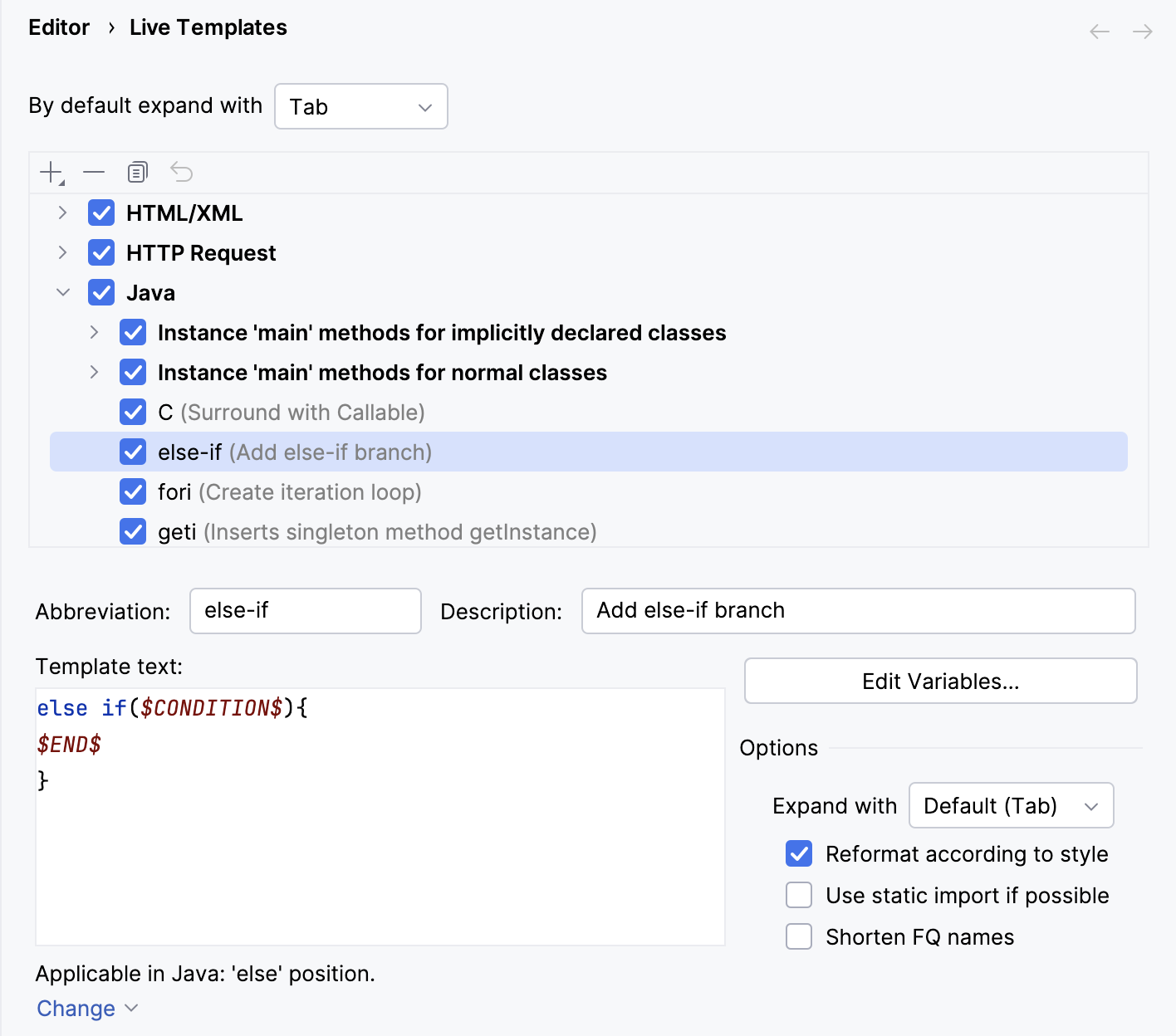
By default expand with Use this drop-down list to specify the default invocation key for all templates. Individual invocation keys for particular templates are defined in the Edit Template dialog box.
Live Templates The list shows all currently available template abbreviations supplied with their descriptions. The abbreviations are grouped below nodes and sorted alphabetically within each group. To activate a template or an entire group, select the check box next to it.

Note

Note that:

  • Only active templates are displayed upon pressing Ctrl+JCommand J in the editor.
  • If a template is active, the editor is sensitive to its abbreviation. Otherwise, the abbreviation is considered merely a set of characters.
add Add
Alt+InsertCommand N
Click this button to have a new template item added to the current node and define the template from scratch in the Template Text area.
delete Remove
Alt+DeleteMeta Delete
Click this button to have the selected live template removed from the list.
copy Copy Click this button to create a new template based on the selected template. A new template item is added to the current node and the fields in the Template Text area show the definition of the selected template.

Template text area

The focus is moved to this area in the following cases:

  • When you click the Add add or Copy copy button.
  • When you select a live template in the list.
  • When you select a fragment of code in the editor and choose Tools | Save as Live Template.

Use controls of this area to create new live templates and edit settings of the existing ones.

Tip

You can navigate through the Template Text Area using the hot keys that are marked in the field labels.

Item Description
Abbreviation In this text box, specify the template abbreviation.
Description In this text box, provide optional description of a template or an example of its usage.
Template Text In this text box, type the template body that may contain plain text and variables in the format $<variable name>$.
  • If you need a dollar sign ($) in the template text, escape it by duplicating this character ($$).
  • To change variables in a template, click the Edit Variables button.

    IntelliJ IDEA supports two predefined live template variables: $END$ and $SELECTION$.

    • $END$ indicates the position of the cursor after the template is expanded. For example, the template return $END$ will be expanded into

      return ;

      with the cursor positioned right before the semicolon.

    • $SELECTION$ is used in surround templates and stands for the code fragment to be wrapped. After the template is expanded, the selected text is wrapped as specified in the template.

      For example, if you select EXAMPLE in your code and invoke the "$SELECTION$" template via the assigned abbreviation or by pressing Ctrl+Alt+TCommand Alt T and selecting the desired template from the list, IntelliJ IDEA will wrap the selection in double quotes as follows:

      "EXAMPLE".

    Note

    You cannot edit the predefined variables $END$ and $SELECTION$.

Applicable in: This read-only field shows the languages and/or pieces of code where the editor should be sensitive to the template. Upon pressing Ctrl+JCommand J in such context, IntelliJ IDEA displays a list of templates that are valid for this context.
Change Click this link to modify the set of contexts where the current template is enabled. Upon clicking the link, displays a list of supported language contexts is displayed. To make IntelliJ IDEA consider a context sensitive to the template, select a check box next to the context name.

The available context types include:

  • Java code: pure Java code and Java fragments in JSP code.
    • Java statement
    • Java expression
    • Java declaration
    • Java annotation
  • Java comment: a piece of text within comments.
  • Java string: a piece of text within double quotes.
  • Smart type completion: select this check box to have a live template expanded when Smart Type Completion is invoked. In such cases, IntelliJ IDEA needs to know the exact type of the desired expression. Live templates with Smart Type Completion enabled are examined and those providing suitable expression types are included in the suggestion list.
  • HTML: HTML tags and attributes.
  • XML: XML tags and attributes.
  • CSS: CSS selectors and attributes.
  • Groovy: Groovy code.
  • Other: all files with extensions registered in IntelliJ IDEA under the .txt file type in the File Types dialog box.

    Note

    For Surround with () and Surround with {}, the Other check box includes also HQL/JPAQL.

The following is available only in the Ultimate edition of IntelliJ IDEA

  • JSP: JSP tags context, excluding Java code within JSP.
  • JavaScript/ActionScript: JavaScript and ActionScript code.
  • GSP: GSP context.
Edit Variables Click this button to open the Edit Template Variables dialog box, where you can define how IntelliJ IDEA should process template variables upon template expansion.

Note

The Edit Variables button is enabled only if the template body contains at least one user-defined variable, that is, a variable different from $END$ or $SELECTION$.

Options In this area, define the behavior of the editor when a template is expanded.
  • Expand with - from this drop-down list, choose the key to invoke the template.
  • Reformat according to style - select this check box to have IntelliJ IDEA automatically reformat the expanded text according to the current style settings, defined in the Code Style dialog box.
  • Use static import if possible - select this check box to have IntelliJ IDEA add static import statements instead of inserting Class.methodName().
  • Shorten FQ names - select this check box to have IntelliJ IDEA truncate fully qualified names in the expanded template and add the corresponding import statements.

See Also

Concepts:

Procedures:

Reference:

Web Resources: