Arrange tool windows
By default, tool windows are attached to the edges of the main window. You can detach them to use as separate windows, as described in Tool window view modes.
Move tool windows
Click and drag the tool window icon or the tool window header.
The option to move tool windows by dragging the header can be disabled in settings.
Right-click the toolbar icon of the tool window, navigate to Move to, and select where to attach the tool window.
Alternatively, you can click the tool window options menu
 or right-click the tool window header and select where to attach the tool window under Move to.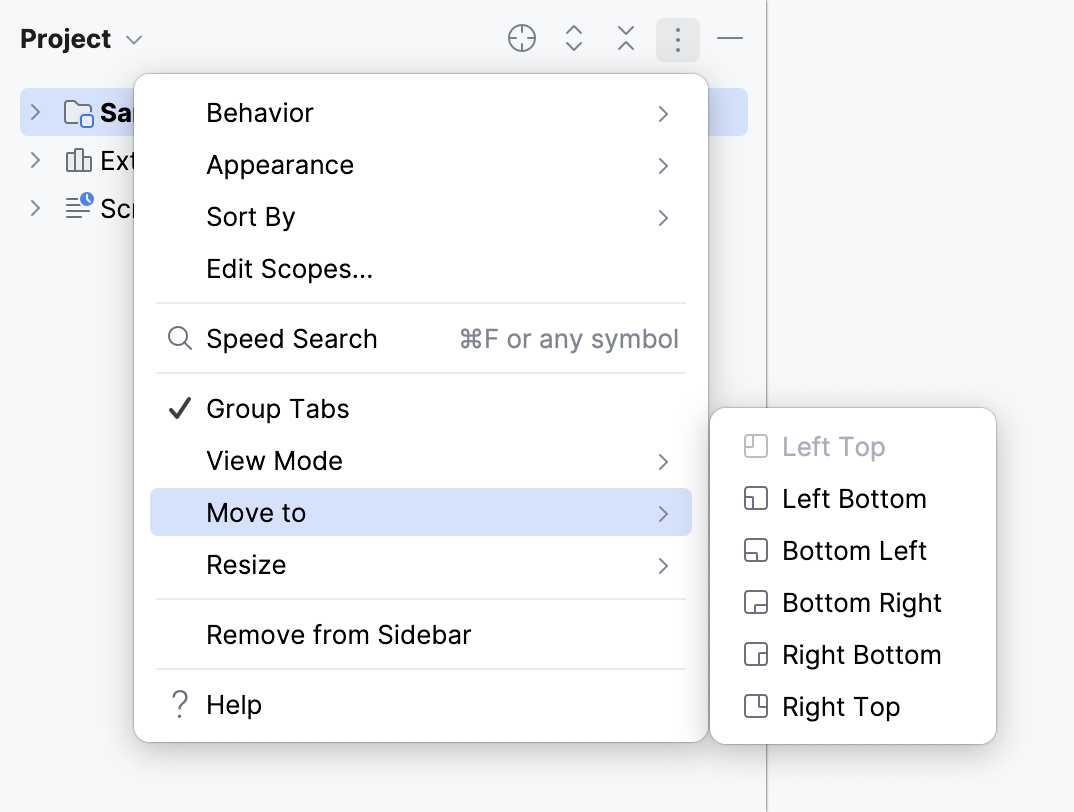
Resize tool windows
Resize a tool window
Click and drag the border of a tool window.
To resize the active tool window, press Ctrl+Alt+Shift+Left, Ctrl+Alt+Shift+Right, Ctrl+Alt+Shift+Up, Ctrl+Alt+Shift+Down, or use the main menu actions under .
To stretch the tool window to the maximum width or height, press Ctrl+Shift+Quote or select from the main menu.
Save custom tool window sizes
If you prefer to adjust the size of each tool window individually, you can configure the IDE to remember your custom layout.
Press Ctrl+Alt+S to open settings and then select .
In the Tool Windows section, select the Remember size for each tool window option.
When this option is disabled, tool windows have the unified default width, and their sizes remain constant when you switch between them.
Apply the changes and close the dialog.
Optimize for wide-screen monitors
IntelliJ IDEA provides several options to optimize the positioning of tool windows on wide-screen monitors.
In the Settings dialog (Ctrl+Alt+S) , select Appearance & Behavior | Appearance.
Under Tool Windows, configure the following:
Widescreen tool window layout: Maximize the height of vertical tool windows by limiting the width of horizontal tool windows.
Side-by-side layout on the left and Side-by-side layout on the right: Display vertical tool windows that are attached to the top and bottom edges in two columns instead of stacked on top of each other.
Click OK to apply the changes.
Move tool windows to separate frames
You can drag tool windows to separate frames and leave them floating, or dock them to editor tabs in other frames.
Arrange multiple tool windows in a separate frame
Click an editor tab and drag it to a new frame.
Click a tool window label, then drag and attach it to the new editor frame, repeat that for all tool windows that you want to have in a separate frame.
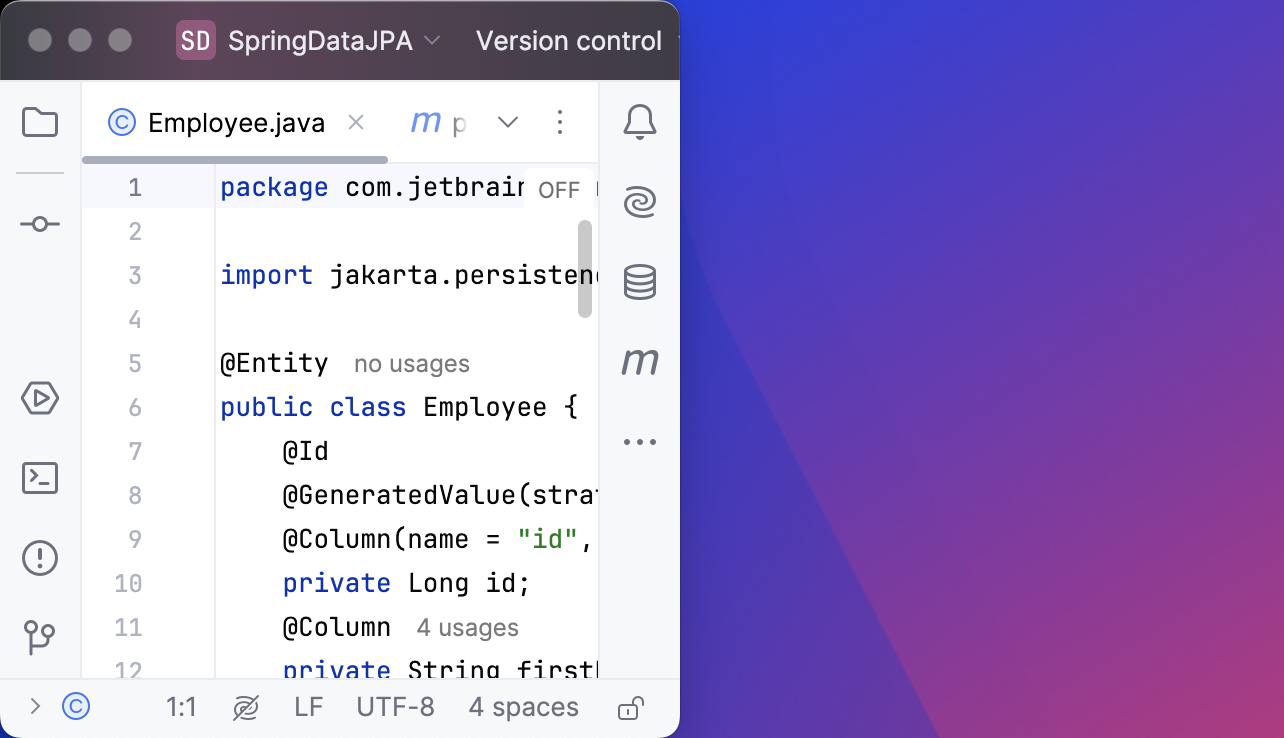
Optionally, drag the editor tab back to the original frame.