Modules page
Projects in IntelliJ IDEA contain of modules. A module is composed of the file that keeps internal representation of module settings and a content root, which stores your source code, resources, tests, and so on.
The Modules page displays all modules  and module groups
  in the current project in the middle section of the dialog.
Use the Sources tab to select the supported language level for Java and to configure the module contents.
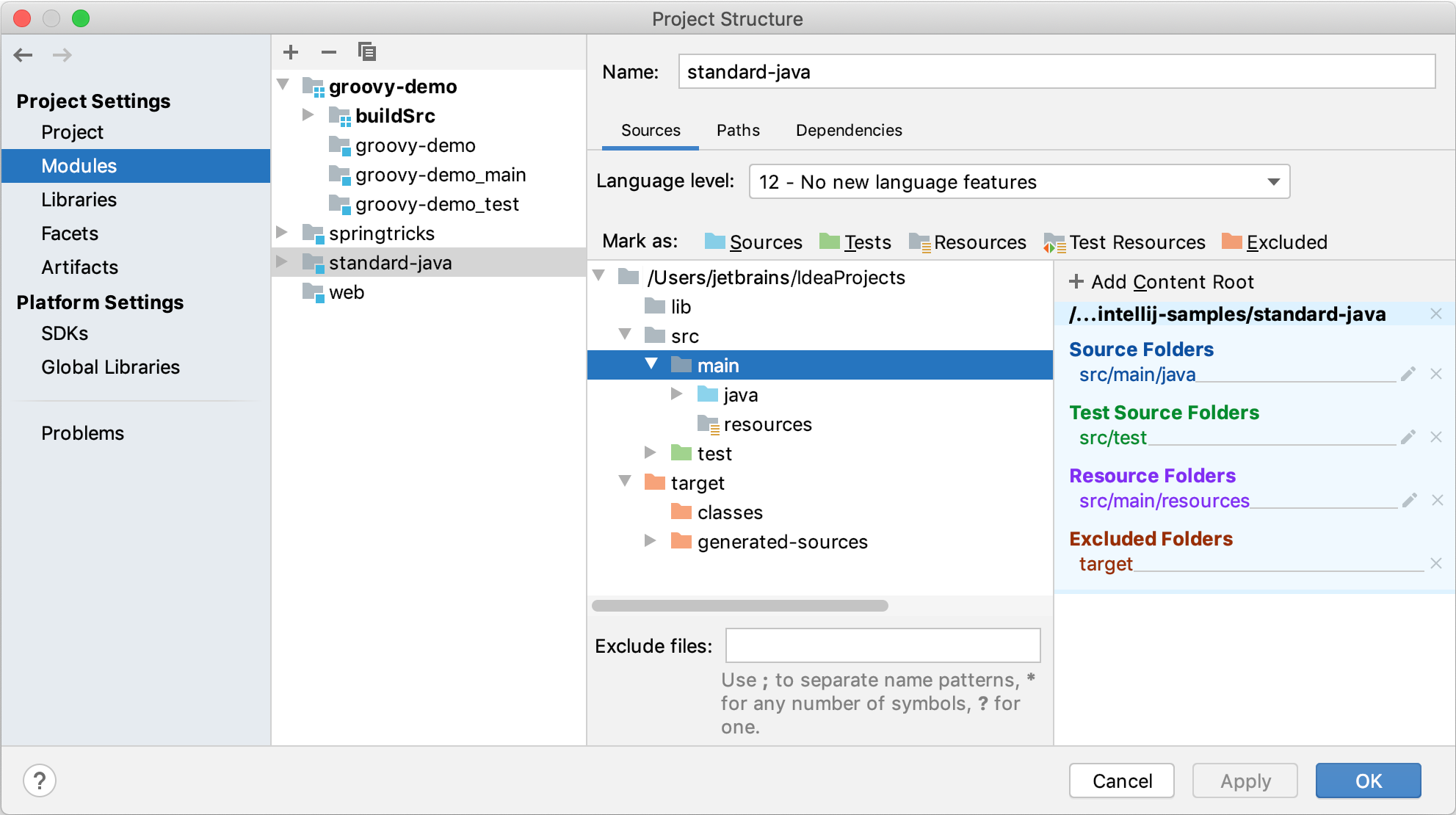
- Language level
Use this list to select the Java language level for the module.
- The left-hand pane
The left-hand pane shows a tree of folders for a module content root. If the module has more than one content root, the structure shown corresponds to the content root selected in the right-hand pane.
- The right-hand pane
The right-hand pane shows the module content roots: a content root is a module root folder. Everything that has something to do with a module is stored within its content roots. A module can have more than one content root.
Use the Paths tab to configure the compiler output paths for the module, and also to specify the locations of external JavaDocs and external annotations associated with the module
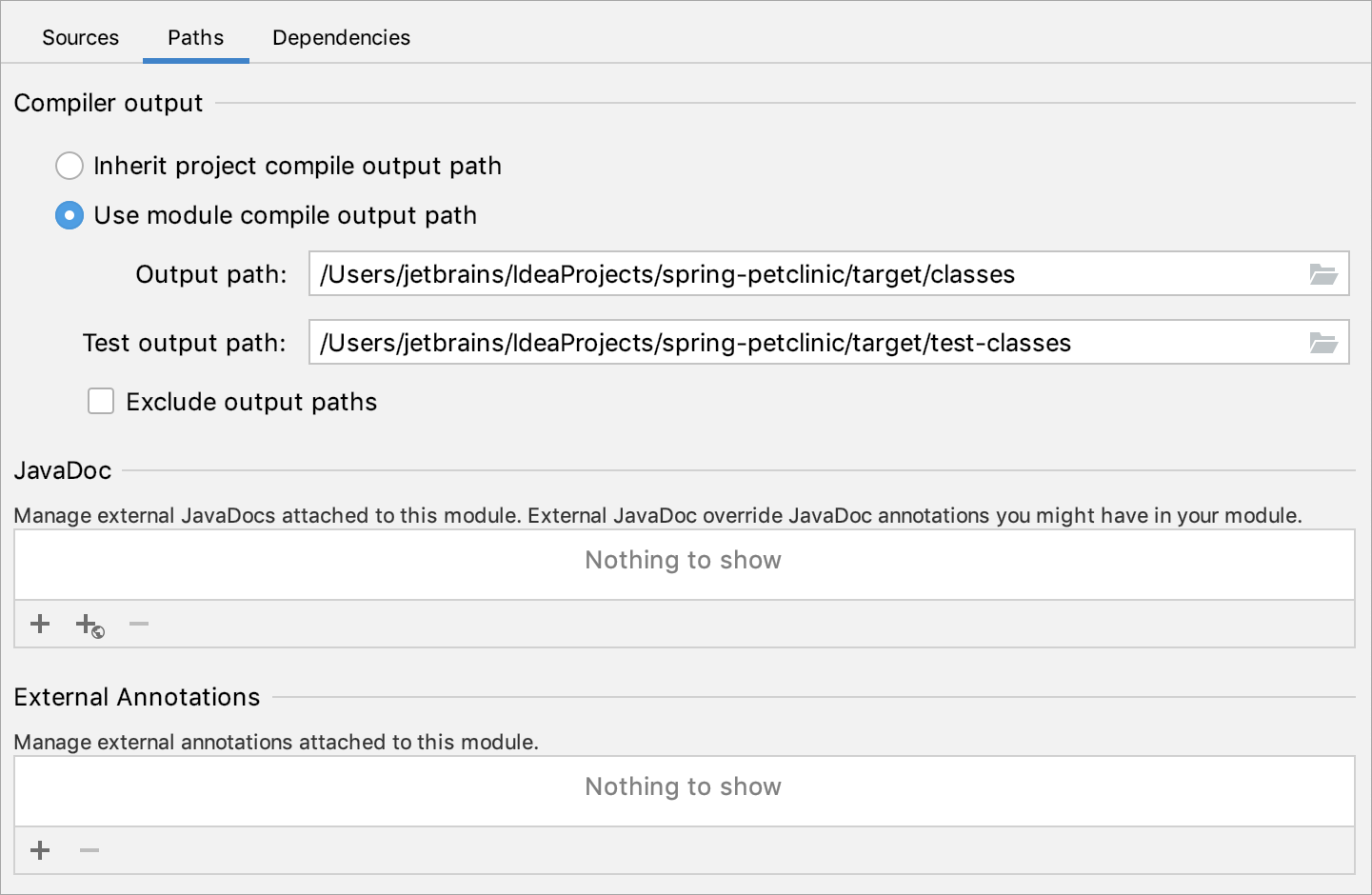
- Compiler output
Compiler output path is the path to the directory in which IntelliJ IDEA stores the compilation results. For more information about the compiler output options and how to configure them, refer to Module compiler output.
- JavaDoc
Use the available controls to compose the list of locations where external JavaDocs associated with the module are stored.
Use the
 icon to add a URL of online JavaDoc.
- External Annotations
Use
 and
and  to manage the list of locations (directories) for external annotations associated with the module.
On this tab, you can define the module SDK and form the list of module dependencies.
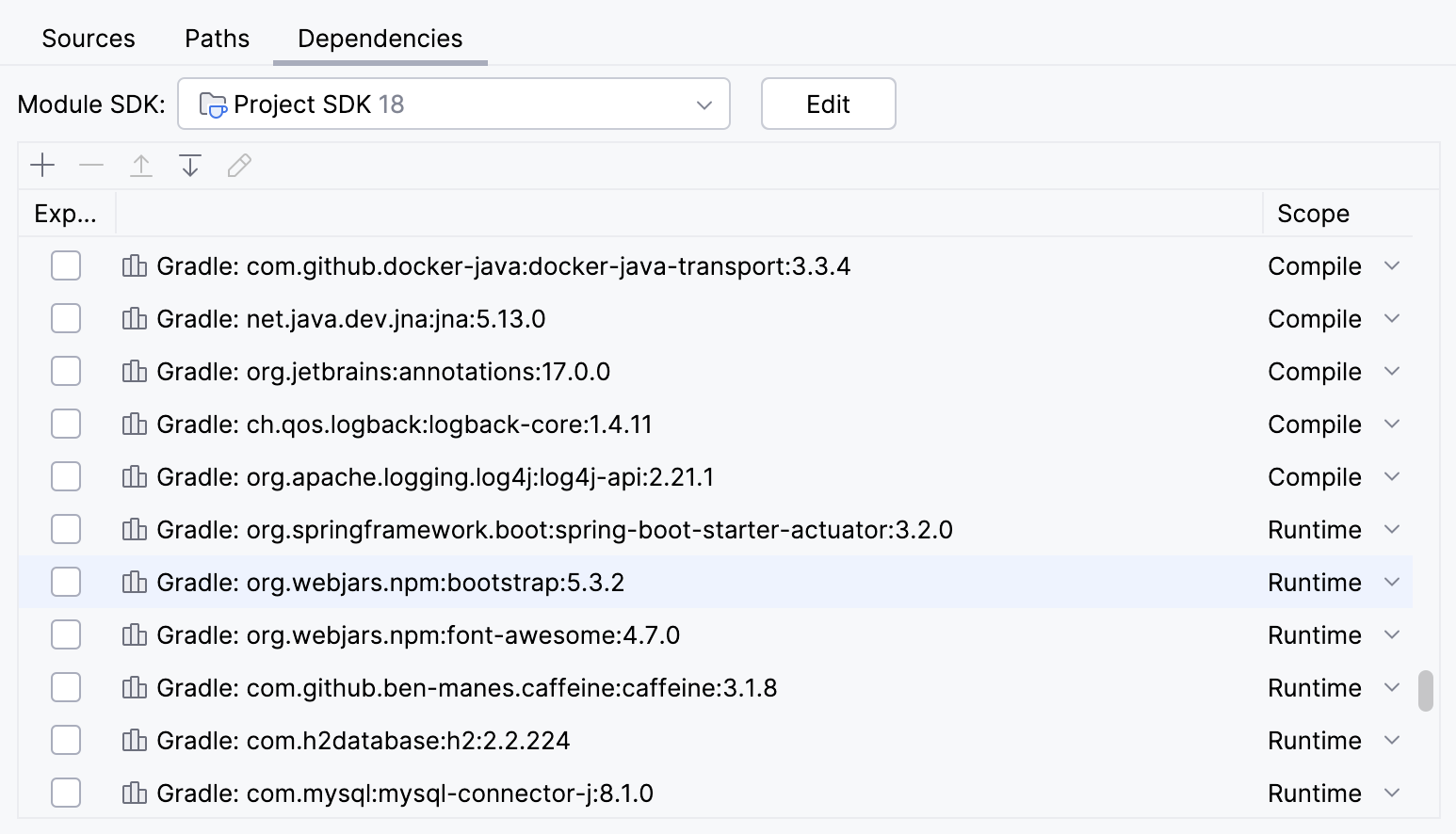
- Module SDK
Select the module SDK. To associate the project SDK with the module, select Project SDK. Note that if you change the project SDK later, you need to change the module SDK as well.
- List of dependencies
Use
, ,  , and
, and  to add, remove and reorder the items. Use the cells in the header row to sort the list. For more information about configuring Export, Scope, and other options, refer to Configure a dependency scope.
Use the Plugin Deployment tab to specify the settings related to deploying your plugin.
Note that this tab is available for Plugin modules only. For more information about developing plugins, refer to IntelliJ Platform SDK Developer Guide.
- Path to META-INF\plugin.xml
Specify the path to the directory in which the directory META-INF with the file plugin.xml inside should be located.
plugin.xml is a plugin descriptor that contains general information about the plugin. This information includes the plugin name, description and version, the lowest IntelliJ IDEA build number with which it works as well as descriptions of the component and actions.
IntelliJ IDEA needs this file to be able to load the plugin.
plugin.xml should be located in the directory with the name META-INF.
- Use user manifest
Select this checkbox if you want a custom manifest file to be included in the plugin distribution and specify the path to the file.