IDE's built-in web server
PhpStorm has a built-in web server that can be used to debug your application in a web browser or preview your code in the PhpStorm built-in browser. This server is always running and does not require any manual configuration.
Out of the box, the built-in server only serves static content like HTML, JavaScript and CSS. To use it with PHP files, you need a local PHP interpreter specified for your project. When the interpreter is configured, PhpStorm will automatically start the PHP Built-In Web Server and redirect all PHP requests to it as soon as you run your PHP application.
Open a file in a web browser
To render the PHP program output with a web browser, do one of the following:
Open the file in the editor and press Alt+F2.
Right-click the file in the Project tool window and select Open in Browser.
In the main menu, go to View | Open in Browser.
Use the browser popup in the top right part of the editor window (appears on hover). Click the browser button to open the web server file URL, or Shift+Click it to open the local file URL.
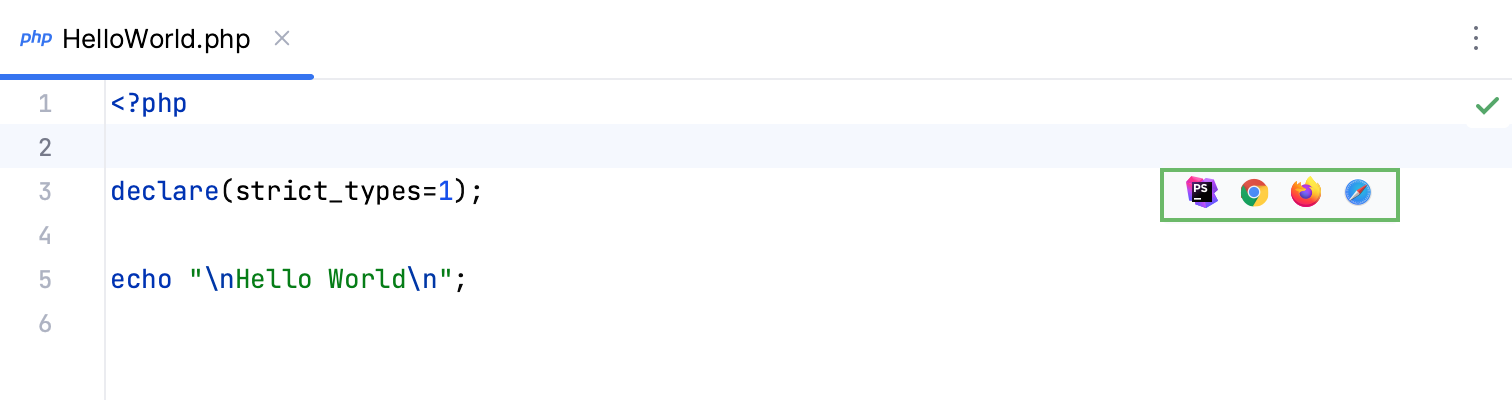
The rendered page is served on the built-in server with the root URL http://localhost:<built-in server port>/<project root>, with respect to the project structure.
Open a file in a built-in preview browser
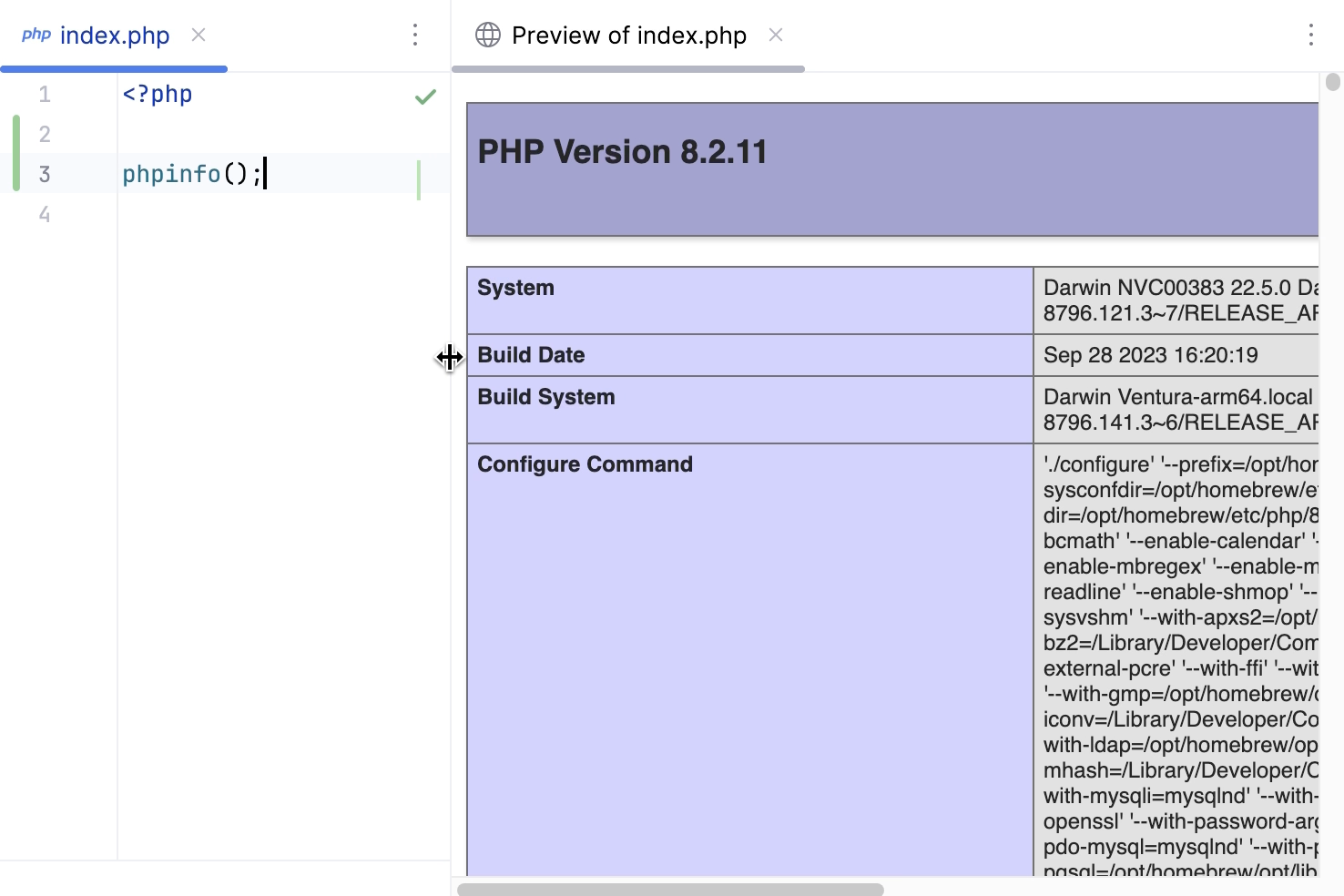
PhpStorm built-in preview makes your work faster as you no longer need to switch to the browser and refresh the pages. The preview is opened in a separate editor tab and reloaded automatically as you type or when you save the changes, depending on the reload behavior.
Open the PhpStorm built-in preview
In the main menu, go to , and then select
 from the list.
Alternatively, hover over the code to show the browser icons popup, and click
.
Configure the built-in web server
To customize the parameters of the built-in web server, in the Settings dialog (Ctrl+Alt+S) , go to .
Item | Description |
|---|---|
Port | Use this spin box to specify the port on which the built-in web server runs. By default, this port is set to 63342 through which PhpStorm accepts connections from services. You can set the port number to any other value starting with 1024 and higher. |
Can accept external connections | If this checkbox is selected, then the files on the built-in server running on the specified port are accessible from another computer. If this checkbox is cleared (by default), then the debugger listens only to local connections. |
Allow unsigned requests | For security reasons, any request to a page on the built-in server from outside PhpStorm is by default rejected and a Page 404 is displayed. To allow access to the requested page, select the Allow unsigned requests checkbox. |