Install plugins
Plugins extend the core functionality of IntelliJ IDEA. For example, install plugins to get the following features:
Integration with version control systems, issue trackers, build management servers, and other tools.
Coding assistance support for various languages and frameworks.
Shortcut hints, live previews, File Watchers, and so on.
Coding exercises that can help you to learn a new programming language.
Open plugin settings
Press Ctrl+Alt+S to open settings and then select .
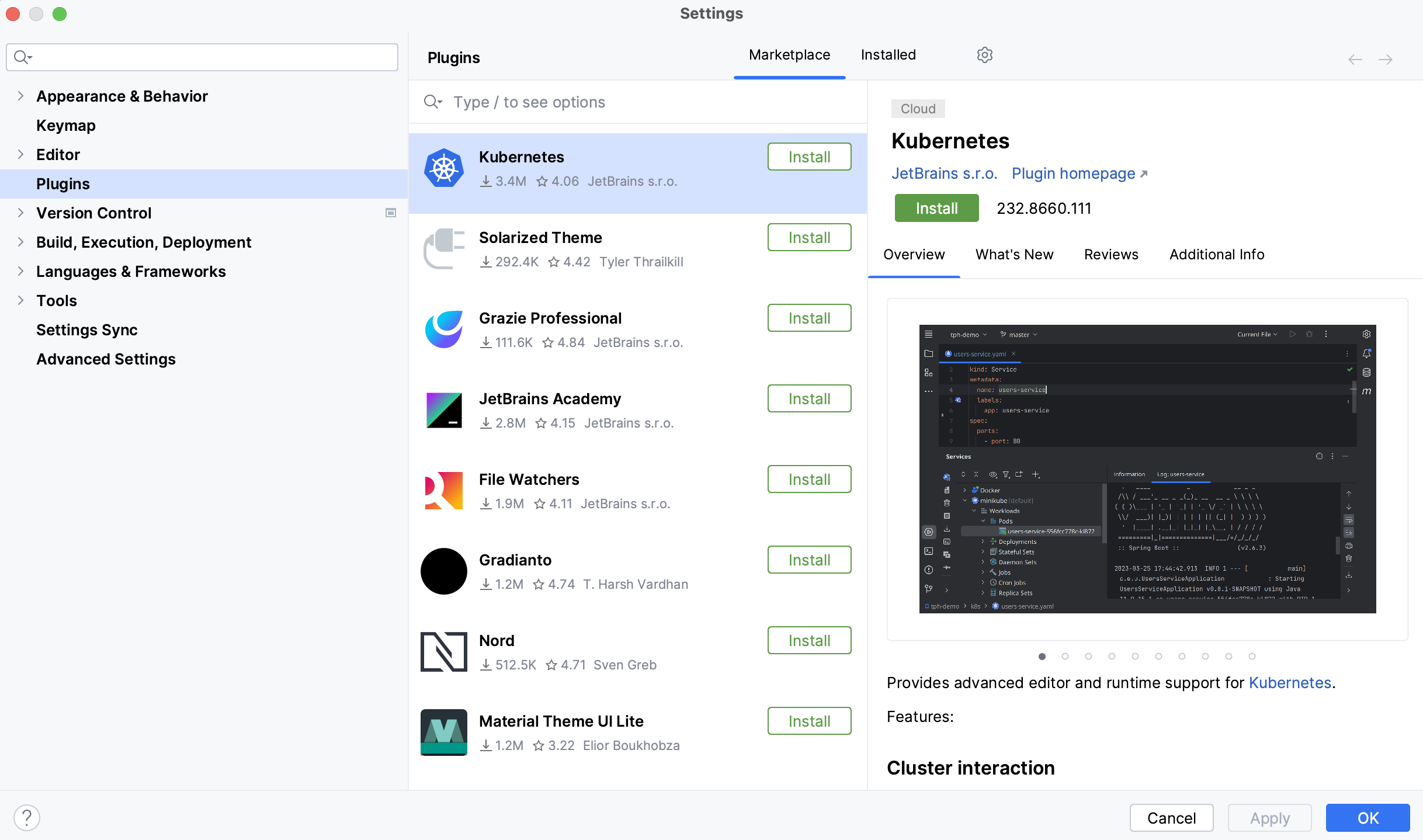
Use the Marketplace tab to browse and install plugins from JetBrains Marketplace or from a custom plugin repository.
Use the Installed tab to browse bundled and installed plugins, enable, disable, update, or remove them. Disabling unnecessary plugins can increase performance.
Most plugins can be used with any JetBrains product. Some are limited only to commercial products, others require a separate license.
If a plugin depends on some other plugin, you can find a list of the dependencies in the Additional Info tab. If your project depends on certain plugins, add them to the list of required plugins.
If existing plugins do not provide some functionality that you need, you can create your own plugin for IntelliJ IDEA. For more information, refer to Develop your own plugins.
By default, IntelliJ IDEA includes several bundled plugins. You can disable bundled plugins, but they cannot be removed. Also, you can install additional plugins from the plugin repository or from a local archive file (ZIP or JAR) .
Install a plugin from Marketplace
Press Ctrl+Alt+S to open settings and then select .
Click the Marketplace tab and type the plugin name in the search field.
To install the plugin, click Install and restart IntelliJ IDEA.
To install a specific version, go to the plugin page in JetBrains Marketplace, download and install it as described in Install plugin from disk. For example, you can do it if the most recent version of the plugin is broken.
Install plugin from disk
Download the plugin archive (ZIP or JAR).
Press Ctrl+Alt+S to open settings and then select .
On the Plugins page, click
 and then click Install Plugin from Disk.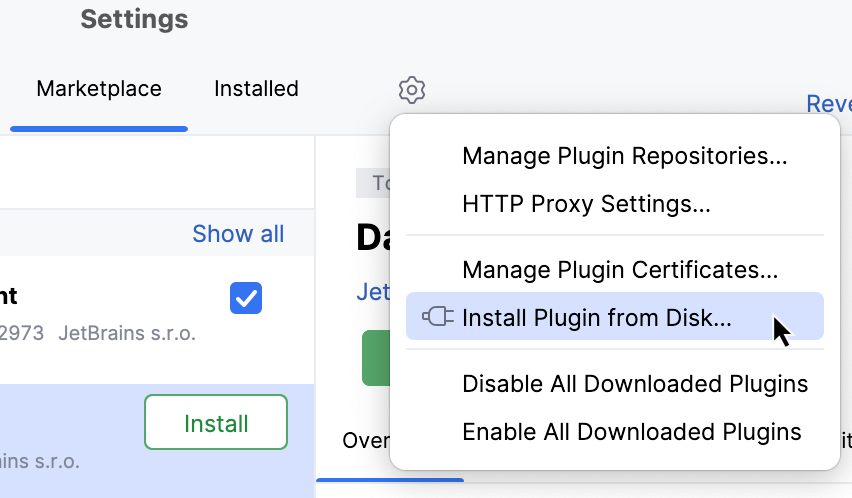
Select the plugin archive file and click OK.
Click OK to apply the changes and restart the IDE if prompted.
Install plugin from command line
Quit the IDE on which you want to install the plugin.
In JetBrains Marketplace, find a page of the plugin that you want to install, scroll down to the Additional Information section, and copy the value from the Plugin ID parameter, for example,
org.jetbrains.plugins.github.Install the plugin:
Navigate to the bin directory under your IntelliJ IDEA installation directory and run the following command:
idea64.exe installPlugins <PluginID>For example:
idea64.exe installPlugins org.jetbrains.plugins.githubRun the following command:
open -na "IntelliJ IDEA.app" --args installPlugins <PluginID>For example:
open -na "IntelliJ IDEA.app" --args installPlugins org.jetbrains.plugins.githubNavigate to the bin directory under your IntelliJ IDEA installation directory and run the following command:
idea.sh installPlugins <PluginID>For example:
idea.sh installPlugins org.jetbrains.plugins.github
For more information, refer to Install plugins from the command line.
Remove plugin
Press Ctrl+Alt+S to open settings and then select .
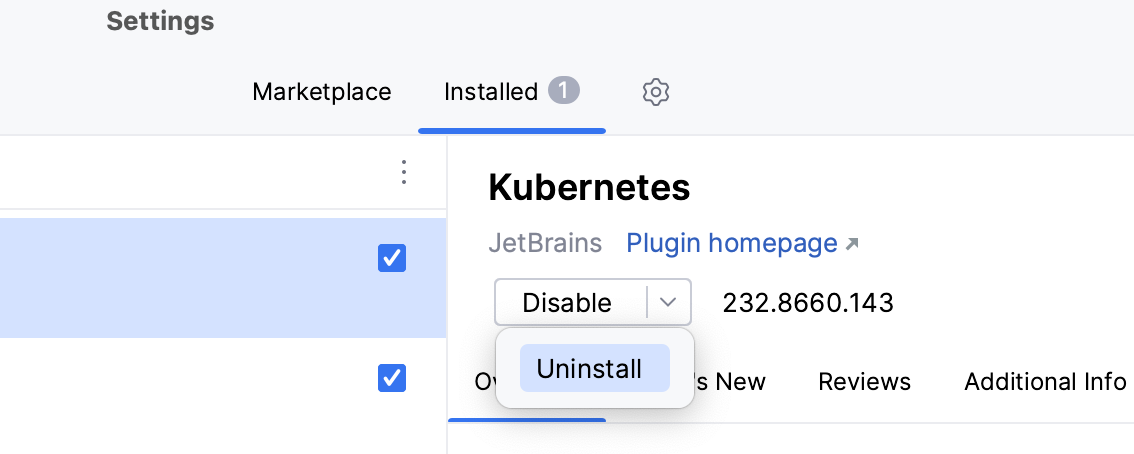
Open the Installed tab and find the plugin that you want to remove.
Expand the Disable list and select Uninstall.
Update plugins manually
Press Ctrl+Alt+S to open settings and then select .
If a new version of an installed plugin is available, the Update button appears in the plugin settings. Click it to update the plugin.
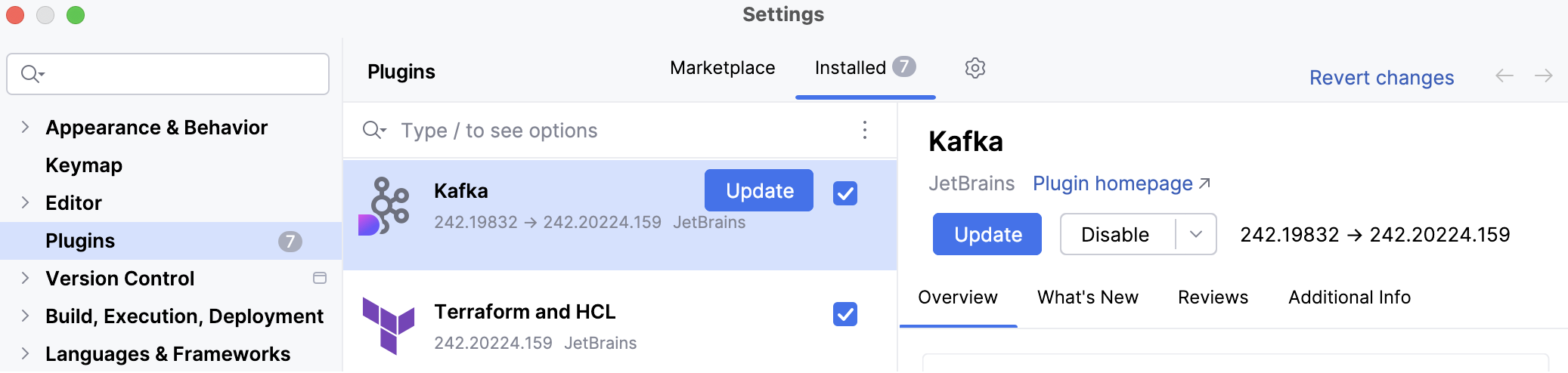
To configure whether your IDE should check for updates, open Settings Ctrl+Alt+S and go to . On this page, you can also click Check for Updates to manually check your plugin repository for available plugin updates.
If you prefer the IDE to update all plugins automatically, you can configure it accordingly.
For more information about the IDE and plugin updates, refer to Update IntelliJ IDEA.
Update plugins automatically
By default, IntelliJ IDEA notifies you to manually update a plugin when a new version of the plugin becomes available. You can configure IntelliJ IDEA to automatically download plugin updates and apply them on the next IDE restart.
Press Ctrl+Alt+S to open settings and then select .
Click
and select Update Plugins Automatically.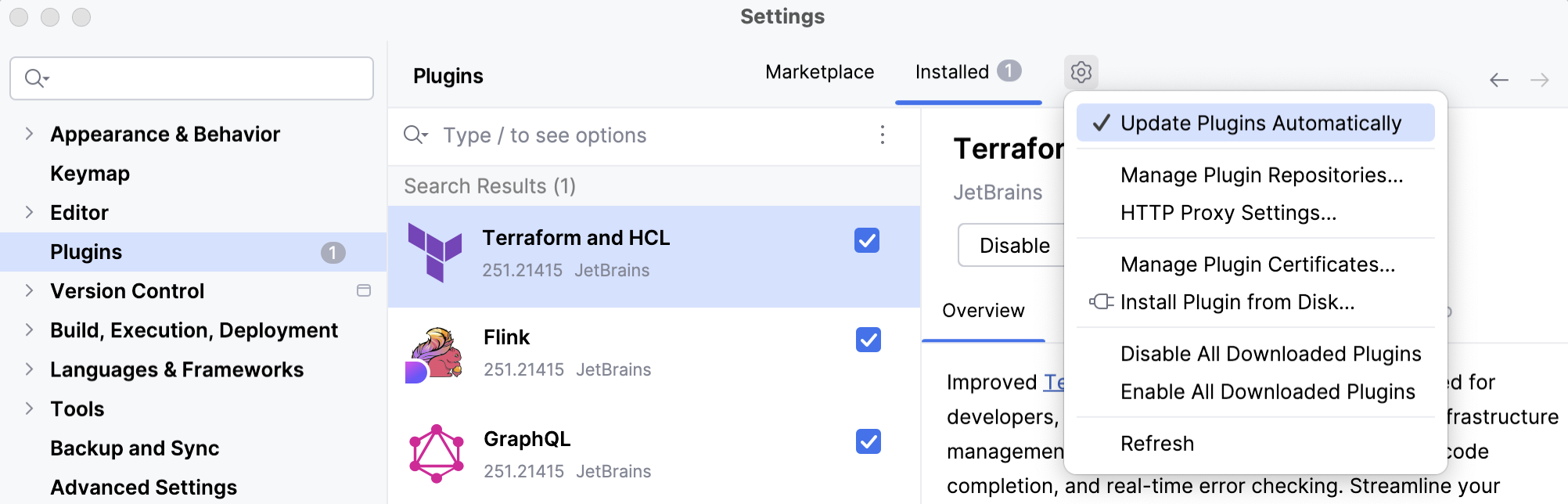
Alternatively, go to and select Update plugins automatically.
Disable plugin
You can disable a plugin without removing it if you do not need the corresponding functionality.
Press Ctrl+Alt+S to open settings and then select .
Open the Installed tab, find and select the plugin that you want to disable.
On the plugin's description pane, click Disable.
Alternatively, you can use the checkboxes in the list of plugins or the Disable all buttons for plugin categories.
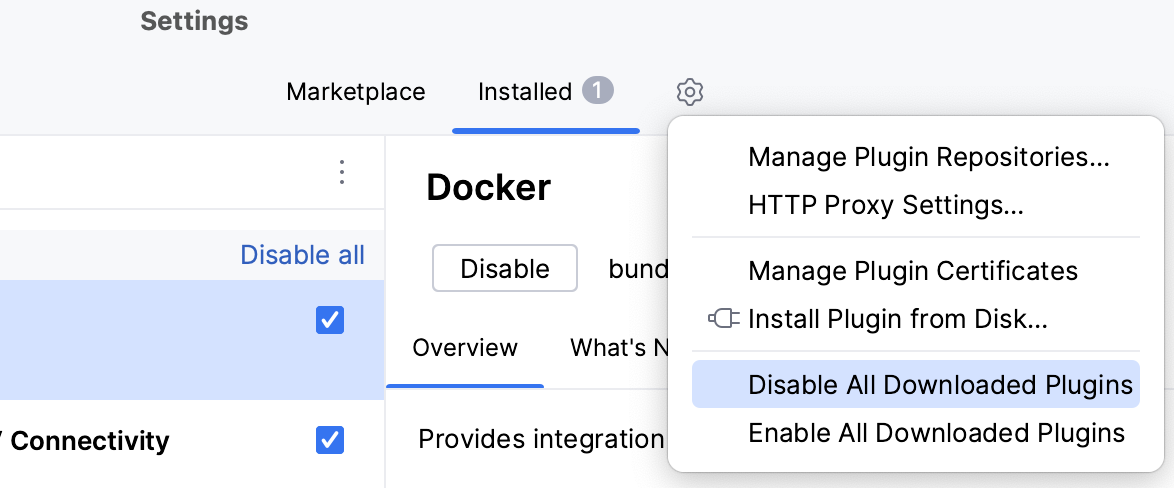
You can disable or enable all manually installed plugins at once (non-bundled) in the menu under .
Required plugins
A project may require plugins that provide support for certain technologies or frameworks. You can add such plugins to the list of required plugins for the current project, so that IntelliJ IDEA will verify that the plugins are installed and enabled. It will notify you if you forget about some plugin, or someone on your team is not aware about the dependency as they work on the project.
Add a required plugin for your current project
Press Ctrl+Alt+S to open settings and then select .
On the Required Plugins page, click
 and select the plugin. Optionally, specify the minimum and maximum version of the plugin.
The list of required plugins is stored in the .idea/externalDependencies.xml file of your project. When you open the project in IntelliJ IDEA, it will notify you if the required plugin is disabled, not installed, or requires an update.
Click the link in the notification message to quickly enable, install, or update the required plugin.
Suggested plugins
When you open a project, IntelliJ IDEA can suggest installing and enabling plugins based on libraries and facets used in your project. Do not confuse suggested plugins with required plugins that you can manually add to a project so that your teammates also use it.
If you don't need a particular plugin, you can prevent IntelliJ IDEA from suggesting it. You can also use your notification settings to disable or enable notifications of all plugin suggestions and the way they are displayed.
Disable suggestions of a plugin
When a notification of a suggested plugin appears, click Don't suggest again.
Next time when you open a project, IntelliJ IDEA will not suggest this plugin.
Check a project for suggested plugins
You can check your project for suggested plugins except for plugins for which you have disabled suggestions.
Press Ctrl+Shift+A and start typing Check Suggested Plugins.
Select the Check Suggested Plugins action.
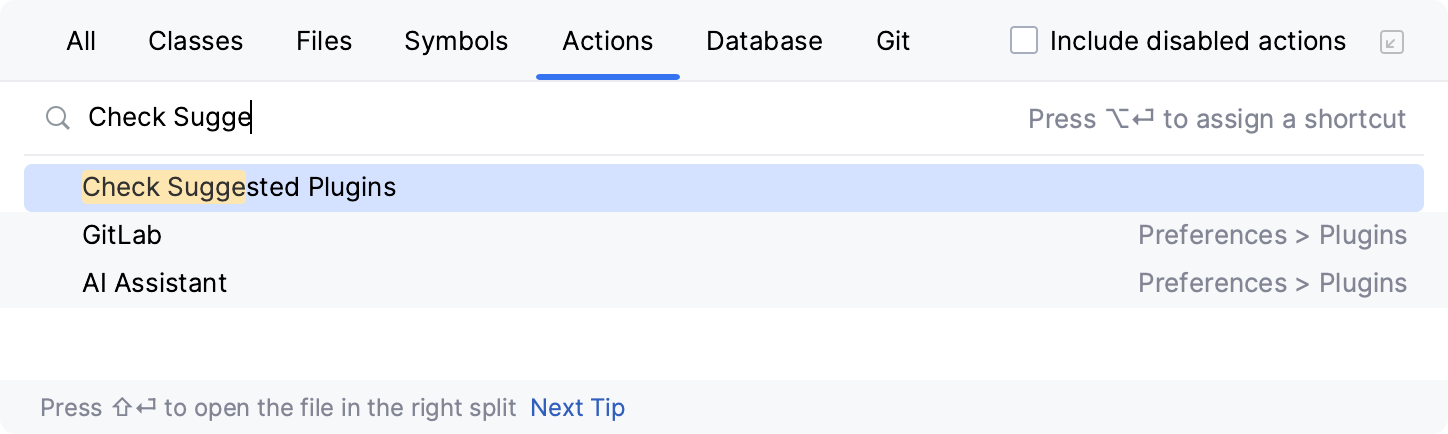
If IntelliJ IDEA has a plugin applicable to your project, you'll see the notification message. Click the link in the notification message to install or enable the suggested plugin.
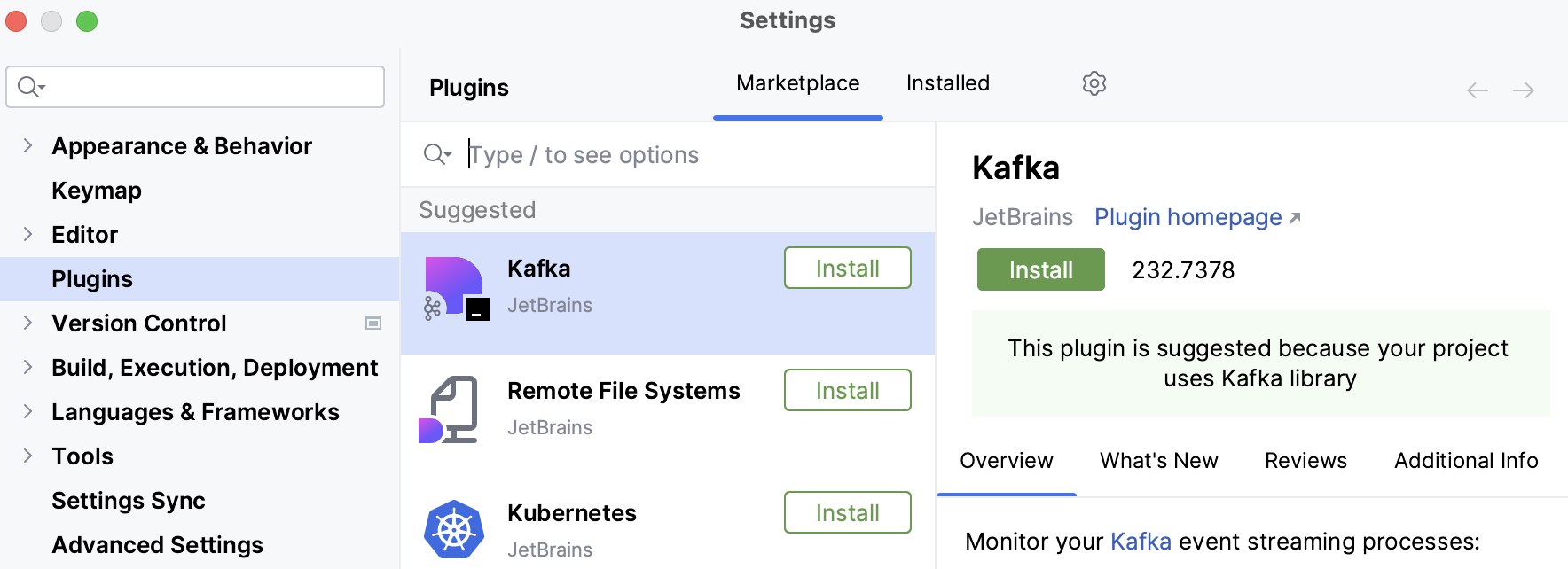
Alternatively, you can open the IDE settings (Ctrl+Alt+S) and go to : If there are plugins suggested for your project, they will be displayed on top of the plugin list, in the Suggested section.
Develop your own plugins
You can use any edition of IntelliJ IDEA to develop plugins. It provides an open API, a dedicated SDK, module, and run/debug configurations to help you.
The recommended workflow is to use Gradle. The old workflow using the internal IntelliJ IDEA build system is also supported. For more information, refer to the IntelliJ Platform SDK Developer Guide.
Custom plugin repositories
By default, IntelliJ IDEA is configured to use plugins from JetBrains Marketplace. This is a public repository where everyone can host their plugins. However, if you develop plugins for internal use only, you can set up a custom plugin repository for them.
For more information about setting up a custom plugin repository, see the IntelliJ Platform SDK documentation.
Once you set up your plugin repository, add it to IntelliJ IDEA:
Add custom repositories
Press Ctrl+Alt+S to open settings and then select .
On the Plugins page, click
and select Manage Plugin Repositories….In the Custom Plugin Repositories dialog, click
and specify your repository URL. It must point to the location of the XML file that describes your plugin, for example, updatePlugins.xml. The file can be on the same server as your custom plugins, or on a dedicated one.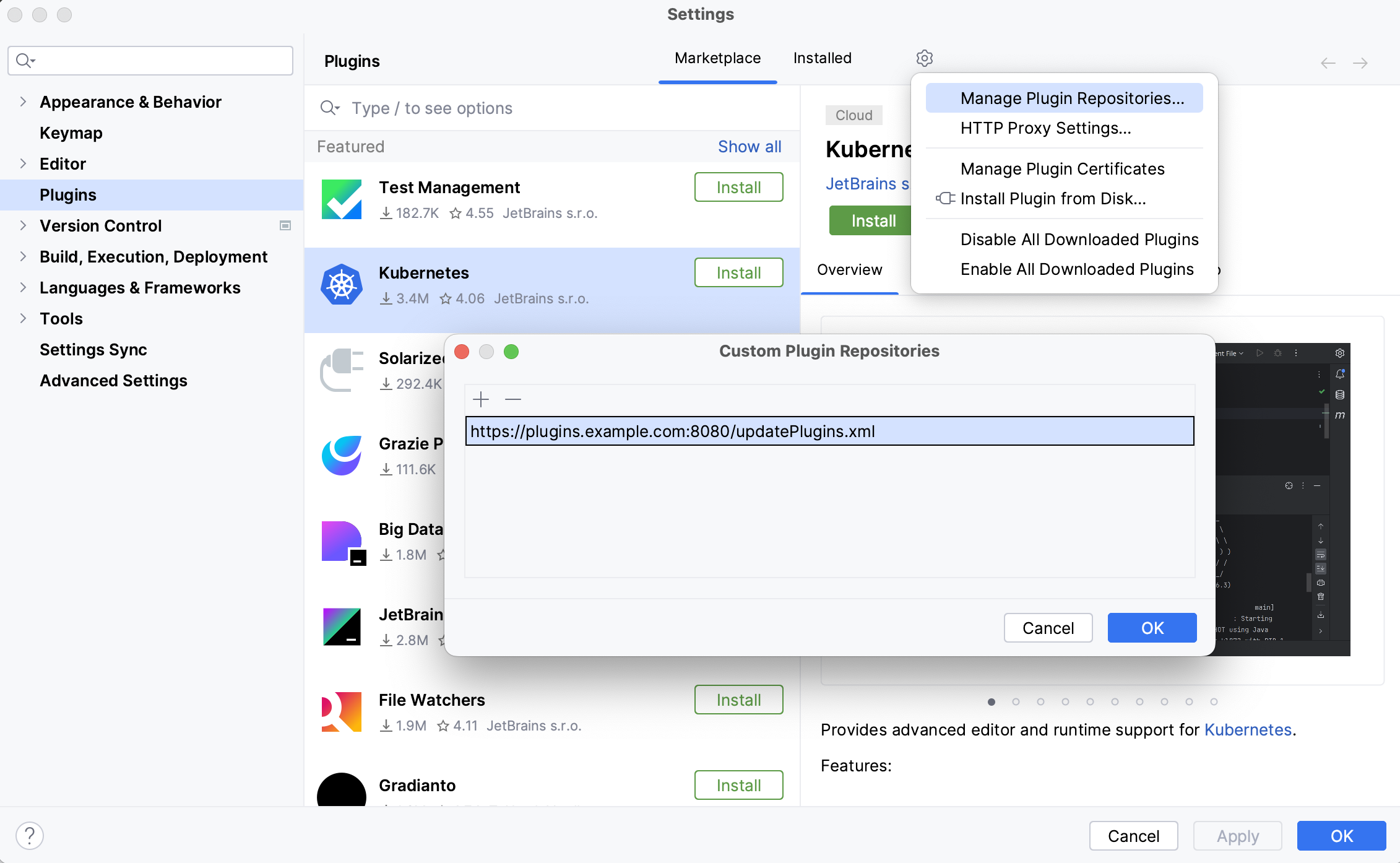
Click OK in the Custom Plugin Repositories dialog to save the list of plugin repositories.
Click OK in the Settings dialog to apply the changes.
When you search for plugins, IntelliJ IDEA will show you results both from default JetBrains Marketplace and any custom repositories that you specify. To browse only a certain custom plugin repository, type repository: followed by the URL of the repository in the search field on the Marketplace tab of the Plugins page. For example:
Alternatively, you can add your custom plugin repositories using the idea.plugin.hosts property:
Go to .
Add the
idea.plugin.hostsproperty to the platform properties file and specify the URL of the XML file that describes your plugin. For example:idea.plugin.hosts="http://plugins.example.com:8080/updatePlugins.xml"Restart IntelliJ IDEA.
You may want to replace default JetBrains Marketplace with your custom plugin repository. This can be helpful if you want only your custom repository plugins to be available from IntelliJ IDEA.
Replace the default plugin repository
Go to .
Add the
idea.plugins.hostproperty to the platform properties file and specify the URL of the application that can properly handle requests from IntelliJ IDEA, that is, act as the default plugin repository application instead of JetBrains Marketplace.In particular, it should handle the following requests:
Restart IntelliJ IDEA.
If you replace the default plugin repository, the search field on the Marketplace tab of the Plugins dialog will browse only the plugins in the new default repository and any custom repositories that you add.
Productivity tips
Filter and sort search results
Type a forward slash
/in the search string to see options for filtering and sorting search results. For example, you can add the following options to your search string to list only AI-related plugins and sort them alphabetically by name:/tag:AI /sortBy:name