Projects
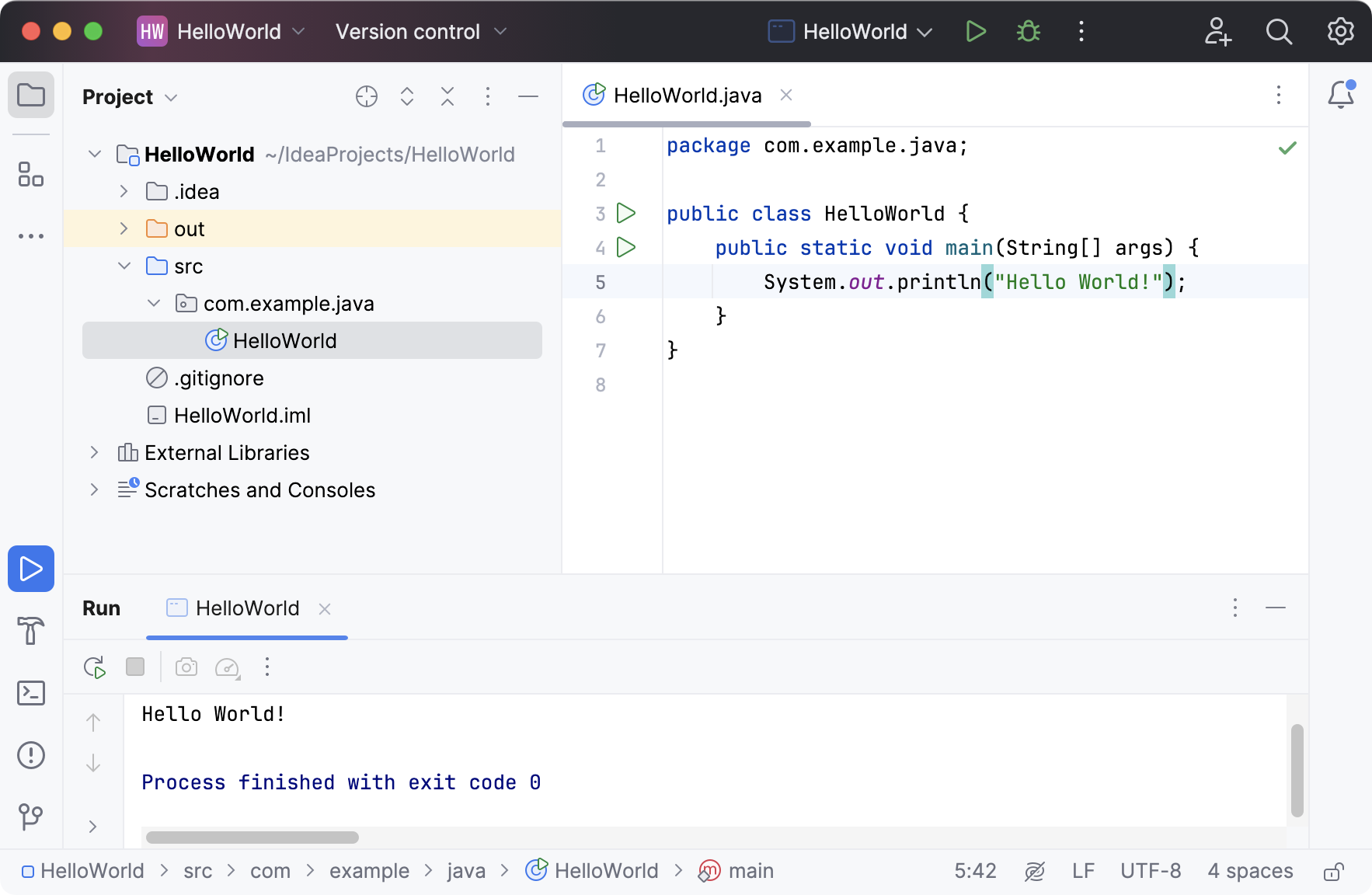
In IntelliJ IDEA, a project is the top-level container for everything you work on: source code, tests, libraries and SDKs, build instructions, and your personal settings. A project defines the scope of your work. It tells the IDE which files belong together, how they are built and run, and which settings apply to them.
A project groups one or more modules. It defines how those modules depend on each other and stores configuration shared across the entire project, such as SDKs, code style, and inspections. For example, a backend service and a frontend application can be separate modules within the same project, sharing the same SDK and version control settings. For more information about projects and modules, refer to Configure projects.
Project formats
In IntelliJ IDEA, there are two types of formats in which a project's configuration can be stored — the file-based format and the directory-based format.
File-based format
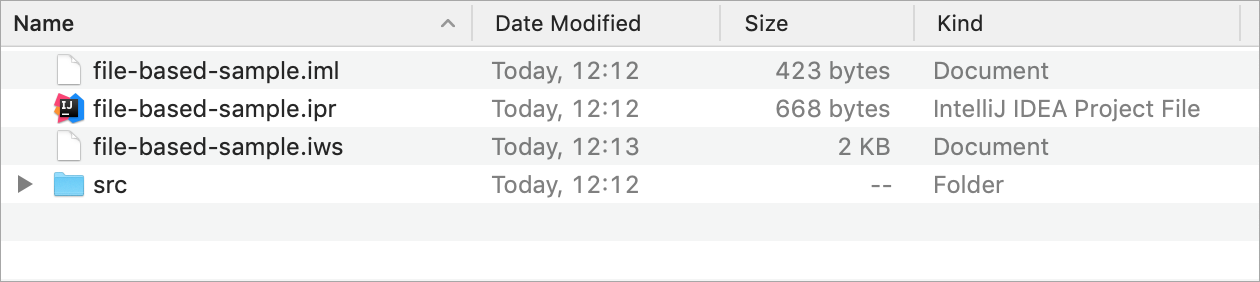
The file-based format was the only one available in older versions of IntelliJ IDEA; now it is outdated. Projects in this format contain several files: the .ipr, .iws, and .iml files. Generally, we don't recommend using this format unless you need to open projects in different file managers by clicking the .ipr file, or unless you need to store multiple projects in one directory.
Directory-based format
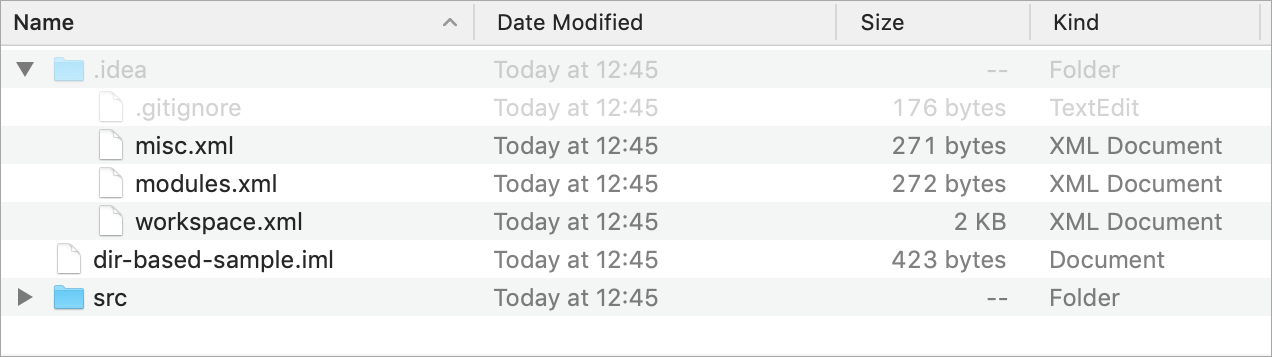
For the directory-based format, the IDE creates the .iml file and the .idea directory that keeps project settings. It's the default format for projects in IntelliJ IDEA at this moment.
This format was introduced after the file-based format. Its main advantage is that it's adjusted to store project files in Version Control Systems: the project data is split over multiple files, and merge conflicts are less likely. For more information about sharing projects in different formats, refer to How to manage projects under Version Control Systems
Change the project format to directory-based
Open the project using the .ipr file: go to in the main menu and select the .ipr in the folder with the project that you want to convert.
When the project has opened, in the main menu, go to .