Run/debug configuration: Application
Application is the most basic run/debug configuration template for Java applications. This configuration compiles and runs your Java program – similar to when you use the javac and java commands. .
Open the run configuration
In the main menu, go to .
In the Run/Debug Configuration dialog:
To create a new configuration, click
 on the toolbar or press Alt+Insert and select Application.
Alternatively, click an existing Application configuration in the list on the left.
On the right, you will see configuration options.
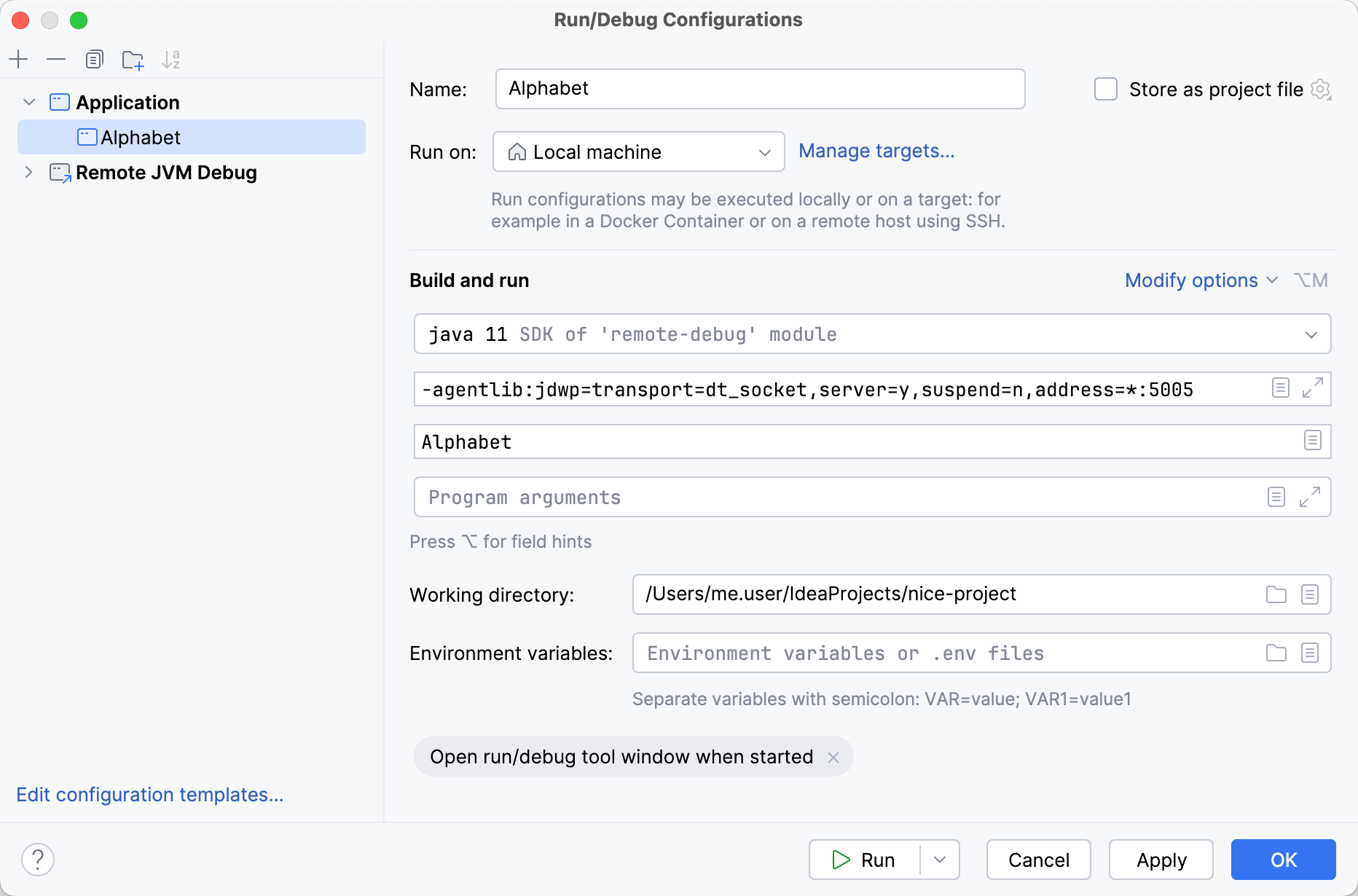
Name | Specify a name for the run configuration to quickly identify it among others when editing or running. |
Run on | Select the target environment where you want to run the configuration. Besides running it locally, you can select to run your application on a remote machine via SSH or in a Docker container. For more information, refer to Run targets. |
Store as project file | Save the run configuration settings to a file that you can share with other team members. The default location is .idea/runConfigurations. However, if you do not want to share the .idea directory, you can save the configuration to any other directory within the project. By default, this option is disabled, and IntelliJ IDEA stores run configuration settings in .idea/workspace.xml. |
Required options
Item | Description |
|---|---|
JRE | Specify the runtime environment that IntelliJ IDEA should use to run the application. By default, IntelliJ IDEA uses the latest available JDK from the module dependencies. |
Main class | Specify the fully qualified name of the class to be executed. |
Program arguments | Specify a list of arguments to be passed to the application in the format you would use on the command line. Use the same rules as for specifying VM options. |
Working directory | Specify the working directory to be used for running the application. This directory is the starting point for all relative input and output paths. By default, the working directory is the project root. |
More options
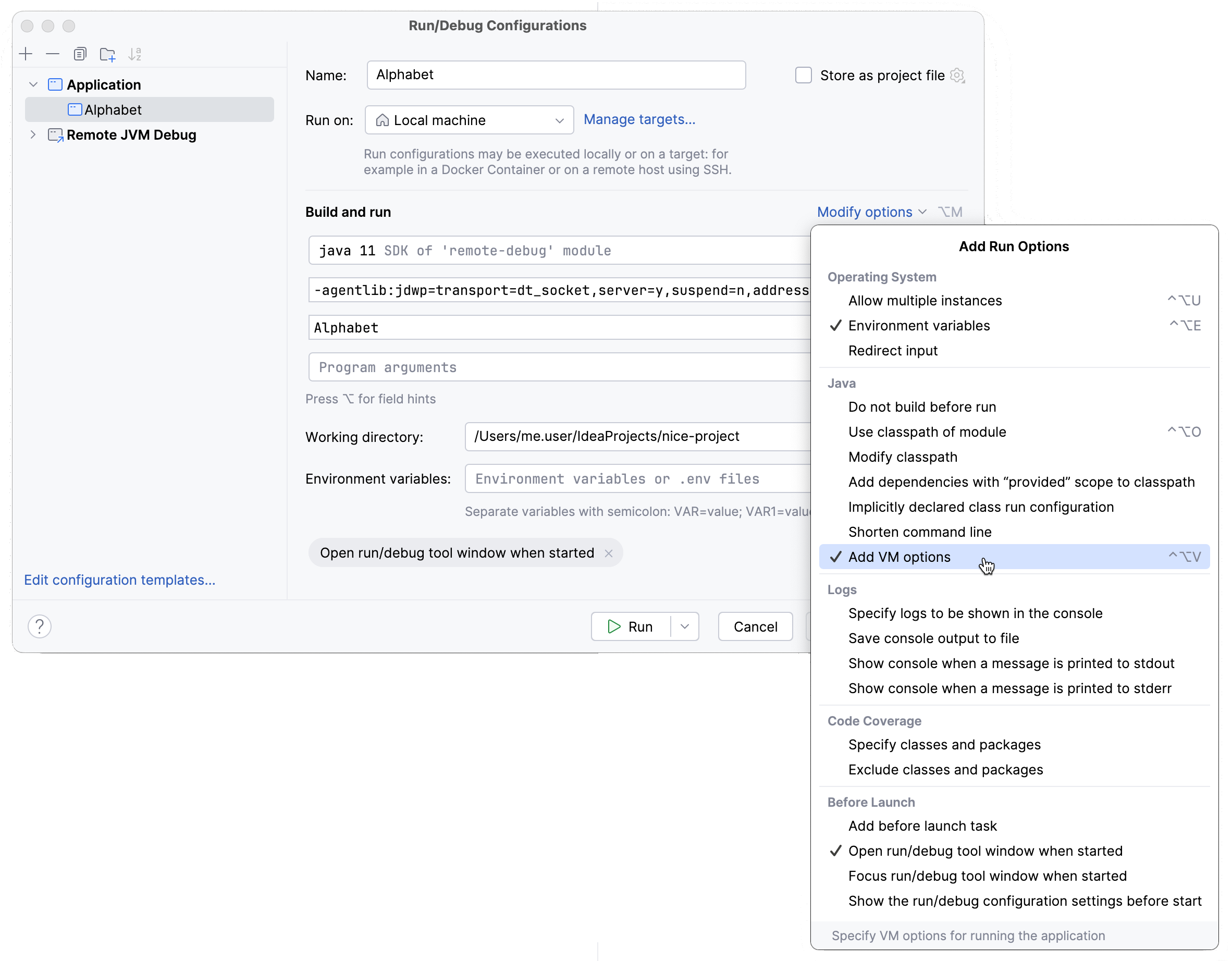
You can also configure additional properties for the Application run/debug configuration type. To access them, click Modify options:
Operating system
Item | Description |
|---|---|
Allow multiple instances | Allow multiple instances of this run configuration to execute at the same time. By default, this option is disabled, which means that when you run the configuration, other active sessions of the configuration will terminate. |
Environment variables | Click |
Redirect input | Enables redirecting data from a text file to standard input. Use this option if your program requires some input, and you want to read the values from a file instead of typing them in the Run console. To enable redirecting, select the checkbox and specify the path to the target text file. |
 to open the
 Java
The following options are specific to the Java compiler and runtime:
Item | Description |
|---|---|
Do not build before run | Run the application straight away without launching the build process. |
Use classpath of module | Select the module whose classpath should be used to run the application. |
Modify classpath | If necessary, specify another classpath or select dependencies that you want to exclude from the classpath. This option is necessary in cases when the runtime classpath is different from the compile classpath (debug libraries, different locations, and so on). Use the |
Add dependencies with “provided” scope to classpath | Add the dependencies with the provided scope to the runtime classpath. |
Shorten command line | Select a method that will be used to shorten the command line if the classpath gets too long, or you have many VM arguments that exceed your OS command line length limitation. The choice of option depends on the class loader implementation. Note that some frameworks do not support JAR manifest, while other frameworks with custom class loaders will not work well with the classpath.file option.
|
VM options | Specify the options to be passed to the Java virtual machine when launching the application, for example, When specifying JVM options, follow these rules:
-Xmx1024m -Dspaces="some arg" -Dmy.prop=\"quoted_value\" -Dfoo=${MY_ENV_VAR}
Use code completion in this field: start typing the name of a flag, and the IDE suggests a list of available command line options. This works for The |
 and
and  buttons to sort dependencies on the list. The order of dependencies is important as IntelliJ IDEA will process them in the same order as they are specified in the list.
Logs
The following options are related to logging the execution of this configuration. For more information, refer to Logs.
Item | Description |
|---|---|
Specify logs to be shown in the console | Specify which log files to display while running the application. Click
For logs in the table, you can configure the following options:
|
Save console output to file | Save the console output to the specified location. Type the path manually or click the browse button and point to the desired location in the dialog that opens. |
Show console when a message is printed to stdout | Activate the console when the application writes to the standard output stream. |
Show console when a message is printed to stderr | Activate the console when the application writes to the standard error stream. |
Code Coverage
The following options are related to code coverage. For more information, refer to Code coverage.
Item | Description |
|---|---|
Specify classes and packages | In this table, specify classes and packages to be measured. Click |
Exclude classes and packages | Specify classes and packages that you want to exclude from coverage. Click |


 button.
Before Launch
In this area, you can specify tasks to be performed before starting the selected run/debug configuration. The tasks are performed in the order they appear in the list.
Item | Description |
|---|---|
Add before launch task | Enable this option to add one of the following available tasks:
|
Open run/debug tool window when started | Depending on the type of configuration, open the Run, Debug, or Services tool window when you start this run configuration. If this option is disabled, you can open the tool window manually:
|
Focus run/debug tool window when started | Focus on the run configuration tool window when the tests are running. |
Show the run/debug configuration settings before start | Show the run configuration settings before actually starting it. |