Module structure settings
Module settings apply only to one module and are stored in the .iml file. A module can have an SDK and a language level that are different from those configured for a project, and their own libraries. They can also carry a specific technology or a framework.
Module SDK
An SDK is a collection of tools that you need to develop an application for a specific software framework. To develop Java-based applications, you need a JDK (Java Development Kit).
You can compile a module with an SDK that differs from the project SDK.
Add a module SDK
In the main menu, go to .
Select the module for which you want to set an SDK and click Dependencies.
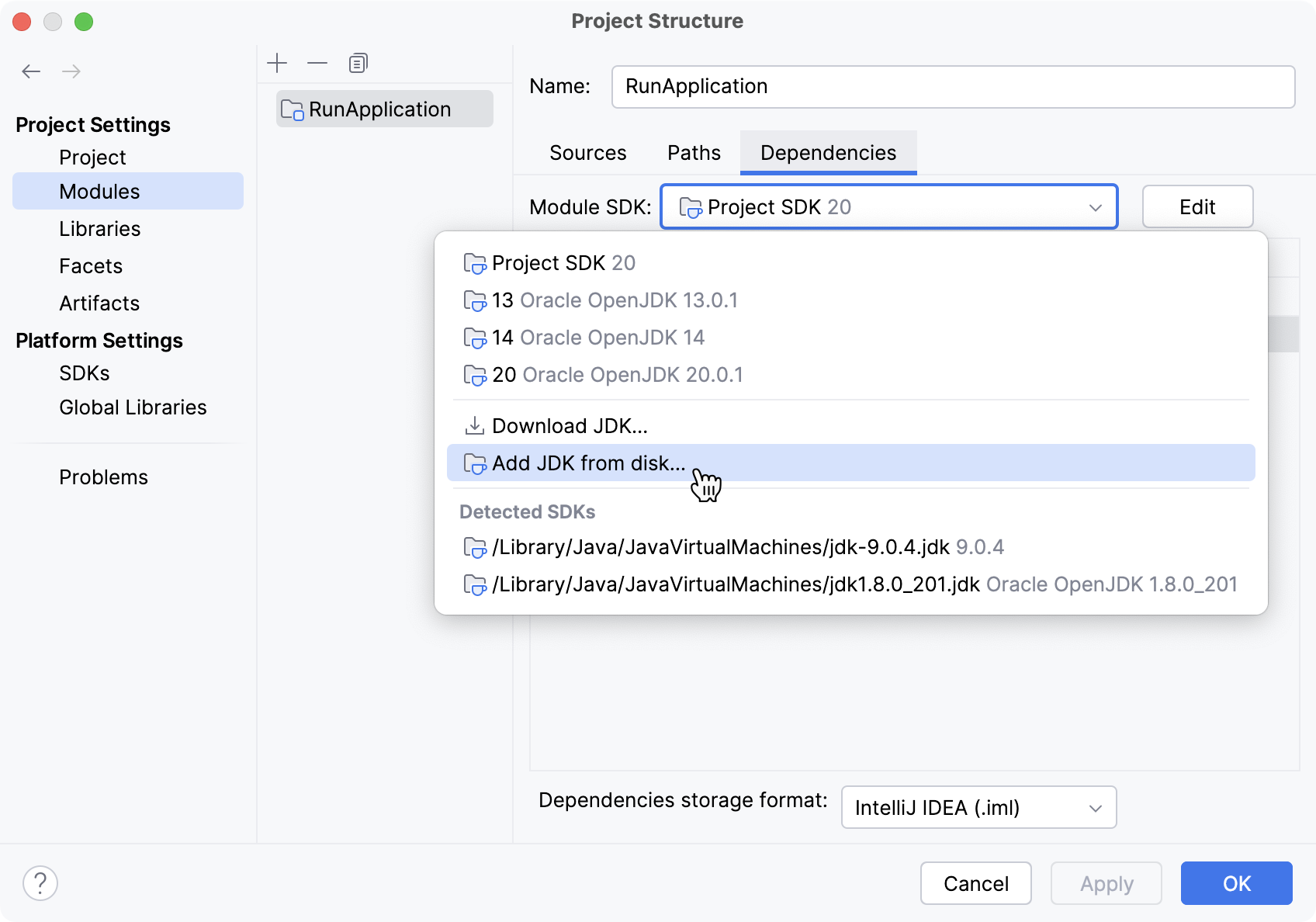
If the necessary SDK is already defined in IntelliJ IDEA, select it from the Detected SDKs list.
Only for JDKs: if the IDE cannot find the necessary JDK on your computer automatically, click Add JDK from disk and specify its home directory in the dialog that opens.
If you don't have the necessary JDK on your computer, select Download JDK. In the next dialog, specify the JDK vendor, version, change the installation path if required, and click Download.
How does IntelliJ IDEA know which JDK to use?
IntelliJ IDEA does the following to determine which JDK to use for compilation if you use different JDKs for modules in your project.
It checks all JDKs that are used in the project: the JDKs that are defined on both the project and module levels.
It calculates the latest of these JDKs. This is necessary to make sure all modules can be compiled.
If the version of the latest JDK configured is lower than 1.6, IntelliJ IDEA will pick the JDK version that is used for running the IDE. This limitation is related to the fact that the compiler API used by IntelliJ IDEA for building projects is supported starting from JDK 1.6.
Although a specific version of the compiler will be used (in accordance with the selected JDK version), each separate module will be compiled using the javac's cross-compilation feature against the libraries of the JDK defined for this particular module in the project settings.
This protects you from a situation when a module is compiled against newer libraries than those for which dependencies are set.
Module language level
Language level defines coding assistance features that the editor provides. To configure a language level for a module:
Configure module language level
In the main menu, go to Ctrl+Alt+Shift+S.
Under Project Settings, select .
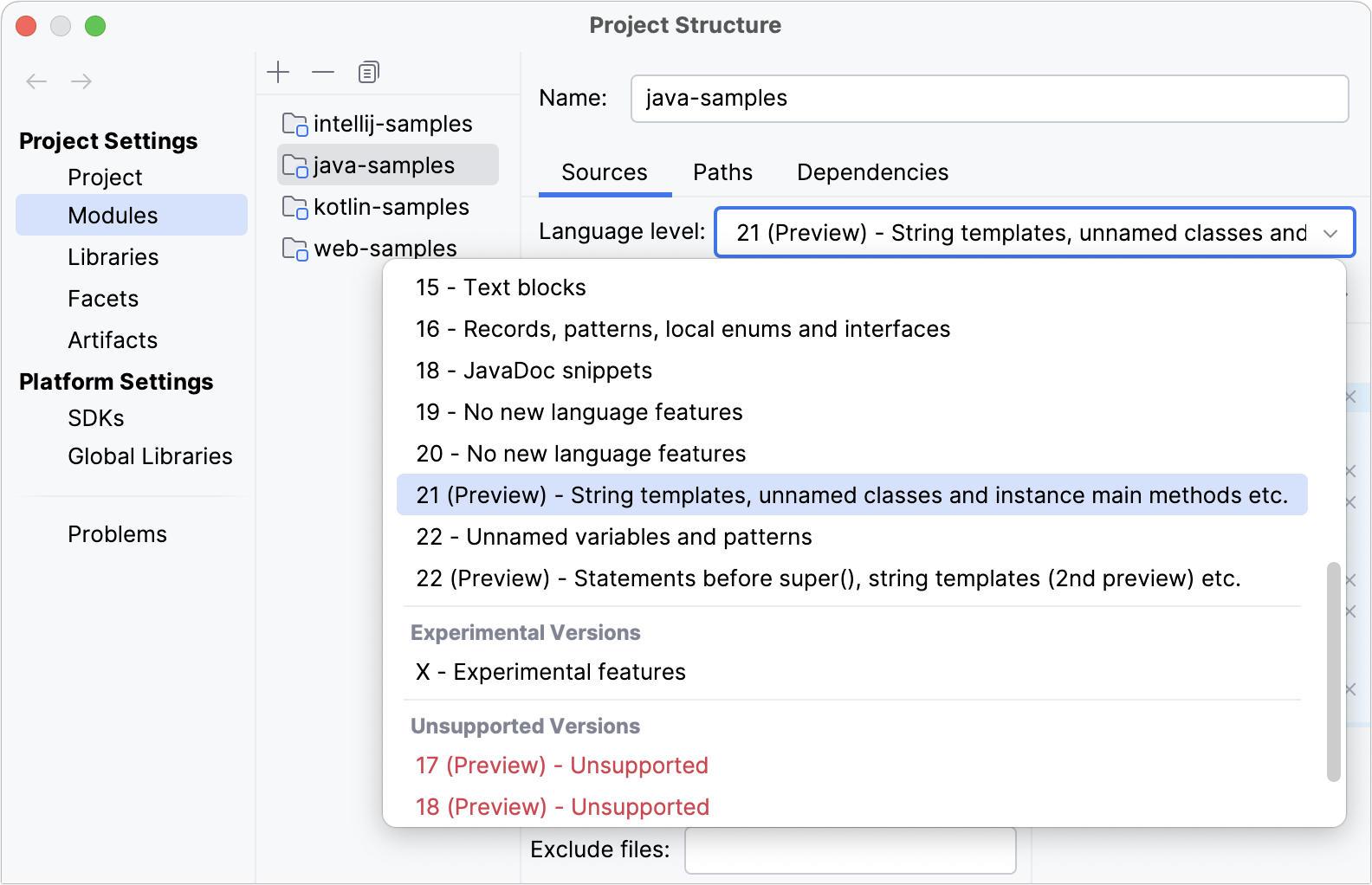
From the Language level list, select the necessary option.
To use the project language level, select Project default.
Module compiler output
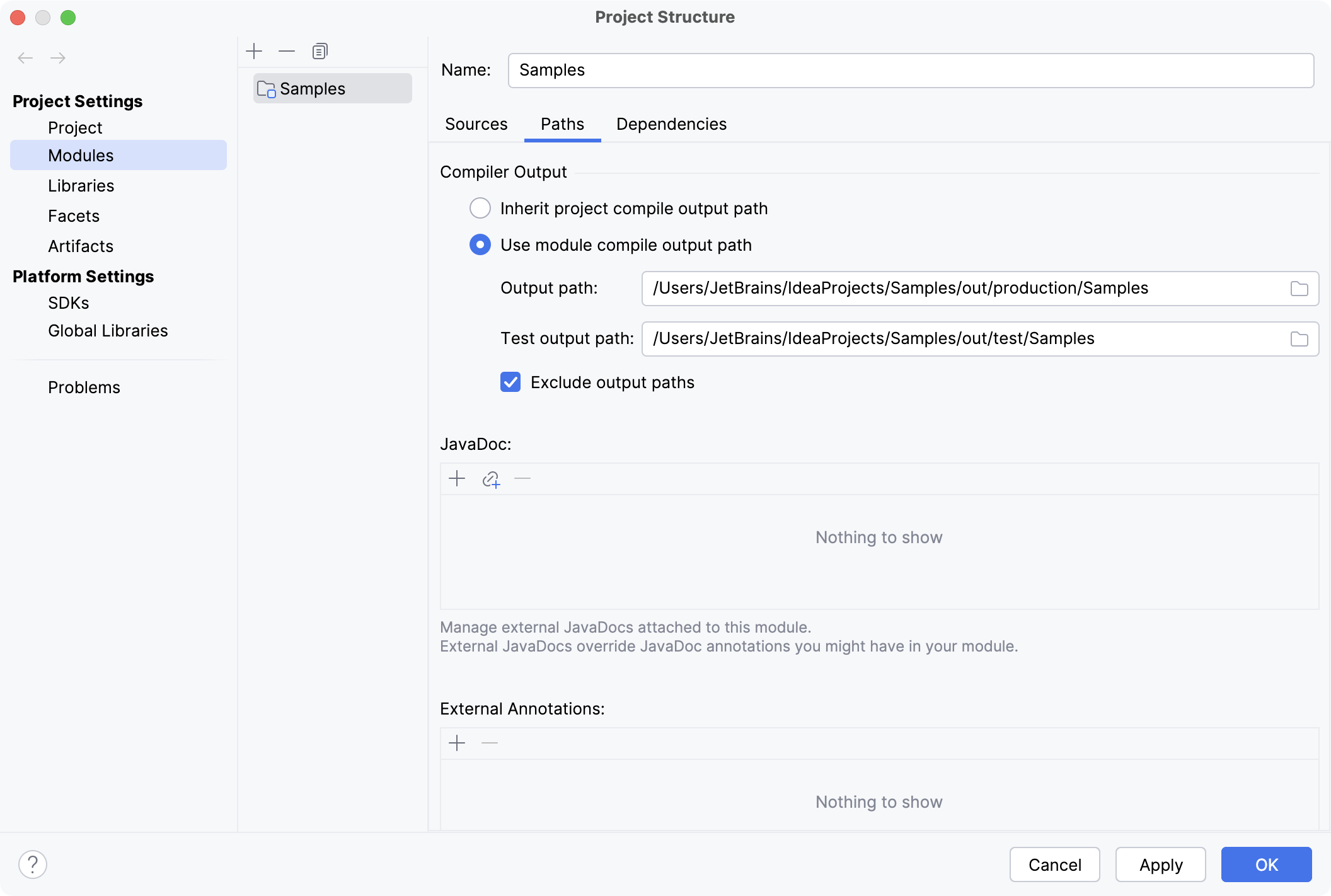
Compiler output path is the path to the directory in which IntelliJ IDEA stores the compilation results. In this directory, the IDE creates two sub-directories: output for production code and test output for test sources.
Configure module compiler output
In the main menu, go to Ctrl+Alt+Shift+S.
Under Project Settings, select .
Change the paths specified in the Output path and Test output path or select Inherit project compile output path to use the paths specified for the project.
Select the Exclude output path checkbox to exclude the output folders from code completion, navigation, and inspections. This helps increase overall IDE performance.
Module Javadocs
You can specify locations where external Javadocs associated with the module are stored.
In the main menu, go to Ctrl+Alt+Shift+S.
Under Project Settings, select .
In the JavaDoc area, configure the list of locations where external Javadocs are stored.
You can specify a file on your computer or a URL to add an online Javadoc.
Module external annotations
You can specify locations for external annotations associated with the module.
In the main menu, go to Ctrl+Alt+Shift+S.
Under Project Settings, select .
In the External Annotations area, configure the list of annotation locations.
Module libraries
Libraries are a collection of compiled code that you can use when developing applications. You can add libraries on the module level. In this case, only one module can use the code from such libraries.
Add module-level libraries
Global and project libraries are not available until you add them to module dependencies.
In the main menu, go to .
Select the module for which you want to add a library and click Dependencies.
Click the
 button and select Library.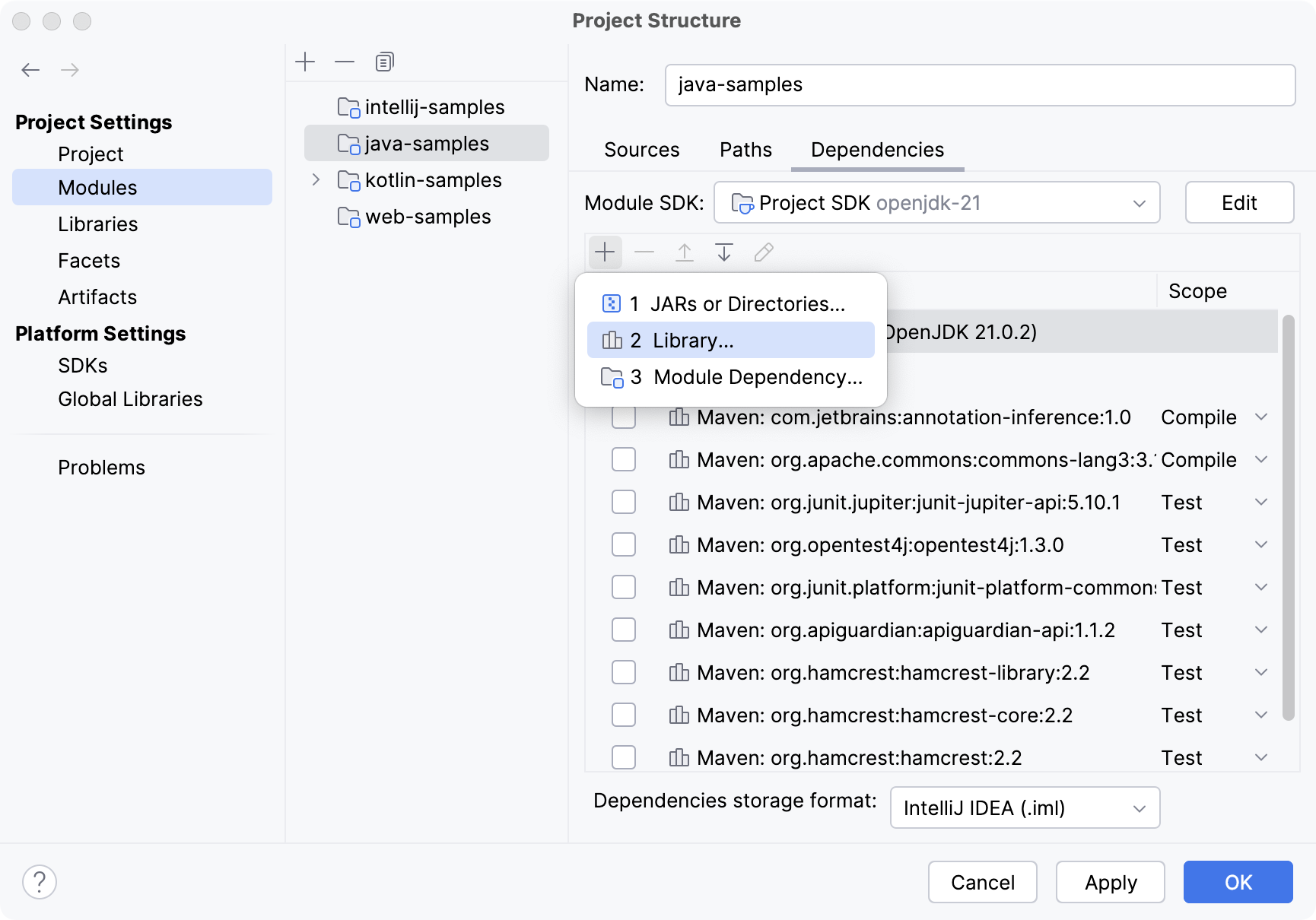
In the dialog that opens, select a project or a global library that you want to add to the module.
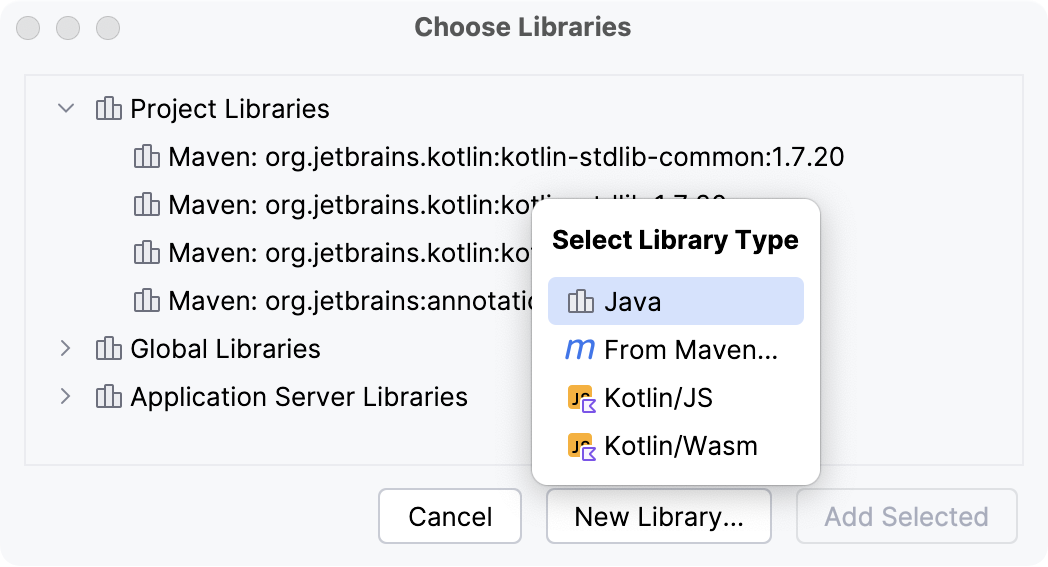
Alternatively, click New Library and select the required option: you can add a Java and Kotlin libraries from files on your computer, or download a library from Maven.