Structural search and replace
A conventional search process does not take into account the syntax and semantics of the source code. Even if you use regular expressions, IntelliJ IDEA still treats your code as a regular text. The structural search and replace (SSR) actions let you search for a particular code pattern or grammatical construct in your code considering your code structure.
IntelliJ IDEA finds and replaces fragments of source code, based on the search templates that you create and conditions you apply.
Search for a target structurally
In the main menu, go to to open the Structural Search dialog.
To quickly switch to the Structural Replace dialog, click
 .
.In the Structural Search dialog, do one of the following:
Create a template from scratch: select Draft Template from the list of templates and enter the code template (for example,
$variable$to represent your code) in the editor area.To save your custom template for future use, click the Save Template icon (
 ) on the dialog toolbar. You can also choose to save the template as an inspection.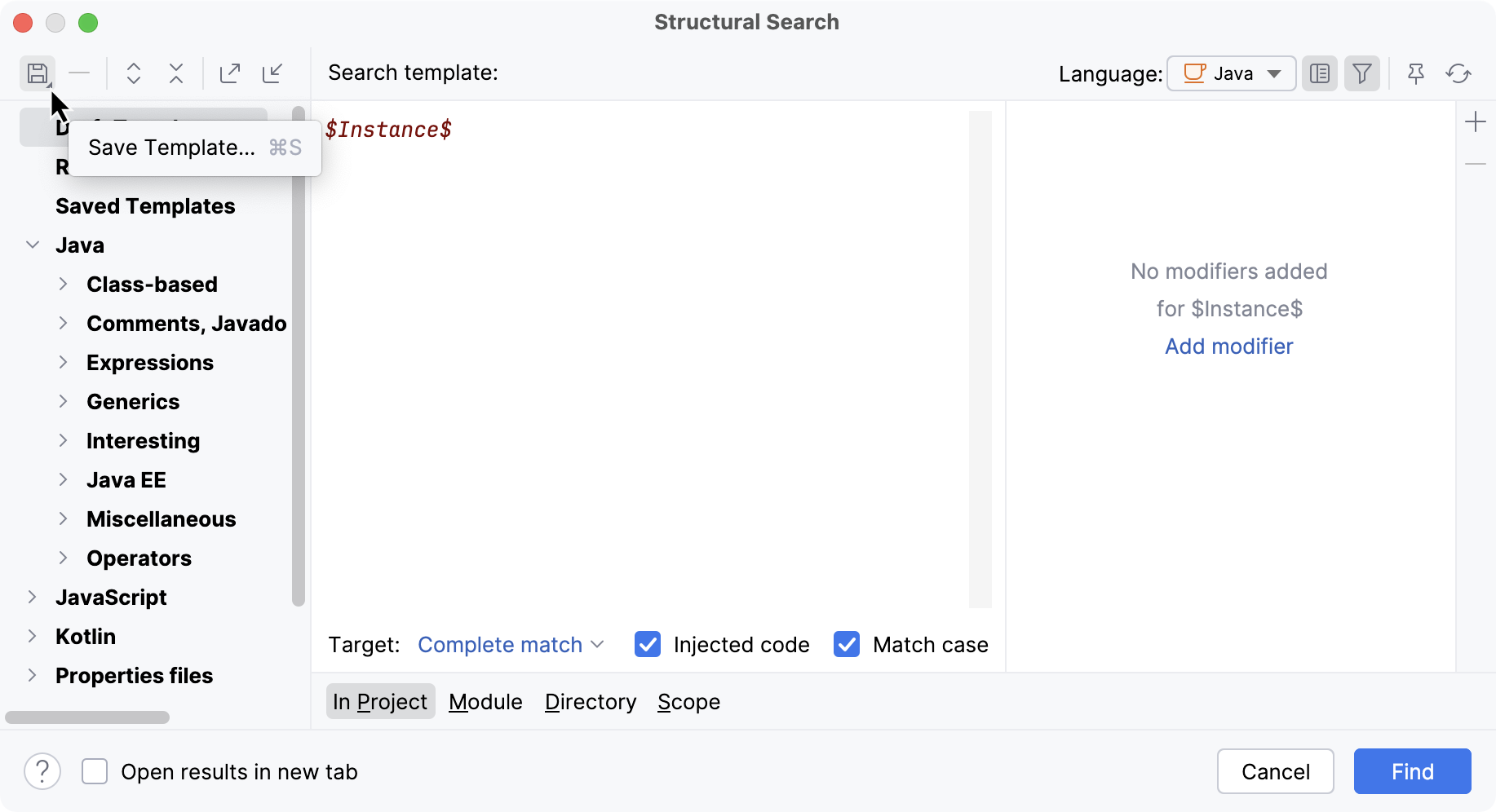
IntelliJ IDEA adds the created template to the Recent node in the template list.
Use one of the existing templates to act as a prototype: select the necessary template from the list of available existing templates.
For example, you have the following fields in your code:
public class MainActivity { public static final String this_is_wrong = "Hello"; public static final String THIS_IS_CORRECT = "world"; }Let's find a certain field in the class.
From the list of existing templates, click Java and open the Class-based node (since we need fields in the class), so the fields of the class template would be our target.
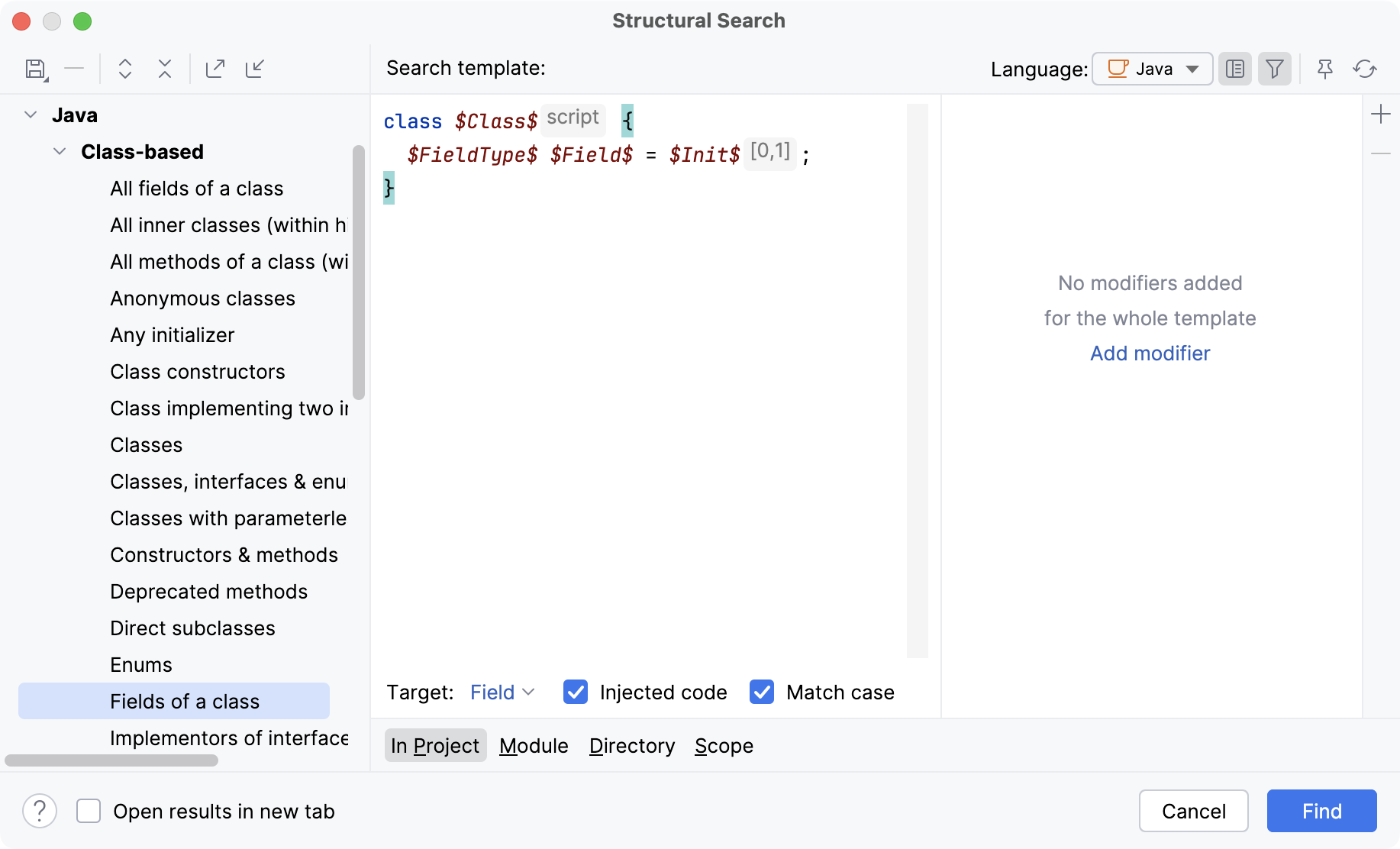
Click Find to search for these constructions in the entire project.
IntelliJ IDEA instantly highlights the found code occurrences in the editor.
The Structural Search dialog shows the selected template and the values of its filters. You can edit existing filters or add new conditions, such as regular expressions or script constraints. Place the caret on a code variable and use the filter area to manage its filters.
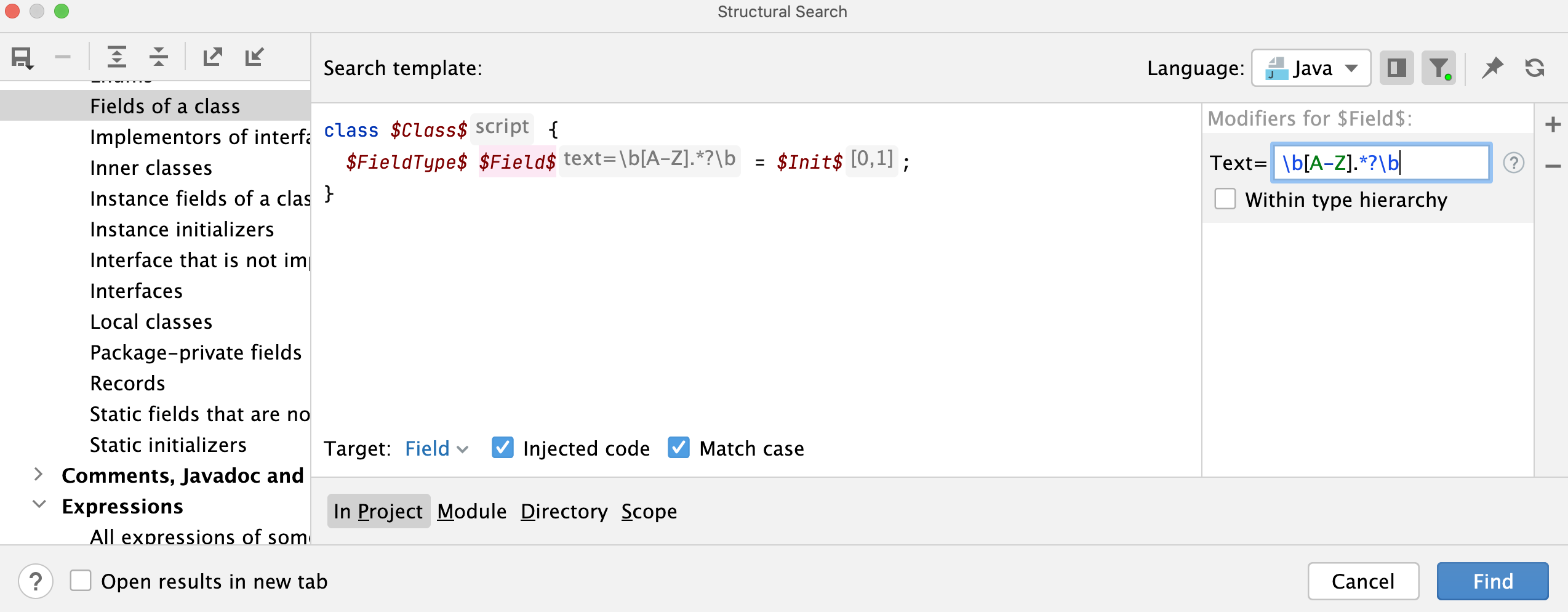
In this example, add a Text modifier for the
$Field$variable.For the Text modifier, enter the following regular expression:
\b[A-Z].*?\b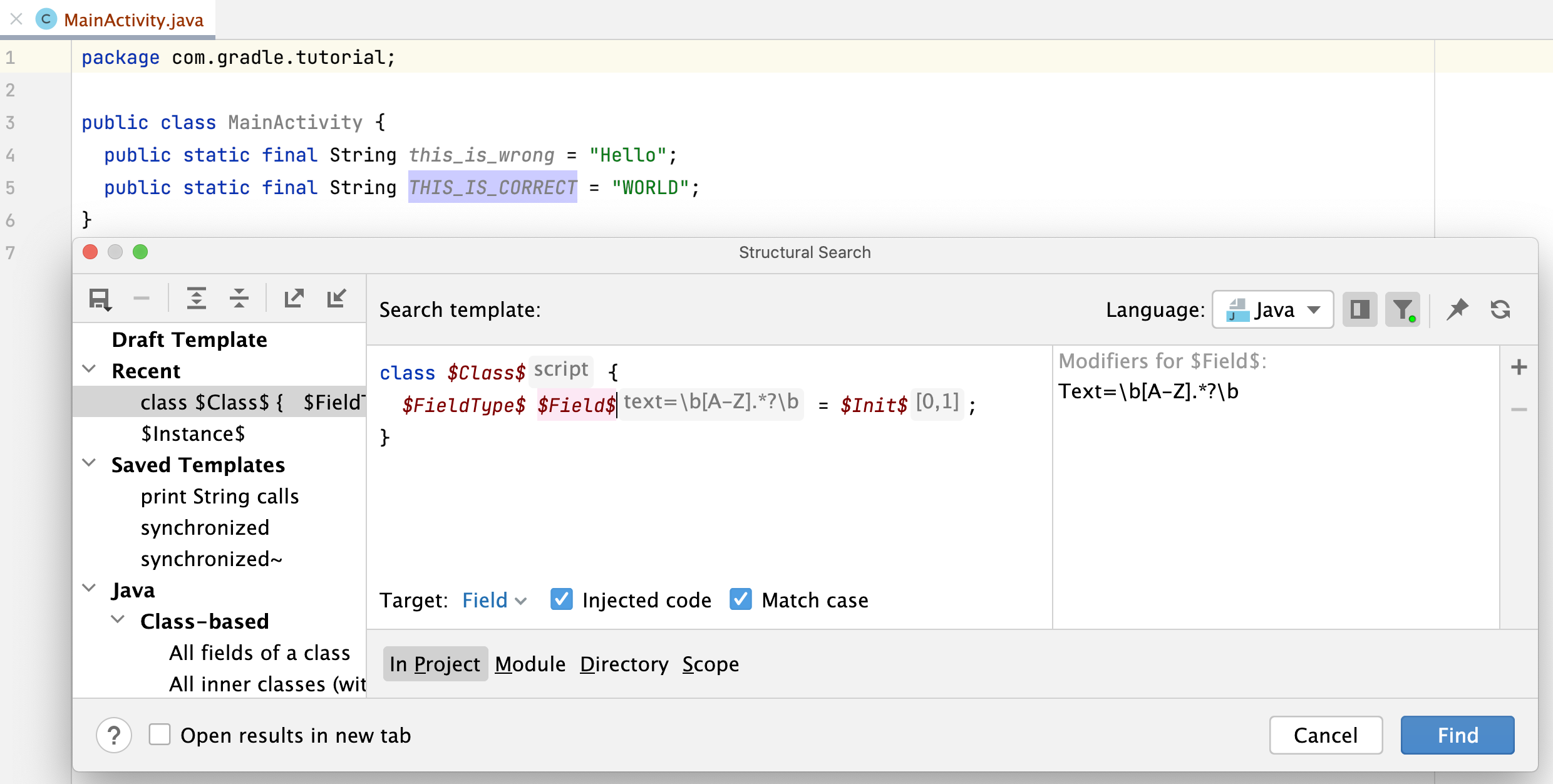
In this case, when you select the Match case checkbox in the Structural Search dialog, IntelliJ IDEA searches only for fields with uppercase characters in the first field.
There are also additional options available depending on the selected language.
For example, review the following options:
Language: use the list to select which file types to include in the search. In this case, it is Java.
Target: use the list to select what item to search for. In this case, it is
Field.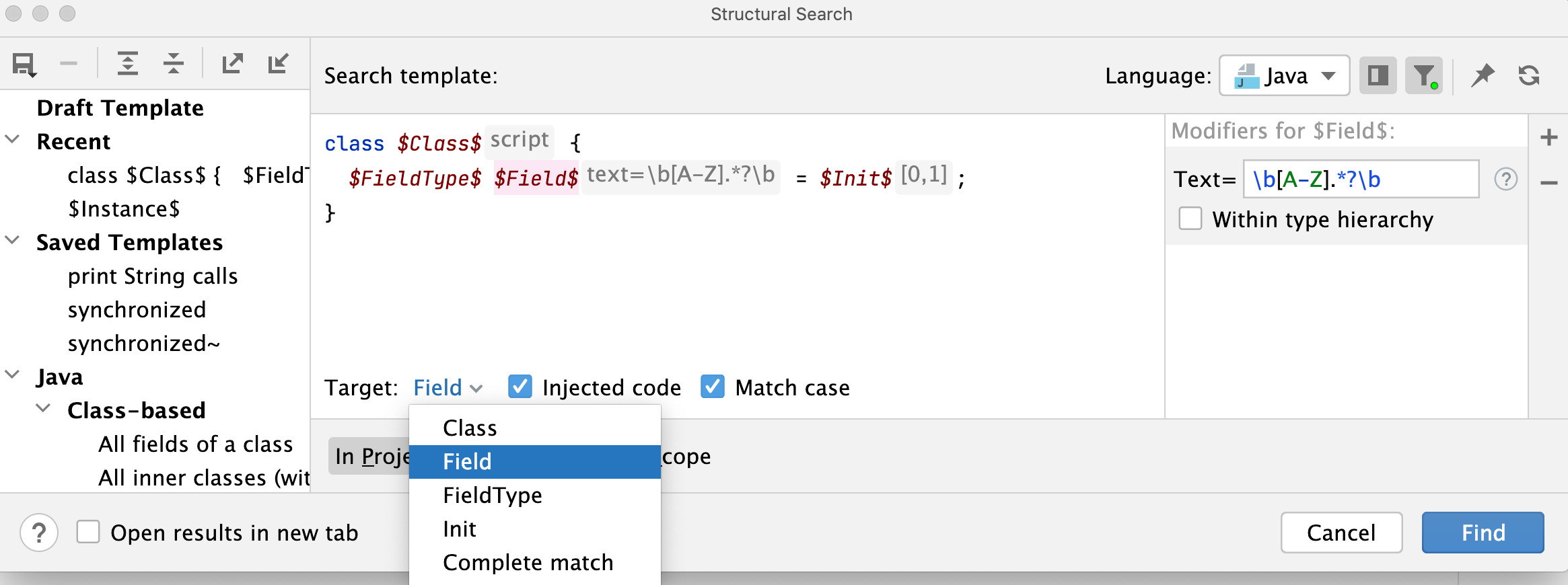
Recursive: if selected, IntelliJ IDEA performs a recursive search, and all nested items are included in the results. For example, when you search for a method call with Recursive enabled, IntelliJ IDEA finds nested calls in
foo(foo(foo())). With Recursive disabled, only the outer call is found.Injected code: if selected, injected code such as JavaScript in HTML or SQL in Java is included in the search.
Match case: if selected, the search results match the case of the search target.
Specify the search scope: a project, module, directory, or a custom scope.
Click Find.
IntelliJ IDEA shows the results in the Find tool window.
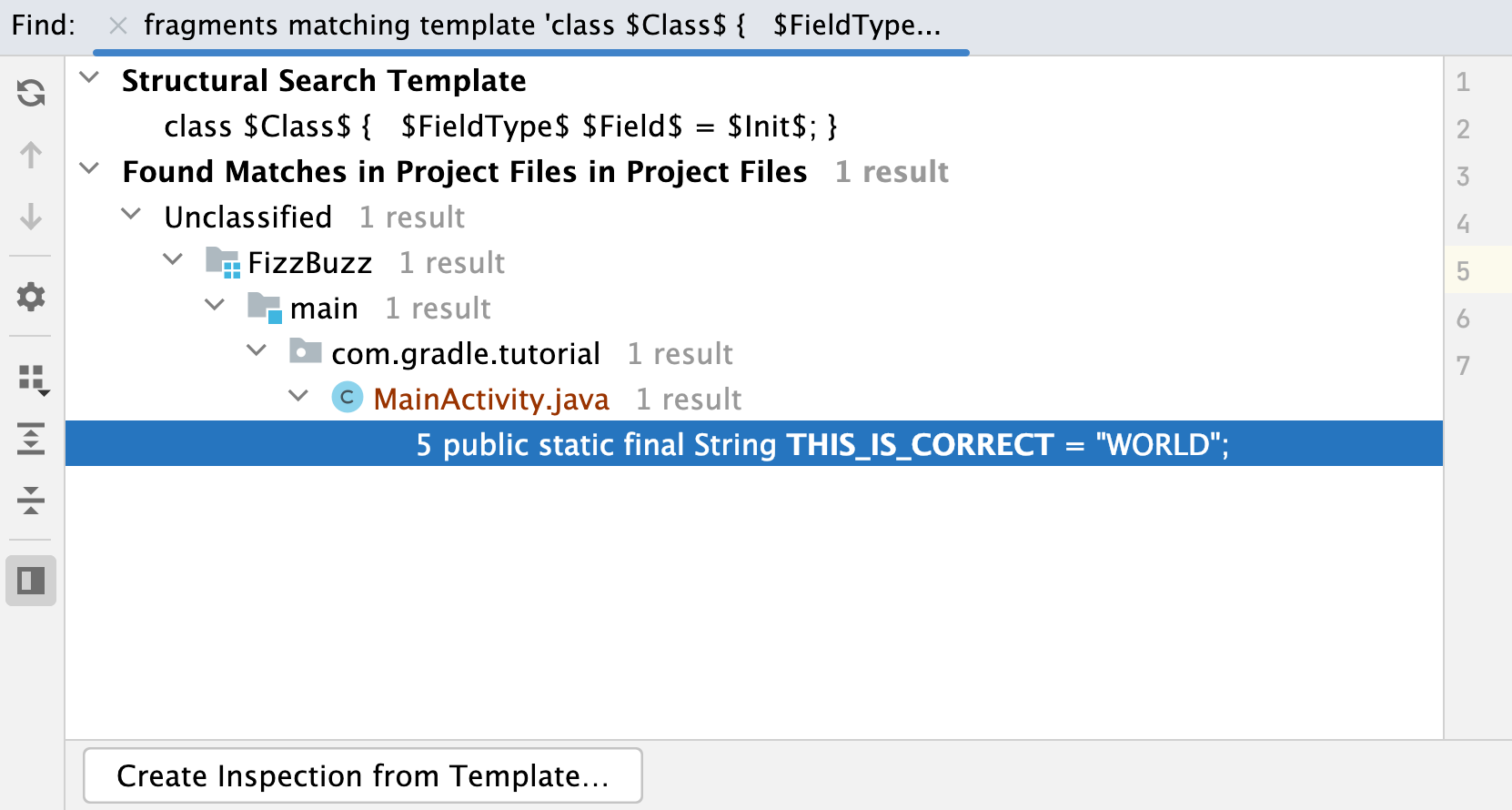
You can add the new search template to structural search inspections as a custom template. To do this, click Create Inspection from Template in the Find tool window. You can then reuse it to inspect your code.
Replace a target structurally
In the main menu, go to .
In the Replace Structurally dialog, add new or existing templates to the search and replace template areas. You can save the replace template the same way as the search one.
If you need to add a filter for the variable in the replace template, place the caret at the variable of interest and use the filter area to manage filters.
In the filter area, depending on what you chose as a filter, specify the condition.
For example, let's take a variable
$Field$that we searched for and add a condition to replace the found template with the lowercase characters.Let's call our variable
$Field2$and add the following filter script which basically is a Groovy script:Field.name.toLowerCase().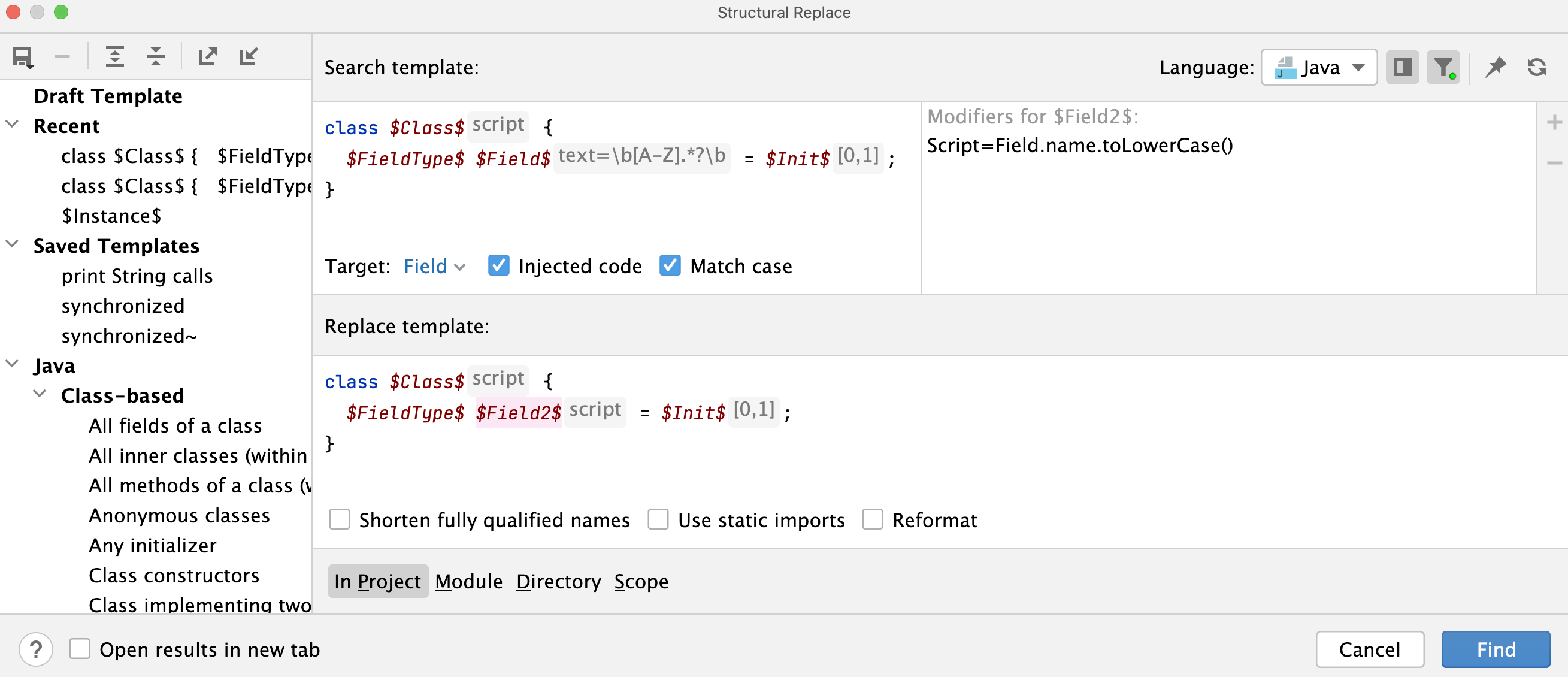
To narrow down your replace results, select the following options:
Shorten fully-qualified names - replaces fully qualified class names with short names and imports.
Reformat - automatically formats the replaced code.
Use static import - uses static import in replacement when possible. For example, a method call to a static method
Math.abs(i)becomesabs(i)if this option is selected.
After specifying the necessary options, click Find. IntelliJ IDEA displays the results in the Find tool window.
In the Find tool window, you can work with the results further, replacing found items one by one, or all of them at once, or previewing your potential changes.
You can also add the replace template to the structural search inspections and use it as a quick-fix for your code.
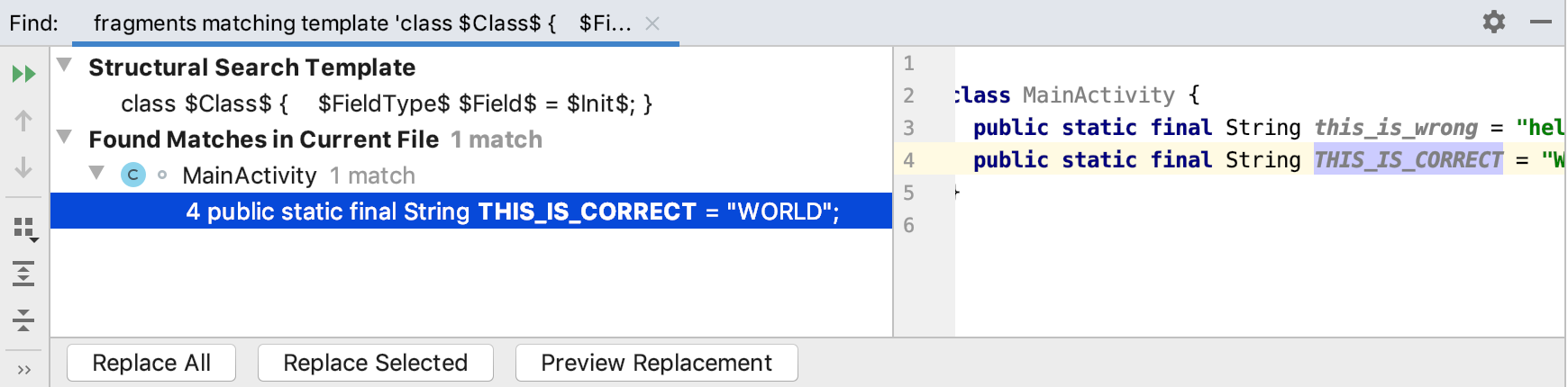
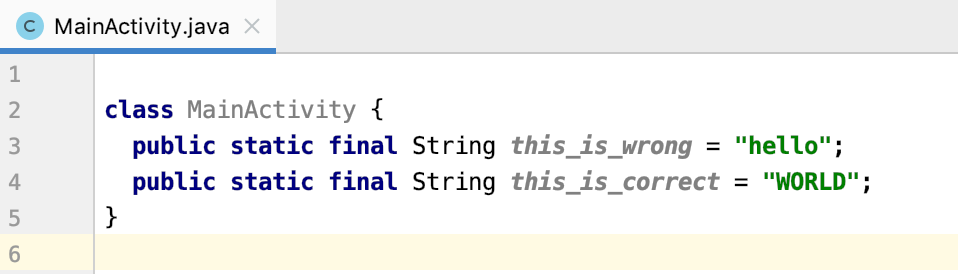
As a result of our replacement, the uppercase characters were switched to lowercase.
Share search templates
You can share a search template with your peers by exporting or importing it.
In the Structural Search dialog (), create a new search template or use the existing one.
To export a template, click
 . IntelliJ IDEA adds the XML representation of the template to a clipboard (press Ctrl+Shift+V to see the clipboard's content). You can share this representation with other developers in chat, email, or a forum.
To import a template, copy (Ctrl+C) the shared XML code from anywhere (email, chat, or a forum) and in the Structural Search dialog, click
 . IntelliJ IDEA takes the XML code representation and converts it into a template including variables and a scope if it is present.