Update info tab
This tab is available when local information is synchronized with the server (<specific_VCS> | Update Project). The Commits area shows a list of all commits performed since you last synced with the remote.
Toolbar
Item | Tooltip and Shortcut | Description |
|---|---|---|
Filter | N/A | Use this field to search through the list of commits. You can enter full commit names or messages or their fragments, revision numbers, or regular expressions. To finalize the search, press Enter or move the focus away from the search field. |
| N/A | Click to display previous search patterns. |
| N/A | Click to clear the search and return to the full list of commits. |
| Text Filter Settings | Click to select from the following options:
|
Branch | N/A | Use this drop-down to filter commits by branch or favorite branches. If you want to see commits from all local and remote branches, select All. |
User | N/A | Use this list to filter commits by author. To view all commits by a specific author, click Select and start typing the author's name. To view commits by all users, select All. |
Date | N/A | Use this list commits by a time-frame or a specific date. To view commits made on a specific date, click Select and specify the date. To view commits made on all dates, select All. |
Paths | N/A | Use this list commits by the folder (for projects that have one root), or by the root and folder (for multi-rooted projects). To view commits to a specific folder, click Select Folders and specify the folder name. For multi-repository projects, you can also select the checkbox next to one or several roots in the Roots section. |
| Refresh Ctrl+F5 | Click this button to refresh the list of commits. |
| Cherry-pick | Click to apply changes from the selected commit to the current branch. |
| IntelliSort | If this option is enabled, you get a more convenient way to view merges by displaying incoming commits first, directly below the merge commit. |
| Presentation Settings | Click to invoke the list of options that let you configure how data is presented in the Log tab of the Version Control tool window Alt+9
|
Show columns | Select which columns you want to see: author, date, and hash. | |
| Open Another Log Tab | Click to open a new log tab matching your filters, so that you don't have to set filters back and forth. |
| Go to Hash/Branch/Tag Ctrl+F | Click this button and specify a hash, tag or branch you want to jump to. 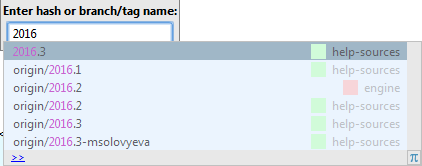 You can select a reference with the same name from different repositories. The name of each repository is displayed on the right along with its color indicator. |






Changed files pane
This pane shows a list of files that were modified within the currently selected commit.
Changed files pane toolbar
Item | Tooltip and Shortcut | Description |
|---|---|---|
| Show Diff Ctrl+D | Open the Diff Viewer for files where you can compare the local version of the selected file with its repository version. |
| Revert Selected Changes | Roll back the changes in the selected file. |
| History Up to Here | Open the History tab for the selected file that lets you explore the history of all file revisions. |
| View Options | Group the modified files by directory or module. Configure layout:
|
| Expand All/Collapse All Ctrl+NumPad + | Click this button to expand/collapse all nodes. Note that these buttons are only available only when tree-view is enabled. |


Context menu commands
Item | Description |
|---|---|
Show Diff Ctrl+D | Click to open the Diff Viewer for files where you can compare the current and the previous revision of the selected file. |
Show Diff in a New Window | Click to open the Diff Viewer for files in a separate window. |
Compare with Local | Compare the revision of the file in the selected commit with its current local version. |
Compare Before with Local | Compare the reversion of the file before the selected commit with its current local revision. |
Edit Source F4 | Open the local copy of the selected file for editing. |
Open Repository Version | Click to open the repository version of the selected file for editing. |
Revert Selected Changes | Click to roll back the changes in the selected file. This option is useful when you only need to revert specific files instead of discarding an entire commit. Changes that revert the selected file will be placed in the active changelist. |
Cherry-Pick Selected Changes | Click to apply the selected changes to the current branch. |
Extract Selected Changes to Separate Commit | If you want to split the already committed changes into several commits, you can extract the changes in selected files into a separate commit. |
Drop Selected Changes | If you have committed changes in several files and now want to roll back some of these changes before pushing your commit, you can drop only some of these changes instead of dropping an entire commit. |
Create Patch | Create a patch from selected files. |
Get from Revision | Roll back the file to the state in the selected revision. |
History Up to Here | Open the History tab for the selected file that lets you explore the history of all file revisions. |
Show Changes to Parents | Display changes to both parents for a merge commit to review merge results and see how exactly conflicts were resolved during a merge. |


Commit Details
This area is displayed when the Show Details  option is enabled.
This area shows the details on the commit selected in the commit list, such as the commit message, hash, author, the link to the author's email, date, time, GPG signature, root and branches.
If the selected commit is contained in more than six branches, only the first six are displayed, and the Show All link appears that you can click to expand a complete list of branches.
If a commit message references another commit, you can click this commit's hash to jump to it in the log.