Definition and type definition
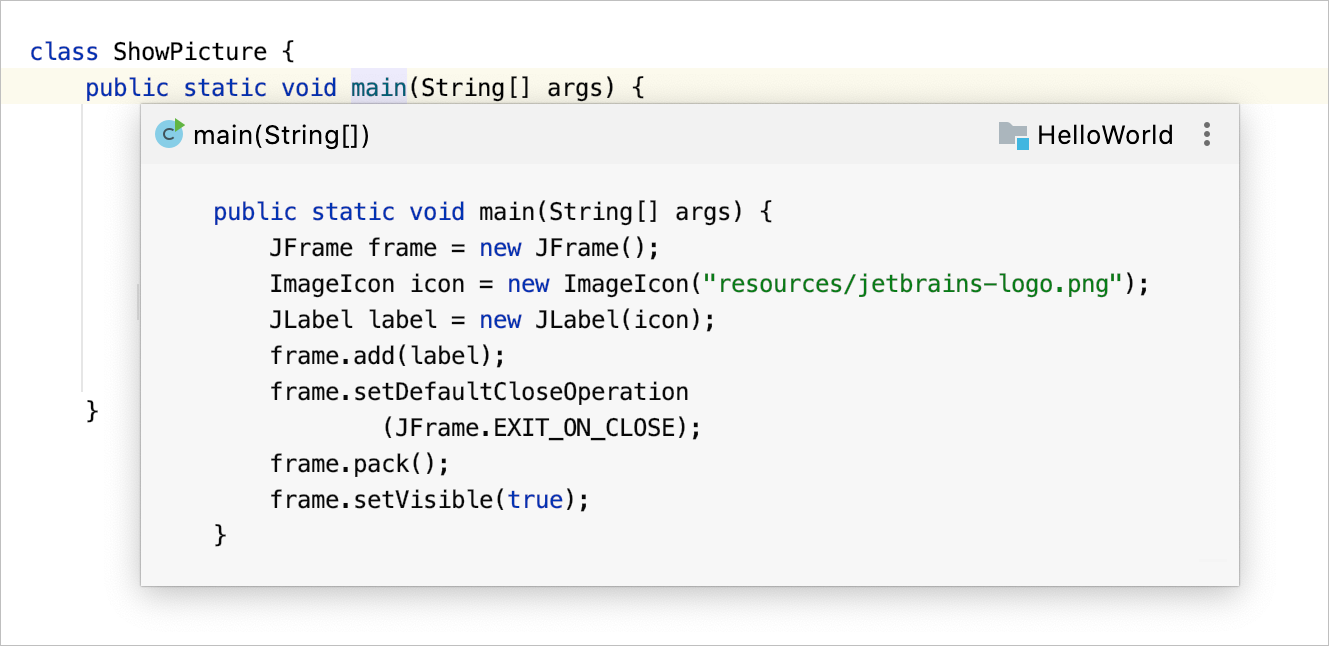
In IntelliJ IDEA, you can see where and how symbols, such as classes, fields, methods, functions, or tags are defined in your project. For this purpose, the IDE features the Quick Definition popup.
View definition of a symbol at caret
Place the caret at a symbol in the editor and press Ctrl+Shift+I (or click in the main menu) . You can also press Ctrl+Shift+A, start typing
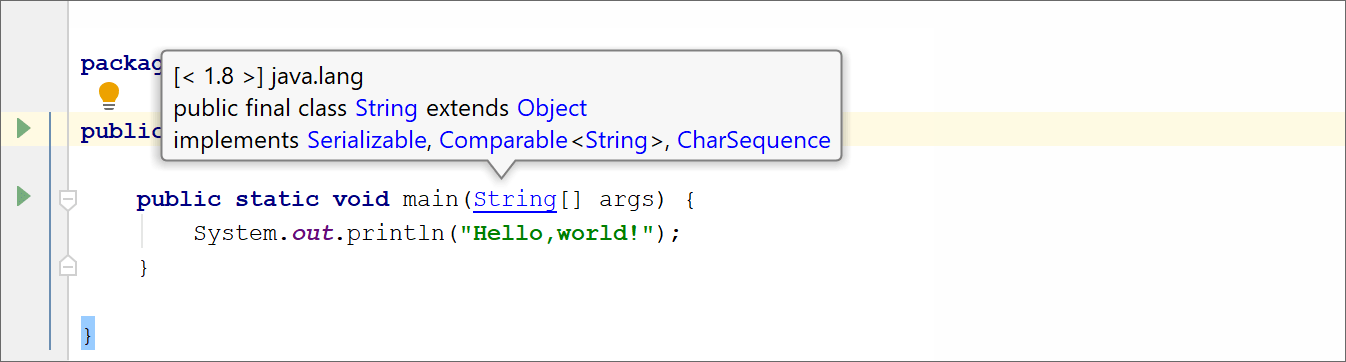
Quick Definition, then select the action from the list.Alternatively, with the Ctrl key pressed, hover over any symbol. IntelliJ IDEA displays the symbol as a link and shows its definition in a tooltip. Click this link to jump to the definition of the symbol.
You can open a definition in the Find tool window. To do so, click the  icon in the top-right corner of the popup and click
  Open in Find Tool Window.
To open the source code of the definition for editing and close the popup, click the  icon and then click
  Edit Source (F4).
Type definitions
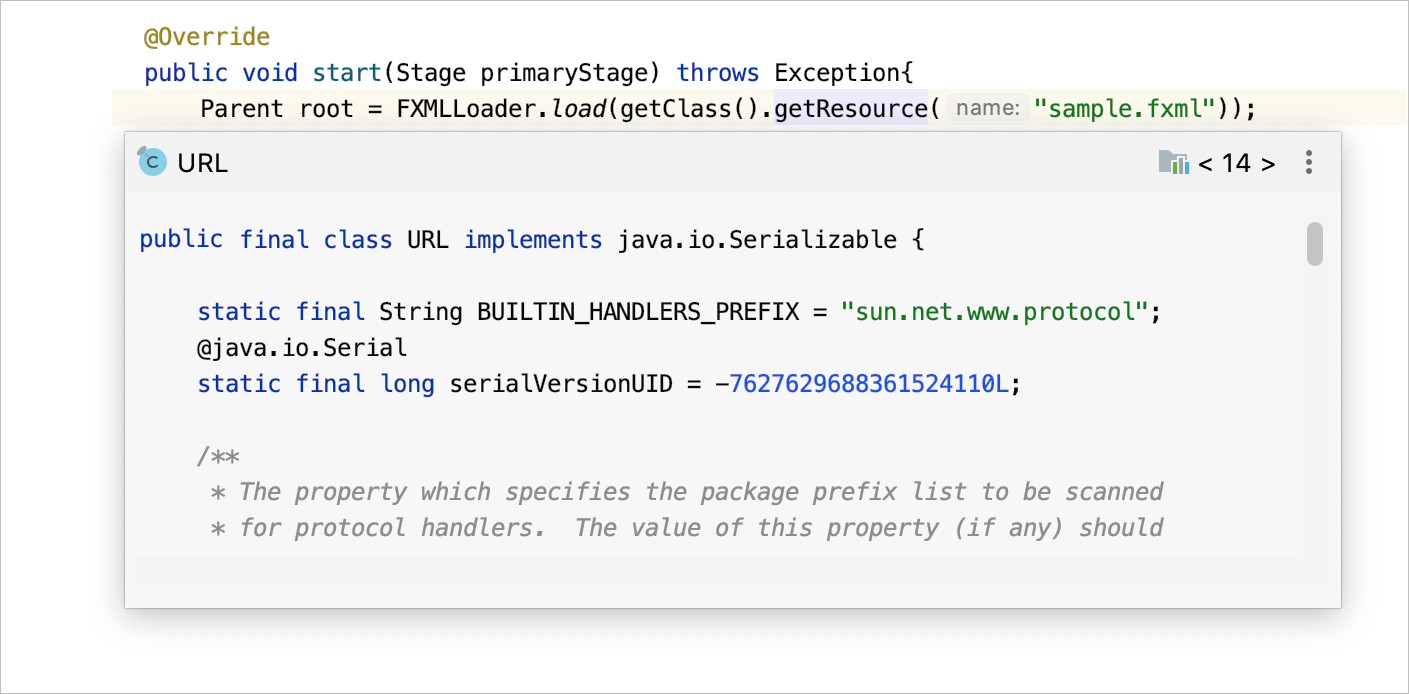
The Quick Type Definition feature allows you to view the type definition of variables, fields, methods, or any other symbols in a popup without switching from the code you're editing.
Place the caret at the symbol for which you want to view the type definition and select .
To open the source code of the definition for editing and close the popup, click the
icon and then click  Edit Source (F4).
IntelliJ IDEA doesn't have a default keyboard shortcut for this action, but you can manually configure it in the settings. For more information about configuring custom shortcuts, refer to Configure keyboard shortcuts.