User interface
When you open a project in IntelliJ IDEA, the default user interface looks as follows:
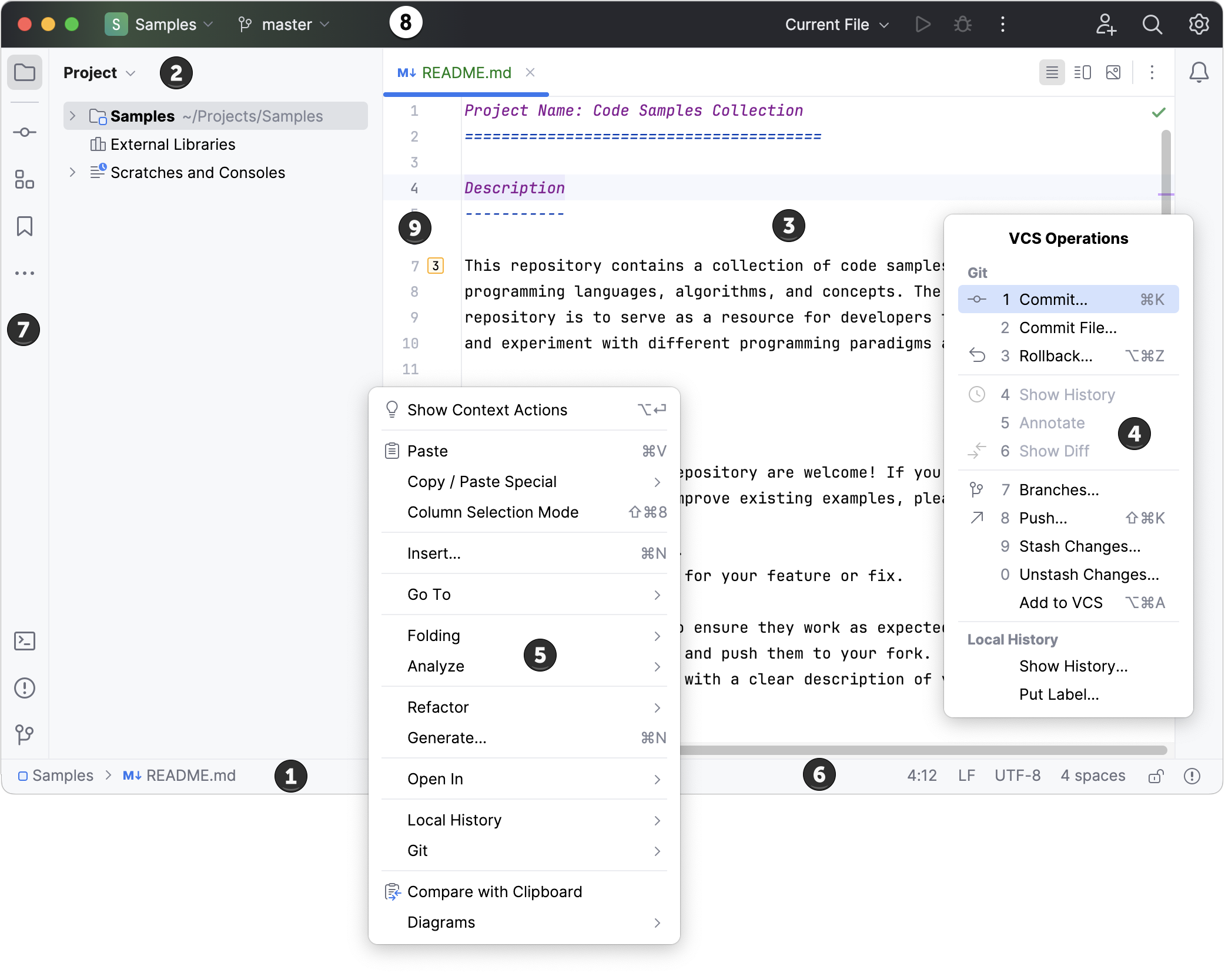
Depending on the set of plugins, IntelliJ IDEA edition, and configuration settings, your IDE may look and behave differently.
Navigation bar
Focus: Alt+Home
Show/hide:
The navigation bar is a quick alternative to the Project view, where you can go through the structure of your project, open specific files, and jump to specific code elements in the current file.
It is located in the status bar at the bottom of the main window. You can change its location: in the main menu, go to and select Top to display the navigation bar in the top part of the IDE window or Don't show to disable it.
Editor
Focus: Escape
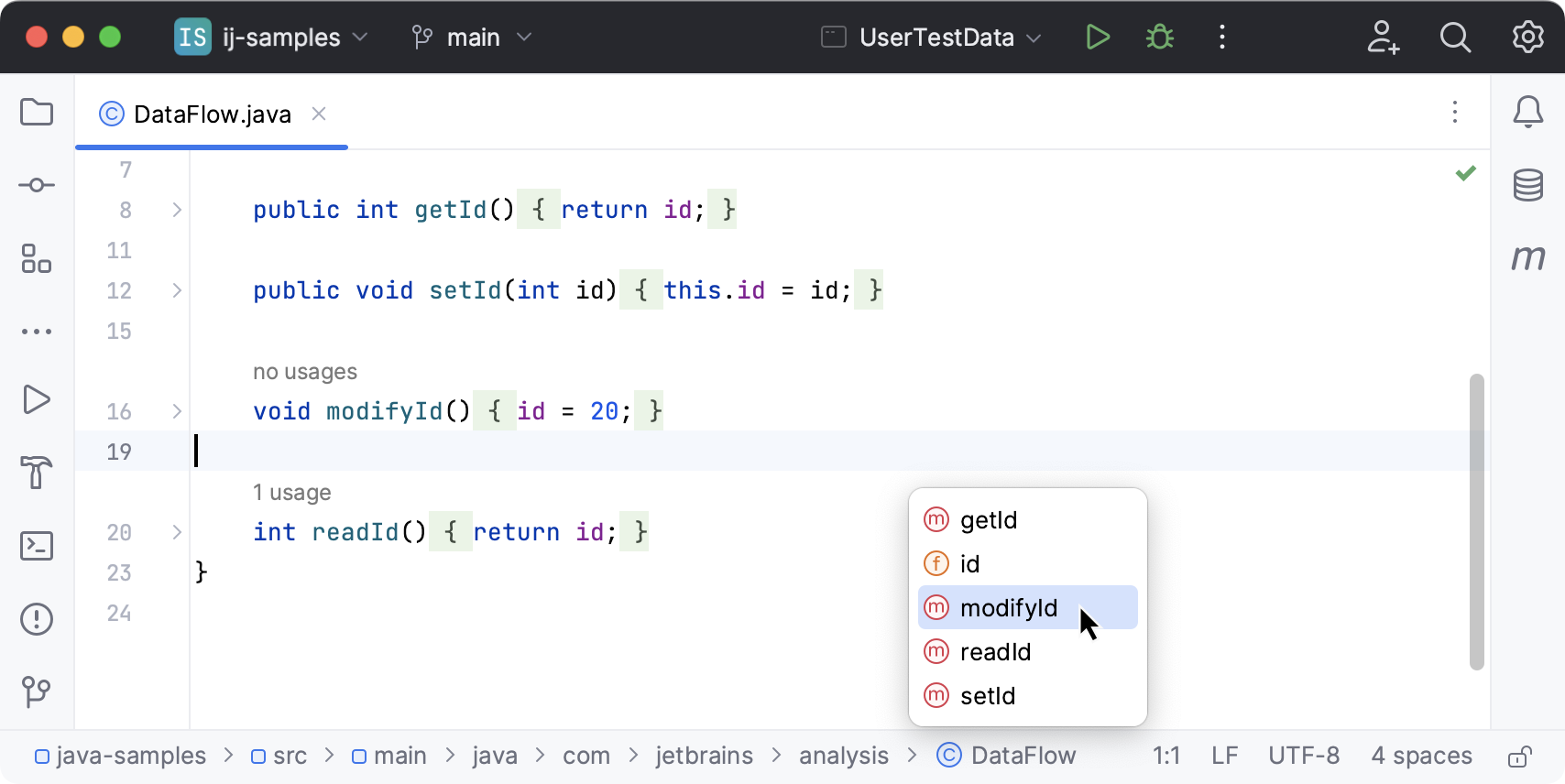
Use the editor to read, write, and explore your source code .
Status bar
Show/hide:
If you do not use the left part of the status bar as the navigation bar, it shows the most recent event messages. Click a message in the status bar to open it in the Notifications tool window. Right-click the message in the status bar and select Copy to paste the message text when you are searching for a solution to a problem or need to add it to a support ticket or to the IntelliJ IDEA issue tracker.
The status bar also shows the progress of processes. You can click  to show the Processes manager.
The blinking  icon in the status bar indicates that an internal IDE error has occurred. Click to view the error descriptions and submit reports.
The right part of the status bar contains widgets that indicate the overall project and IDE status and provide access to various settings. Depending on the set of plugins and configuration settings, the set of widgets can change. Right-click the status bar to select the widgets that you want to show or hide.
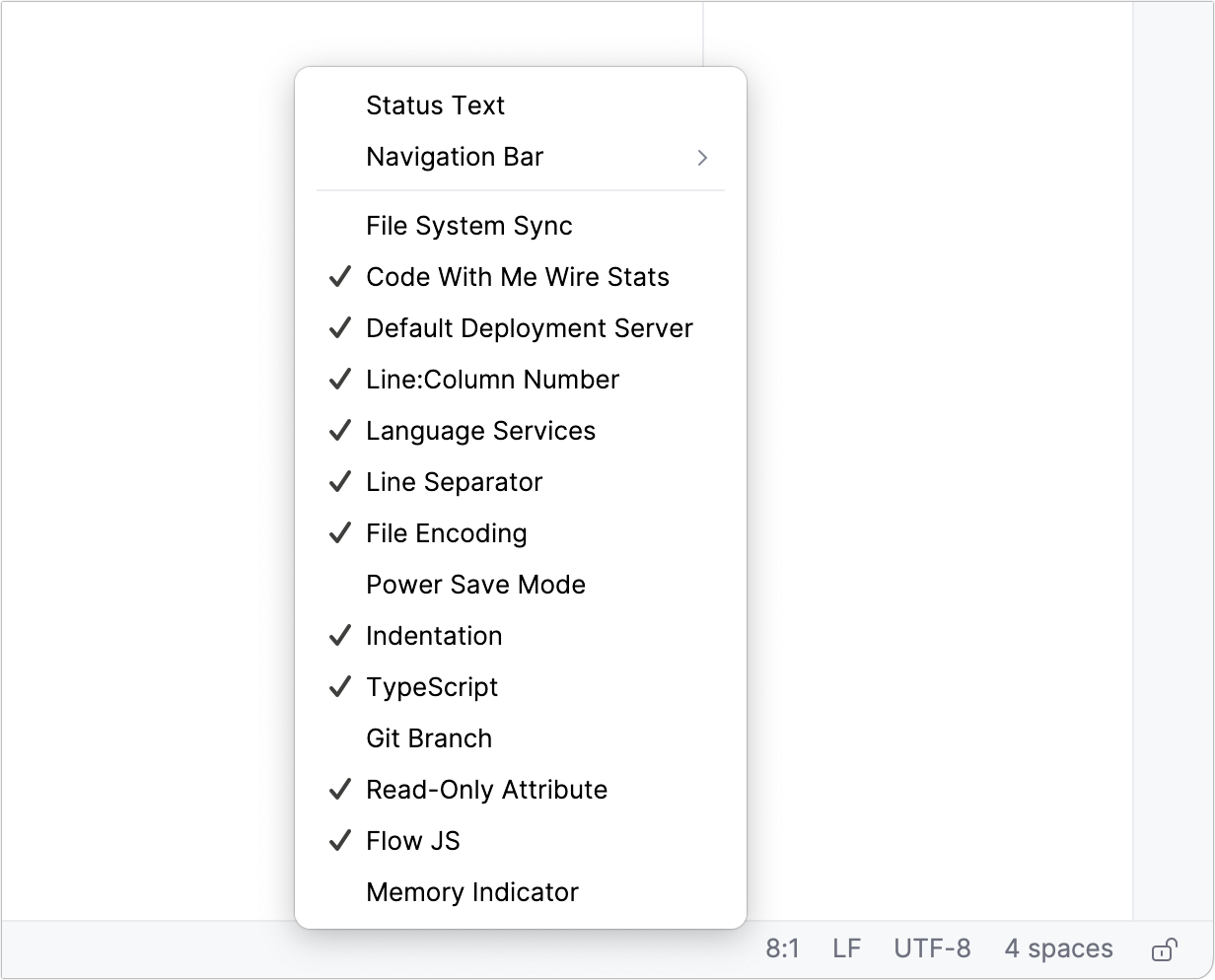
Widget | Description |
|---|---|
52:11 | Shows the line and column number of the current caret position in the editor. Click the numbers to move the caret to a specific line and column. If you select a code fragment in the editor, IntelliJ IDEA also shows the number of characters and line breaks in the selected fragment. |
LF | Shows the line endings used to break lines in the current file. Click this widget to change the line separators. |
UTF-8 | Shows the encoding used to view the current file. Click the widget to use another encoding. |
Column | Indicates that the column selection mode is enabled for the current editor tab. You can press Alt+Shift+Insert to toggle it. |
| Click to lock the file from editing (set it to read-only) or unlock it if you want to edit the file. |
2 spaces | Shows the indent style used in the current file. Click to configure the tab and indent settings for the current file type or disable indent detection in the current project. |


Tool windows
Show/hide:
Tool windows provide functionality that supplements editing code. For example, the Project tool window shows you the structure of your project, and the Run tool window displays the output of your application when you run it.
By default, tool windows are docked to the sides and bottom of the main window. You can arrange them as necessary, undock, resize, hide, and so on. Right-click the title of the tool window or click  in the title for its arrangement options.
You can assign shortcuts to quickly access the tool windows that you frequently use. Some of them have shortcuts by default. For example, to open the Project tool window , press Alt+1, and to open the Terminal tool window, press Alt+F12. To jump from the editor to the last active tool window, press F12.
Context menus
You can right-click various elements of the interface to see the actions available in the current context of this element. For example, right-click a file in the Project tool window for actions related to that file, or right-click in the editor to see actions that apply to the current code fragment.
Most of these actions can also be performed from the main menu at the top of the screen or the main window. Actions with shortcuts show the shortcut next to the action name.
Popup menus
Popup menus provide quick access for actions related to the current IDE and project context. Here are some useful popup menus and their shortcuts:
Alt+Insert opens the Generate popup for generating boilerplate code based on the context.
Ctrl+Alt+Shift+T opens the Refactor This popup with a list of contextually available refactorings.
Alt+Insert in the Project tool window opens the New popup for adding new files and directories to your project.
Alt+` opens the VCS Operations popup with contextually available actions for your version control system.
You can create custom popup menus using quick lists of actions that you often use.
Tool window bars
The bars on the sides of the main window contain icons of tool windows. Click an icon to show or hide the tool window. A right-click on an icon will open the context menu, where you can hide or move the tool window. You can also drag tool window icons to rearrange tool windows.
Tool window icons in the upper parts of the left and right bars open vertical tool windows on the left and right sides of the IDE window.
The icons in the bottom parts of the bars open horizontal tool windows at the bottom of the IDE window.
Learn more from Tool window bars and buttons.
Toolbar
Several widgets are located in the toolbar in the window header. From left to right:

Main menu (Windows and Linux only)
You can choose how to display the main menu. The options are:
Merge with Main Toolbar: the main menu and the toolbar are displayed on the same panel.
Hide under Hamburger Button: the main menu is hidden under the
 menu icon. To access menu categories, click the icon or press Alt+\. The elements will appear horizontally over other header widgets.
Show above Main Toolbar: the main menu is located on a separate panel above the toolbar.
To configure the way the main menu is displayed, go to and select an option from the Main menu dropdown. Alternatively, go to in the main menu.
Project widget
The widget shows the name of the current project, allows switching between recent projects, creating new projects, and opening existing ones.
VCS widget
The widget shows the current branch, allows switching branches, and provides the most popular VCS actions like update project, commit and push changes.
It has replaced the branch widget previously located in the status bar at the bottom of the main window, and VCS actions icons previously located in the navigation bar in the upper right corner.
Run widget
The widget allows you to start run/debug configurations, select other configurations to run, and change the mode for the current configuration (run or debug). You can edit, pin, or delete configurations using this widget.
When a process is running, you can restart or stop it using the widget.
Gutter
The gutter is the panel located in the editor on the left. It contains action icons that allow you to fix code issues, run or debug your code, and use other framework-specific features. Line numbers, breakpoints, and bookmarks are also shown in the gutter.
The gutter also allows you to fold code, marks modified lines for projects under version control, and shows code coverage results.
Learn more about gutter icons from Gutter Icons.
Main window
The main window lets you work with a single IntelliJ IDEA project. You can open multiple projects in multiple windows . By default, the window header displays the name of the project and the name of the currently open file. If there are multiple modules, it will also show the name of the relevant module.
To show the full path to the project and to the current file, select Always show full paths in window header on the Appearance & Behavior | Appearance settings page Ctrl+Alt+S.