Code completion
Basic code completion helps you complete the names of classes, methods, and keywords within the visibility scope.
PhpStorm analyzes the context and suggests the choices that are reachable from the current caret position. Suggestions also include Live templates. Completion is available for a non-English keyboard layout.
Invoke basic completion
By default, PhpStorm displays the code completion popup automatically as you type.
Alternatively, you can press Ctrl+Space or select from the main menu.
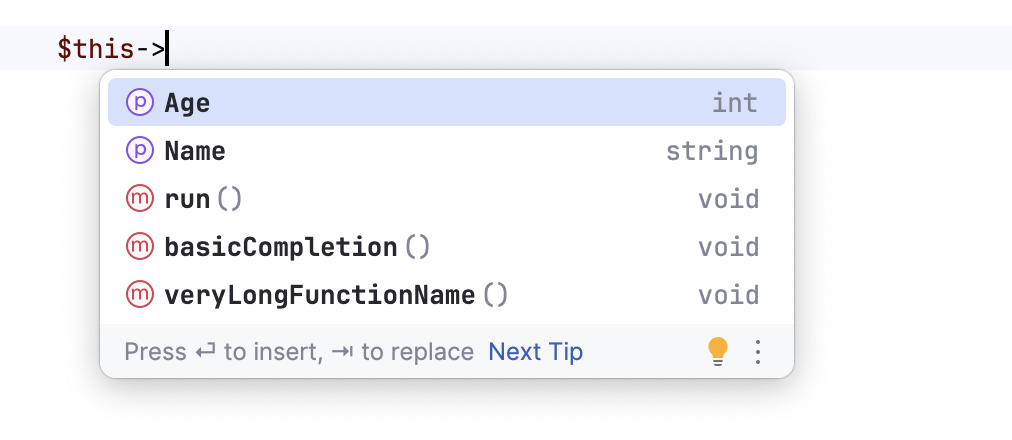
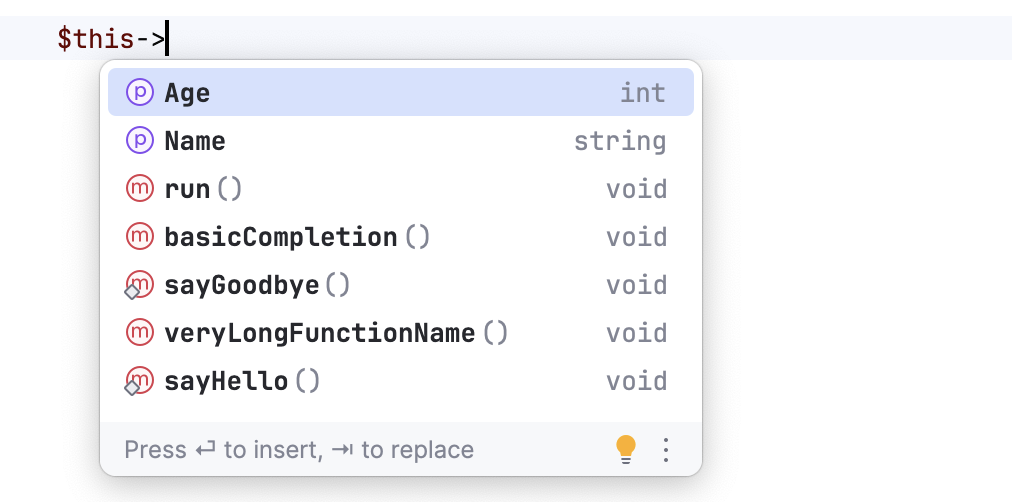
Invoking code completion for the second time shows inaccessible classes and members (these can be made public by applying an intention action).
Accept a suggestion from the list
Press Enter or double-click the relevant list item to insert it to the left of the caret.
Press Tab to replace the characters to the right from the caret.
Use Ctrl+Shift+Enter to make the current code construct syntactically correct (balance parentheses, add missing braces and semicolons, and so on).
Use specific keys and custom characters to accept the selected completion suggestion. To enable these features, go to the Editor | General | Code Completion settings page Ctrl+Alt+S and do the following:
To use specific keys, select the Insert selected suggestion by pressing space, dot, or other context-dependent keys checkbox. These keys depend on the language, your context, and so on.
To also use custom characters, enter the characters into the Additional characters to accept the completion field.
Machine learning-assisted completion ranking
PhpStorm allows you to prioritize completion suggestions based on choices that other users made in similar situations.
The ML completion mechanism does not add any new elements but orders the elements retrieved from code. Data is not exposed anywhere; it is collected locally.
Enable ML completion ranking
Press Ctrl+Alt+S to open settings and select Editor | General | Code Completion.
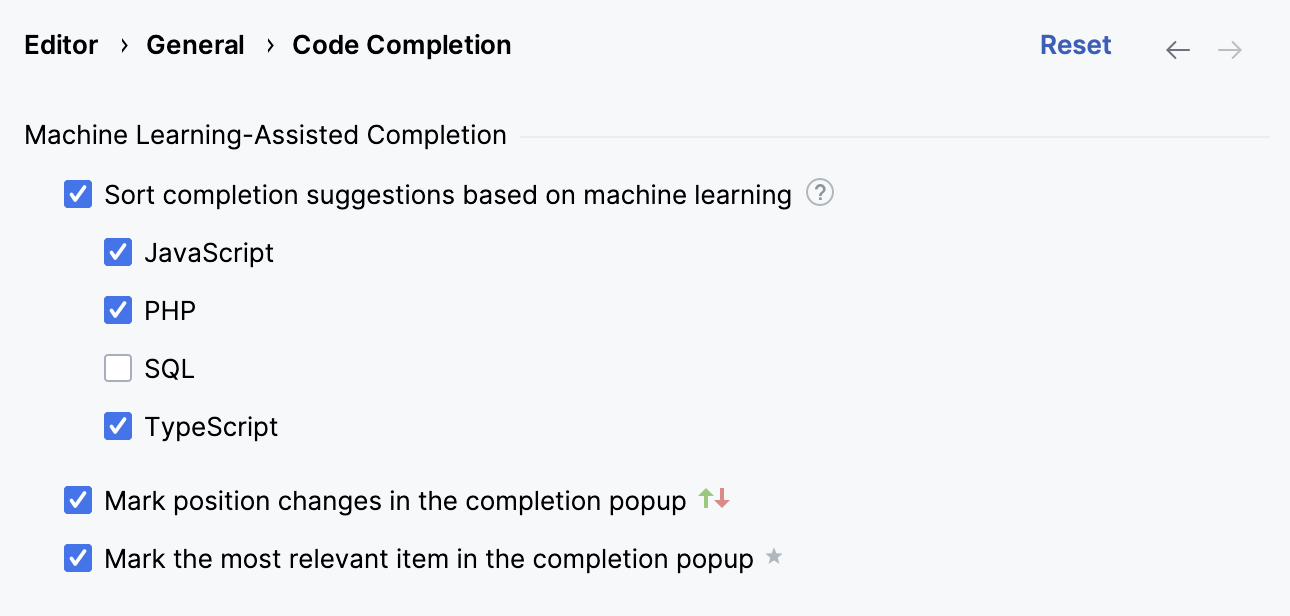
Under Sort Suggestions with ML, enable the Sort completion suggestions based on machine learning option and select the languages for which you want to use the ML completion.
Enable relevance markers
Press Ctrl+Alt+S to open settings and select Editor | General | Code Completion.
Enable the following options:
Mark position changes in the completion popup: use the
 and
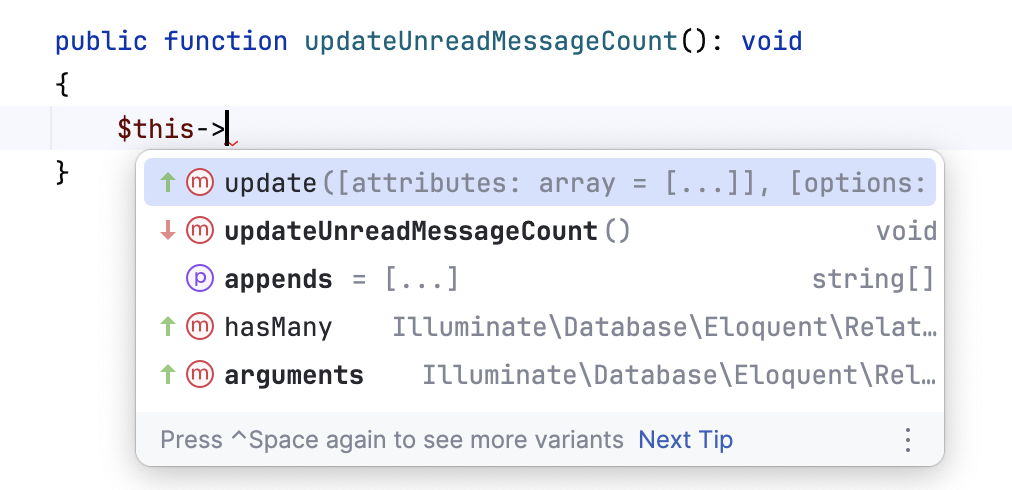
and  icons to indicate whether the relevance of a suggestion is increasing or decreasing and therefore the suggestion has moved up or down the suggestion list.
Mark the most relevant item in the completion popup: use the
 icon to indicate the most suitable suggestion on the list.
The suggestion list will look as follows with the icons marking reordered and the most relevant items.
Configure code completion settings
To configure code completion options, go to the Editor | General | Code Completion settings page Ctrl+Alt+S.
You can choose the following settings:
Item | Description | |
|---|---|---|
Match case | Select if you want the letter case to be taken into account for completion suggestions. Choose whether you want to match the case for the first letter or for all letters. | |
Automatically insert single suggestions for | Automatically complete code if there is only one suggestion for basic and smart type-matching completion. | |
Sort suggestions alphabetically | Select if you want to sort items in the suggestion list in the alphabetical order instead of sorting them by relevance. You can change this behavior at any time by clicking | |
Show suggestions as you type | Select if you want the suggestion list to be invoked automatically, without having to call completion explicitly. This option is enabled by default. | |
Insert selected suggestion by pressing space, dot, or other context-dependent keys | Select if you want to insert the selected suggestion by typing certain keys that depend on the language, your context, and so on. | |
Show the documentation popup in | Automatically show a popup for each item in the suggestion list with the documentation for the class, method, or field currently highlighted in the lookup list. When this option is disabled, press Ctrl+Q to display documentation for elements. In the field to the right, specify the delay (in milliseconds), after which the popup should appear. | |
Insert parentheses automatically when applicable | If this option is enabled, PhpStorm automatically inserts a pair of opening and closing parentheseswhen you complete a function/method. 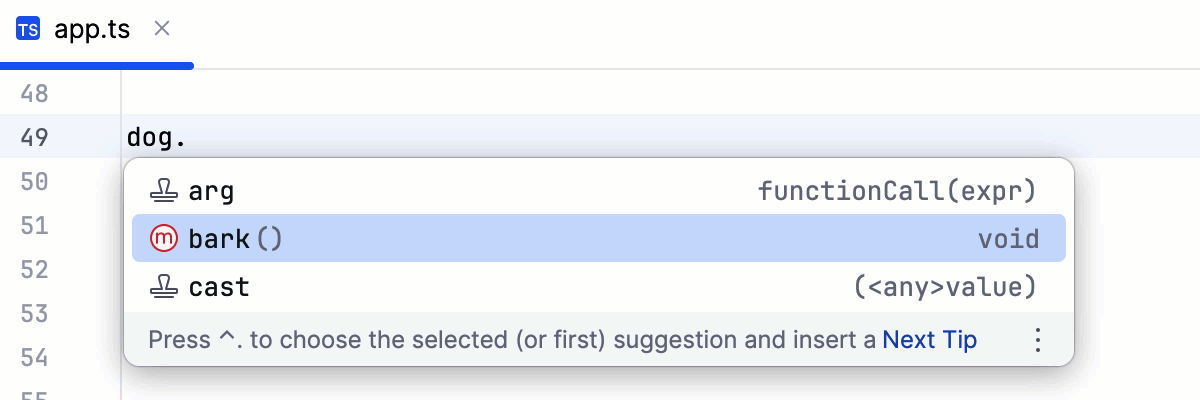 Clear the checkbox to suppress inserting parentheses automatically. If you use an opening parentheses 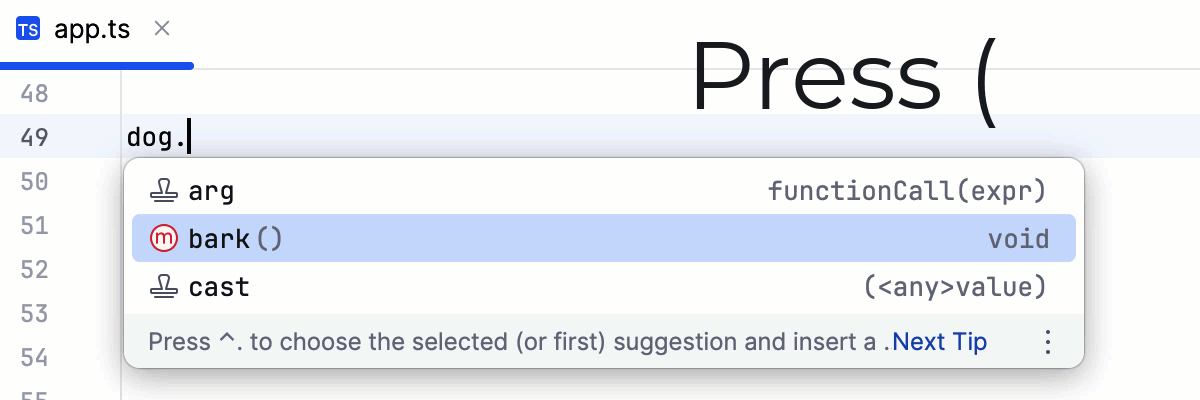 To use an opening parentheses For more information, refer to Use specific keys to insert suggestions. | |
Machine Learning-Assisted Completion | ||
Sort completion suggestions based on machine learning | Select this option if you want to use machine learning models to rank the most suitable items higher in the suggestion list. Select the languages for which you want to enable suggestions based on machine learning. | |
Mark position changes in the completion popup | Use the | |
Mark the most relevant item in the completion popup | Use the | |
JavaScript | ||
Only type-based completion | By default, PhpStorm suggests completion for symbols regardless of their types. With this approach, in complicated cases the list shows multiple completion variants. To make completion more precise, select this option. The completion list will strongly depend on the PhpStorm inference. As a result, the list may remain empty in case of poor inference. | |
Suggest items with optional chaining for nullable types | By default, PhpStorm suggests completion for symbols with the optional chaining operator (?). Clear this checkbox to suppress this behavior. | |
Expand method bodies in completion for overrides | By default, when you want to override a method from the parent class or interface and select this method from the list of completion suggestions, PhpStorm automatically adds parameters, generates a Clear this checkbox to suppress automatic generation of method bodies for overrides during completion. | |
Completion of names |
| |
Parameter Info | ||
Show the parameter info popup (in ms) | Select this checkbox to have PhpStorm automatically show a popup with all available method signatures when an opening bracket is typed in the editor, or a method is selected from the suggestion list. In the text field to the right, specify the delay (in milliseconds) after when the popup window should appear. If this checkbox is not selected, use Ctrl+P to show parameter info. | |
Show full method signatures | If this checkbox is selected, the parameter info displays full signatures, including method name and returned type. | |
SQL | ||
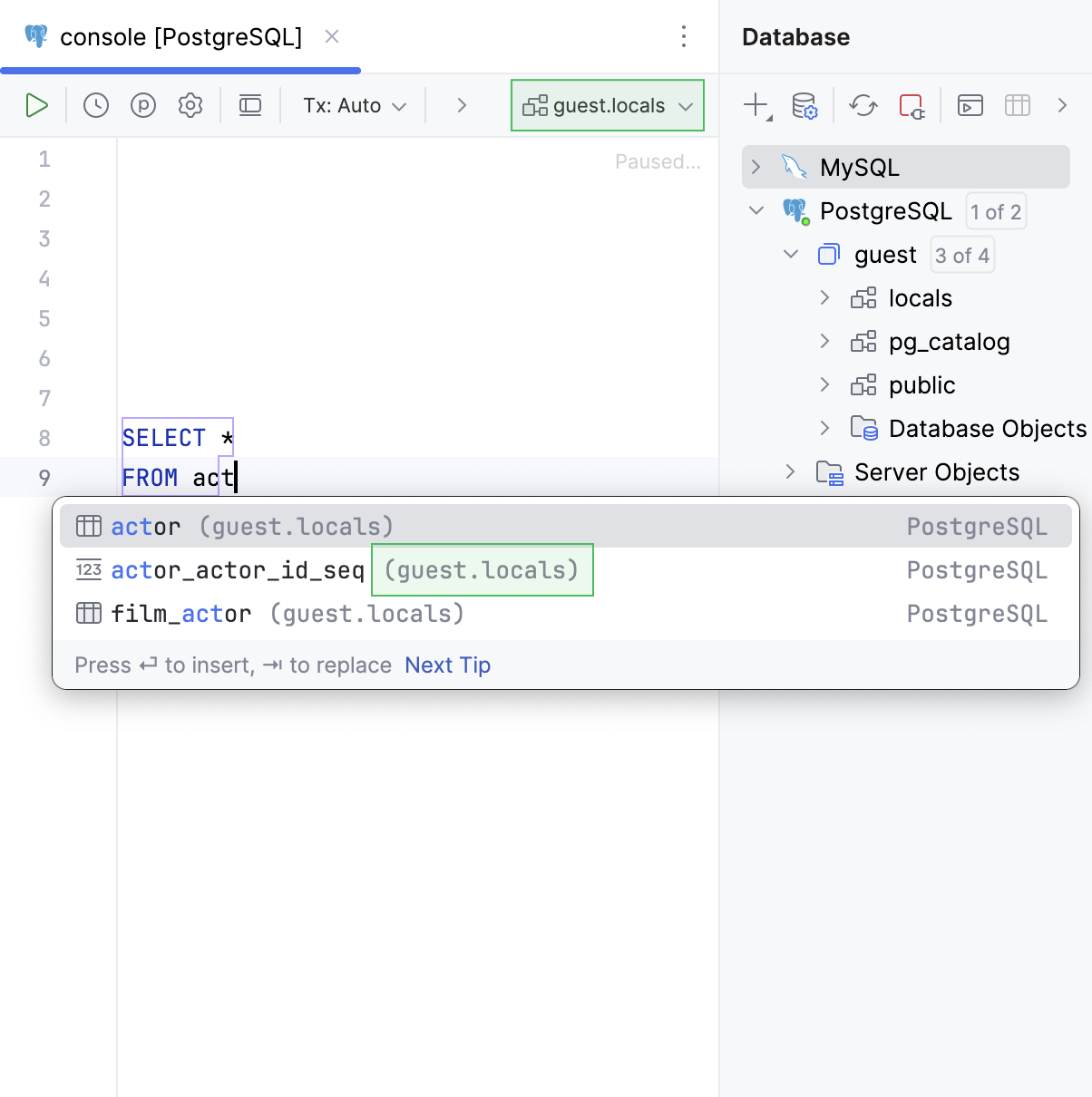
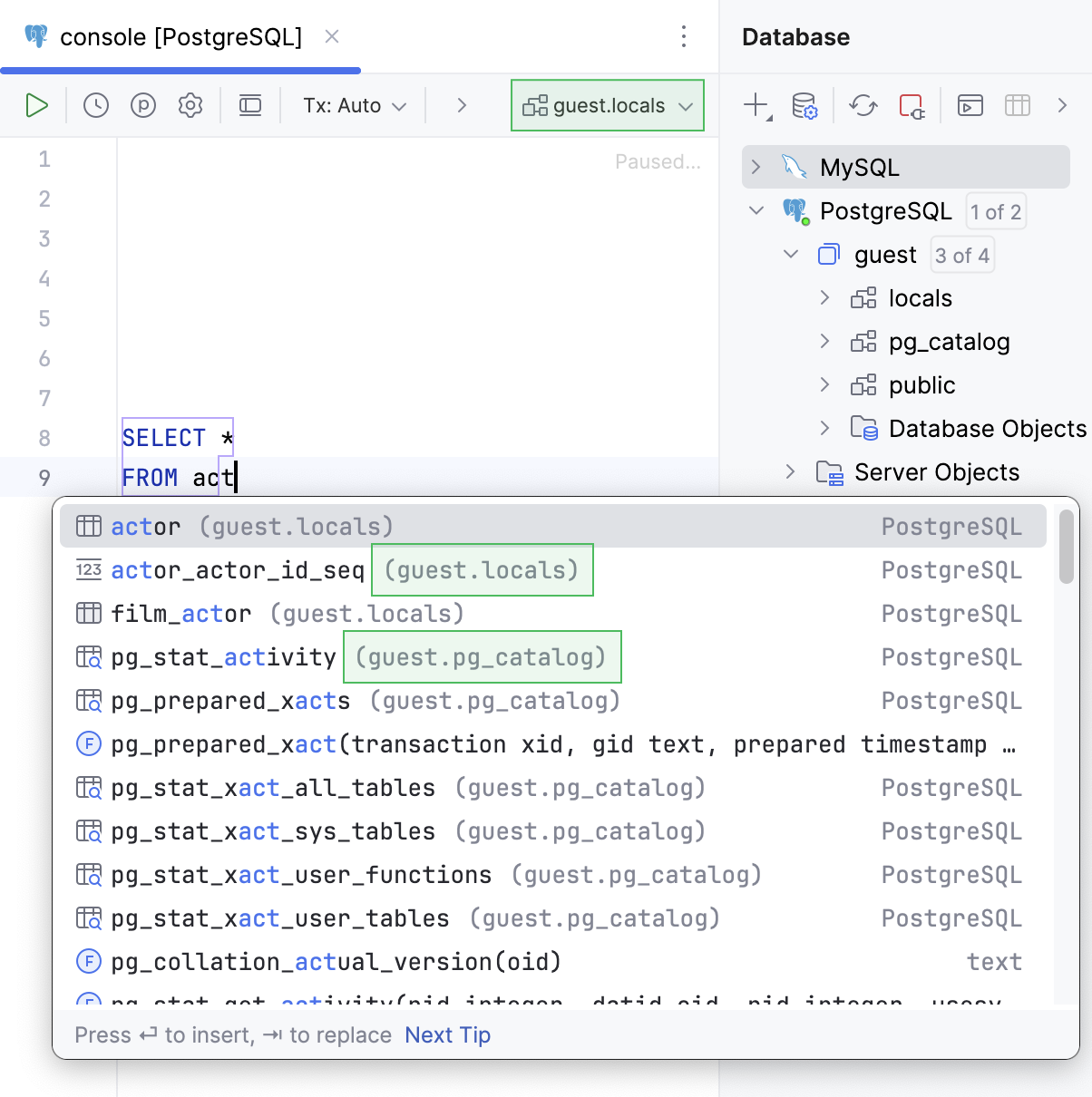
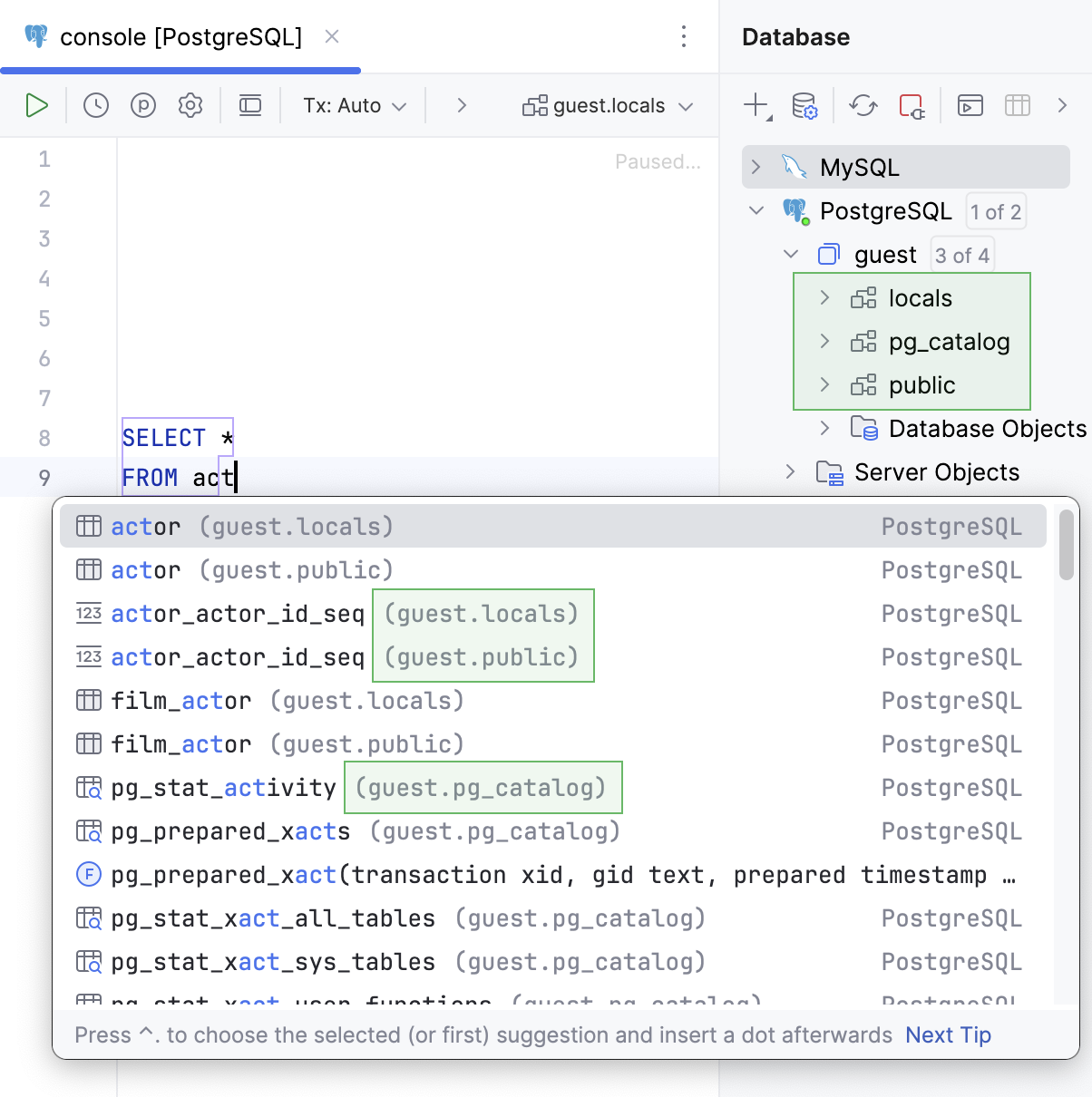
Suggest objects from | Select where the objects are suggested from:
   | |
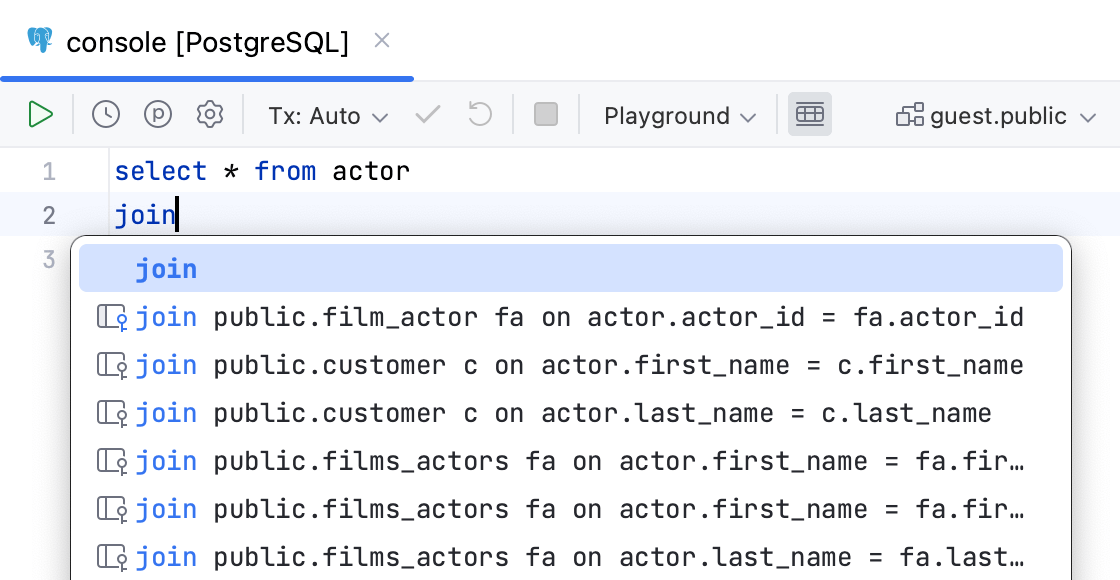
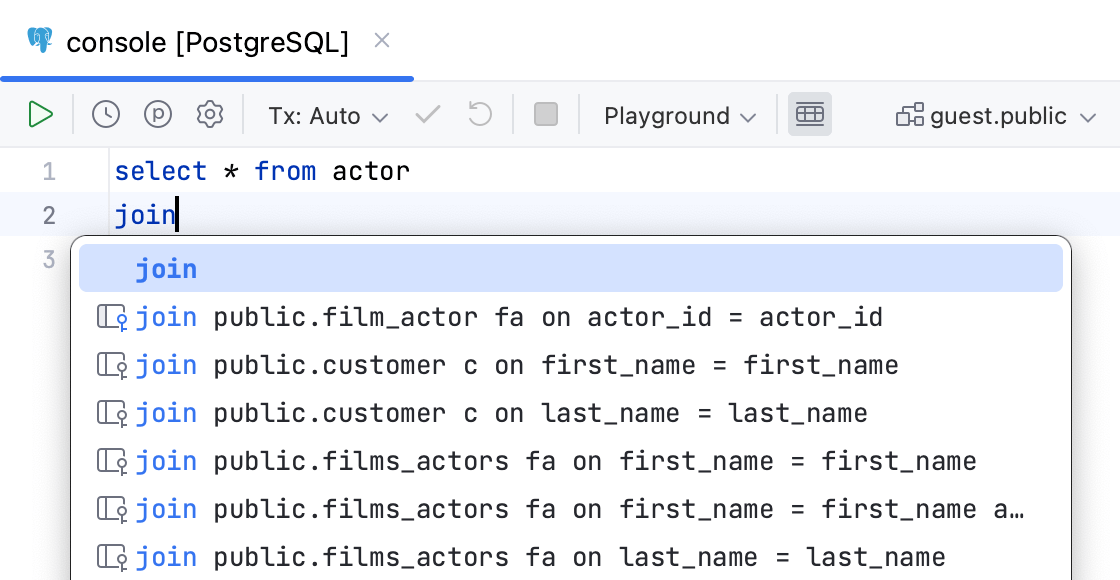
Qualify objects with | Select when to qualify the objects with databases, schemas, tables and views, and aliases of tables and views.
  | |
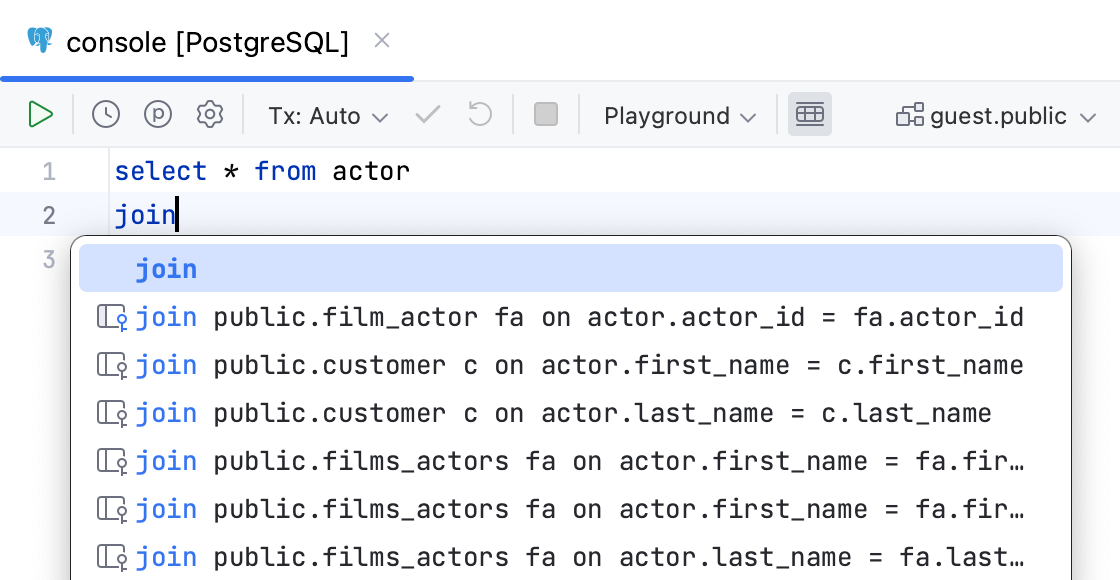
Qualify objects in | Select when to qualify the objects in the given cases.
 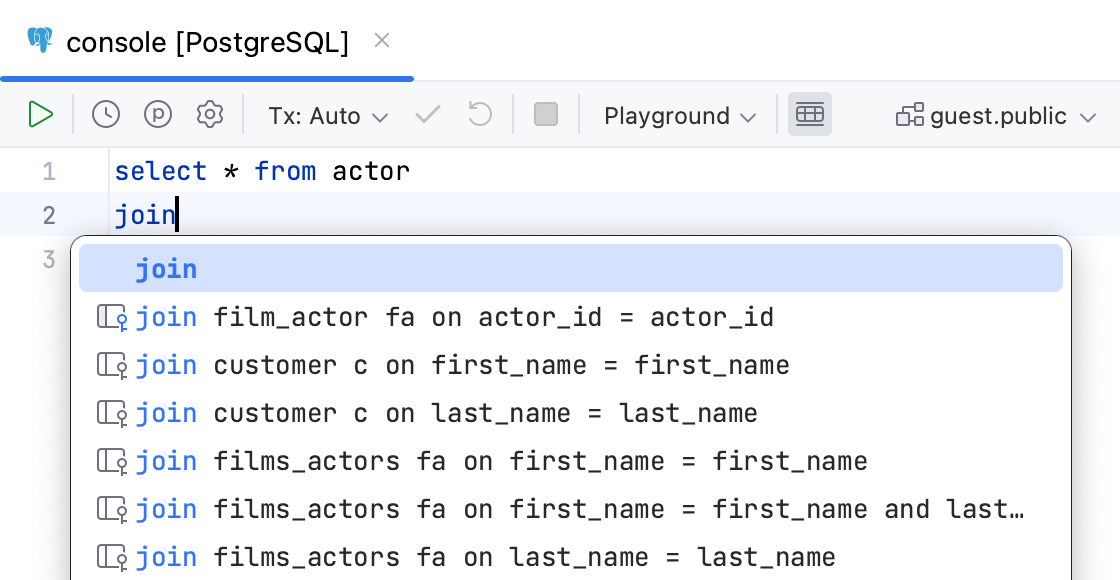 | |
Use aliases in completion for JOIN | Creates aliases for tables in the  | |
Invert order of operands in auto-generated ON clause | Switches operands in the  | |
Suggest non-strict foreign keys based on the name matching | Generates you a list of possible code completion suggestions for Read more about debugging rules for this option in Debug rules for virtual foreign keys. 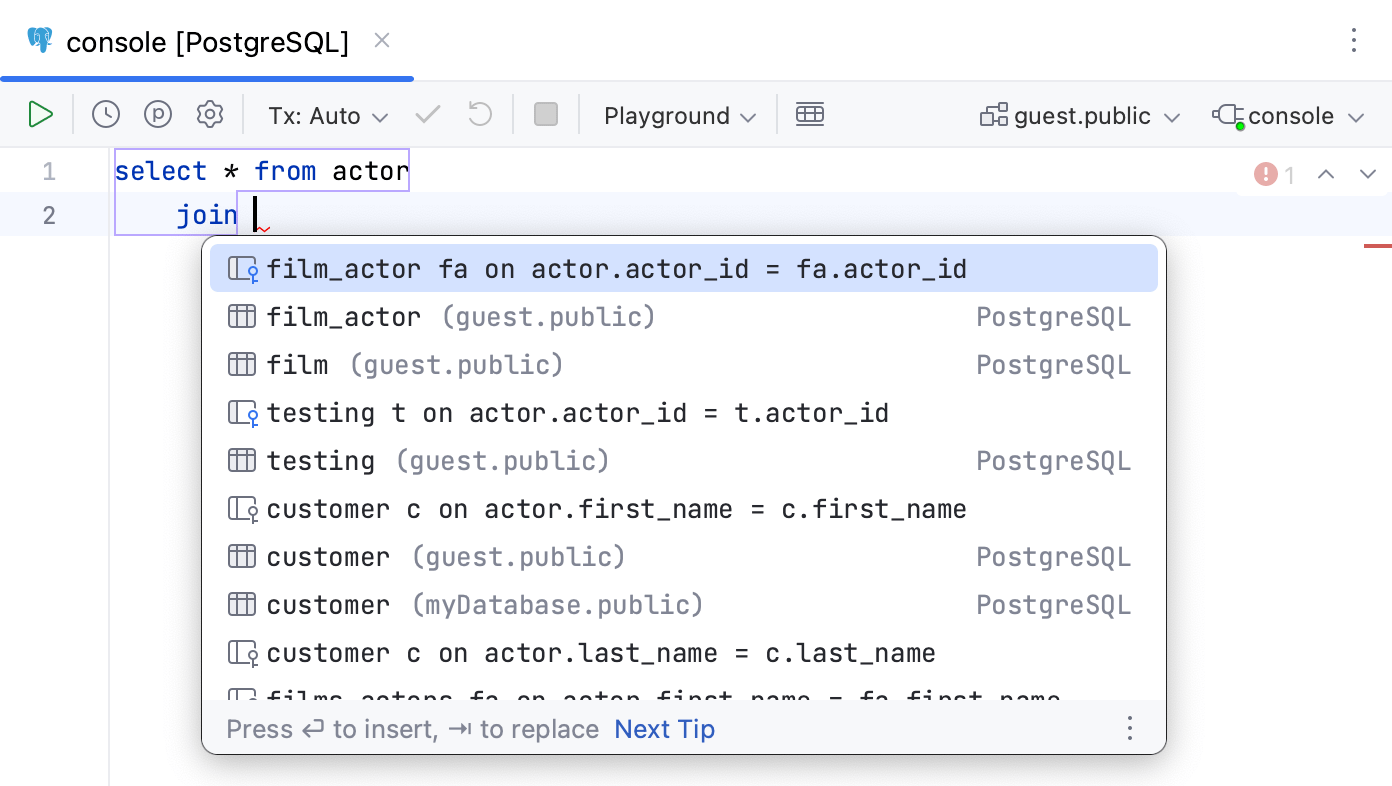 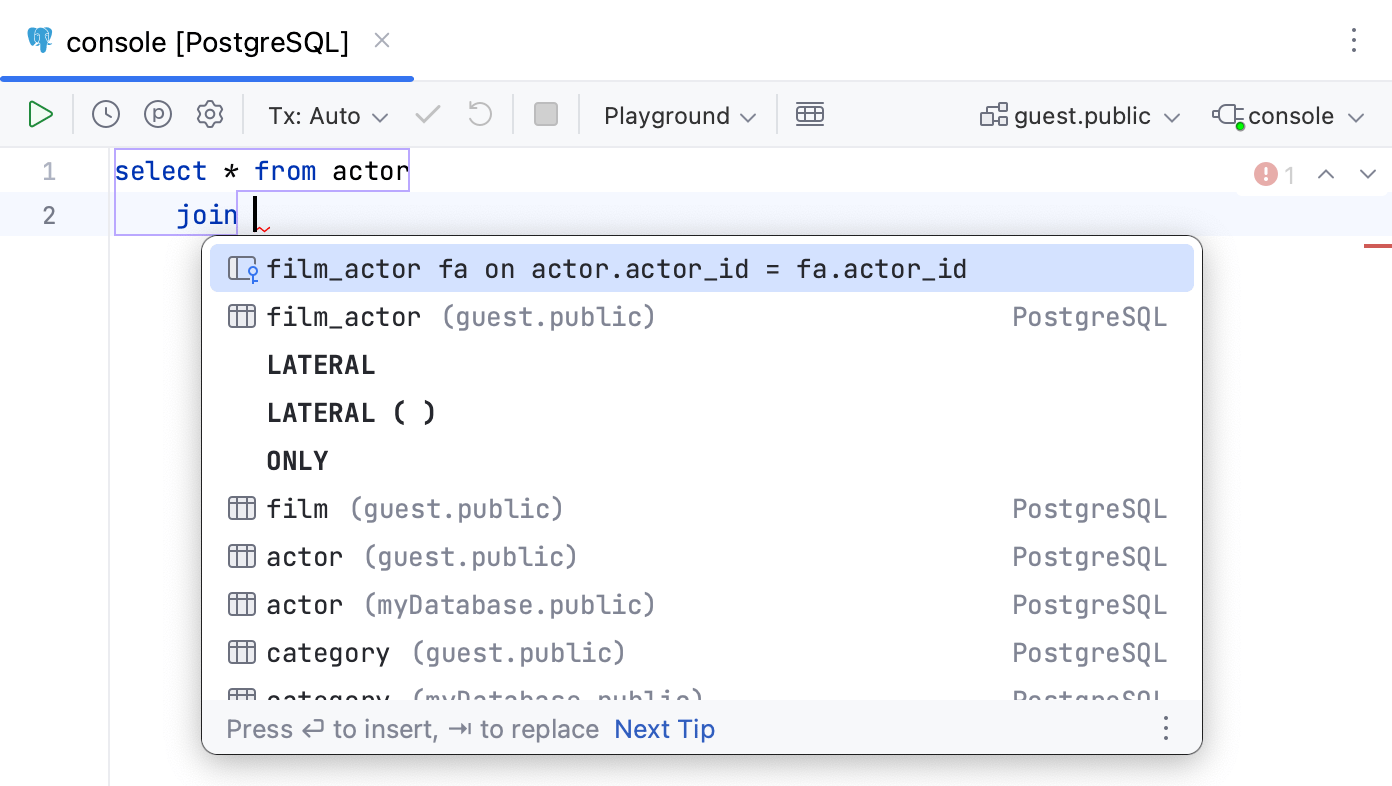 | |
Automatically add aliases when completing table names | Creates an alias for a table name.  | |
Suggest alias names in completion after table names | Suggests an alias for a table name when you use code completion (Ctrl+Space). 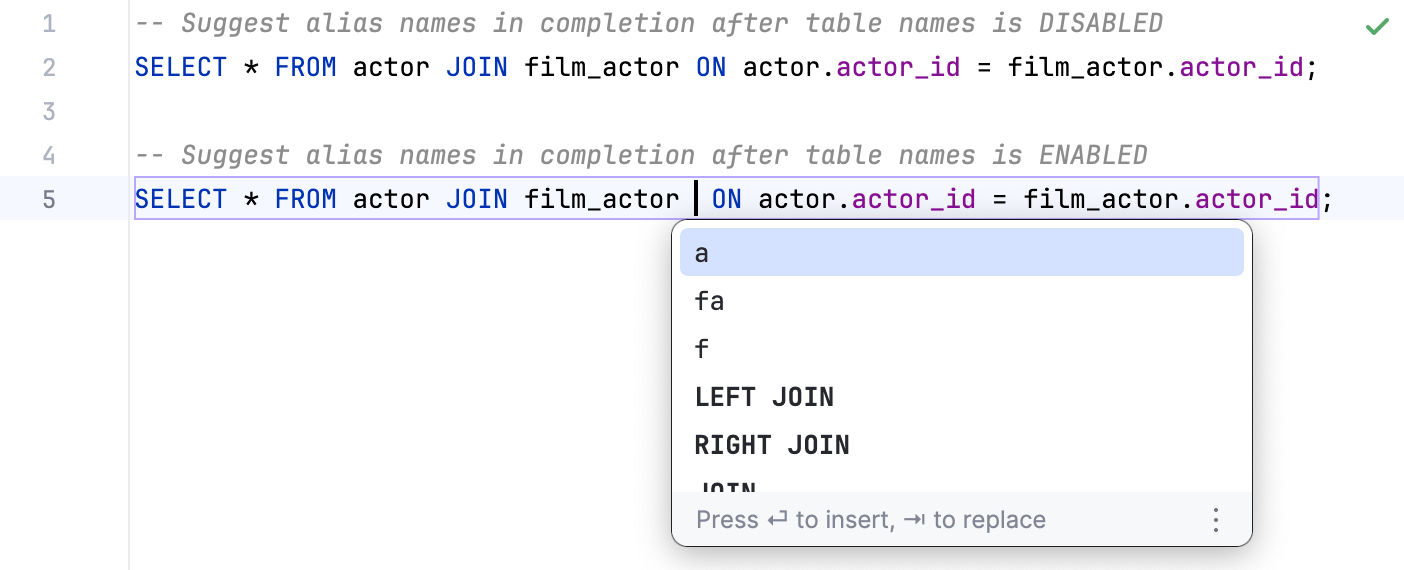 | |
Custom aliases (table) | You can add a table name and the alias that you want to use for this table. To add the table-alias pair, click the Add alias button ( | |
 in the suggestion list and toggling the
  ).
).Completing a path
This type of completion speeds up selection of files and folders. The dialog used for that purpose is called rather often, for example, when you specify the installation folder of an external tool or a Version Control engine or configure a PHP interpreter.
Open the Select Path dialog by choosing on the menu or by clicking Browse
 next to the field where a path is required.
Make sure that the Path field is visible. If the field is hidden, click the Show path link.
Start typing a path. PhpStorm suggests a list where you can quickly find the needed directory.
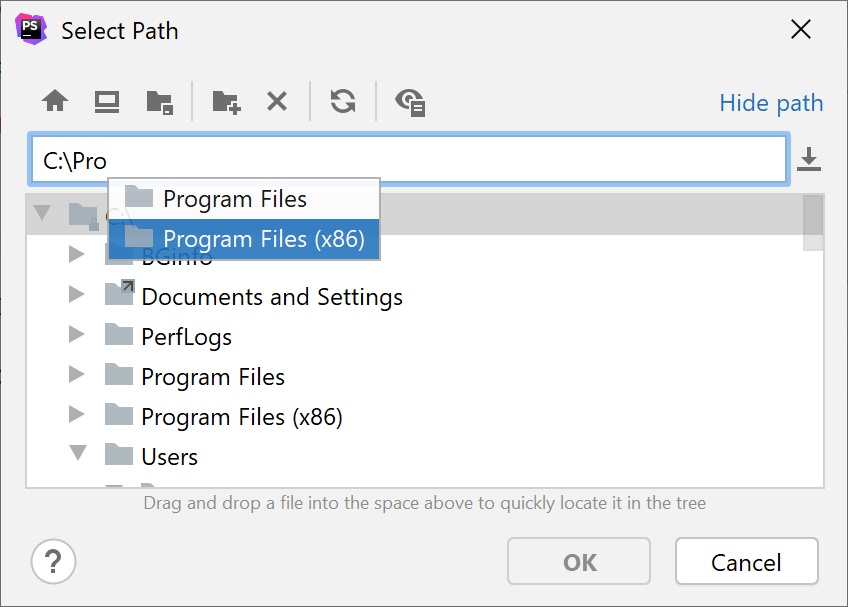
As you type, the suggestion list shrinks to show the matching paths only.
You can also press Ctrl+Space to show the suggestion list.
Select the relevant suggestion from the list.
Completion tips and tricks
Autocomplete HTTP constants by typing the code number
After you specify an imported package name, such as
http, you can type404to autocomplete the value tohttp.StatusNotFound.
Narrow down the suggestion list
Narrow down the suggestion list by typing any part of a word (even characters from somewhere in the middle) or invoking code completion after a dot separator or
->.PhpStorm displays suggestions containing the characters you've entered, regardless of their position. This makes the use of wildcards unnecessary.
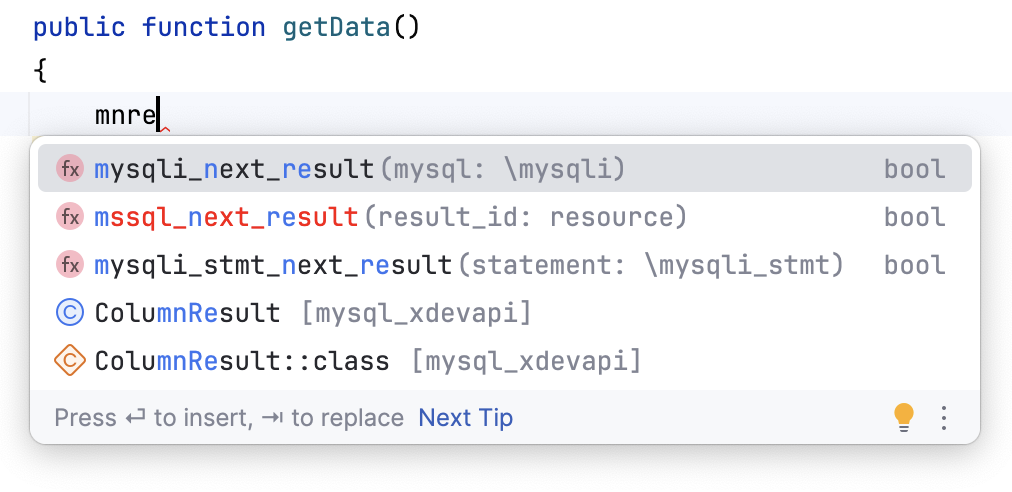
In case of CamelCase or snake_case names, type the initial letters only. PhpStorm automatically recognizes and matches the initial letters.
View reference
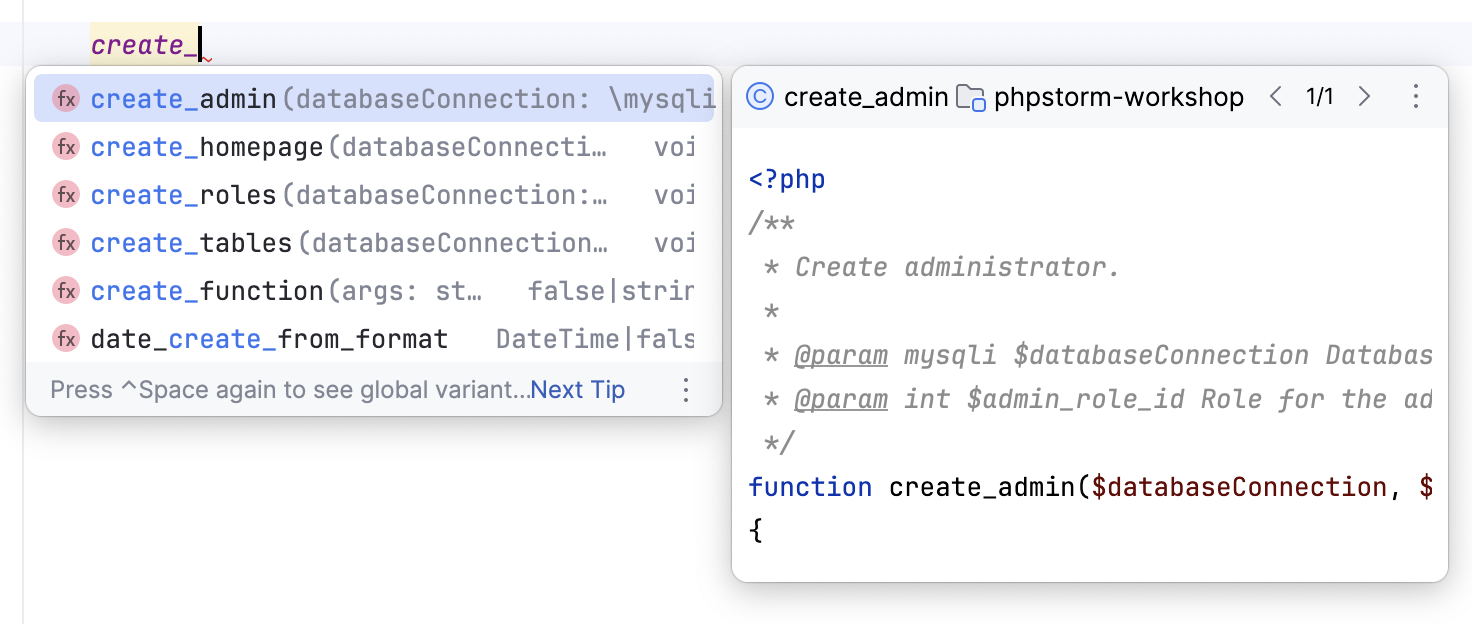
You can use the Quick Definition view by pressing Ctrl+Shift+I when you select an entry in the suggestion list:
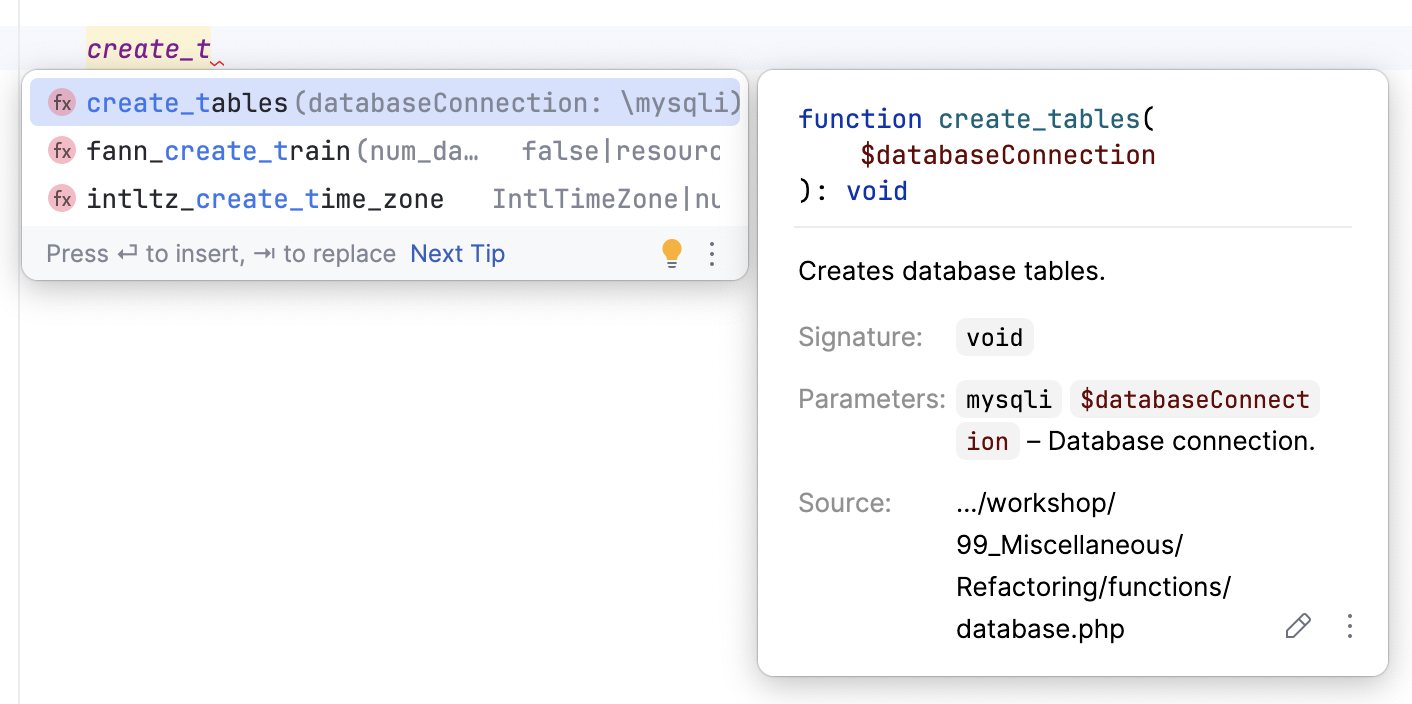
You can use the Quick Information view by pressing Ctrl+Q or automatically when you select an entry in the suggestion list:
View code hierarchy
You can view code hierarchy when you've selected an entry from the suggestion list:
Ctrl+H: view type hierarchy
Ctrl+Alt+H: view call hierarchy.
Ctrl+Shift+H: view method hierarchy.
Troubleshooting
If code completion does not work, this may be due to one of the following reasons:
The Power Save Mode is on (). Turning it on minimizes power consumption of your laptop by eliminating the background operations, including error highlighting, on-the-fly inspections, and code completion.
Your file does not reside in a content root , so it does not get the required class definitions and resources needed for code completion.
A file containing classes and functions that you want to appear in the completion suggestion list is marked as a plain text file.
External libraries that contain functions that you want to appear in the completion suggestion list are not added as dependencies or global libraries.
Code completion popup might not appear automatically if it takes too long to gather the completion options. For example, if the computer is busy with another task. In this case, you may still activate the completion popup manually via Ctrl+Space.