Class Diagram Toolbar, Context Menu and Legend
For more information about using the UML class diagram, refer to Working with diagrams.
Toolbar
Item | Description |
|---|---|
| Click this button to show fields in the class nodes. |
| Click this button to show constructors in the class nodes. |
| Click this button to show methods in the class nodes. |
| Click this button to enable creating extends or implements links between node elements. If this button is not pressed, links cannot be drawn. |
| Click this button to increase the scale of the diagram, or press NumPad+. |
| Click this button to decrease the scale of the diagram, or press NumPad-. |
| Click this button to restore the actual size of the diagram. |
| Click this button to make the contents fit into the current diagram size. |
| Click this button to apply the current layout, selected from the context menu of the diagram, or press F5. |
| Click this icon to export a diagram using various formats, which are compatible with third-party tools, to a file, to an image, or open the diagram in the browser. 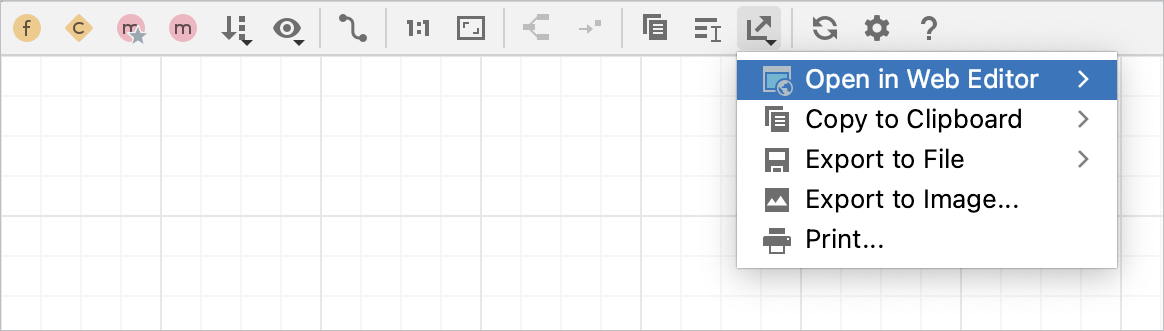 You can select and configure the following options:
|
| Click this button to refresh the whole diagram. |
| Click this button to open the Diagram settings where you can configure additional options. |


 : click this button to select a third-party editor to which you can export the diagram.
 : click this button to save the diagram to a clipboard using one of the available formats.
 : click this button to save the current diagram as a file. You can use one of the available formats from the list.
 : click this button to save the current diagram in the PNG format.
 : click this button to print the diagram.

Context Menu
This section describes only those context menu commands that are not available from the toolbar.
Item | Description |
|---|---|
Selected Element Actions | Use this option to open a list of actions that is applied to a selected element in the diagram. You can select actions to copy an element, jump to its source, find its usages, use the Navigate actions, various Git actions, and so on. |
Content | Use this option to open a list of actions that help you to add new elements, show dependencies, sort elements inside the diagram, and so on.
|
Show Implementations (Ctrl+Alt+B) | Choose this command to display implementations of the selected class. |
Show Parents (Ctrl+Alt+P) | Choose this command to display parent classes for the selected class. |
Collapse nodes (C) | Choose this command to show the containing package of the selected node. |
Expand nodes (E) | Choose this command to show class diagram of the selected package. |
Refactor | Point to this node to select one of the refactoring commands available in this context. |
Analyze Graph | Use this node to select one of the commands to analyze a diagram. You can check the graph characteristics, change the focus of the graph, measure graph centrality, and so on. |
Jump to Source (F4) | Choose this command to open the selected diagram node element in the editor. |
Find Usages (Alt+F7) | Choose this command to search for usages of the selected node element. |
Layout | Select the desired diagram layout from the submenu. |
Show Edge Labels | Check this command to show multiplicities in diagram. |
Layout | Use this option to select the desired diagram layout from the submenu. |
Route Edges | Select this action to center the diagram in the editor. |
Show Edge Labels | Check this command to show multiplicities in diagram. |
Behavior | Use this option to select commands related to the diagram behavior sucha as aligning elements against the grid, showing structure view for the selected node, or fitting the content after the layout. |
Legend of the Class Diagram
PhpStorm follows the UML conventions in showing relationships between the classes.
Besides that, PhpStorm supports the following colors and arrows:
Item | Description |
|---|---|
 | The green arrow corresponds to the |
 | The blue arrow corresponds to the |