Compare deployed files and folders with their local versions
The correspondence between files and folders in your PhpStorm project and their versions on a server is set through deployment server mappings. For the sake of simplicity, any file or folder in your PhpStorm project is called local and any file or folder on the server is called remote, even if the server is actually installed on your machine. For more information, refer to Connect to a web server.
Access a server
Open the Remote Host tool window by choosing or from the main menu.
Select the required deployment server from the list. The tool window shows a tree view of files and folders under the server root. If no relevant server is available in the list, click
 , and in the Deployment dialog that opens configure access to the required server.
Comparing files and folders on the server with their local versions
Each remote file or folder is mapped to one and only one local file or folder. Therefore, for each remote file or folder, PhpStorm detects its local version, so you can compare them at any time in the Diff Viewer.
Compare a remote file with its local version
Open the Remote Host tool window ( or ) and select the required deployment server from the list.
Select the file, and then select Compare with local version from its context menu.
In the Diff Viewer for Files dialog that opens, explore the differences and apply them, if necessary, using the
 button. For more information, refer to Viewing Differences Between Files.
Compare a remote folder with its local version
Open the Remote Host tool window ( or ) and select the required deployment server from the list.
Select the folder and choose Sync with local from the context menu of the selection.
In the Diff Viewer for Folders that opens, explore the differences and synchronize the files, where applicable. See comparing two folders in the Diff Viewer.
Comparing local files and folders with their versions on the server
Because a local file or folder can be mapped to an unlimited number of remote counterparts, PhpStorm can uniquely identify remote versions of local files or folders only when they are mapped through the default deployment server. If no such default deployment server is appointed, you have to choose the relevant configuration manually. Note that server groups are displayed in the server selection list only for consistency purposes: currently, it is not possible to compare local files with the ones deployed to a server group.
Compare a local file with its remote version
Select the file in the Project tool window.
In the context menu, select if a default server is appointed. Otherwise, select and then choose the relevant server from the list.
In the Diff Viewer for Files dialog, that opens, explore the differences and apply them, if necessary, using the
button. For more information, refer to Viewing Differences Between Files.
Compare a local folder with its remote version
Select the folder in the Project tool window.
From the context menu of the selection, choose if a default server is appointed. Otherwise, choose and then choose the relevant server from the list.
In the Diff Viewer for Folders that opens, explore the differences and synchronize the files, where applicable. See comparing two folders in the Diff Viewer.
Compare locally changed files with their remote versions
Switch to the Commit window (Alt+0) to view the locally changed files.
Right-click a file, then select Deployment | Compare with Deployed to from the context menu, and choose the target deployment server from the list. If the default server group is appointed, you can also select Compare with Deployed to <default deployment server>.
For more information, refer to Add files to Git and track changes.
Compare the files synchronized with a VCS repository with their remote versions
Synchronize the contents of your local files with the VCS repository by pressing Ctrl+T or selecting from the main menu.
Switch to the Update Info tab of the Version Control tool window Alt+9.
Right-click a file, then select Deployment | Compare with Deployed to from the context menu, and choose the target deployment server from the list. If the default server is appointed, you can also select Compare with Deployed to <default deployment server>.
Comparing and synchronizing two folders in the Diff Viewer
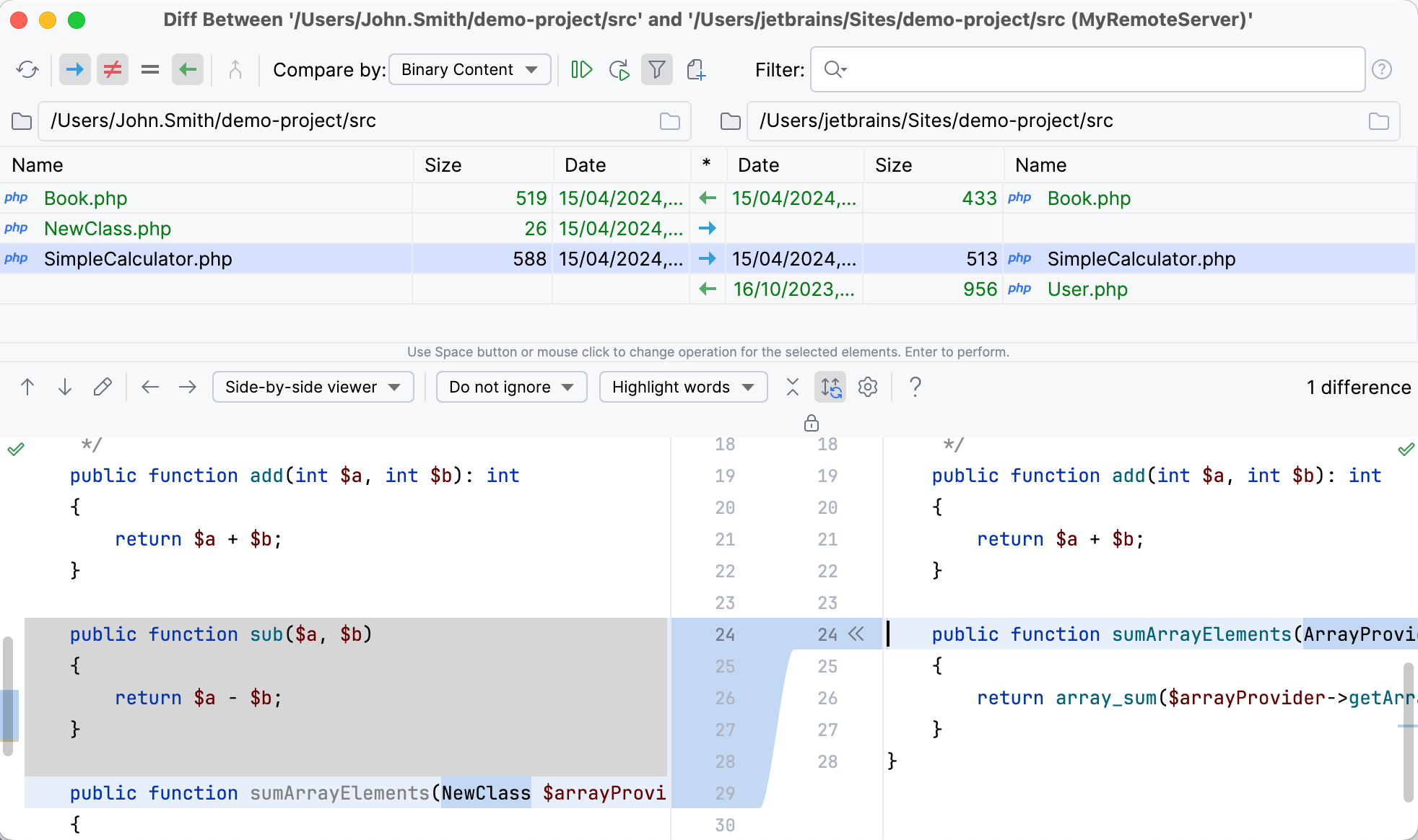
PhpStorm provides a dedicated Diff Viewer for Folders for comparing files in remote folders and their local versions against the file size, content, or timestamp. Besides exploring differences, the tool also provides interface for synchronizing the contents of folders.
The Item List shows the contents of the local and remote folders. Use the toolbar buttons to narrow down or widen the set of items to show. For example, show or hide files that are present only locally or remotely, equal files, different files, files excluded from synchronization, and so on.
The contents of the remote folder are always shown in the right pane, and the contents of its local version are always shown in the left pane.
The contents of the selected file are shown in the lower pane, with the differences being color-highlighted. The remote files in the Diff Viewer have the
read-onlystatus. This means that you cannot update them directly in the Diff Viewer. Make all the necessary changes to the local version of the file and upload the updated file to the server.
Compare two folders
Specify the parameter for comparison. In the Compare by list, select one of the possible options (contents, size, or time stamp).
Filter the folders' contents. To do that, type filtering string in the Filter field, and press Enter to apply it. Using the asterisk
*wildcard to represent any number of characters is welcome.To switch to another pair of folders to compare, update the fully qualified paths to them. Click
 next to the Paths read-only fields and choose the required folders in the dialog that opens.
Explore the detected differences between files in the Differences Pane.
Synchronize the contents of two folders
For each pair of items, the icon in the * field specifies the action to apply. Click the icon in the field until the required action is set.
 the file will be uploaded, possibly overwriting the remote version.
 the file will be downloaded, possibly overwriting the local version.
 the files are treated identical with regard to the selected criterion of comparison. No action will be performed by default.
 the files differ with regard to the selected criterion of comparison. No action will be performed by default. Explore the differences in the Differences Pane of the Diff Viewer and change the intended action by clicking the icon.
 the file is present only locally or remotely and will be removed.
Do one of the following:
To synchronize the currently selected item, click the Synchronize Selected button
 on the toolbar.
To synchronize all the items, click the Synchronize All button
 on the toolbar.