Inspection profiles
Inspection profiles keep the information about enabled inspections, the scope of files that these inspections analyze, and inspection severity settings.
In IntelliJ IDEA, there are two types of profiles:
Profiles Stored in IDE that are global and available in all projects (IDE level).
Profiles Stored in Project that are available only in one project (project level).
Learn more from Move profiles between levels.
PhpStorm comes with two default profiles of each type (Default and Project Default) that you can customize or create new ones. You can also share, import, and export inspection profiles.
Create a new profile
To create a new profile, copy one of the default profiles and change its settings.
Press Ctrl+Alt+S to open settings and then select .
You can also press Ctrl+Alt+Shift+H and select Configure Inspections.
Select the profile that you want to copy, click
 , and select Duplicate.
Change the profile name and press Enter.
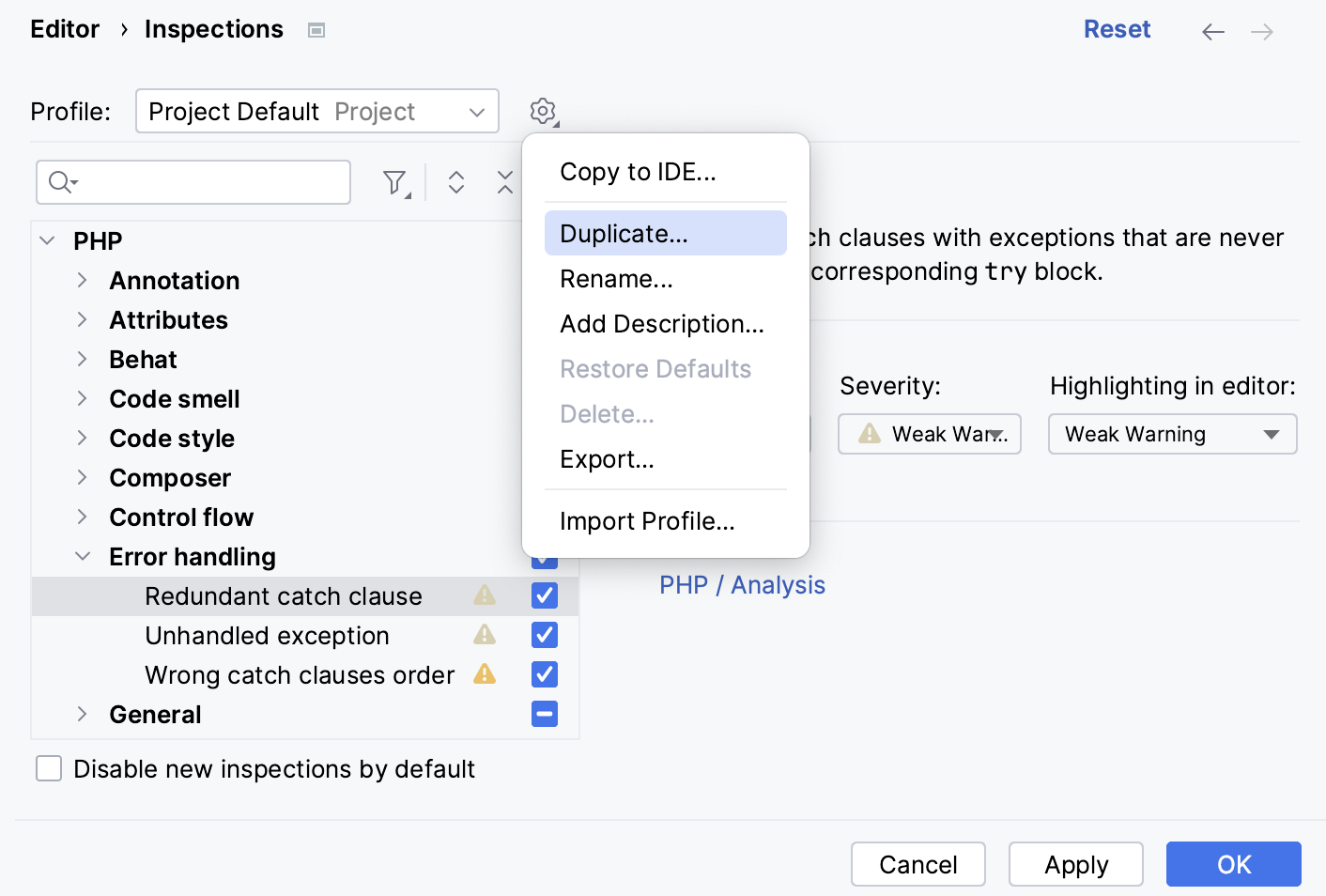
Restore the default profile configuration
You can restore the default inspection settings: inspections enabled by default and their severity levels.
Press Ctrl+Alt+S to open settings and then select .
You can also press Ctrl+Alt+Shift+H and select Configure Inspections.
Select the necessary profile from the list, click
and select Restore Defaults.
Move profiles between levels
In PhpStorm, inspection profiles can be stored at two levels:
Profiles Stored in IDE are saved to the inspection folder in the PhpStorm configuration directory and are accessible across all projects. While they cannot be shared via VCS, you can copy them to the project level to share them with your team.
Profiles Stored in Project are saved to the inspectionProfiles folder in the .idea directory and are specific to a single project. Unlike IDE-level profiles, project-level profiles can be shared with team members via VCS.
Copy an IDE profile to the project level
You can copy an IDE profile to the project using the Copy to Project option. This allows you to share the profile via VCS or create a project-specific inspection profile.
Press Ctrl+Alt+S to open settings and then select .
From the Profile drop-down list, select the profile you want to copy, then click
and select Copy to Project.Name the new profile and press Enter to save the changes.
After that, the new profile appears in the Commit tool window (Alt+0).
Copy a project profile to the IDE level
You can copy a project profile to the IDE level using the Copy to IDE option. By doing so, you can use the profile in all projects that you work with in this IDE instance.
Press Ctrl+Alt+S to open settings and then select .
From the Profile drop-down list, select the project profile you want to copy, then click
and select Copy to IDE.Name the new profile and press Enter to save the changes.
After that, the new profile becomes available in all projects that you open in the current IDE instance.
Synchronize profiles between computers
Share project-level profiles
Profiles stored in the project are kept together with other project configuration files and are shared through VCS. That is why, after you configure a new project profile and share it with other members of your team, this profile will be automatically propagated to their projects after they check out the project from version control.
Share IDE-level profiles
If you want to share profiles stored in the IDE, you can use one of the following methods:
Use the Backup and Sync plugin to synchronize profiles and their settings between IDEs.
Manually export profiles from one IDE and import them into another IDE.
Export and import a profile
To share a profile, you can also export it and then import it on another computer.
Press Ctrl+Alt+S to open settings and then select .
Click
and select Export.To import a profile, click
and select Import Profile.Specify the path to the profile and click Open.