External Tools
This page describes the settings that you can configure for local external tools. For more information about adding and using external tools, refer to External tools.
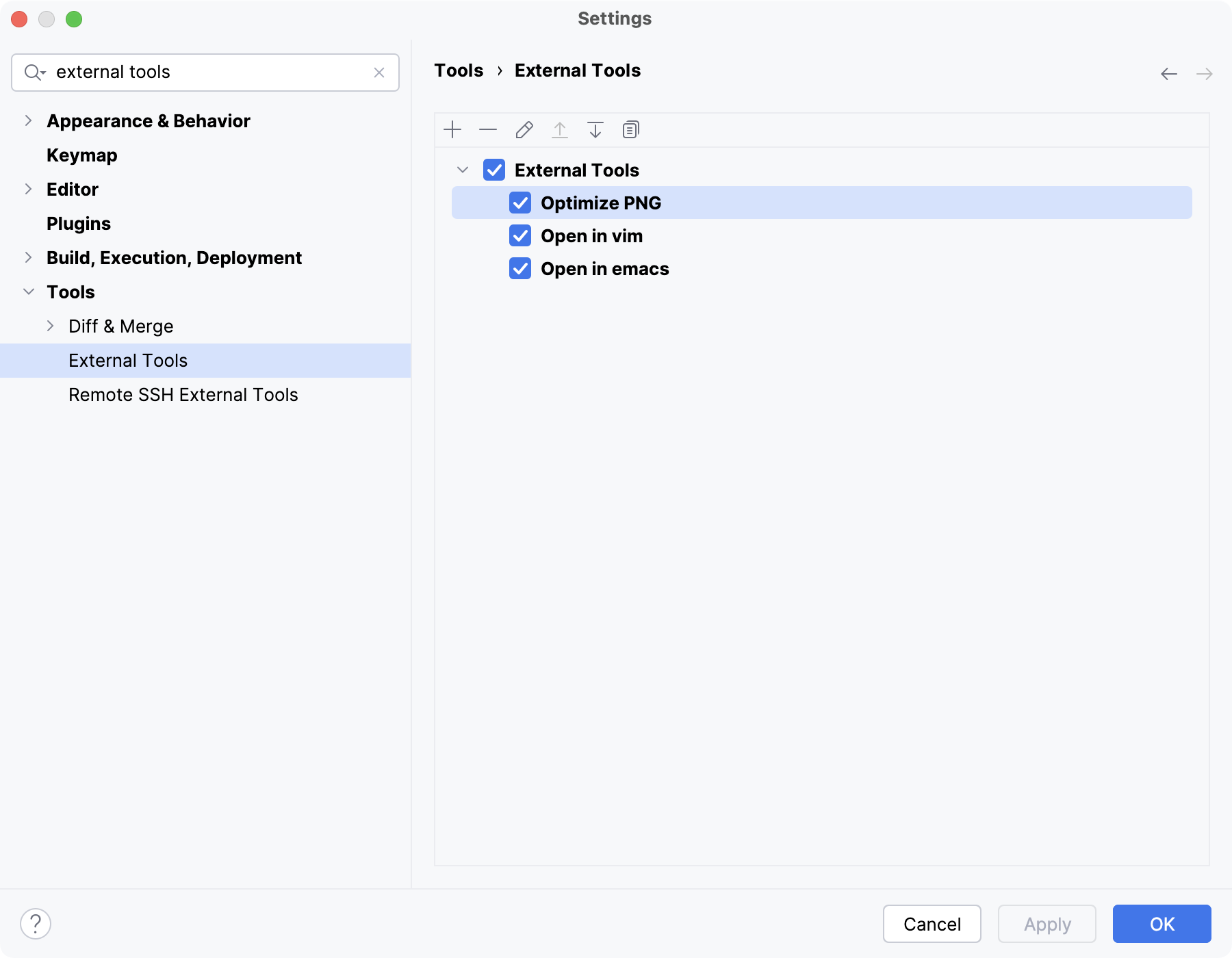
Use the toolbar buttons to manage the list of available external tools. Clear checkboxes for tools that you want to keep but not show in menus.
 Add Alt+Insert
Add a new external tool.
 Remove Ctrl+Y
Remove the selected tool or group.
 Edit Enter
Edit the selected tool.
 Up Alt+Up
Move the selected tool up in the list.
 Down Alt+Up
Move the selected tool down in the list.
 Copy
CopyMove the selected tool down in the list.
When you create, edit, or copy an external tool, you need to provide the tool's settings.
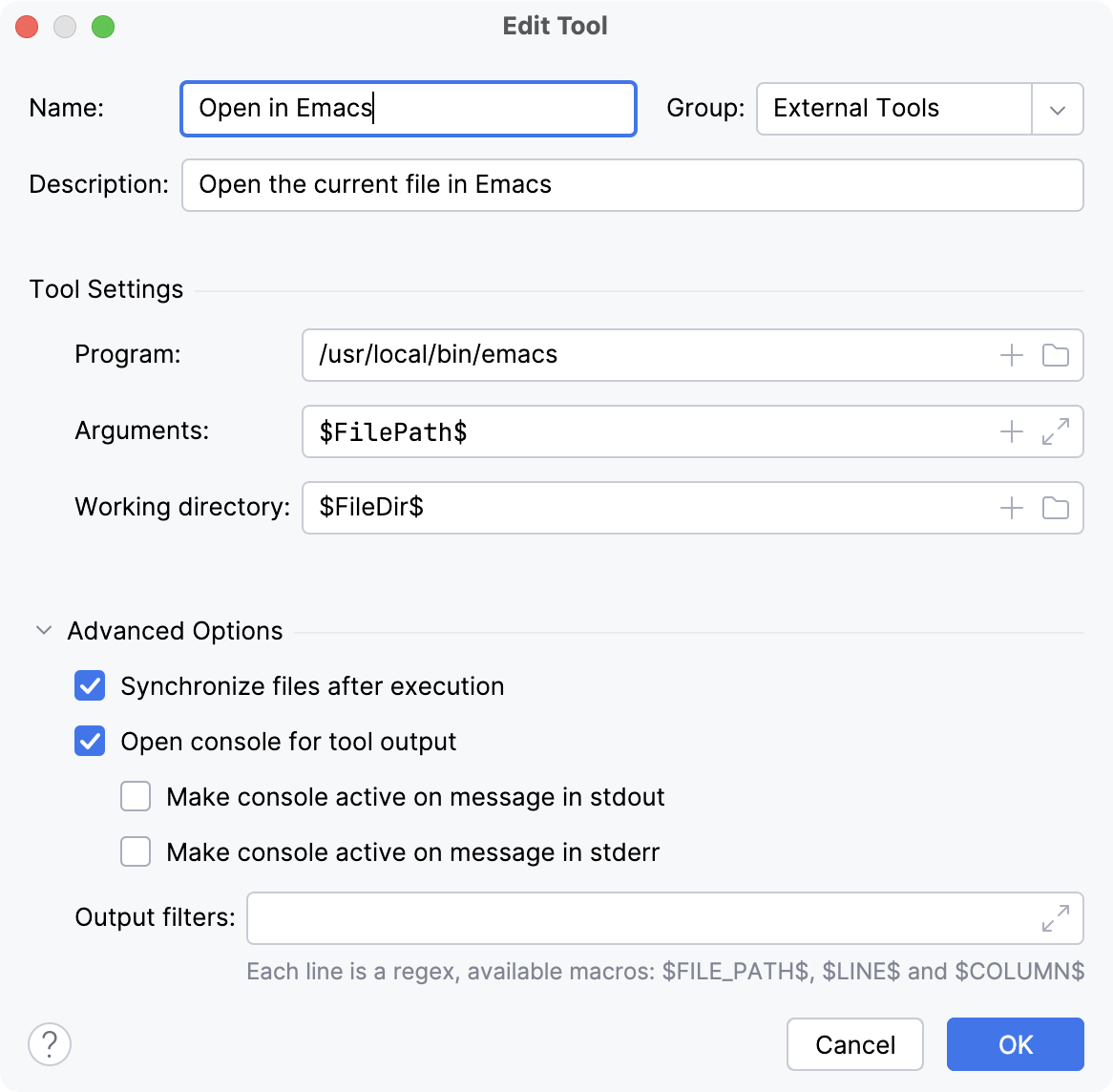
- Name
The name of the tool that will be used as the action for running the tool in the PhpStorm interface.
- Group
The name of the group to which the tool belongs.
- Description
A meaningful description of the tool.
Tool Settings
- Program
The absolute path to the executable file (script, utility, application, and so on).
- Arguments
The arguments passed to the executable file, as you would specify them on the command line.
Use spaces to separate individual arguments.
Use double quotes for arguments and paths that contain spaces.
Use a backslash to escape double quotes that are part of the argument or path.
For example:
-Dmy.prop=\"quoted_value\" "second arg" third" "arg- Working directory
The absolute path to the working directory from which the tool should be executed.
Advanced Options
- Synchronize files after execution
Automatically load the changes to your project files made by the external tool. If the tool does not modify any files in your project, you can disable this option.
- Open console for tool output
Open a console with the tool's standard output and error streams.
- Make console active on message in stdout
Activate the console when the tool uses the standard output stream.
- Make console active on message in stderr
Activate the console when the tool uses the standard error stream.
- Output filters
Specify filters to turn absolute file paths, line and column numbers in the output messages into hyperlinks. This will allow you to jump from the console output directly to the relevant location in the file. Each line is a regular expression that defines a separate filter.
For example, let's say some tool produces lines of output similar to the following:
/path/to/file.conf:42:10 WARNING: Some messageThen you can define a filter like this one:
$FILE_PATH$:$LINE$:$COLUMN$.*