PHP_CodeSniffer
PhpStorm provides code style check through integration with the PHP_CodeSniffer tool, which validates your code for consistency with a coding standard of your choice. You can appoint one of the predefined coding standards or use your own previously defined coding standard with the root directory outside the default PHP_CodeSniffer’s Standards directory. Moreover, you can share your custom coding style with your team.
To use PHP_CodeSniffer from PhpStorm instead of command line, you need to register it in PhpStorm and configure it as a PhpStorm code inspection. Once installed and enabled in PhpStorm, the tool is available in any opened PHP file, and no additional steps are required to launch it. The on-the-fly code check is activated upon every update in the file thus making it easy to get rid of discovered problems.
Errors and warnings reported by PHP_CodeSniffer on the fly are highlighted in the editor in the same way as errors and warnings from PhpStorm's internal code inspections. When the tool is run in batch mode, the errors and warnings are displayed in the Problems tool window. Each message has the phpcs prefix to distinguish it from PhpStorm internal inspections.
PhpStorm also integrates with the PHP Code Beautifier and Fixer tool, which lets you fix many of the detected issues.
Prerequisites
Prior to integrating PHP_CodeSniffer in PhpStorm, make sure the following prerequisites are met:
You are working with PHP_CodeSniffer version 1.5.0 and later.
The directory containing the PHP engine executable must be added to the system
path. This allows code quality tool scripts to execute calls to the system-wide PHP engine.For Docker Compose-based remote interpreters, make sure to use
docker-compose execmode to avoid spawning additional containers.In the Settings dialog (Ctrl+Alt+S) , go to .
On the PHP page that opens, click
 next to the CLI Interpreter list.
 In the CLI Interpreters dialog that opens, set the Lifecycle mode for the selected interpreter to Connect to existing container ('docker-compose exec').

Install and configure PHP_CodeSniffer
Install PHP_CodeSniffer with Composer
When you install PHP_CodeSniffer with Composer, PhpStorm automatically downloads the necessary scripts, registers them in the IDE, and, optionally, enables and configures the corresponding code inspection.
Inside composer.json, add the
squizlabs/php_codesnifferdependency record to therequireorrequire-devkey. To get code completion for the package name and version, press Ctrl+Space.Do one of the following:
Click the Install shortcut link on top of the editor panel.
If the Non-installed Composer packages inspection is enabled, PhpStorm will highlight the declared dependencies that are not currently installed. Press Alt+Enter and select whether you want to install a specific dependency or all dependencies at once.
Clicking  next to the package record in the composer.json editor gutter will take you to the corresponding Settings page where you can configure PHP_CodeSniffer manually.

Reset PHP_CodeSniffer configuration
After PHP_CodeSniffer is initially configured, further modifications in composer.json will not affect the inspection configuration. To apply newer changes, reset the PHP_CodeSniffer configuration.
In the Settings dialog (Ctrl+Alt+S) , navigate to .
Click
next to the Configuration list.In the PHP_CodeSniffer dialog that opens, empty the PHP_CodeSniffer path field.
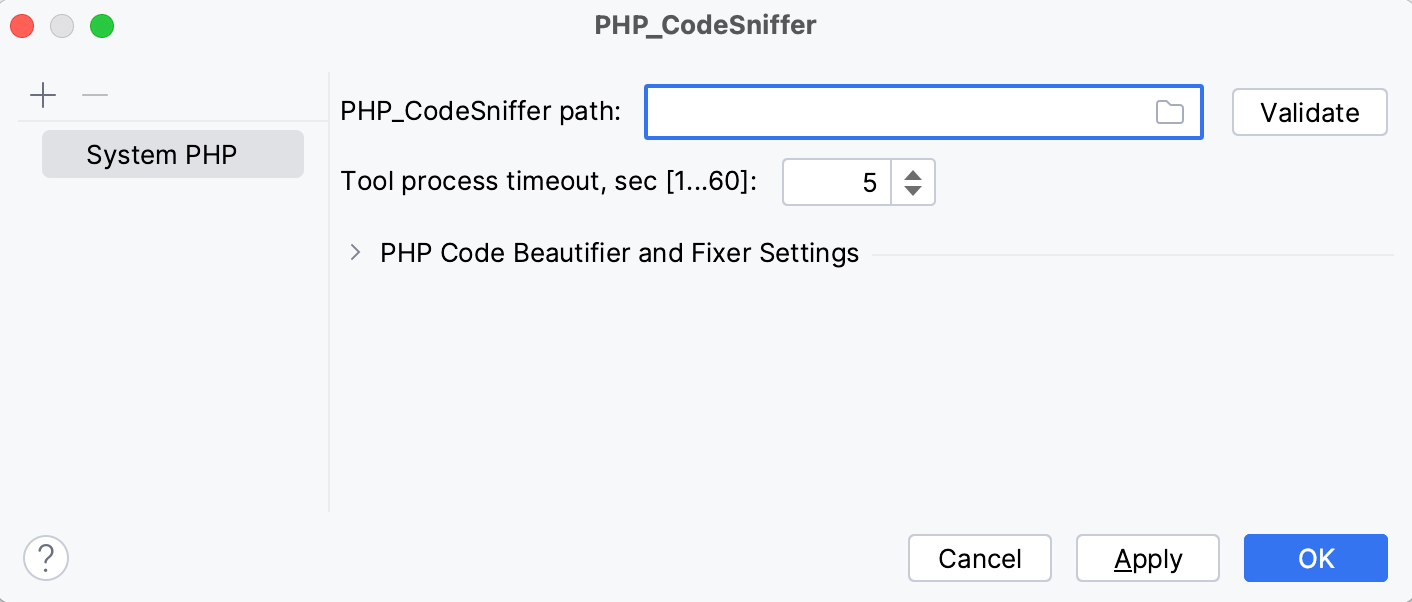
Update the project Composer dependencies by clicking Update on top of the composer.json editor panel. For more information, refer to Update dependencies.
PhpStorm will perform the PHP_CodeSniffer configuration anew and thus apply the changes in composer.json.
Configure PHP_CodeSniffer in PhpStorm
When you install PHP_CodeSniffer with Composer, PhpStorm automatically detects PHP_CodeSniffer's and PHP Code Beautifier and Fixer's executable files in the vendor/bin folder and sets the PHP interpreter configured in the system path to run them.
In Settings (Ctrl+Alt+S) | , you can change the default PHP interpreter, set the path to a manually downloaded and installed PHP_CodeSniffer executable file, or add some options to be passed to PHP_CodeSniffer when running it in PhpStorm.
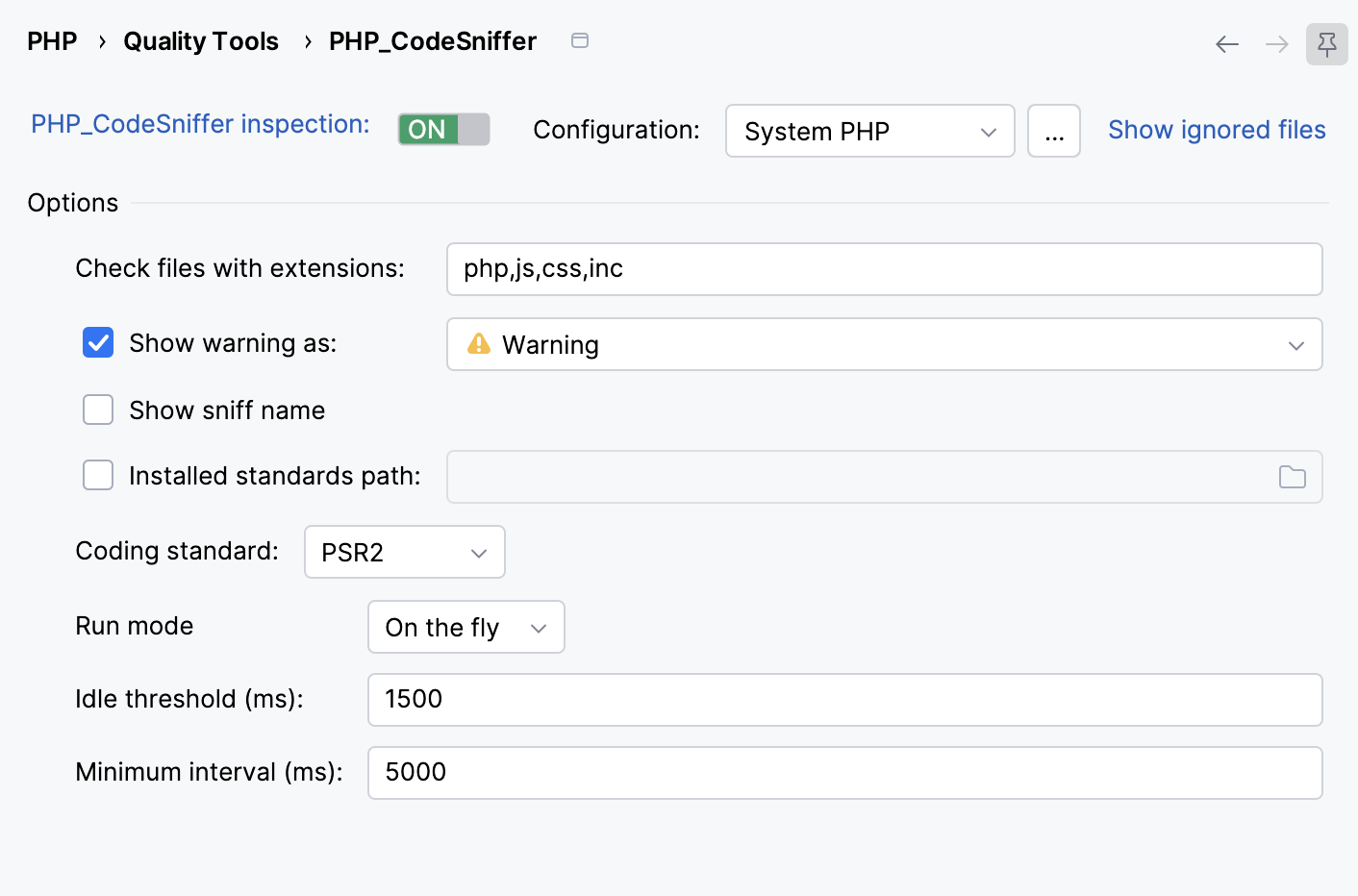
Configuration: in this field, you can change the default PHP interpreter and paths to the PHP_CodeSniffer and PHP Code Beautifier and Fixer executable files.
To only change the interpreter, select the required item from the list of local and remote PHP interpreters configured in your project.
To change the paths to the executable files, or both the interpreter and the paths, click
next to the Configuration list to open the PHP_CodeSniffer dialog and edit the fields there as described on the PHP_CodeSniffer Dialog reference page.
Show ignored files: use this setting to exclude files from PHP_CodeSniffer validation inspection. For more information, refer to the PHP_CodeSniffer reference page.
Options: in this area, add the options to run PHP_CodeSniffer as a PhpStorm inspection with. Edit the fields there as described on the PHP_CodeSniffer reference page.
Enable PHP_CodeSniffer as a PhpStorm inspection
There are two ways to set up PHP_CodeSniffer as a PhpStorm inspection: automatically during PHP_CodeSniffer installation with Composer, or manually in PhpStorm's inspections settings.
Enable the PHP_CodeSniffer inspection with Composer
You can include the information on the default and custom PHP_CodeSniffer rulesets inside the scripts section of composer.json. When you install or update project dependencies, the specified rulesets will be detected and the PHP_CodeSniffer validation inspection will be enabled automatically.
If no ruleset is specified in the scripts section of composer.json, PhpStorm will additionally check the project root to locate the ruleset with the phpcs.xml default name. If the file is present, it will be automatically selected as the inspection's Custom ruleset.
In the
scriptssection of composer.json, add thephpcsPHP_CodeSniffer launch command into one of the leaf elements.Provide the
--standardargument to denote the coding standard used. For example, adding the following record will set the coding standard to PSR2:"scripts": { "phpcs": "phpcs --standard=PSR2" }Adding the following record will set the coding standard to Custom and the path to the ruleset to <project root>/phpcs.xml:
"scripts": { "phpcs": "phpcs --standard=phpcs.xml" }
Additionally, you can provide a custom non-PSR standard dependency inside the require-dev section of composer.json to have it detected automatically. Currently, the following standards are supported:
Enable PHP_CodeSniffer validation in Inspections settings
In the Settings dialog (Ctrl+Alt+S) , click Inspections under Editor.
On the Inspections page that opens, expand the node and select the checkbox next to PHP_CodeSniffer validation.
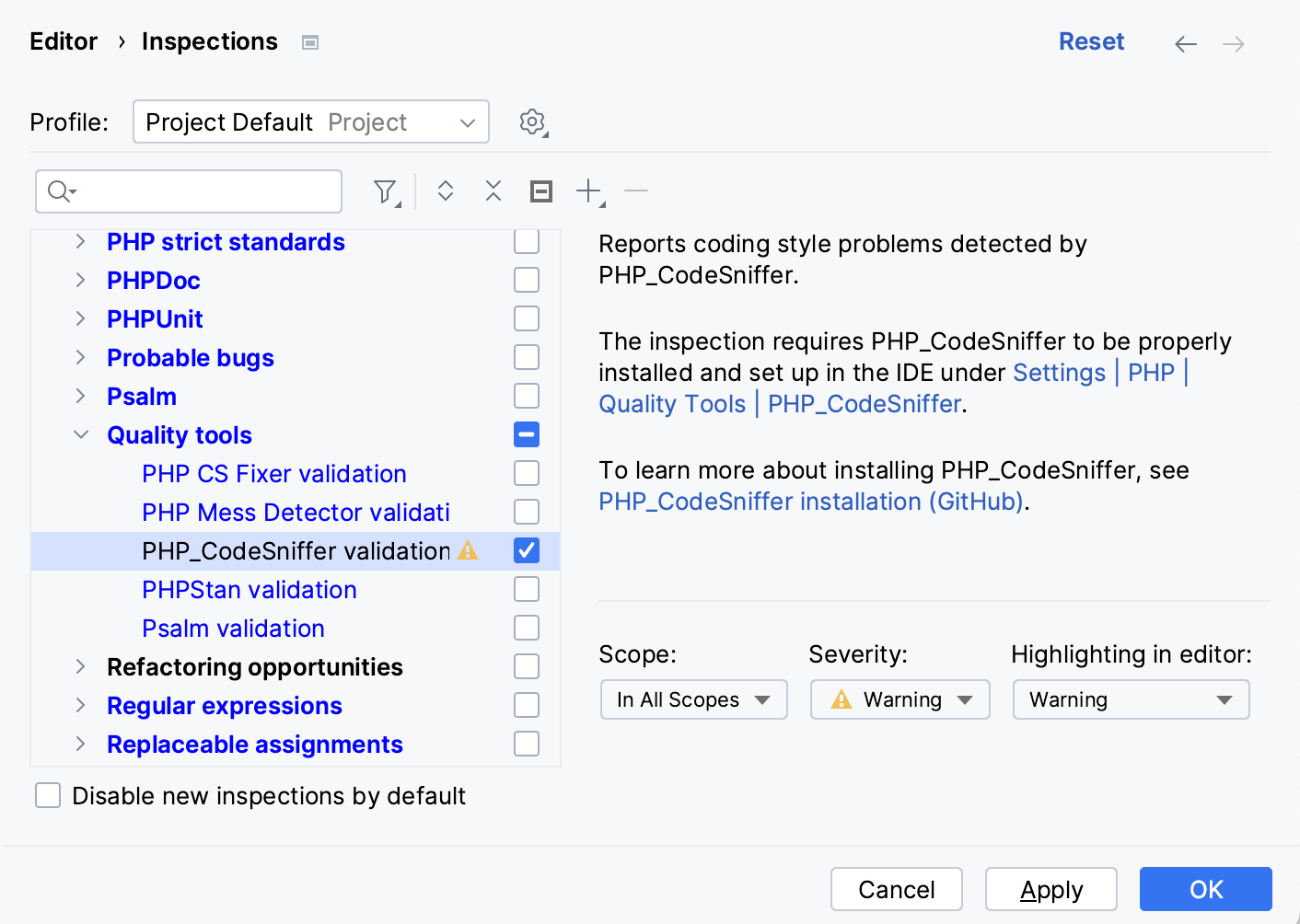
On the right-hand pane of the page, configure how PhpStorm handles the PHP_CodeSniffer inspection output:
Scope: choose the scope to limit the inspection application to.
Severity: choose the severity degree for the inspection. The selected value determines how seriously the detected discrepancies will be treated by PhpStorm and presented in the inspection results.
Highlighting in editor: choose how the issues detected by the inspection are highlighted in the editor.
Run PHP_CodeSniffer in batch mode
In the main menu, go to .
In the Specify Inspection Scope dialog that opens, select the inspection profile from the list, or click Configure… to open the Inspections dialog and configure a new profile.
You can also click Configure… to check which fixes will be applied within the scope of the selected inspection profile, and make sure that the PHP_CodeSniffer validation inspection is enabled.
View the inspection results in the Problems tool window. Errors and warnings reported by PHP_CodeSniffer are prefixed with
phpcsto distinguish them from PhpStorm internal inspections.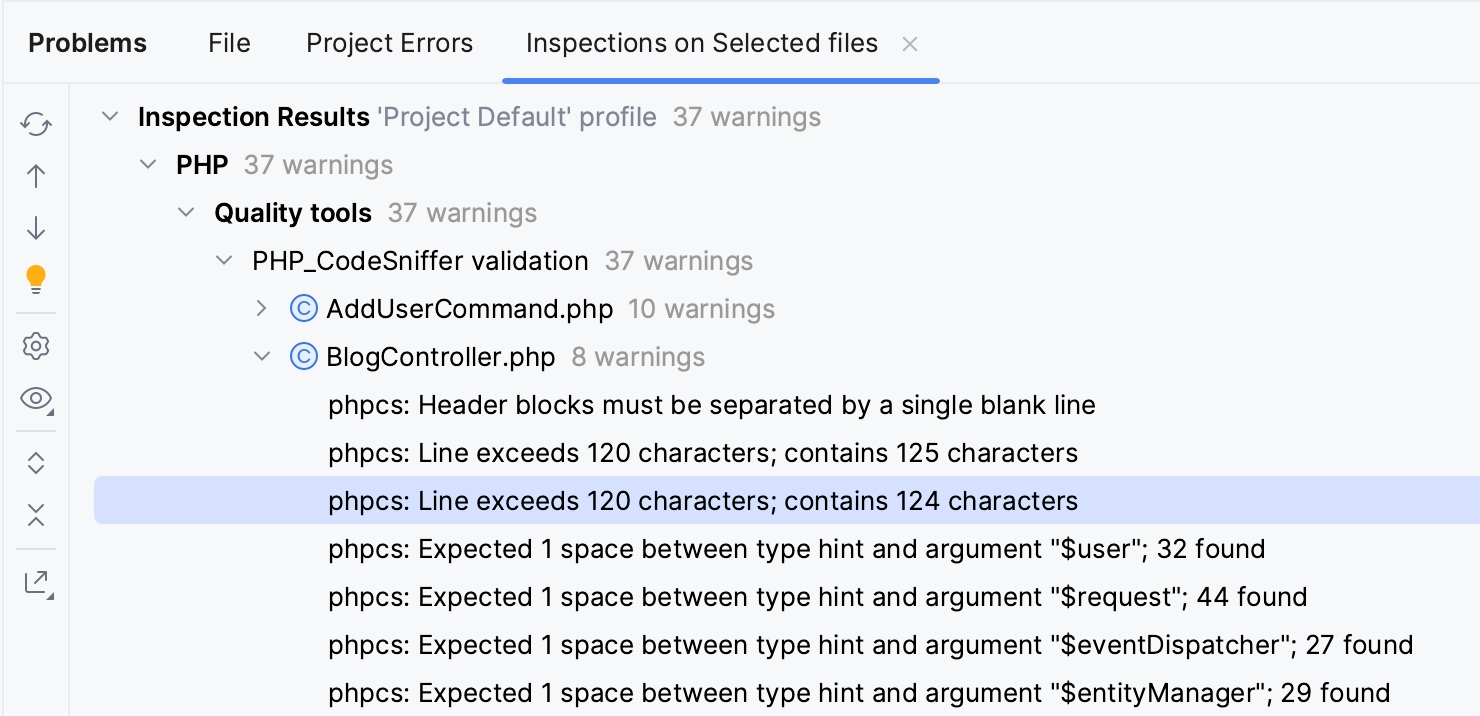
Fix issues detected by PHP_CodeSniffer
PhpStorm integrates with the PHP Code Beautifier and Fixer tool, which lets you fix many of the detected issues. If you install PHP_CodeSniffer with Composer, PHP Code Beautifier and Fixer will be detected and set up automatically. Otherwise, you need to set it up manually.
Fix issues by using a quick-fix
Upon detecting an issue, PhpStorm highlights it in accordance with the PHP_CodeSniffer inspection settings.
Place the caret at the detected issue and click
 , or press Alt+Enter.
Select PHP Code Beautifier and Fixer: fix the whole file from the popup menu. Note that this will fix all issues detected in the current file.
You can also detect issues in the batch mode, or fix them automatically with code reformatting.
Fix issues with code reformatting
You can fix issues detected by PHP_CodeSniffer by running the reformat code action.
Set PHP Code Beautifier and Fixer as an external formatter in the Quality Tools settings.
To do so, in the Settings dialog (Ctrl+Alt+S) go to and select PHP Code Beautifier and Fixer in the External Formatters section.
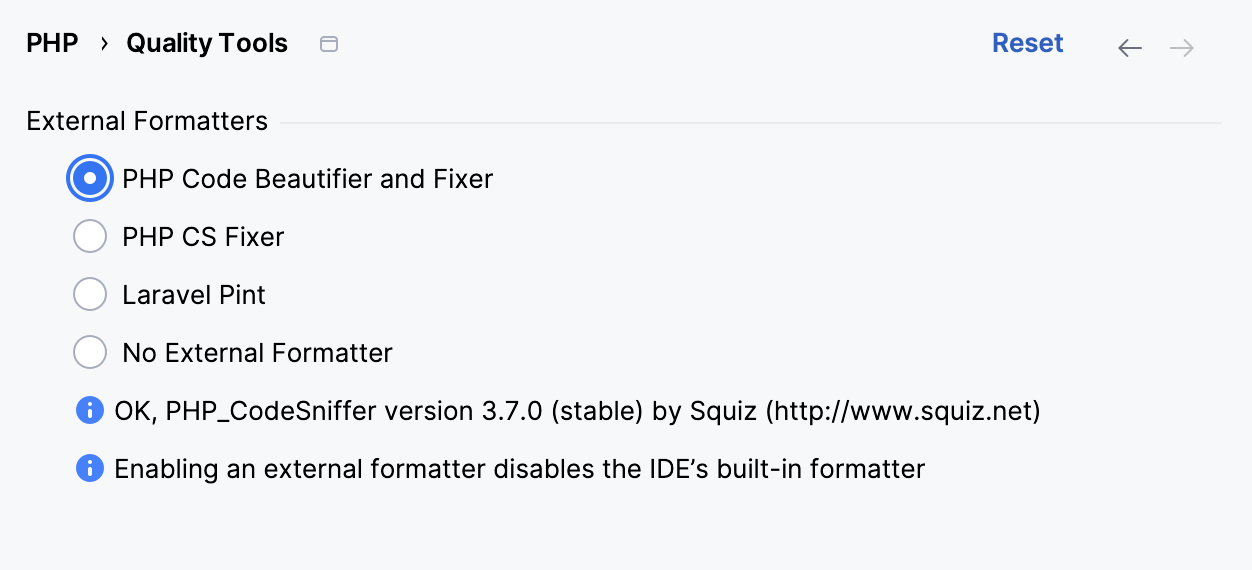
Apply Reformat Code to the required file or project scope:
For a code fragment or a file opened in the editor, select from the main menu or press Ctrl+Alt+L.
For a selected file, directory, or group of files in the Project tool window, select from the context menu or press Ctrl+Alt+L.
Exclude files from PHP_CodeSniffer Validation inspection
When waiting for PHP_CodeSniffer response exceeds the limit specified in the Tool process timeout field in the PHP_CodeSniffer dialog, PhpStorm suggests adding the file to the ignore list.
In the Settings dialog (Ctrl+Alt+S) , navigate to .
Click the Show ignored files link.
To add a file, click
 and locate the desired file in the dialog that opens.
To delete a file from the list and have PHP_CodeSniffer process it again, select the file and click
 .
.To remove all the files from the list, click
 .
.