Working with diagrams
Enable the Diagrams plugin
This functionality relies on the Diagrams plugin, which is bundled and enabled in PhpStorm by default. If the relevant features are not available, make sure that you did not disable the plugin.
Press Ctrl+Alt+S to open settings and then select .
Open the Installed tab, find the Diagrams plugin, and select the checkbox next to the plugin name.
PhpStorm lets you generate UML class diagrams to analyze PHP applications, view the structure of databases, tables, and queries, and review VCS local changes.
View UML class diagram
In the Project tool window, right-click an item for which you want to create a diagram and select Ctrl+Alt+Shift+U or (Ctrl+Alt+U).
In the list that opens, select PHP Class Diagram. PhpStorm generates a UML diagram for classes and their dependencies.
View local changes as a diagram
You can use the UML Class diagram to evaluate how your local code changes affect the model.
From the context menu of the code editor, the Project tool window, or the Commit window, select , or press Ctrl+Alt+Shift+D.
The diagram opens in a popup. You can double-click a node to view changes in a Diff Viewer.
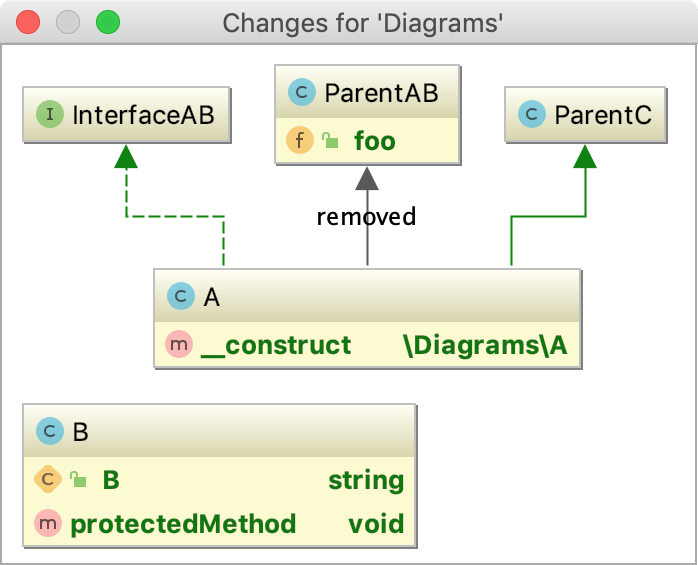
To view changes in revisions as a UML Class diagram, in the History tab of the Version Control tool window, select the desired revision and select Show Diff as UML from the context menu or press Ctrl+Shift+D.
Analyze class diagram
After you have generated a diagram, press E to expand the nodes and see classes and their connections. To collapse them, press C.
Note that expanding/collapsing nodes works on the class containing folder level: expanding a folder will display only its content, but not the content of its child folders. Similarly, if you collapse a class, all elements in the containing folder (but not the child folders) will be collapsed.
To see the list of methods, fields, and other code elements, select the appropriate icon on the diagram toolbar located on top of the diagram editor.
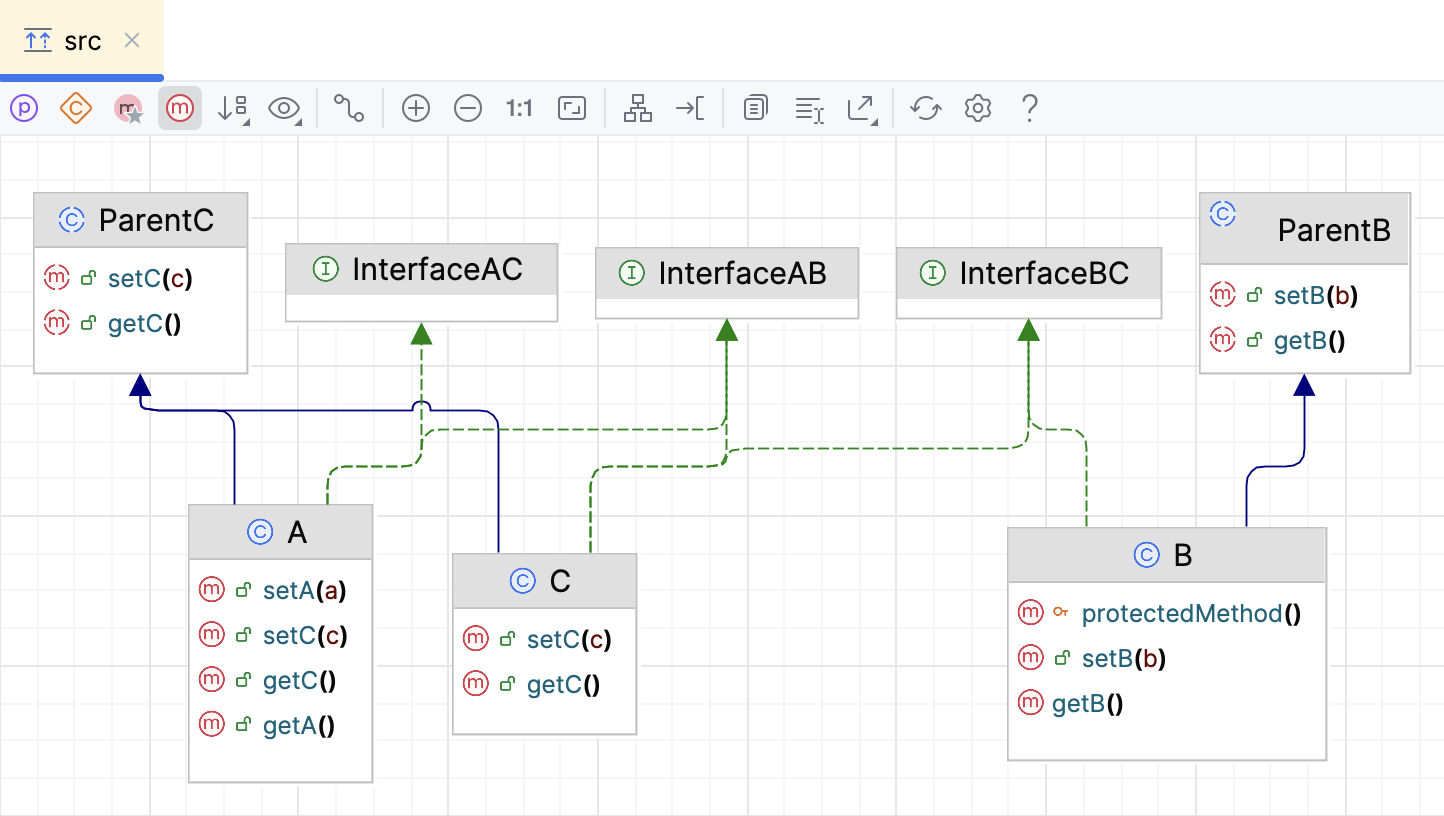
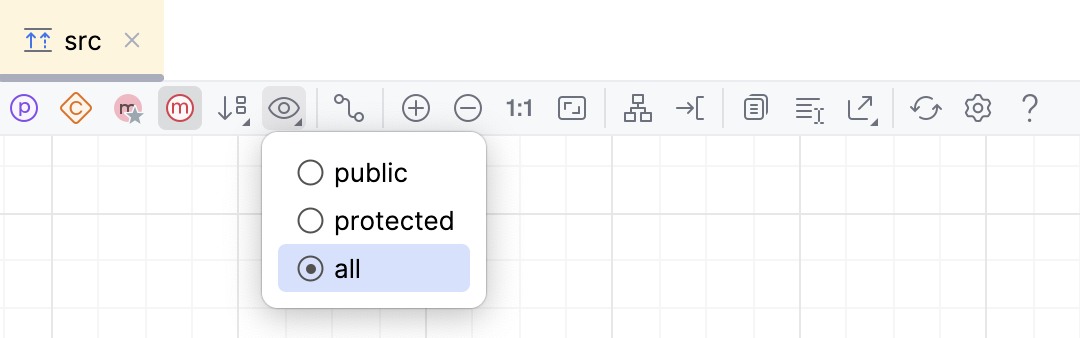
The lists are displayed based on the selected visibility level, which you can change. For example, to view protected methods, click  on the diagram toolbar and select protected from the list. PhpStorm displays members with visibility not less than protected, such as public, package local, and protected ones. The protected methods are displayed with modifier icons
  next to them.
To save the diagram as a file, right-click the diagram editor and from the context menu, select and then the file extension in which you want to save the diagram.
Manage class diagram
When working with diagrams, use the context menu in the diagram editor to perform different tasks. You can view members of the class, add new, delete the existing ones, see implementations, check parent classes, perform basic refactoring, add notes, and so on.
You can navigate to the underlying source code by selecting a diagram element and pressing F4).
Select elements in a diagram
To select an element, click it in diagram.
To select multiple adjacent elements, keep Shift pressed and click the desired elements, or just drag a lasso around the elements to be selected.
To select multiple non-adjacent elements, keep Ctrl+Shift pressed and click the desired elements.
To select a class member, double-click the class element, and then use the arrow keys, or the mouse pointer.
Add an existing class to a diagram
Press Space.
In the search field that opens, start typing a name of the class you want to add. Then, select the desired class from the suggestion list.
If you want to add a class that is out of the project scope, select the Include non-project items checkbox.
Alternatively, select one or more elements in the Project tool window and drag them to the diagram.
Delete a node element from the diagram
In the diagram editor, select a node element you want to delete.
Right-click the element and from the context menu, select Delete Delete.
Alternatively, select Alt+Delete. In this case, PhpStorm checks for usages before applying the changes.
Create relationship links between elements
Click
 on the diagram toolbar so that it appears pressed.
Drag from the source to a target node to draw a link.
To delete the existing links, select the ones you don't need and press Delete. PhpStorm will update the source code accordingly.
Add new members to a class
You can perform some forward engineering while in the diagram editor.
In the diagram editor, select a class to which you want to add a new member and from the context menu, select or press Alt+Insert. Then select a code element (a field or a method) you want to create.
Depending on your selection, PhpStorm opens the appropriate dialog where you specify the necessary information for creating the new element.
PhpStorm adds the item to your diagram and updates the source code accordingly.
View implementations and parent classes
You can view implementations and parent classes in your diagram. If PhpStorm finds more than one parent class or implementation, it displays a list of appropriate items. Select the one you need to see the connections between the parent and its children.
In the diagram editor, select an item for which you want to see implementations or parent classes.
Right-click the items and from the context menu, select the Show Implementations Ctrl+Alt+B or Show Parents Ctrl+Alt+P respectively.
In the popup that opens, select items you need and press Enter. To extend your selection up or down while in the popup, press Shift+Up or Shift+Down respectively.
Configure diagram settings
You can configure the diagram settings so that you have certain options available by default when you create a diagram.
Press Ctrl+Alt+S to open settings and then select .
In the right-hand pane, select the options that you want to see by default and click OK to apply your changes.
Analyze graph
The Analyze Graph action group lets you analyze the graph in various ways such as perform auto clusterization, measure the node centrality, search cycles, filter path between two nodes, and so on.
Filter paths between two nodes
Most of the time, generated diagrams are big and complicated. Typically, you want to concentrate only on the specific part of the diagram. PhpStorm lets you filter paths between two diagram elements.
In the diagram editor, select two nodes on which you want to focus and right-click one of them to open the context menu.
From the context menu, select .
In the dialog that opens, select additional options if needed and click Find.
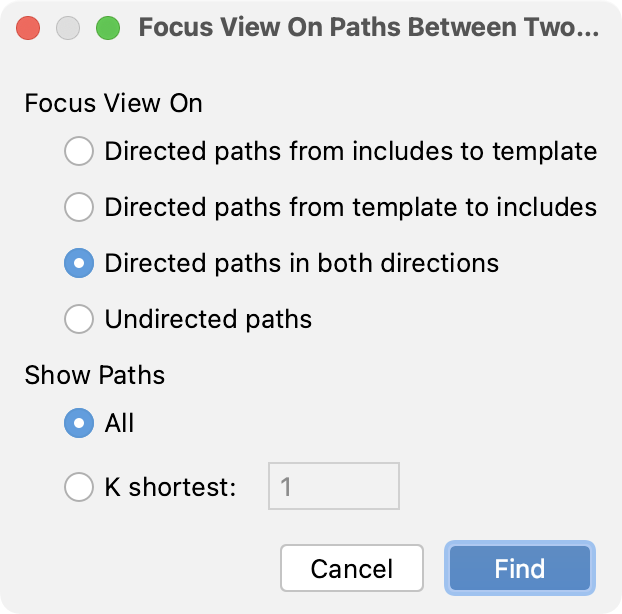
PhpStorm displays connections associated only with the selected nodes.
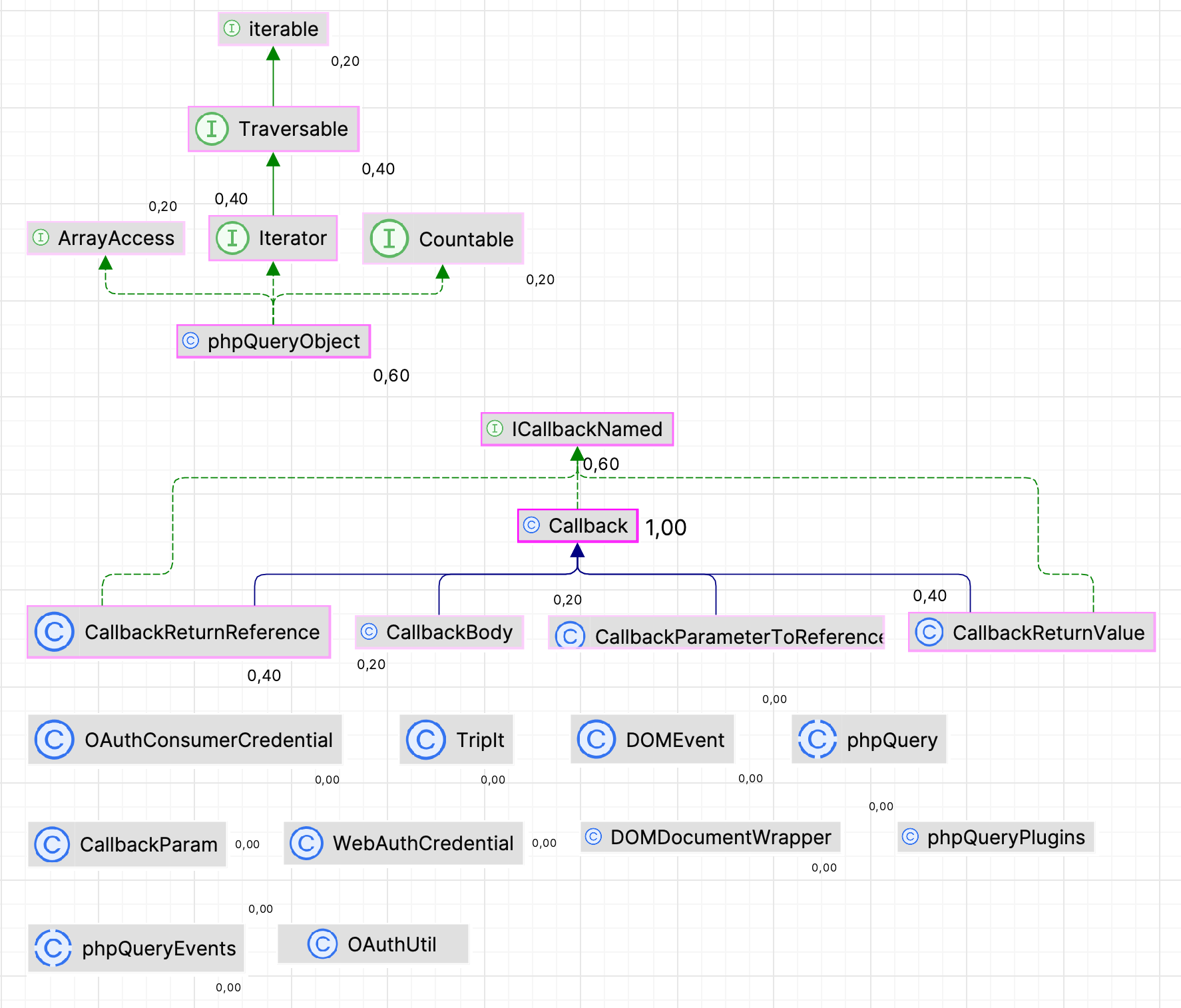
Measure diagram centrality
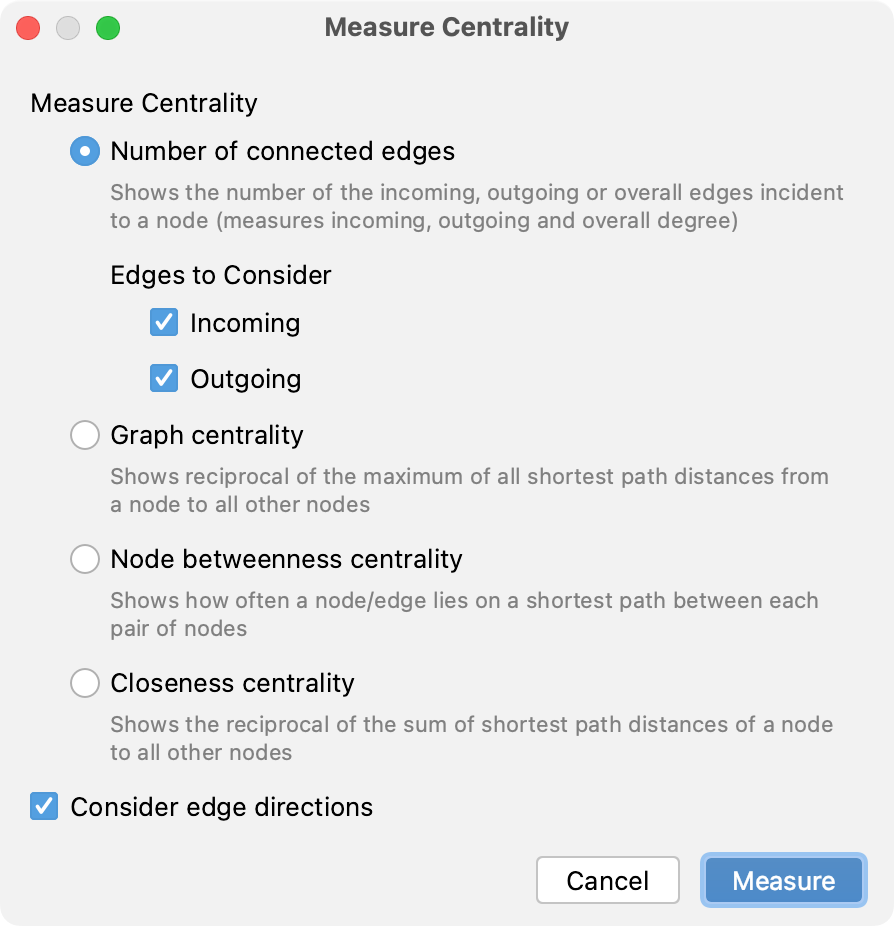
You can use this action to identify the important nodes in the graph.
In the diagram editor, right-click anywhere in the editor to open the context menu.
From the context menu, select .
In the dialog that opens, select additional options if needed and click Measure.
The node "importance" is expressed via fractional value from 0.0 to 1.0 measurement, and the brightest node selection should be explored first.
Productivity tips
- Manage diagram layout
Right-click the diagram background and choose from the context menu. Then select the layout from the submenu. To apply the selected layout, click
 on the diagram toolbar.
Alternatively, drag entities in the diagram manually to achieve the desired layout.
- Zoom in and out
Use any of the following techniques:
Click
 and
and  on the diagram editor toolbar.
Keeping Ctrl pressed, rotate your mouse wheel.
Press NumPad+ or NumPad-.
- Use the magnifier tool
Keeping Alt pressed, hover over diagram areas.
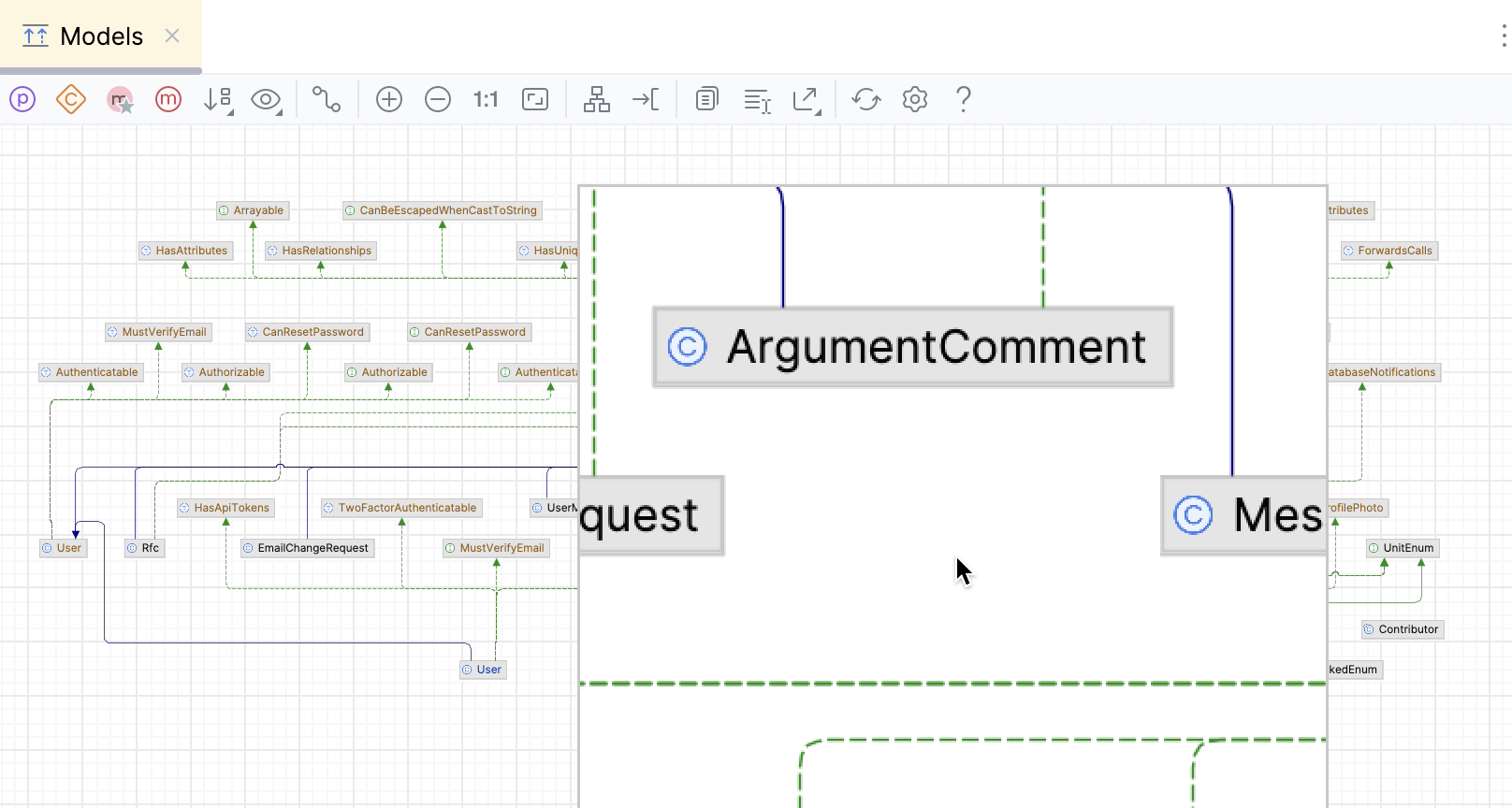
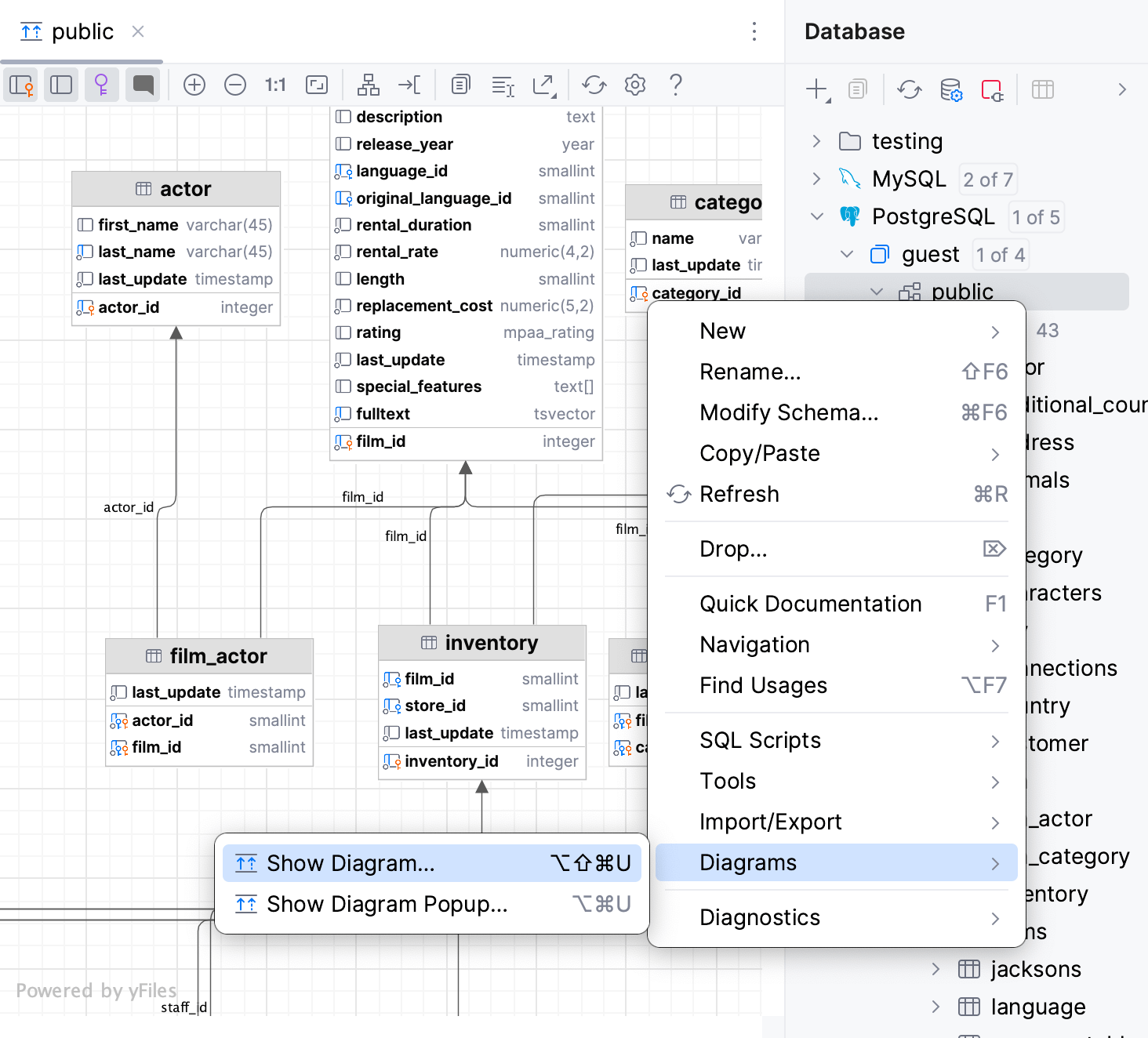
- View the structure of a database or table as a diagram
In the Database tool window, right-click a schema or a table and select Diagrams | Show Visualization Ctrl+Alt+Shift+U or Ctrl+Alt+U from the context menu.
- View SQL query plan as a diagram
In the editor, right-click an SQL statement and select Explain Plan. Then, in the Output pane, switch to the Plan tab. By default, the query is displayed as a tree. To see it as a diagram, click Show Visualization (
 ) or press Ctrl+Alt+Shift+U.