Run queries
Enable the Database Tools and SQL plugin
This functionality relies on the Database Tools and SQL plugin, which is bundled and enabled in PhpStorm by default. If the relevant features are not available, make sure that you did not disable the plugin.
Press Ctrl+Alt+S to open settings and then select .
Open the Installed tab, find the Database Tools and SQL plugin, and select the checkbox next to the plugin name.
You can run your queries by using shortcuts, toolbar buttons, a context menu, and run/debug configurations. You can do this from query consoles, scratch files, and user files.
For more information about where and how to view query results, refer to Query results.
Run statements and procedures
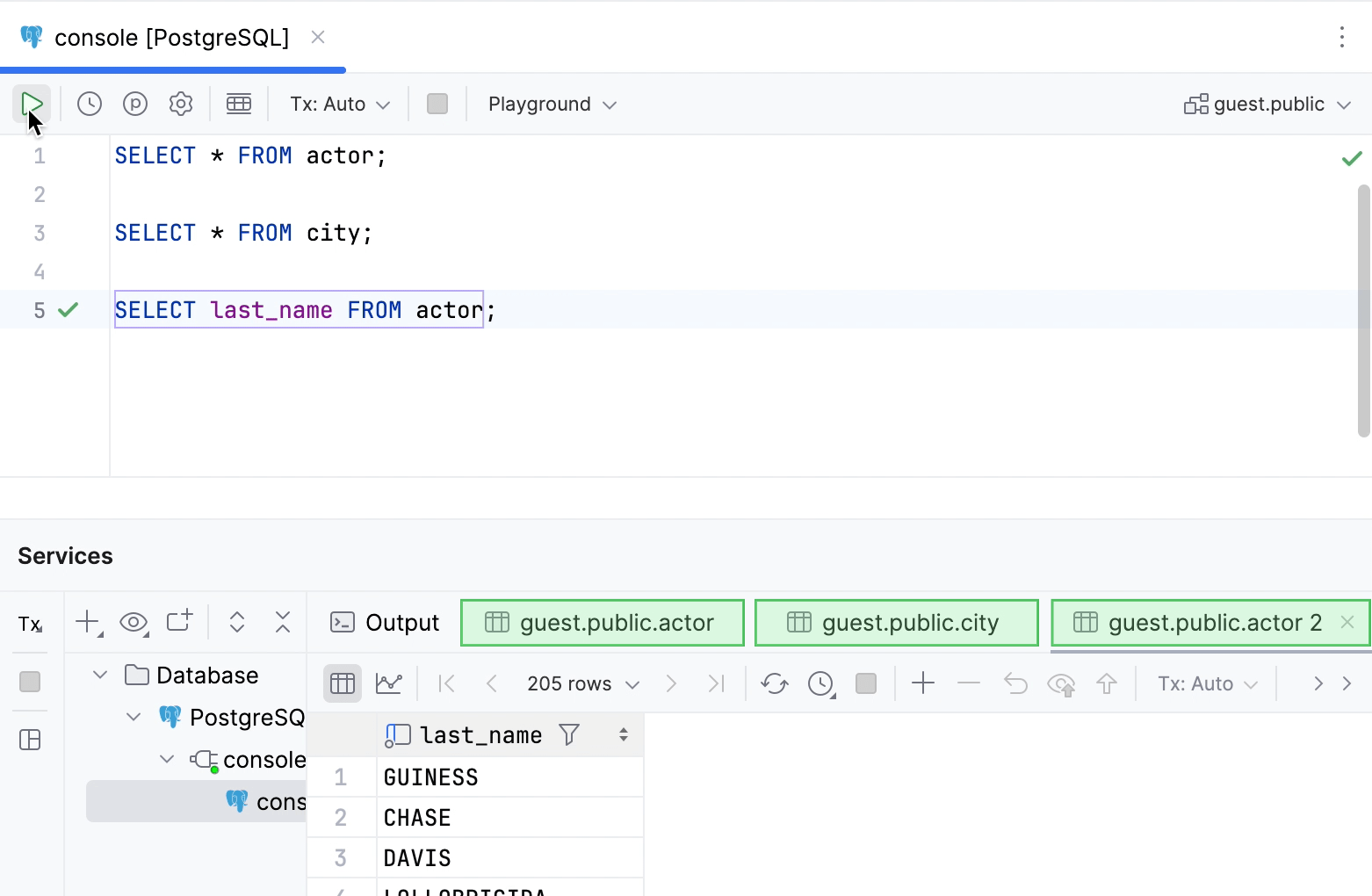
Run statements in a query console
You can relate to a query console as to a terminal where you type and run your code.
In the Database tool window, click the data source.
Press F4 to open a query console. For more information about working with query consoles, refer to Query consoles.
Type or paste the statement that you want to execute.
Click
 Execute on the toolbar. Alternatively, press Ctrl+Enter.
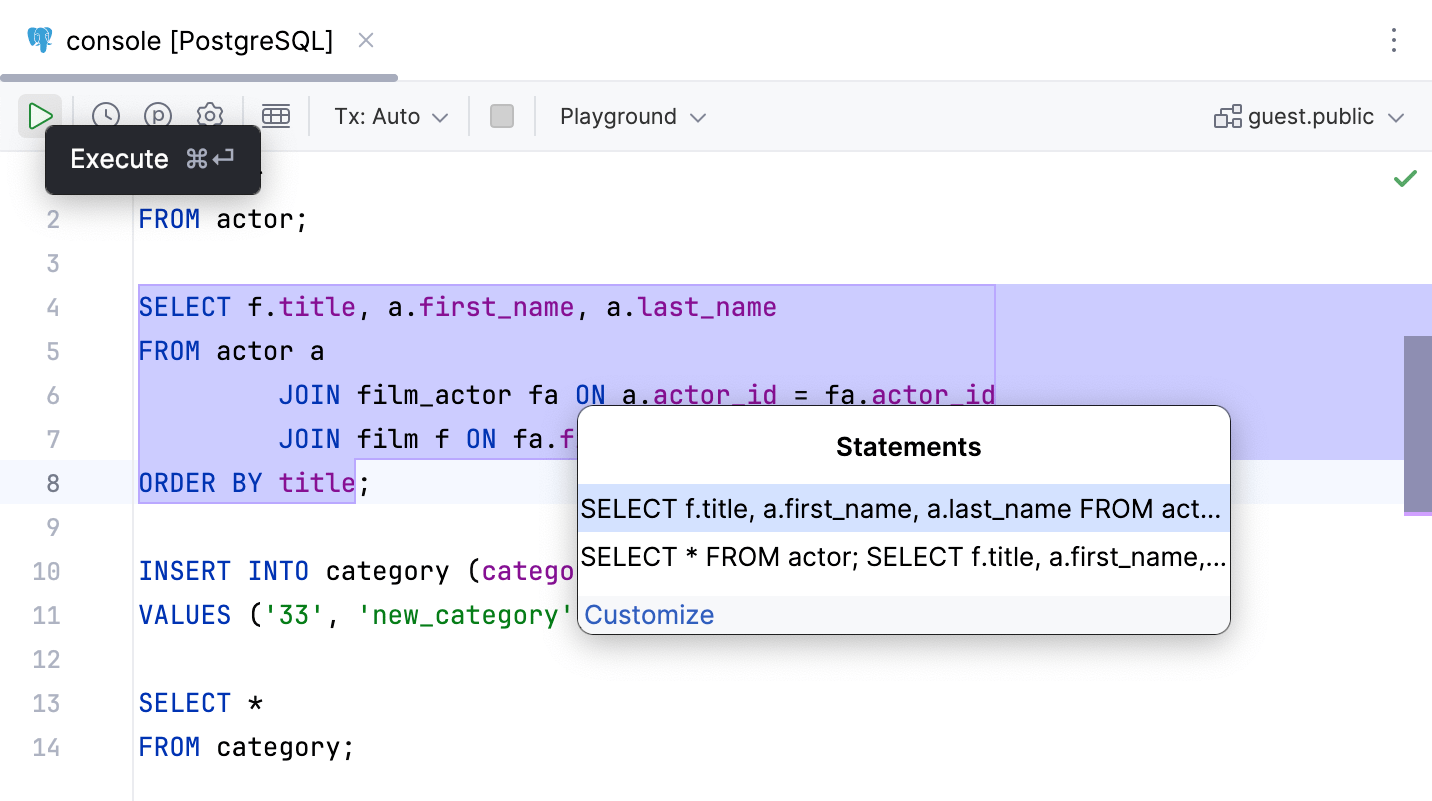
If you have several statements, select whether you want to execute all statements or a single statement. The suggestion list always contains an item for running all the statements.
Run statements from an open file
In PhpStorm, you can open and run a file. The limitation for the file size is 20 MB. When you open a file that is larger than 20 MB, you see only first 2.5 MB of the file. The file should be associated with the SQL file type. For more information about file type associations, refer to the File type associations topic.
Open the Project tool window () and double-click an SQL file.
For more information about attaching directories and files in PhpStorm, refer to User files.
Click the statement that you want to execute.
Also, you can select (highlight) the fragment of code that you want to execute. It can be a subquery or a group of statements. PhpStorm executes only the selection.
Click the Execute button (
) on the toolbar. Alternatively, press Ctrl+Enter.To customize query execution settings, click the Customize link. Alternatively, open settings by pressing Ctrl+Alt+S and navigate to . .
(Optional) If the SQL file is not attached to a data source, select the data source that you want to attach it to in the <data source> list.
For more information about attaching SQL files to data sources, refer to Data source attachment.
In the Statements window, press Enter to run the selected statement. You can switch between other entries to run another set of statements. Statements that you are going to execute are highlighted in a query editor.
For another example of running script files, refer to the following video at youtube.com.
Run stored procedures
A stored procedure is a set of SQL statements with an assigned name. You can execute stored procedures in PostgreSQL, Microsoft SQL Server, Oracle, and MySQL.
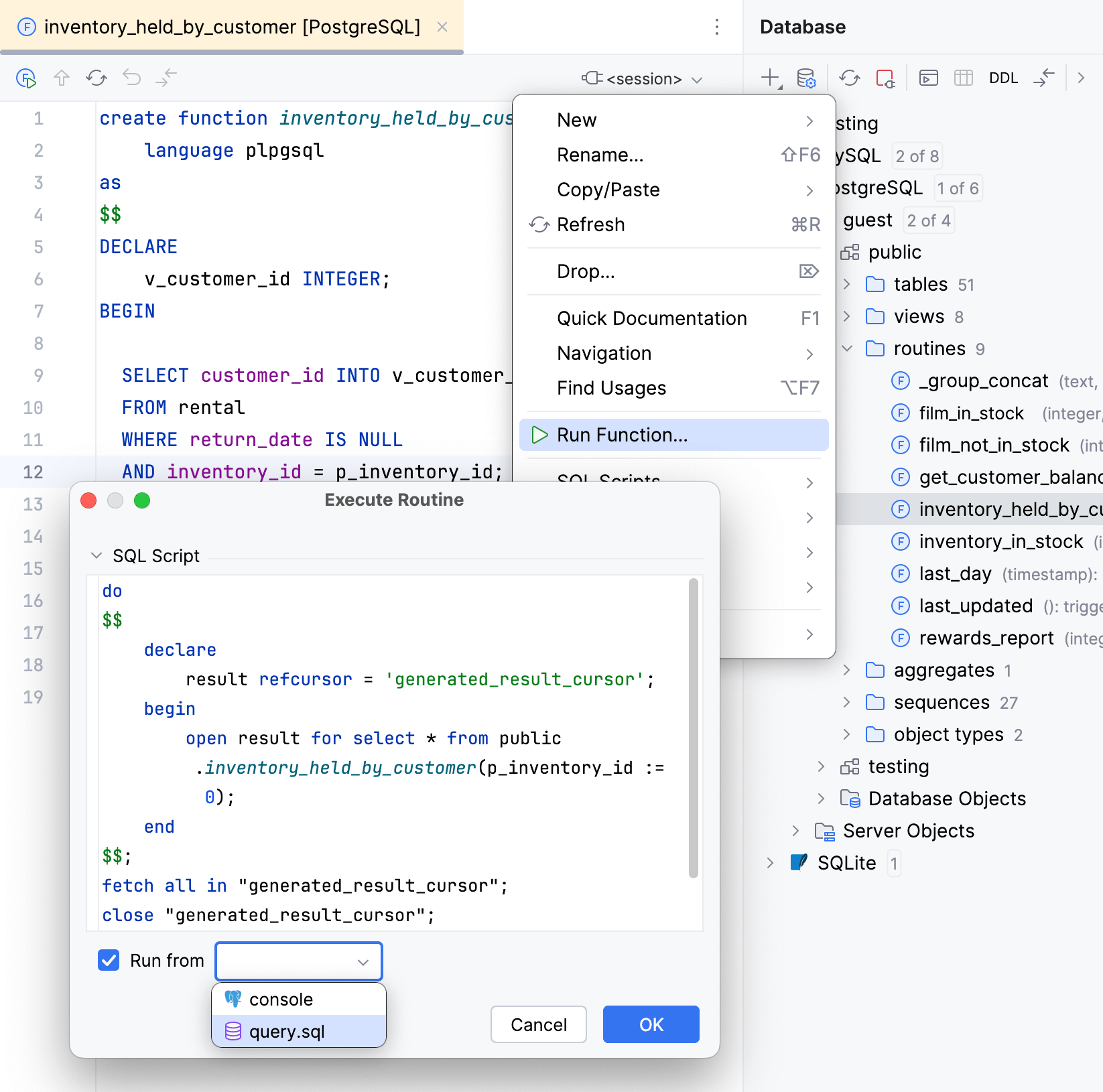
Right-click a stored function that you want to execute and select Run Function.
In the Execute Routine window, type all the necessary parameter values, and click OK.
If necessary, select the Run from checkbox and select the file or console to run the stored function from.
Run SELECT statements and save results into files
(Optional) If the file is not connected to a data source, select a data source from the list of data sources on the toolbar. Then select the connection session from the Sessions list.
For more information about connection sessions, refer to Sessions.
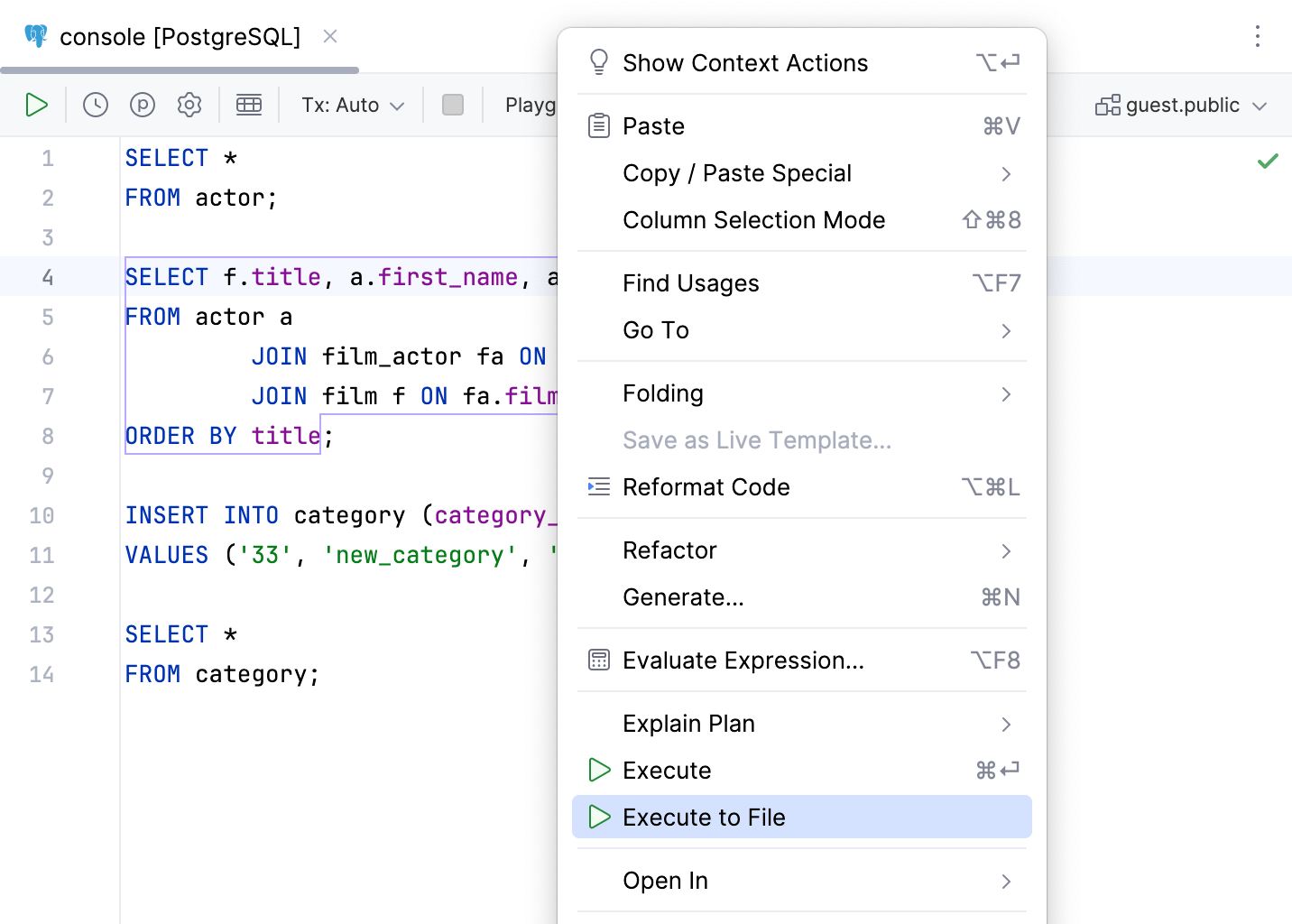
Right-click a
SELECTstatement.Select Execute to File and select the output format.
In the Export Data dialog, specify the extractor that you want to use and other settings.
For more information about the Export Data dialog, refer to the Export data topic.
View query execution settings
Open a query console and click
 Open Query Execution Settings on its toolbar.
Cancel running statements
To cancel running statements, click
 Cancel Running Statements on the toolbar.
Alternatively, hover over the progress indicator on the gutter and click
Cancel Running Statements that replaces the progress icon.
If you click the Cancel Running Statements button two times, PhpStorm displays a warning where you can terminate the remote process or wait a bit longer. The warning is displayed to ensure safety as deactivation might be potentially dangerous for some processes happening simultaneously.
Also, the IDE displays a warning after 10 seconds of idle canceling.
Cancel connections
You can interrupt not only the execution of a request, but also the creation of a connection. This is especially relevant for the very first query in the query console, which also creates a connection.
You can stop the process of creating a connection. To do that, click the Cancel Running Statements button () on the toolbar while the connection is being created. The connection will be stopped, and you will see the Connection canceled message.
Resolve modes
In order to run SQL scripts, treat the usages of the database objects as links, and provide you with correct code completion, PhpStorm must resolve the database objects in your code to a certain context. By default, IDE uses one of the following as a starting point to resolve the database objects to: <schema> selector, or the default database (if none of the above is set).
Depending on whether your code is a single script or it has multiple unrelated SQL statements, select one of the following resolve modes to resolve the database objects properly:
Playground: default mode for query consoles. All the database objects are resolved to the same context.
Use this mode if your code is a set of unconnected SQL statements which are not meant to be run as a single script.
Script: default mode for local SQL files. The
USESQL statement (SET search_path TOfor PostgreSQL) overrides the default context that the database objects are resolved to.Use this mode if your code is meant to be run as a single script.
In the following video, the public schema is selected as default for the query console. The schema contains the actor table, whereas the information_schema schema does not contain it. When the resolve mode is Playground, the database object is resolved to default schema in both SELECT statements, because all the statements are considered unrelated.
Once the resolve mode is changed to Script, the second SELECT statement is considered related to the SET search_path TO information_schema one. The actor table is no longer resolved in that statement.
User parameters
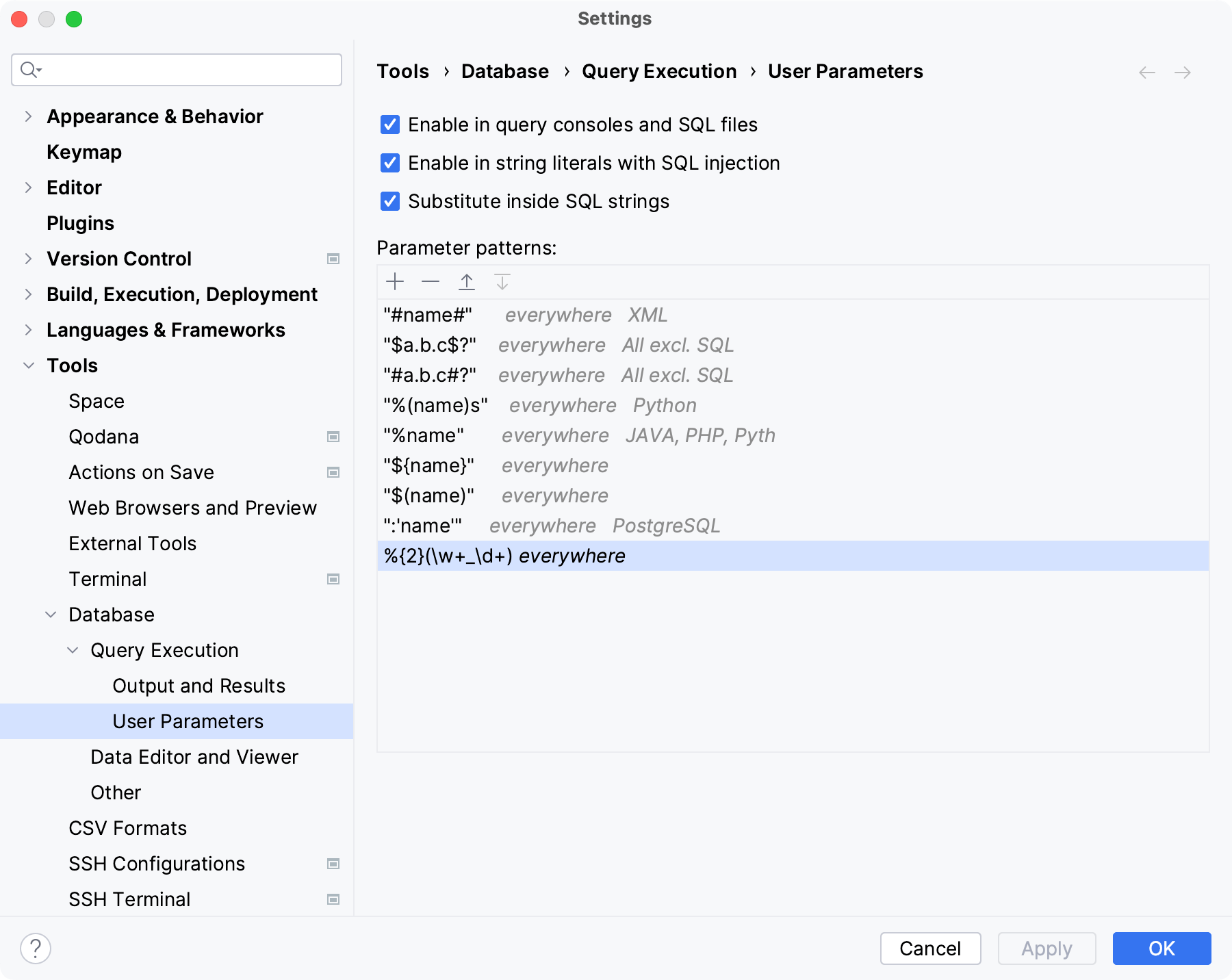
Depending on the database vendor, the question mark ? is treated as a parameter in SQL statements. You can specify what other characters and their sequences should be treated as parameters, and in which places, in the Tools | Database | Query Execution | User Parameters settings page Ctrl+Alt+S.
The patterns for SQL parameters are specified by using regular expressions.
Run parameterized statements
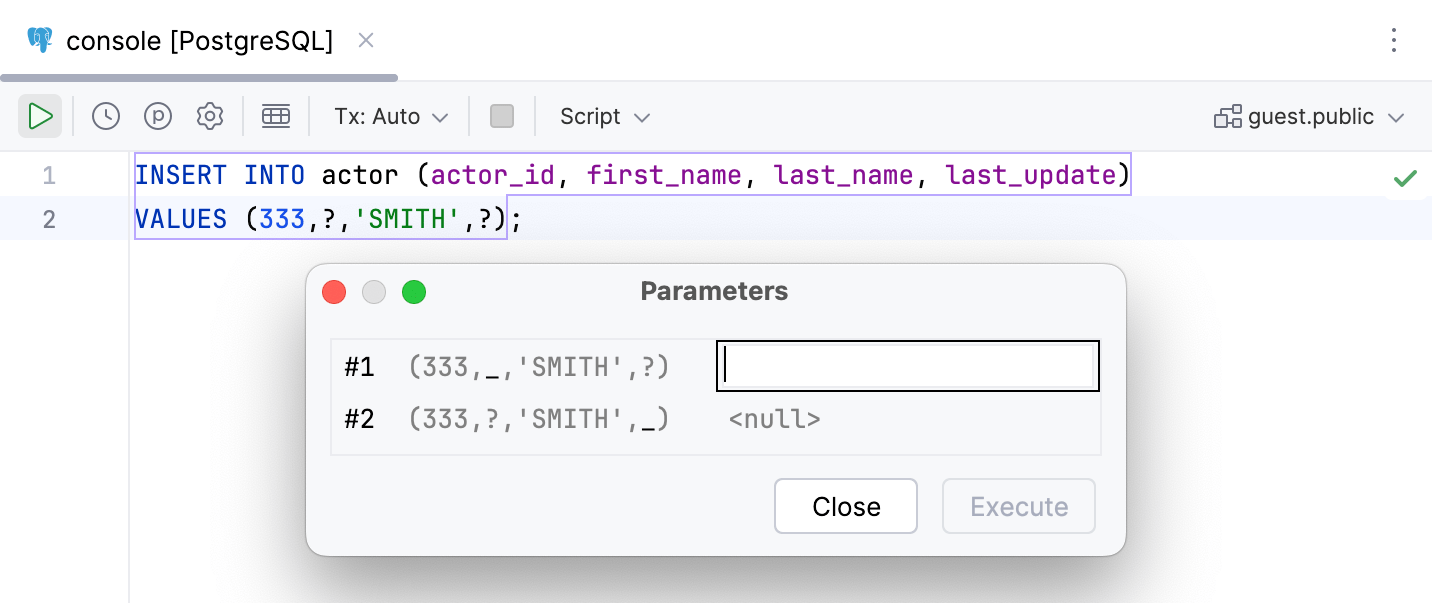
If you have parameters in your statement, PhpStorm will prompt you to specify the values of the parameters before you execute the statement.
To execute a parameterized statement, click the Execute button (
) on the toolbar and enter values in the second column. Alternatively, to open the Parameters dialog, click the View Parameters button ( ).
).
Naming behavior
In PhpStorm, you can use positional and named user parameters. For positional user parameters, each occurrence is treated separately depending on its order. For named user parameters, all occurrences with the same name are treated as the same parameter.
To use named parameters, open settings by pressing Ctrl+Alt+S and navigate to . In the Parameter patterns pane, add () to your user parameter pattern. IDE treats the contents of () as a parameter name and only requests one value when you run your script. Otherwise, if the same parameter is used multiple times in the script, the IDE requests multiple values for the parameters depending on their order.
Consider the following example:
\?\w+: positional user parameter pattern. The?xparameters are considered as two different user parameters. The values are requested depending on the order of the parameters.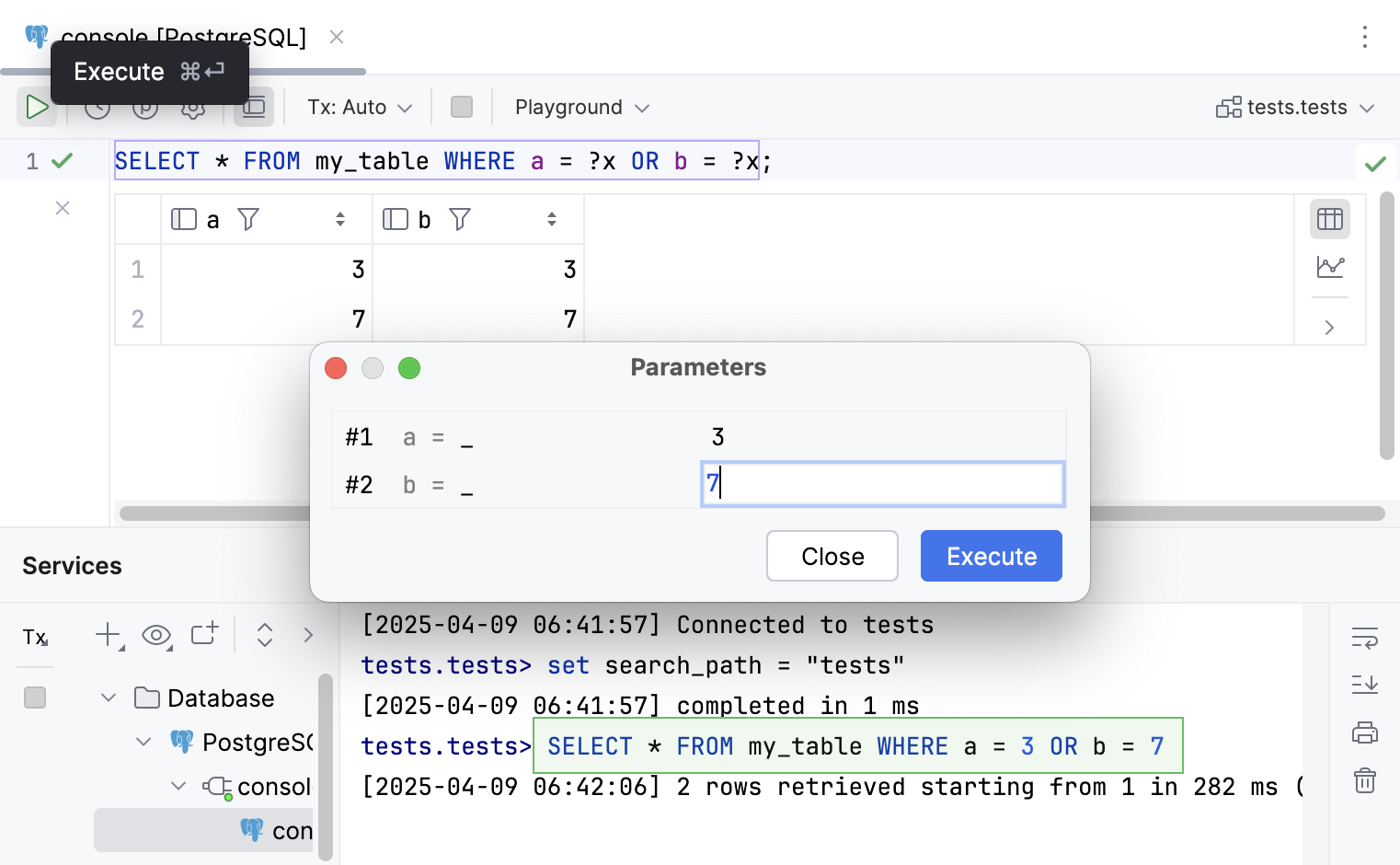
\?(\w+): named user parameter pattern. Both?xare considered as the same user parameter, wherexis the parameter name.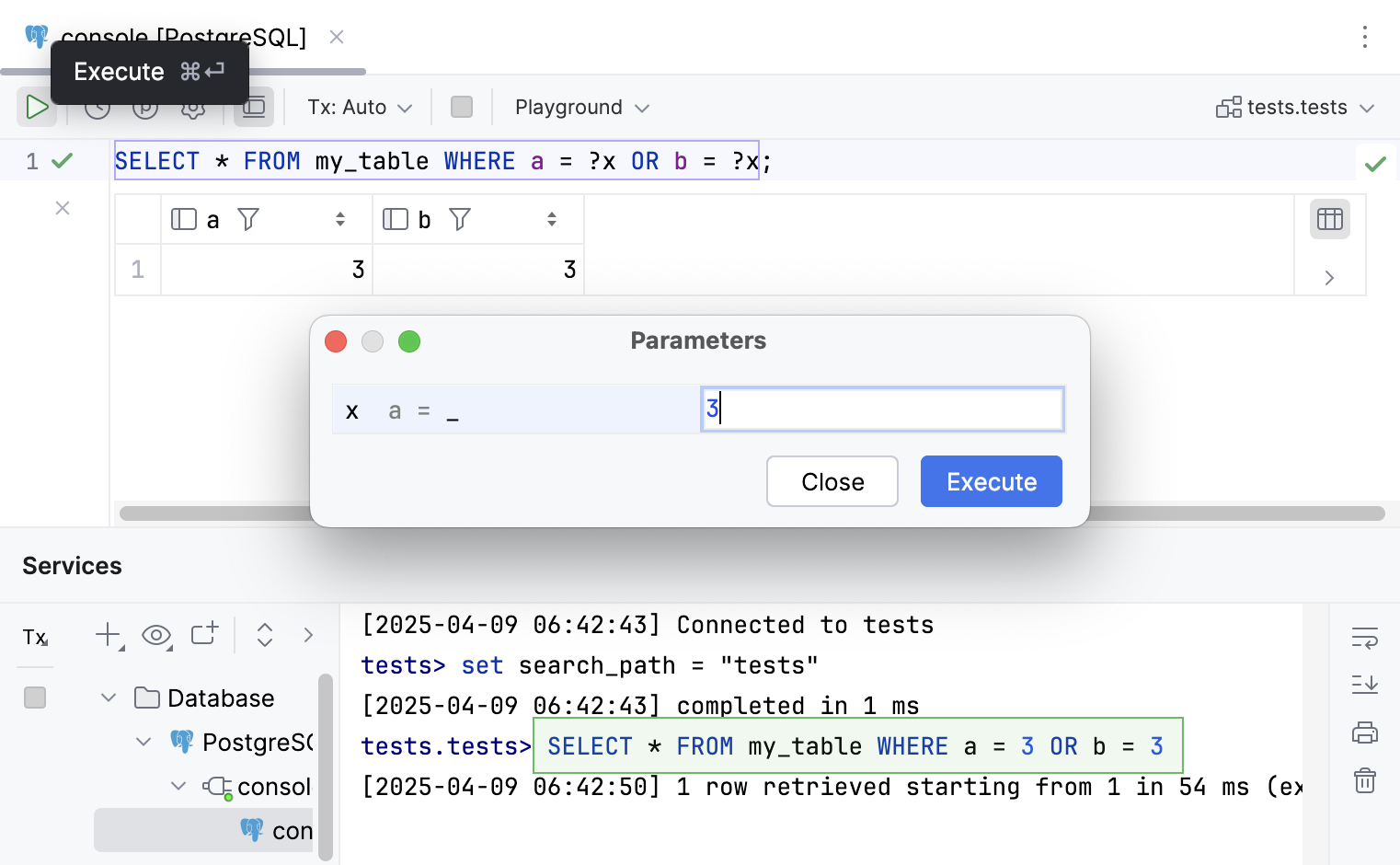
For more information about parameter patterns, refer to User parameters reference topic.
Examples
Array as a parameter
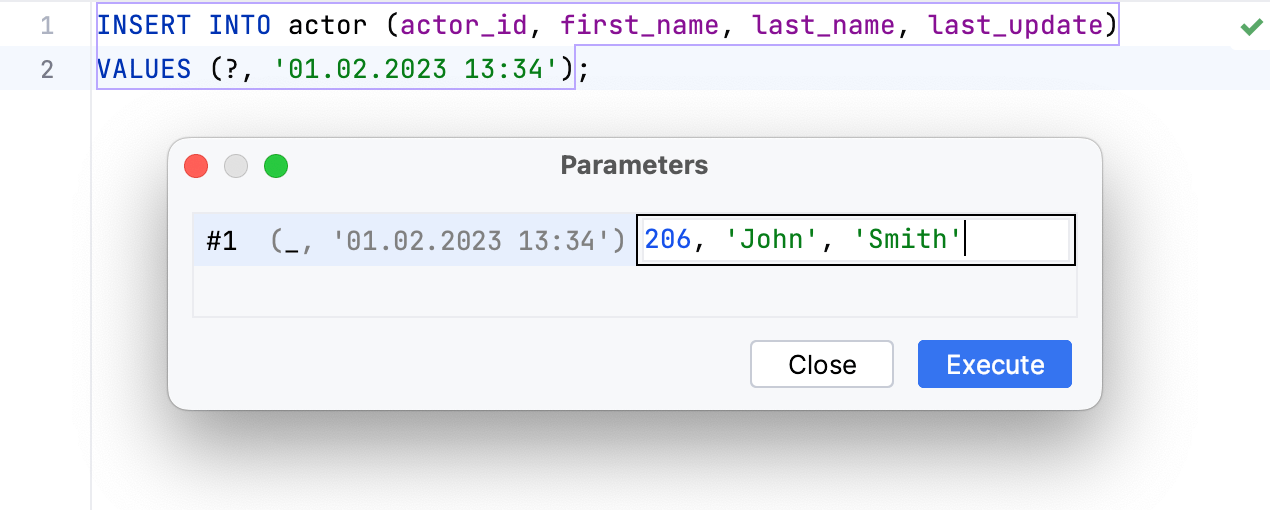
In PhpStorm, the replacement of a parameter with a value is straightforward. To use an array as the value, specify your array in the corresponding field.
In the following example, the ? parameter can be replaced with 206, 'John', 'Smith' value:
For further information on parameters, refer to the database documentation.
Parameter pattern
If you have parameters with a specific parameter syntax in your scripts, specify the pattern using a regular expression.
For the following example, the %{2}(\w+_\d+) pattern must be set in the Tools | Database | Query Execution | User Parameters settings page Ctrl+Alt+S:
Preview table structure
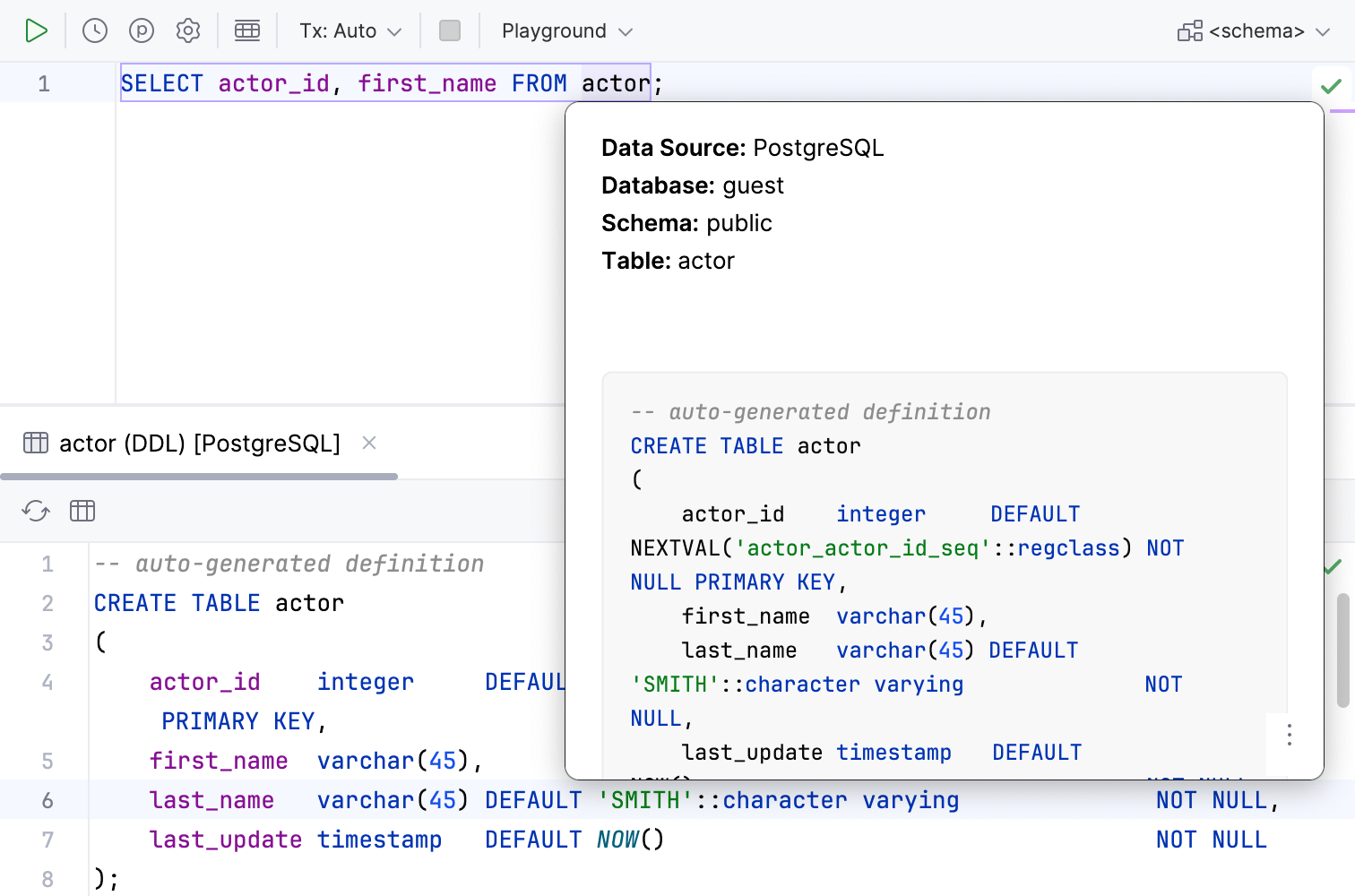
In the IDE code editor, you can preview the structure of tables you have in your SQL statements by using the Quick Documentation feature.
To preview a table structure in an SQL statement, select the table and press Ctrl+Q.
The Quick Documentation popup that appears contains the CREATE DDL script among other information about the table.
For more information about the feature, refer to Quick Documentation.
View history of executed statements
Use the Query History dialog
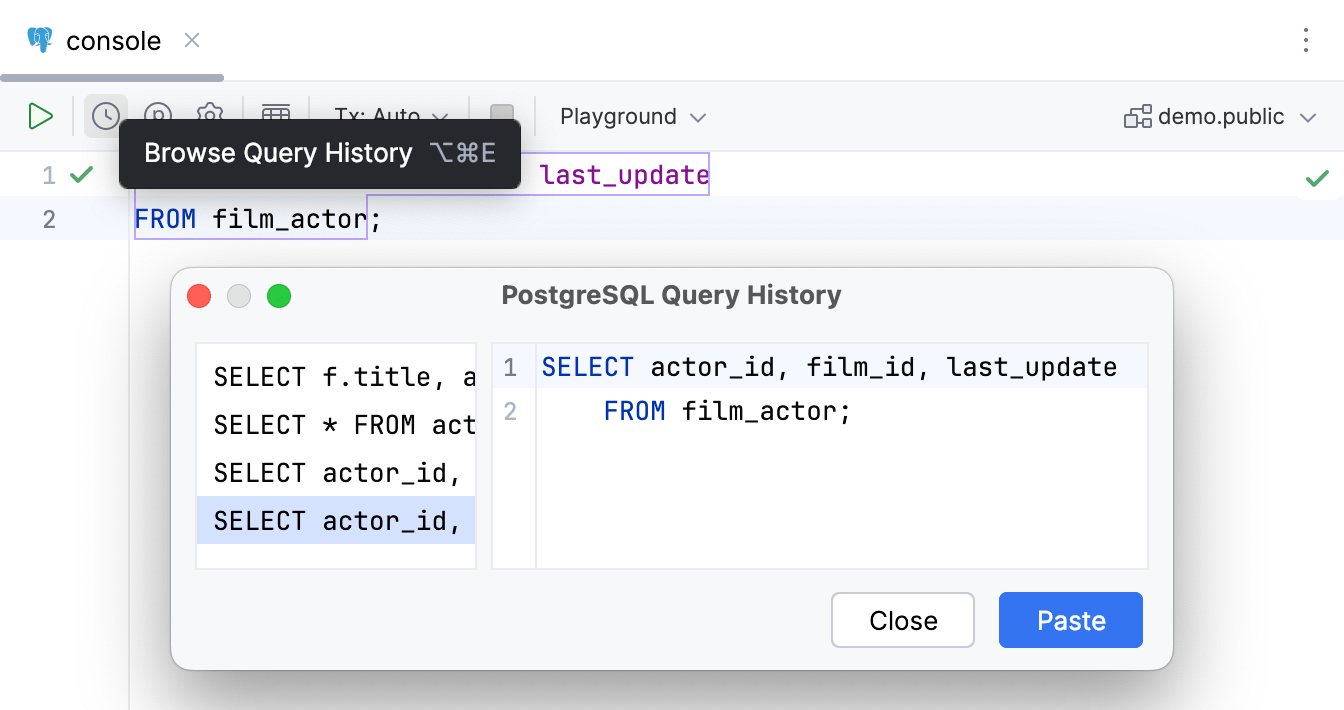
PhpStorm stores history of all statements that you have run in a query console.
To open the Query History dialog, the Browse Query History button (
 ) on the toolbar, or press Ctrl+Alt+E.
In the Query History dialog, you can perform the following operations:
To filter information, start typing your search query.
To paste the query from the Query History dialog to the query console, double-click the query in the left pane of the Query History dialog.
To delete a record from history, select the record and press Delete.
View results
Usually, when you run a query, you receive results in a table format. PhpStorm displays the results in a data editor. By default, for each statement, the data editor with results appears in a separate tab in the Services tool window.
For more information about viewing query results, refer to Query results.