Quick start guide
PyCharm is a dedicated Python Integrated Development Environment (IDE) providing a wide range of essential tools for Python developers, tightly integrated to create a convenient environment for productive Python, web, and data science development.
Learn more about PyCharm's features
Previously, PyCharm was available in two editions: Community and Professional.
Starting with PyCharm 2025.1, PyCharm Community and Professional are combined into a single, unified product: PyCharm. With this change, all users will have access to essential features without the need to switch between editions.
PyCharm's core functionality, including Jupyter Notebook support, will be free, and a Pro subscription will be available with additional features.
When you install unified PyCharm, you will automatically receive a 30-day free Pro trial, granting you full access to PyCharm’s advanced features.
After the trial, you may either:
Get a Pro subscription to continue using advanced functionality.
Keep using PyCharm’s core features for free.
If you are already using PyCharm Professional, you will retain full access to all Pro features with your existing license—no changes are required.
For more information, refer to Unified PyCharm overview.
Supported languages
To start developing in Python with PyCharm, you need to download and install Python from python.org depending on your platform.
PyCharm supports the following versions of Python:
Python 2: version 2.7
Python 3: from the version 3.9 up to the version 3.15
Besides, in the Pro mode, one can develop Django , Flask, and Pyramid applications. Also, it fully supports HTML (including HTML5), CSS, JavaScript, and XML: these languages are bundled in the IDE via plugins and are switched on for you by default. Support for the other languages and frameworks can also be added via plugins (go to or for macOS users, to find out more or set them up during the first IDE launch).
Hardware
CPU | CPU with x86_64 or arm64 architecture and 4 cores |
|---|---|
RAM | 8 GB of total RAM; 3 GB available for the IDE processes |
Disk space | 10 GB |
Display resolution | 1280 x 720 |
Operating systems
Windows | 10, 11 |
|---|---|
macOS | 15, 26 |
Linux | Distributions:
Desktop environments:
|
Start with a project in PyCharm
Everything you do in PyCharm, you do within the context of a project. It serves as a basis for coding assistance, bulk refactoring, coding style consistency, and so on. You have several options to start working on a project inside the IDE:
You can also create a Python file or Jupyter notebook without setting up a project:
On the Welcome screen, click the  Notebook button, if you want to create a Jupyter notebook or the
  Script button if you want to create a Python file.
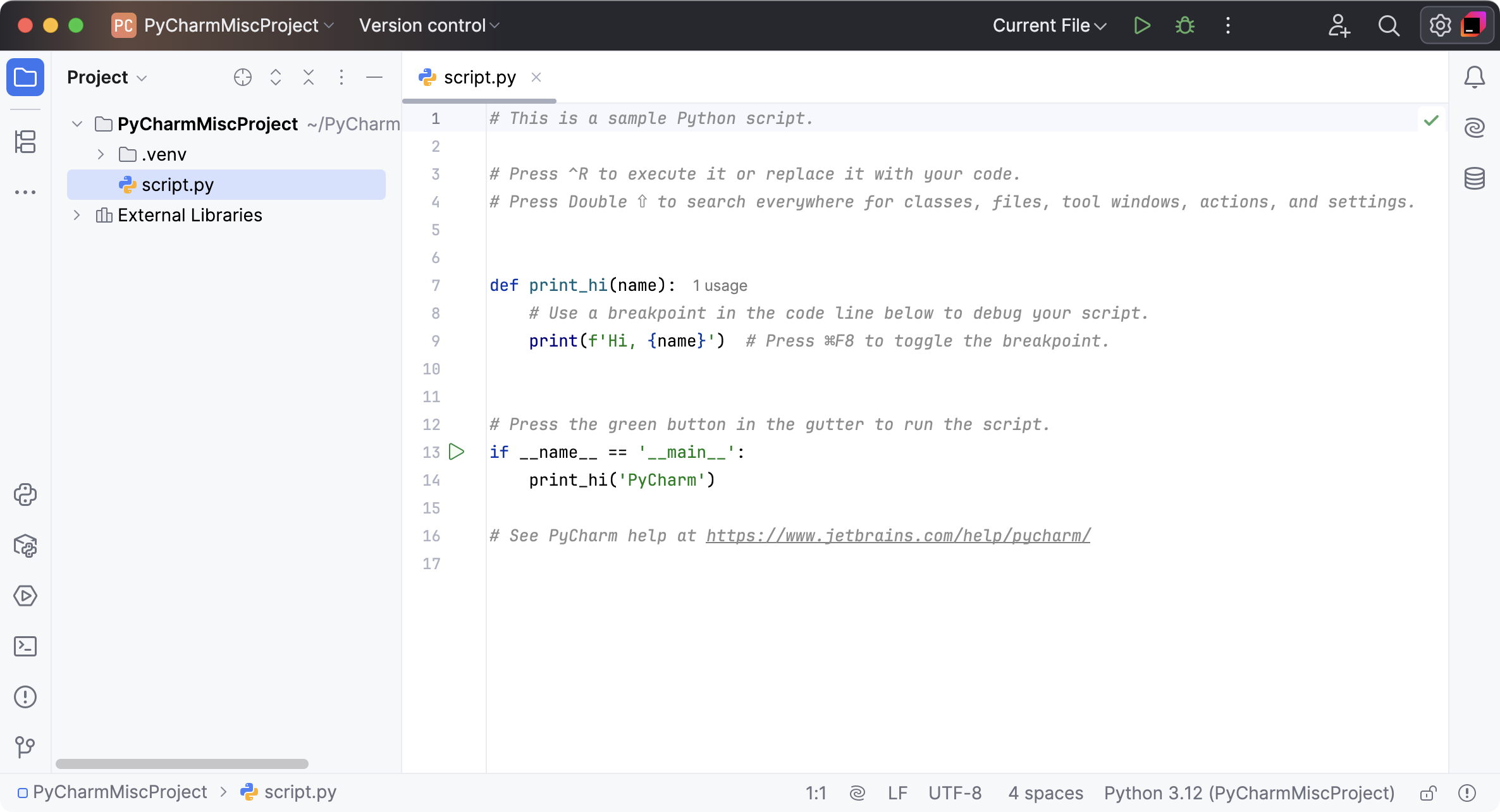
The new file will be added to the automatically created PyCharmMiscProject, and you will be able to write and execute code without additional steps.
Open an existing project
Begin by opening one of your existing projects stored on your computer. You can select one in the list of the recent projects on the left pane of the Welcome screen or click Open.
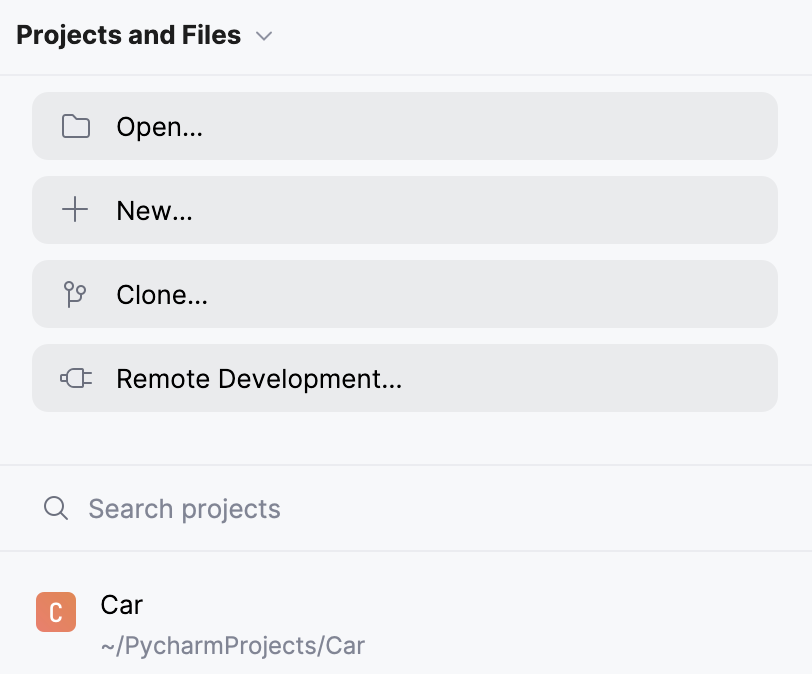
Otherwise, you can create a project for your existing source files. Select the command Open on the menu, and specify the directory where the sources exist. PyCharm will then create a project from your sources for you. For more information, refer to Create a project from existing sources.
Check out an existing project from Version Control
You can also download sources from a VCS storage or repository. On the Welcome screen, click Get from VCS, and then choose Git (GitHub), Mercurial, Subversion, or Perforce (supported in PyCharm Pro only) .
Then, enter a path to the sources and clone the repository to the local host:
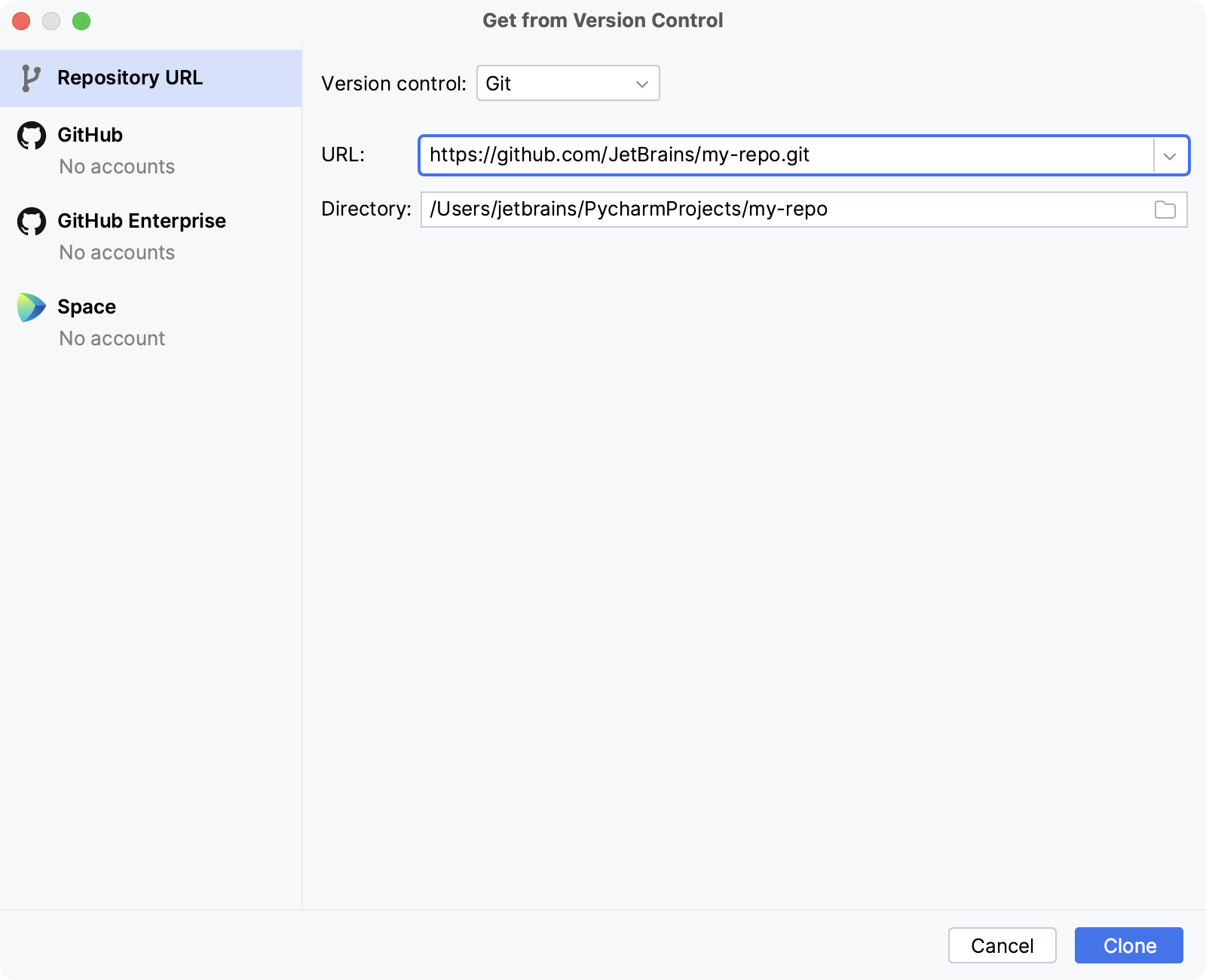
For more information, refer to Version control.
Create a new project
To create a project, do one of the following:
Go to
On the left pane of the Welcome screen, click
 New...
In PyCharm, you can create only Python projects, whereas, with PyCharm Pro, you have a variety of options to create a web framework project.
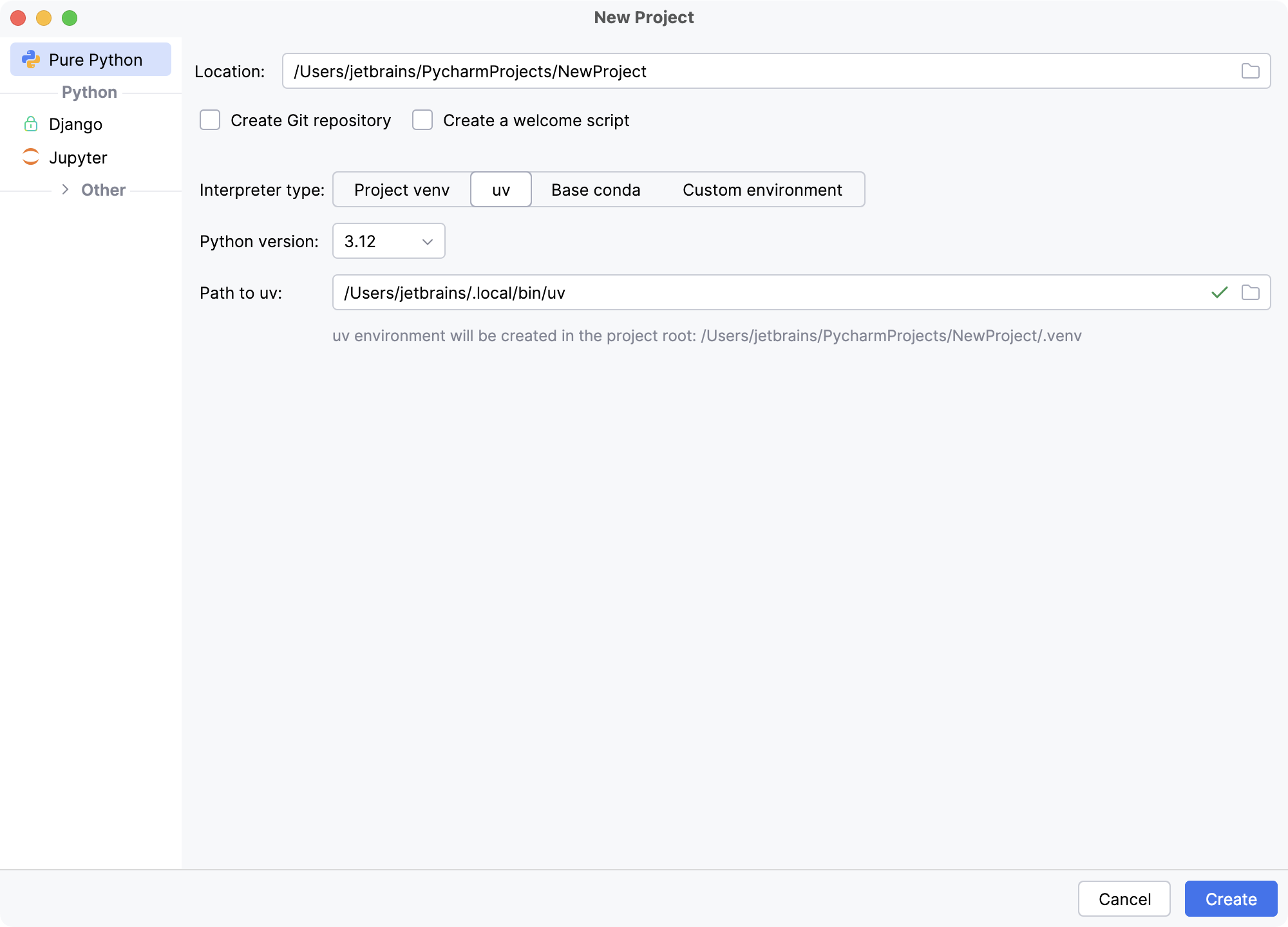
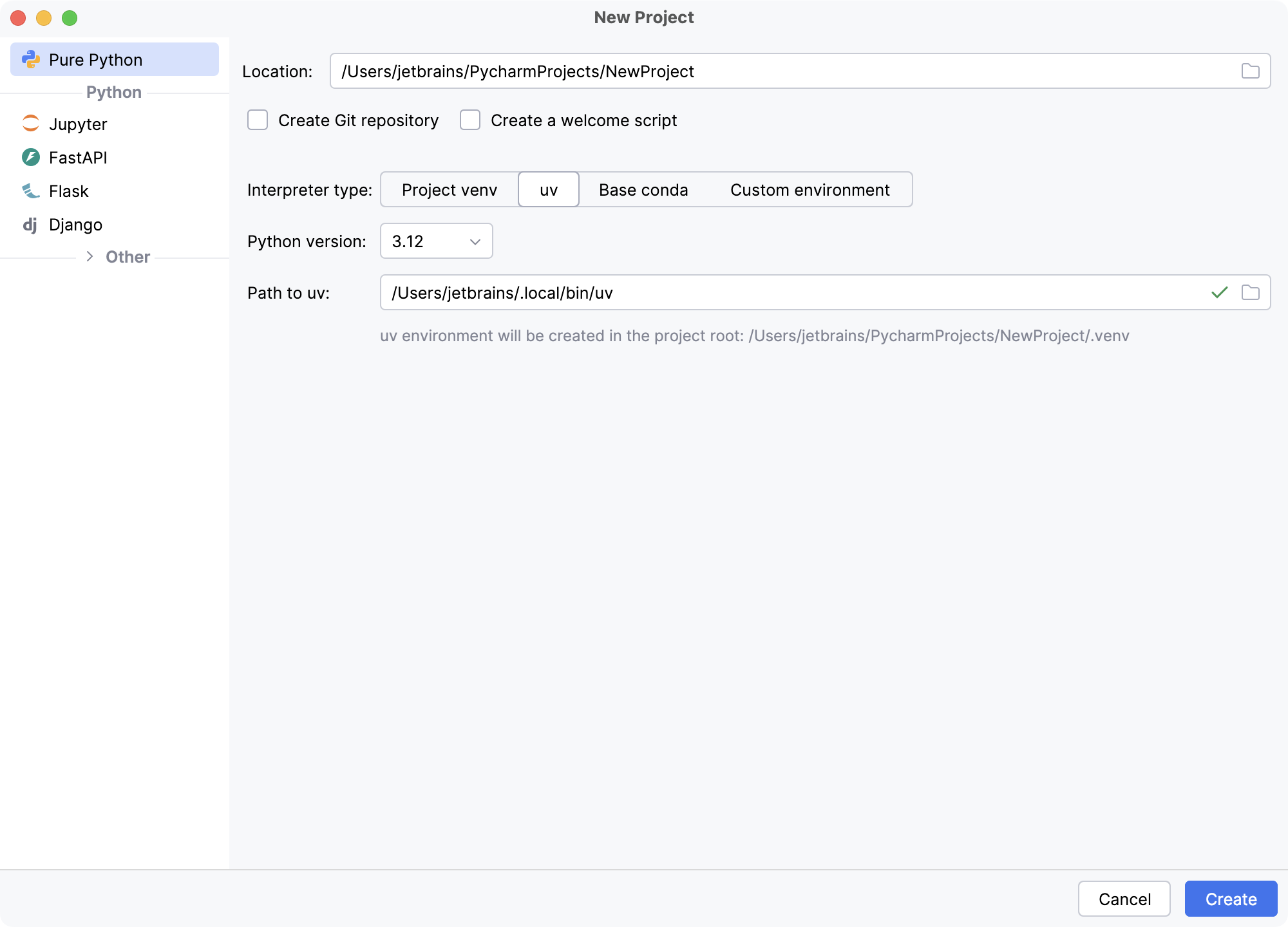
See more details in Create a Python project.
When creating a new project, you need to specify a Python interpreter to execute Python code in your project. You need at least one Python installation to be available on your machine.
For a new project, PyCharm creates an isolated virtual environment: venv, pipenv, poetry, or Conda. As you work, you can change it or create new interpreters. You can also quickly preview packages installed for your interpreters and add new packages in the Python Package tool window.
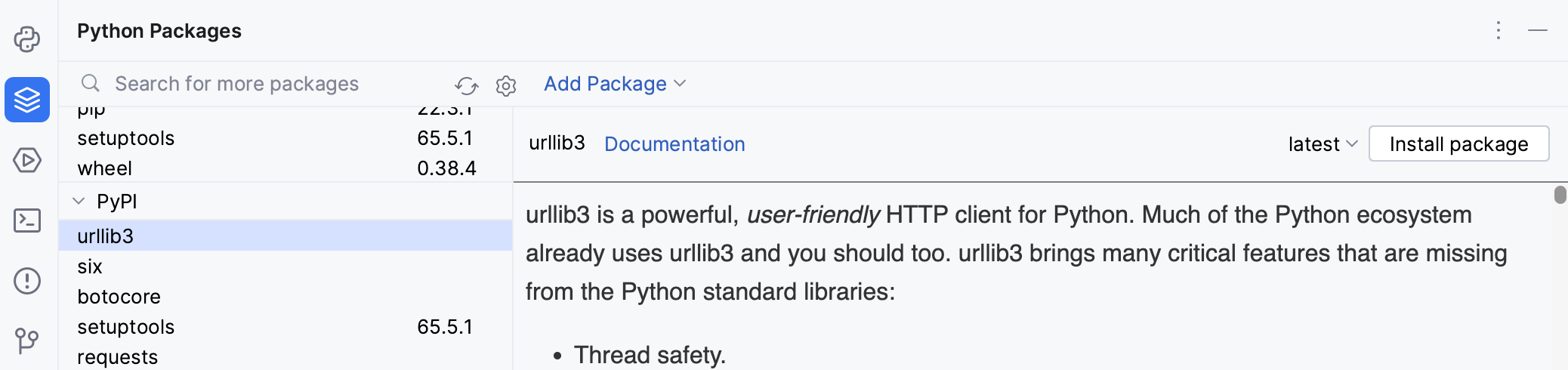
For more information, refer to Configure a Python interpreter.
Look around
When you launch PyCharm for the first time, or when there are no open projects, you see the Welcome screen. It gives you the main entry points into the IDE: creating or opening a project, checking out a project from version control, viewing documentation, and configuring the IDE.
When a project is opened, you see the main window divided into several logical areas. Let’s take a moment to see the key UI elements here:
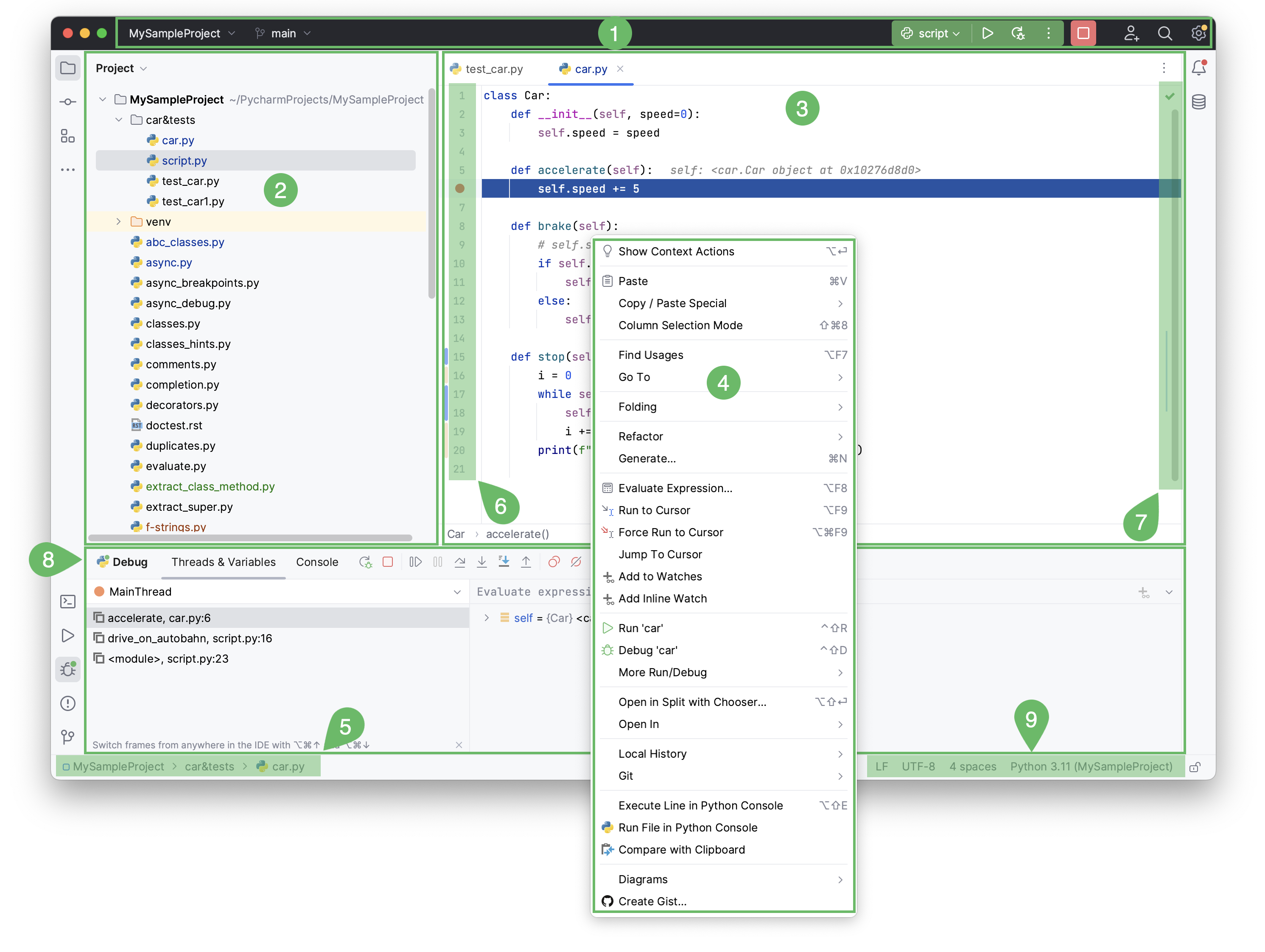
Window header contains a set of widgets which provide quick access to the most popular actions: project widget, VCS widget, and run widget. It also allows you to open Code With Me, Search Everywhere, and Settings.
Project tool window on the left side displays your project files.
Editor on the right side, where you actually write your code. It has tabs for easy navigation between open files.
Context menus open when you right-click an element of the interface or a code fragment and show the actions available.
Navigation bar allows you to quickly navigate the project folders and files.
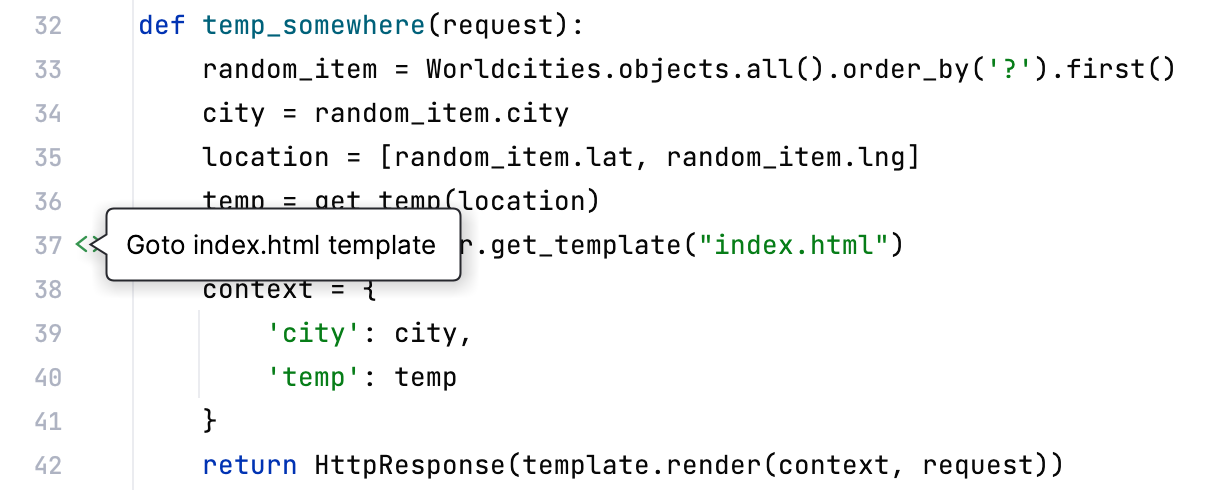
Gutter, the vertical stripe next to the editor, shows the breakpoints you have, and provides a convenient way to navigate through the code hierarchy like going to definition/declaration. It also shows line numbers and per-line VCS history.
Scrollbar, on the right side of the editor. PyCharm constantly monitors the quality of your code by running code inspections. The indicator in the top right-hand corner shows the overall status of code inspections for the entire file.
Tool windows are specialized windows attached to the bottom and the sides of the workspace. They provide access to typical tasks such as project management, source code search and navigation, integration with version control systems, running, testing, debugging, and so on.
The status bar indicates the status of your project and the entire IDE and shows various warnings and information messages like file encoding, line separator, inspection profile, and so on. It also provides quick access to the Python interpreter settings.
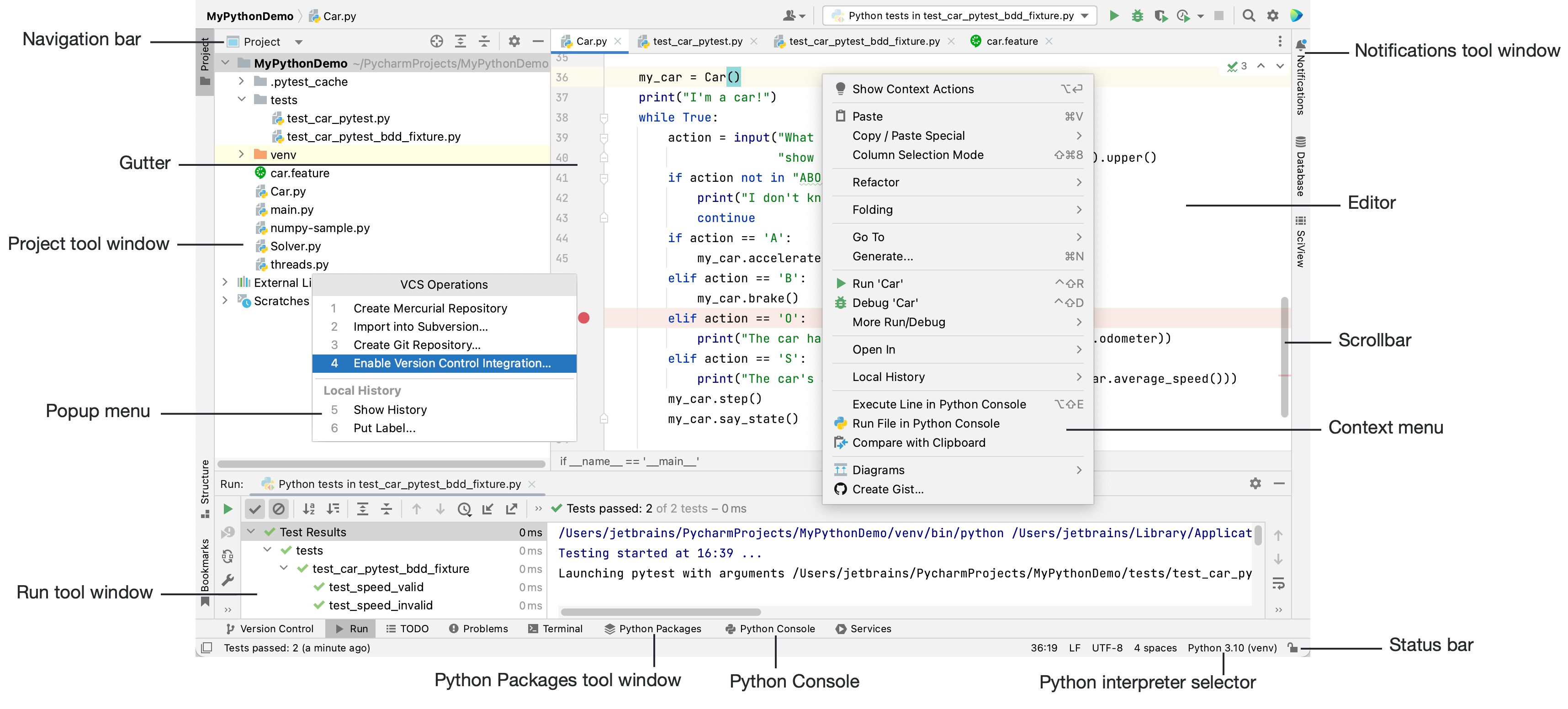
Project tool window on the left side displays your project files.
Editor on the right side, where you actually write your code. It has tabs for easy navigation between open files.
Navigation bar allows you to quickly navigate the project folders and files.
Gutter, the vertical stripe next to the editor, shows the breakpoints you have, and provides a convenient way to navigate through the code hierarchy like going to definition/declaration. It also shows line numbers and per-line VCS history.
Scrollbar, on the right side of the editor. PyCharm constantly monitors the quality of your code by running code inspections. The indicator in the top right-hand corner shows the overall status of code inspections for the entire file.
Tool windows are specialized windows attached to the bottom and the sides of the workspace. They provide access to typical tasks such as project management, source code search and navigation, integration with version control systems, running, testing, debugging, and so on.
The status bar indicates the status of your project and the entire IDE, and shows various warnings and information messages like file encoding, line separator, inspection profile, and so on. It also provides quick access to the Python interpreter settings.
Also, in the bottom-left corner of the PyCharm window, in the Status bar, you see the button  or
or  . This button toggles the showing of the tool window bars. If you hover over this button, the list of the currently available tool windows shows up.
Code with smart assistance
When you have created a new project or opened an existing one, it is time to start coding.
Create a Python file
In the Project tool window, select the project root (typically, it is the root node in the project tree), right-click it, and select .
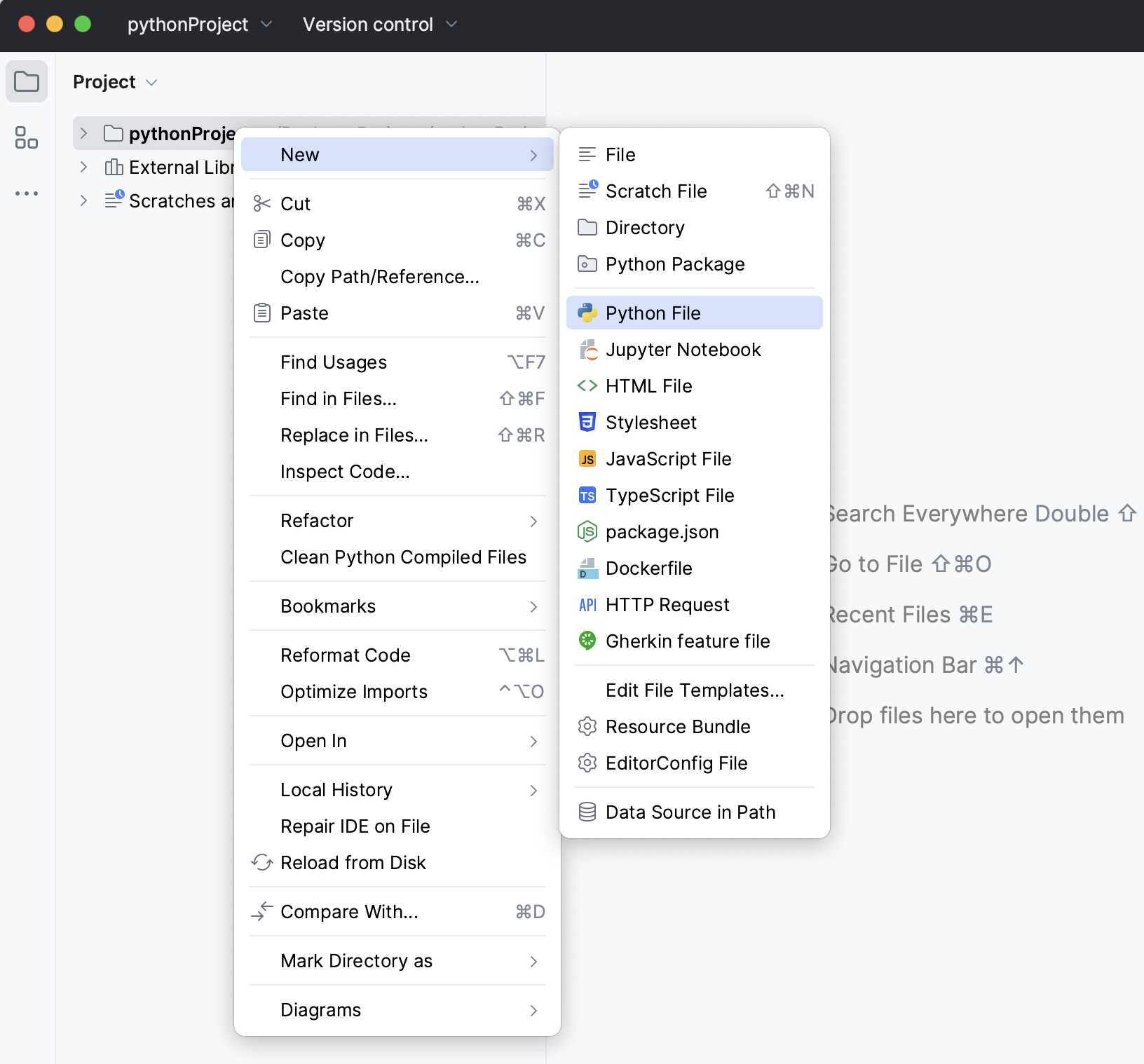
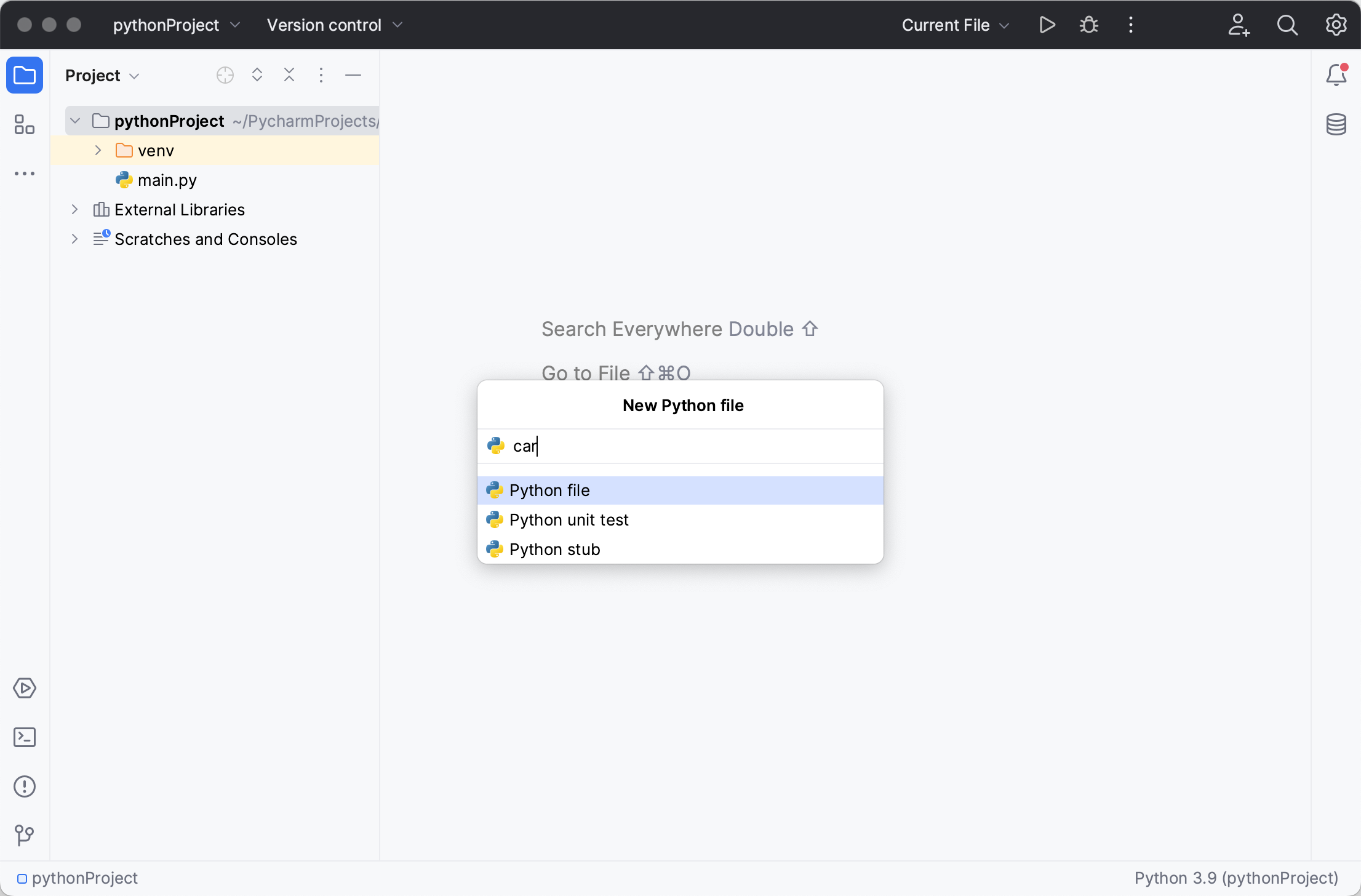
Select the option Python File from the context menu, and then type the new filename.
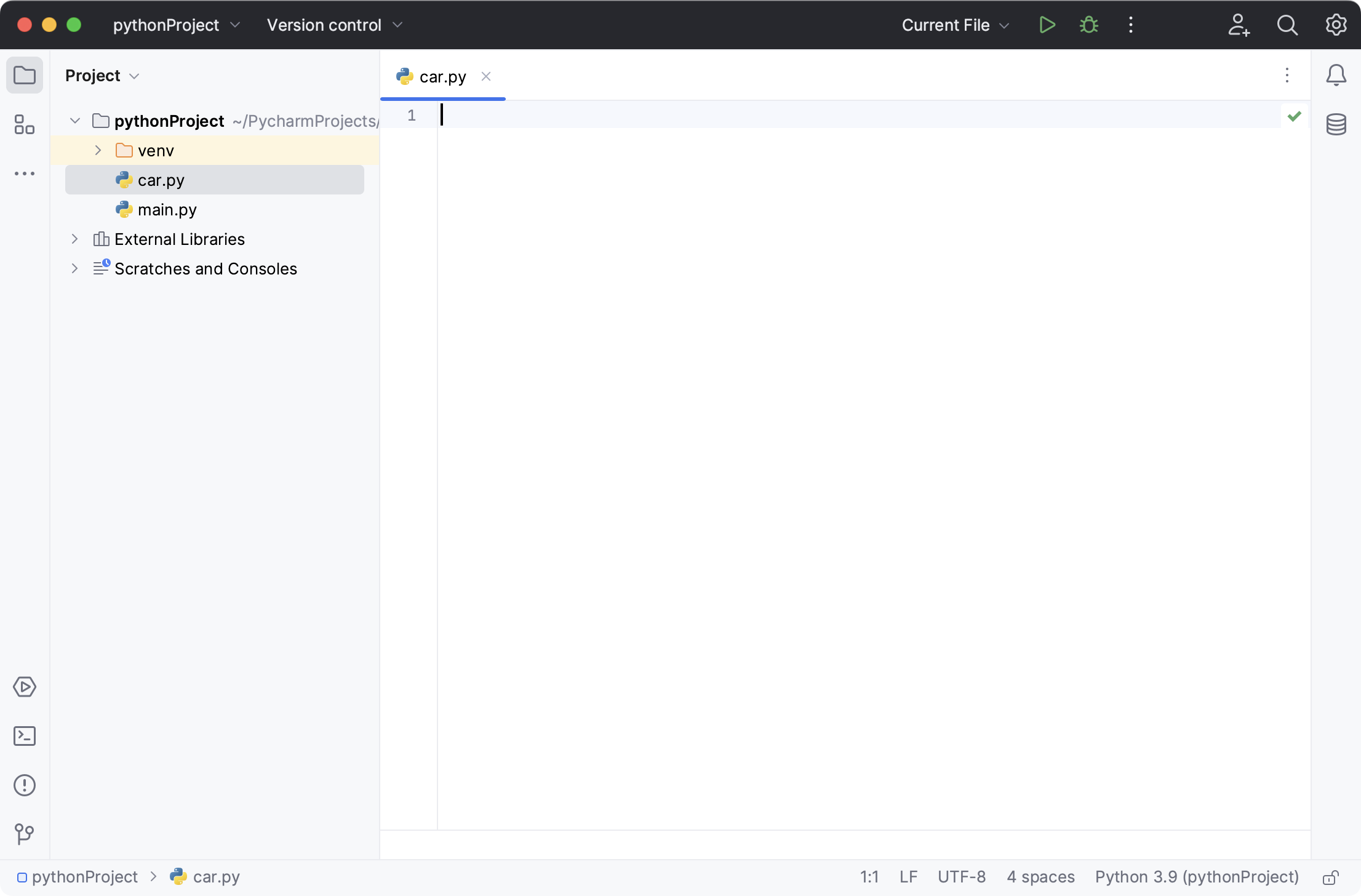
PyCharm creates a new Python file and opens it for editing.
PyCharm takes care of the routine so that you can focus on the important. Use the following coding capabilities to create error-free applications without wasting precious time.
Code completion
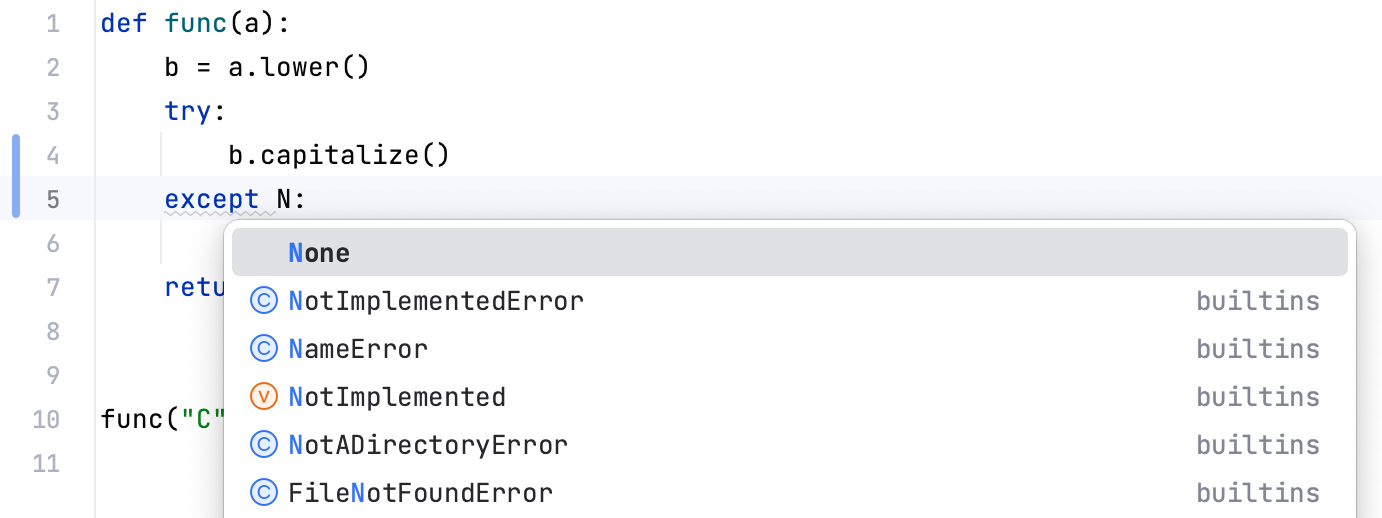
Code completion is a great time-saver, regardless of the type of file you’re working with.
Basic completion works as you type and completes any name instantly.
Smart type-matching completion analyzes the context you’re currently working in and offers more accurate suggestions based on that analysis.
Intention actions
PyCharm keeps an eye on what you are currently doing and makes smart suggestions, called intention actions, to save more of your time. Indicated with a lightbulb, intention actions let you apply automatic changes to code that is correct (in contrast to code inspections that provide quick-fixes for code that may be incorrect). Did you forget to add some parameters and field initializers to the constructor? Not a problem with PyCharm. Click the lightbulb (or press Alt+Enter) and select one of the suggested options:
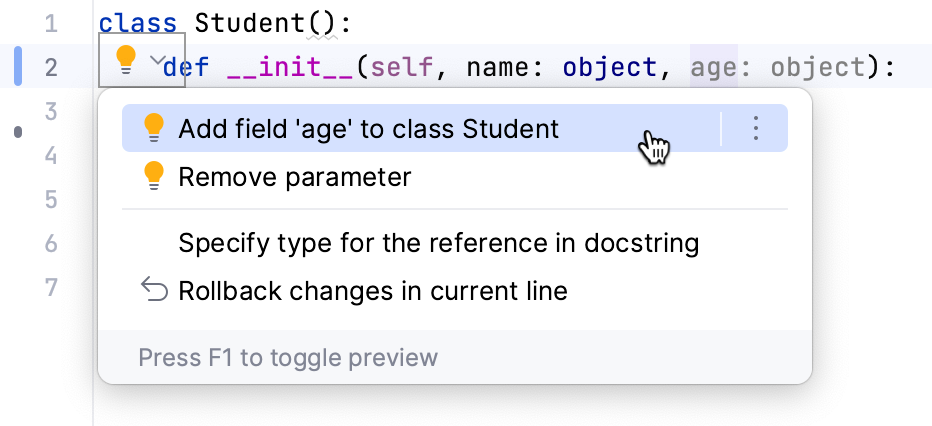
The full list of available intention actions can be found in or for macOS users.
Keep your code neat
PyCharm monitors your code and tries to keep it accurate and clean. It detects potential errors and problems and suggests quick-fixes for them.
Every time the IDE finds unused code, an endless loop, and many other things that likely require your attention, you’ll see a lightbulb. Click it, or press Alt+Enter, to apply a fix.
The complete list of available inspections can be found under (or for macOS users). Disable some of them, or enable others, plus adjust the severity of each inspection. You decide whether it should be considered an error or just a warning.
Generate some code
Writing code can be a lot easier and quicker when you use the code generation options available in PyCharm. The menu Alt+Insert will help you with creating symbols from usage, as well as suggest overriding or implementing some functions:
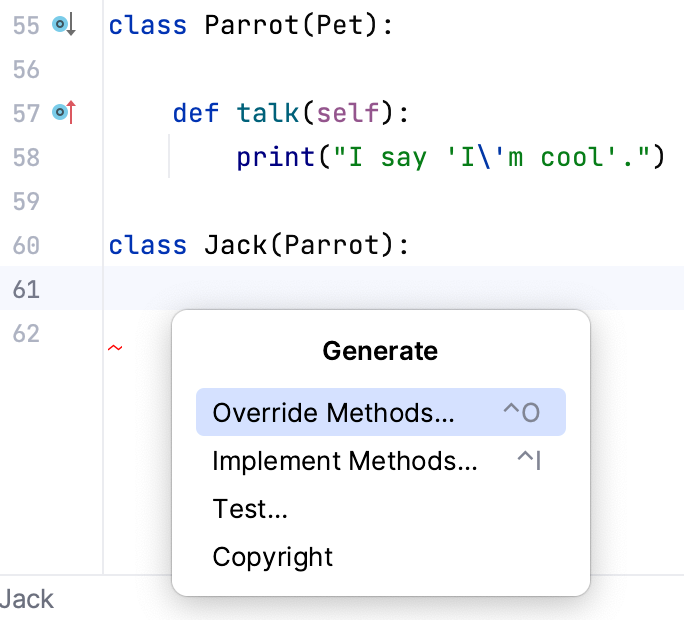
Use live templates (choose or press Ctrl+J) to produce the entire code constructs. You can explore the available ready-to-use live templates In the Settings dialog (Ctrl+Alt+S) (Settings | Editor | Live templates or if you are a macOS user).
If you see that you are lacking something especially important for your development, extend this set of templates with your own. Also, consider quickly surrounding your code with complete constructs (choose or press Ctrl+Alt+T. For example, with an if statement:
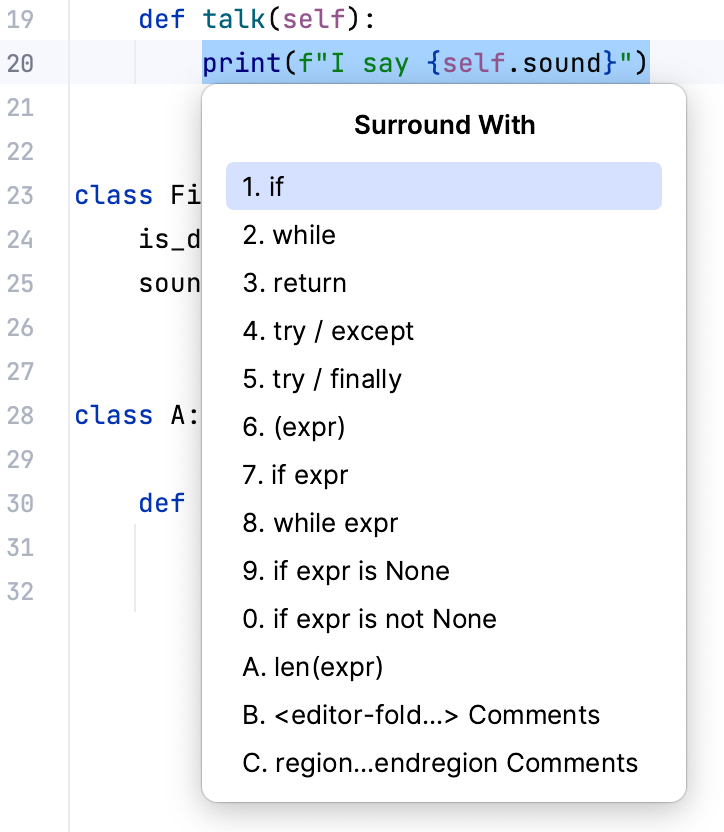
Find your way through
When your project is big, or when you have to work with someone else’s code, it’s vital to be able to quickly find what you are looking for and dig into the code. This is why PyCharm comes with a set of navigation and search features that help you find your way through any code no matter how tangled it is.
Basic search
With these search facilities, you can find and replace any fragment of code both in the currently opened file Ctrl+F, or in an entire project Ctrl+Shift+F.
Search for usages
To find where a particular symbol is used, PyCharm suggests full-scale search via Find Usages Alt+F7:
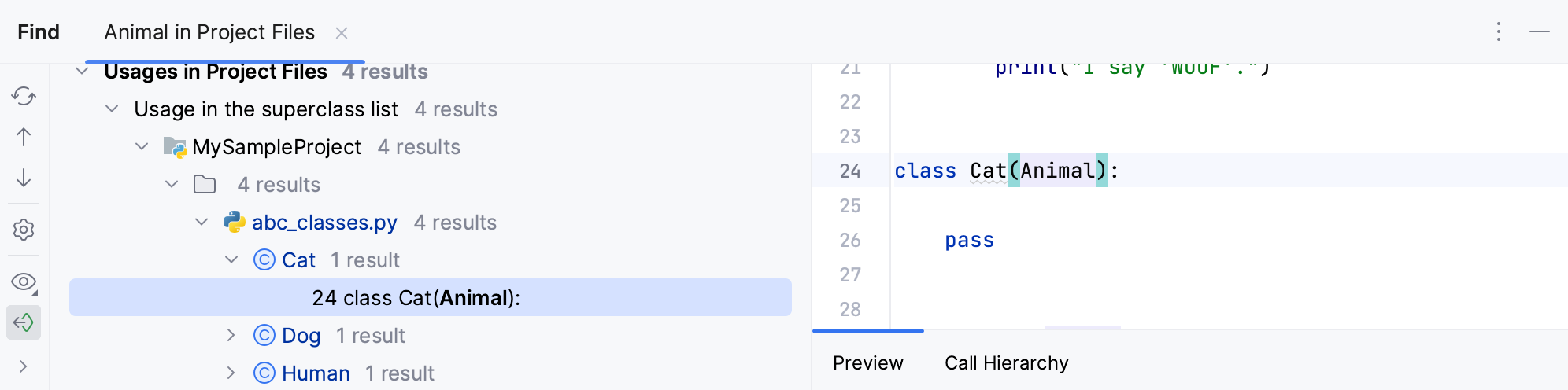
Project navigation
You can tell a lot just looking at your File Structure, with its imports or call hierarchies:
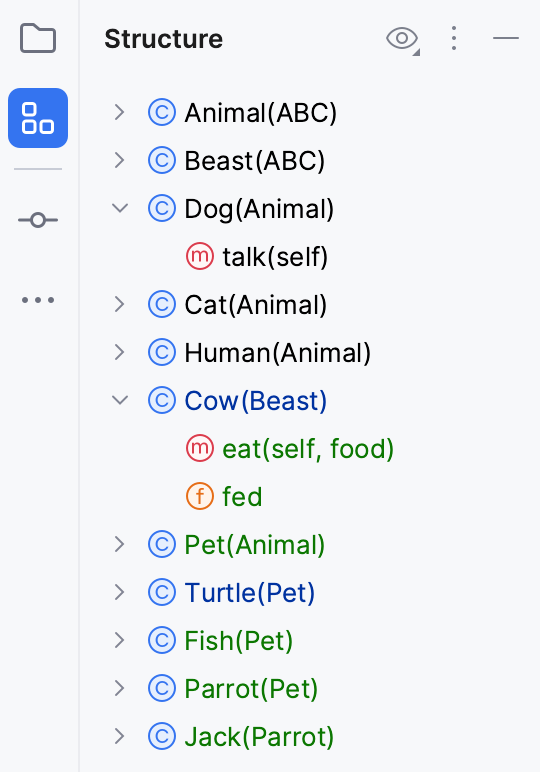
Also, you can navigate to:
The icons in the left-hand gutter can also help you with navigation:
Navigate through the timeline
Remembering all your activity in the project, PyCharm can easily navigate you to the Recent Files Ctrl+E or Recently Changed Files Alt+Shift+C.
To go through the history of changes, use the following actions:
Back Ctrl+Alt+Left
Forward Ctrl+Alt+Right
Last Edit Location Ctrl+Shift+Backspace
Find Action
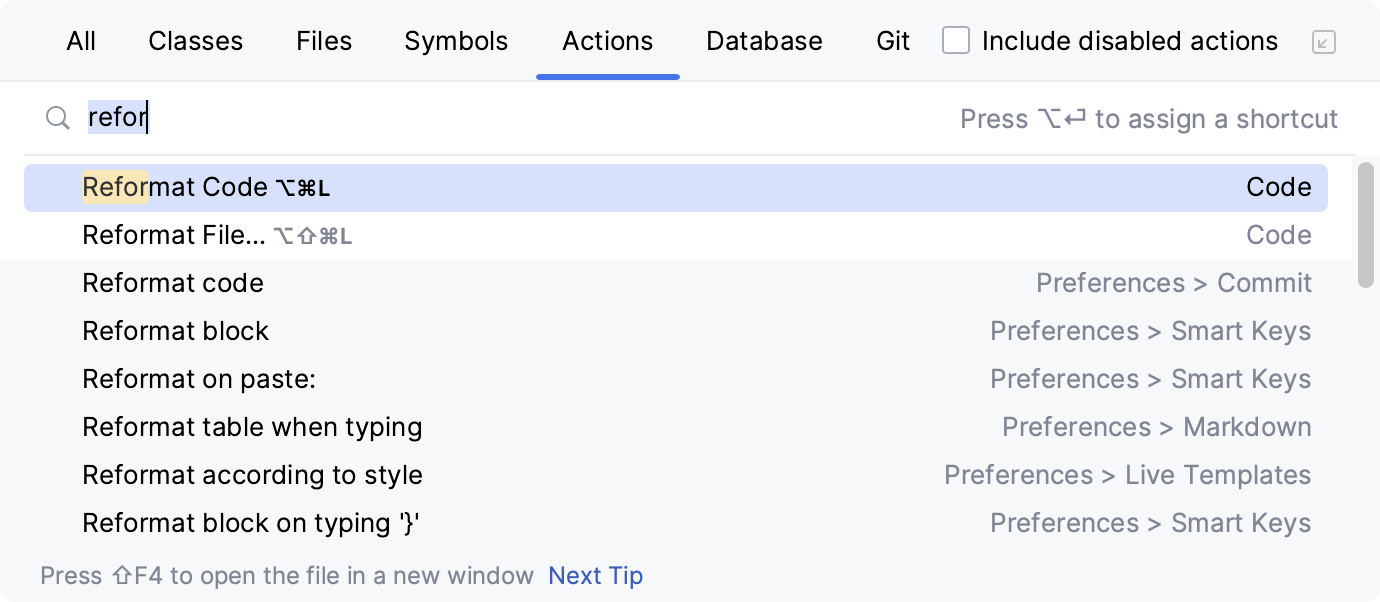
Take advantage of many smart actions possible with PyCharm. For example, use the Find Action search Ctrl+Shift+A: just type a part of the action name, and the IDE will show you the list of all available options. Then, select the action you need:
Search Everywhere
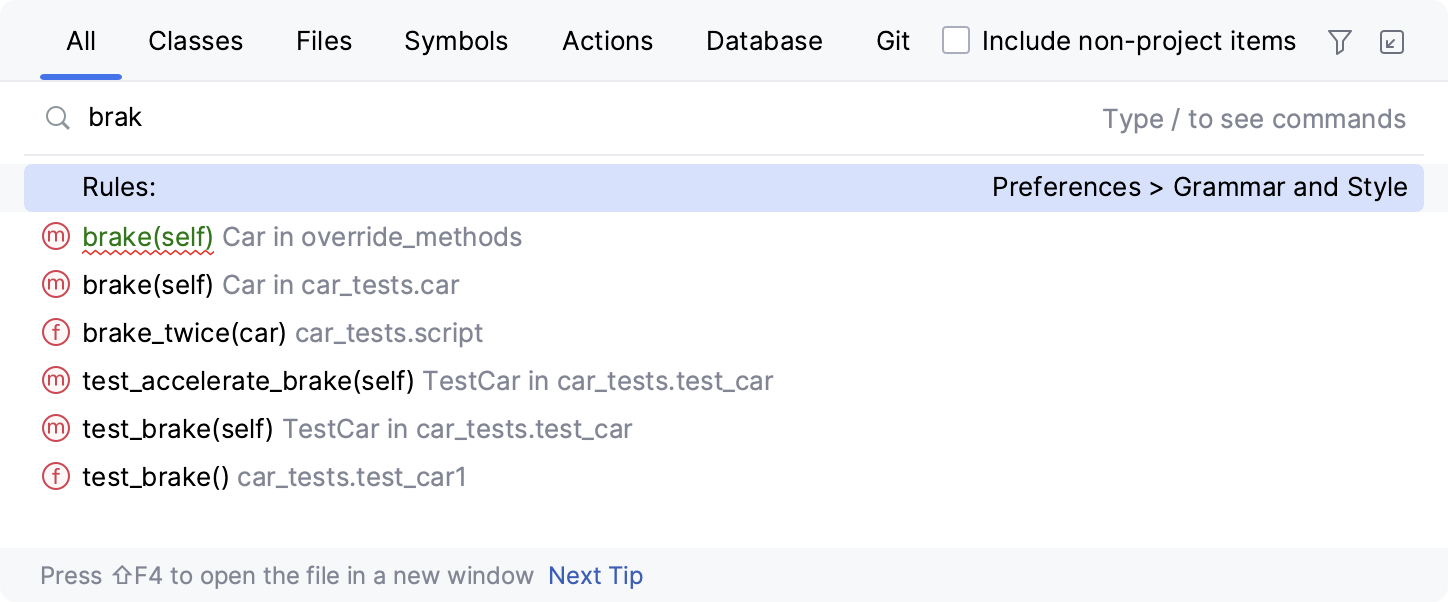
If you have a general idea of what you're looking for, you can always locate the corresponding element using one of the existing navigation features. But what if you want to look for something in every nook and cranny? The answer is to use Search Everywhere!
To try it, click the magnifying glass button in the upper right-hand corner of the window, or invoke it with Double Shift (press Shift twice).
Run, debug and test
Now when you’ve played with the code and discovered what you can do with it, it’s time to run, debug and test your app.
Run
The easiest way to run an application is to right-click in the editor, and then choose from the context menu:
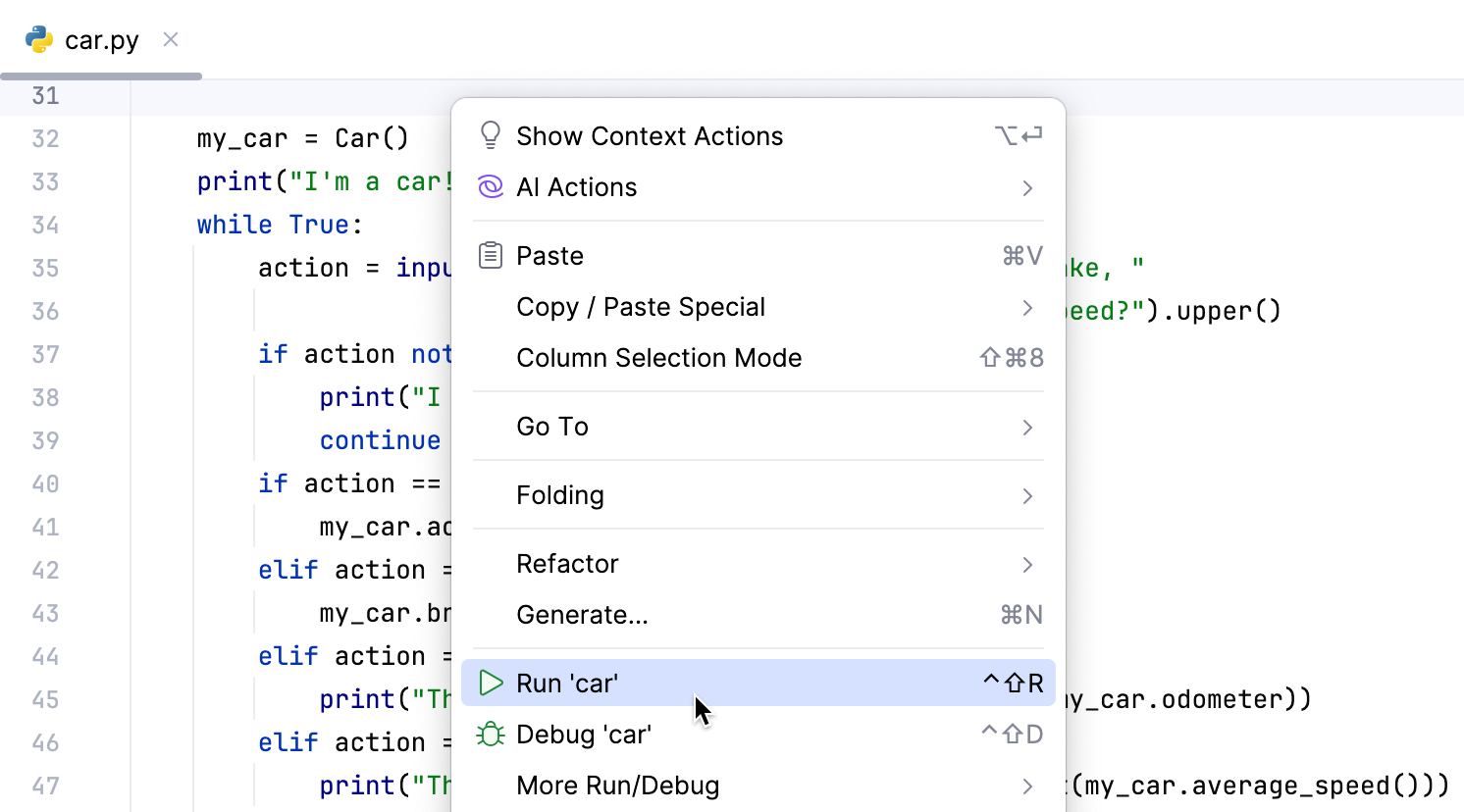
If your Python script contains the __main__ clause, then you can click the  button in the gutter, and then choose the desired command.
You can see the your script execution in the Run tool window.
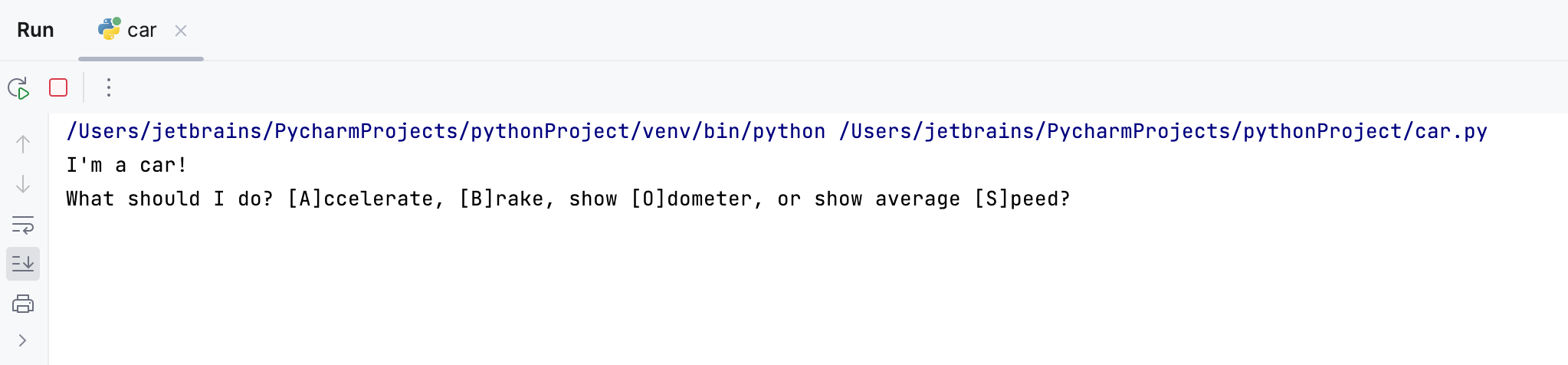
When you perform run, debug, or test operations with PyCharm, you always start a process based on one of the existing run/debug configurations, using its parameters.
When you run your application for the very first time, PyCharm automatically creates the temporary Run/Debug configuration. You can modify it to specify or alter the default parameters and save it as a permanent Run/Debug configuration.
See how to tune run/debug configurations in Run/debug configurations.
Debug
Does your application stumble on a runtime error? To find out what’s causing it, you will have to do some debugging. PyCharm supports the debugger on all platforms.
Debugging starts with placing breakpoints at which program execution will be suspended, so you can explore program data. Just click the gutter of the line where you want the breakpoint to appear.
To start debugging your application, press Shift+F9. Then go through the program execution step by step (see the available options in the menu or the Debug tool window), evaluate any arbitrary expression, add watches, and manually set values for the variables.
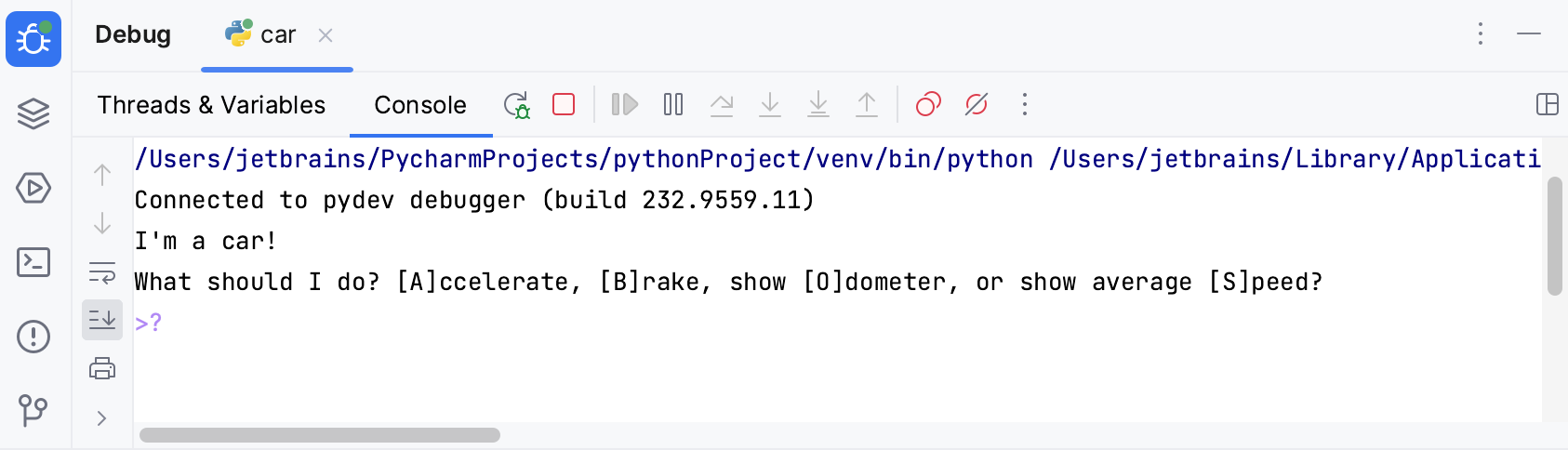
For more information, refer to Debugging.
Test
It is a good idea to test your applications, and PyCharm helps doing it as simple as possible.
With PyCharm, you can:
Create special testing run/debug configurations.
Run and debug tests right from the IDE, using the testing run/debug configurations.
And, finally, the most important thing - you can explore test results in the test runner tab of the Run tool window:
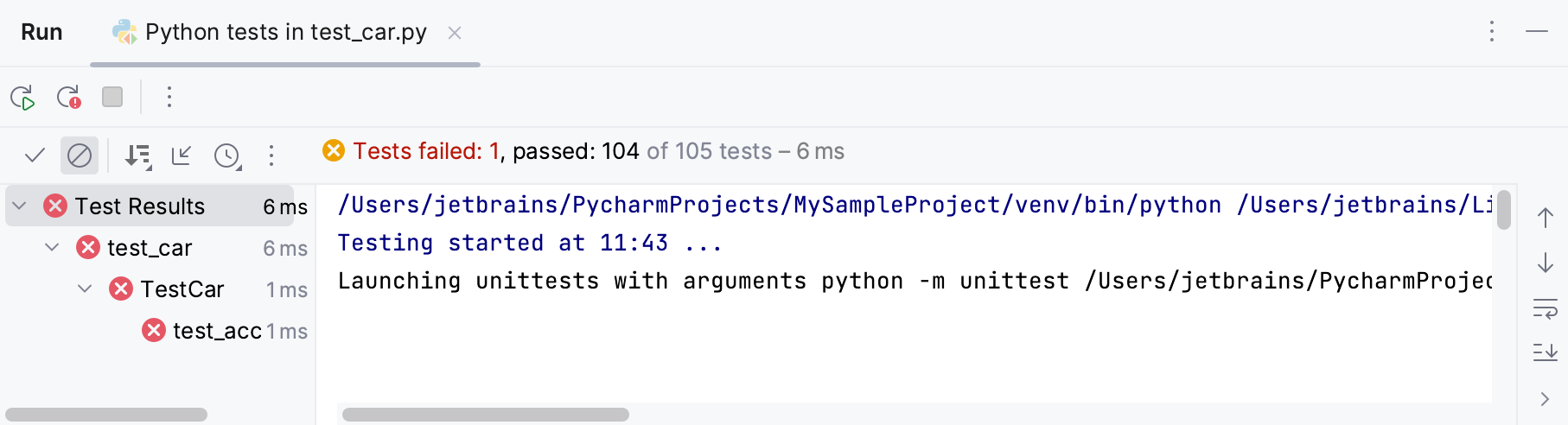
For more information about the numbers, refer to the Test Runner tab section.
PyCharm supports all the major Python testing frameworks:
For each of these frameworks, PyCharm provides its own run/debug configuration.
For more information, refer to Test your first Python application and Run tests.
With PyCharm Pro you can run, debug, and test your Python code remotely. You can deploy your local applications to some remote server. For more information about deployment servers, refer to the section Configuring Synchronization with a Web Server. PyCharm Pro also helps compare local and remote folders, and synchronize the local copy with that deployed on the server.
Keep your source code under Version Control
VCS
If you are keeping your source code under version control, you will be glad to know that PyCharm integrates with many popular version control systems: Git (or GitHub), Mercurial, Perforce (supported in Pro mode only), Subversion. To specify credentials and any settings specific to a particular VCS, go to (or if you are a macOS user).
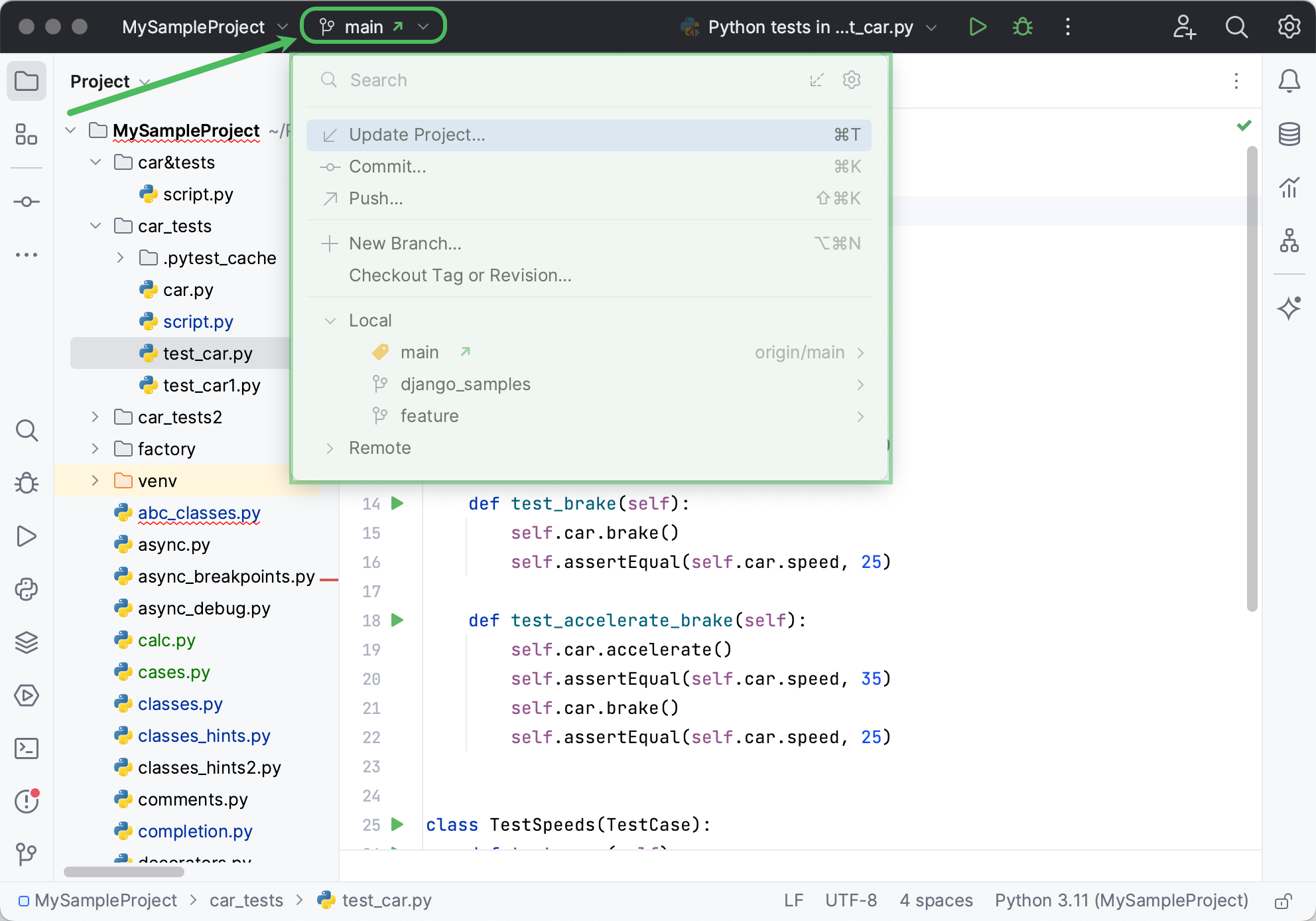
The VCS menu gives you a clue about what commands are available. For example, you can see the changes you’ve made, commit them, create changelists and much more from the Local Changes view: (or just press Alt+9).
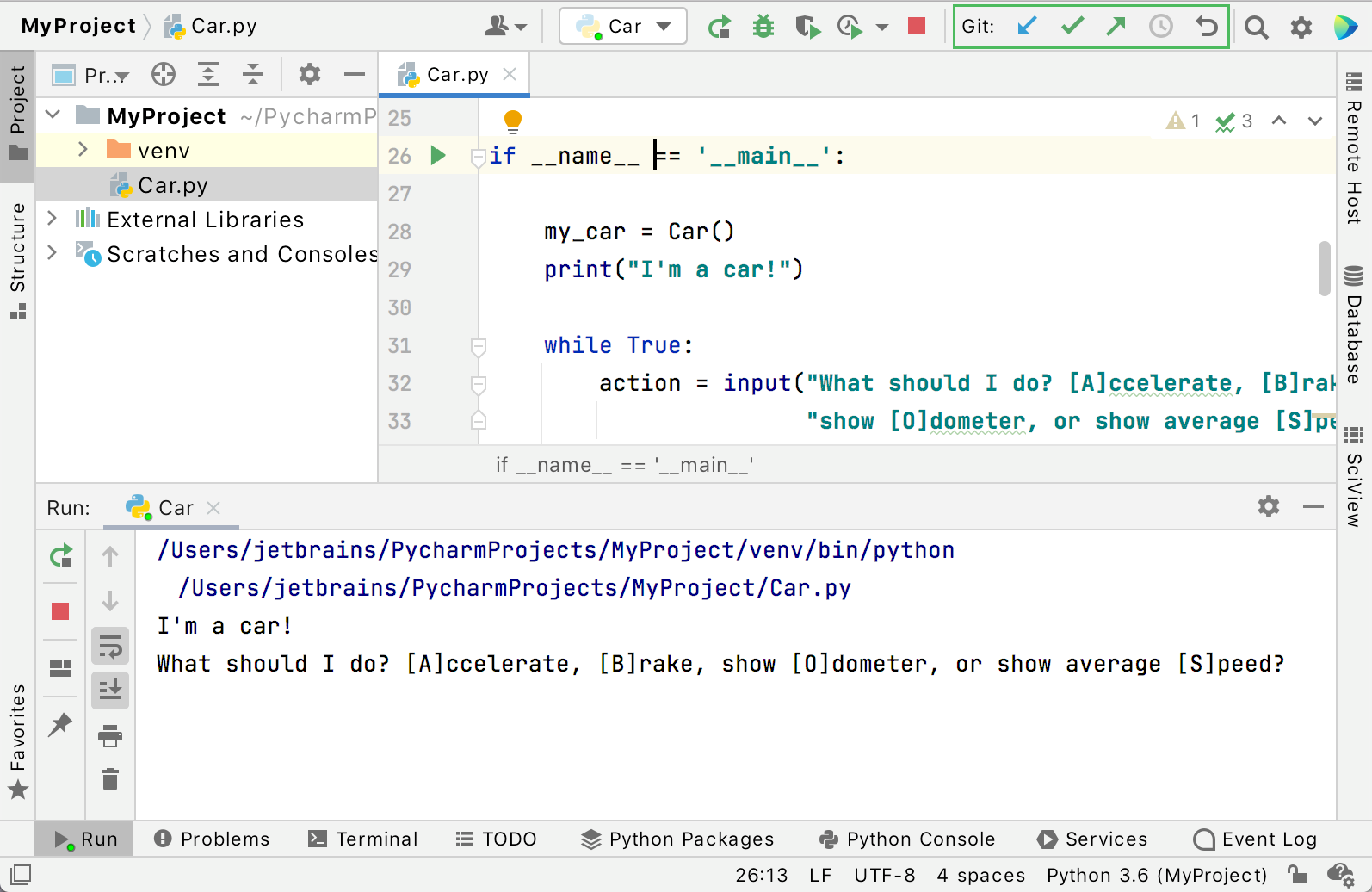
Also, you can perform some basic VCS actions in the main window:
From the VCS widget:
From the Navigation bar above the editor:
For more information, refer to Version control.
Local history
In addition to traditional version control, you can use the local history. With Local History, PyCharm automatically tracks changes you make to the source code, the results of refactoring, and so on
Local history is always enabled. To view it for a file or a folder, bring up Local History by selecting . Here you can review the changes, revert them, or create a patch.
Process data
PyCharm has an interactive Python console to perform smart operations over data with on-the-fly syntax check with inspections, braces and quotes matching, and of course, code completion. You can also benefit from the built-in support for Anaconda.
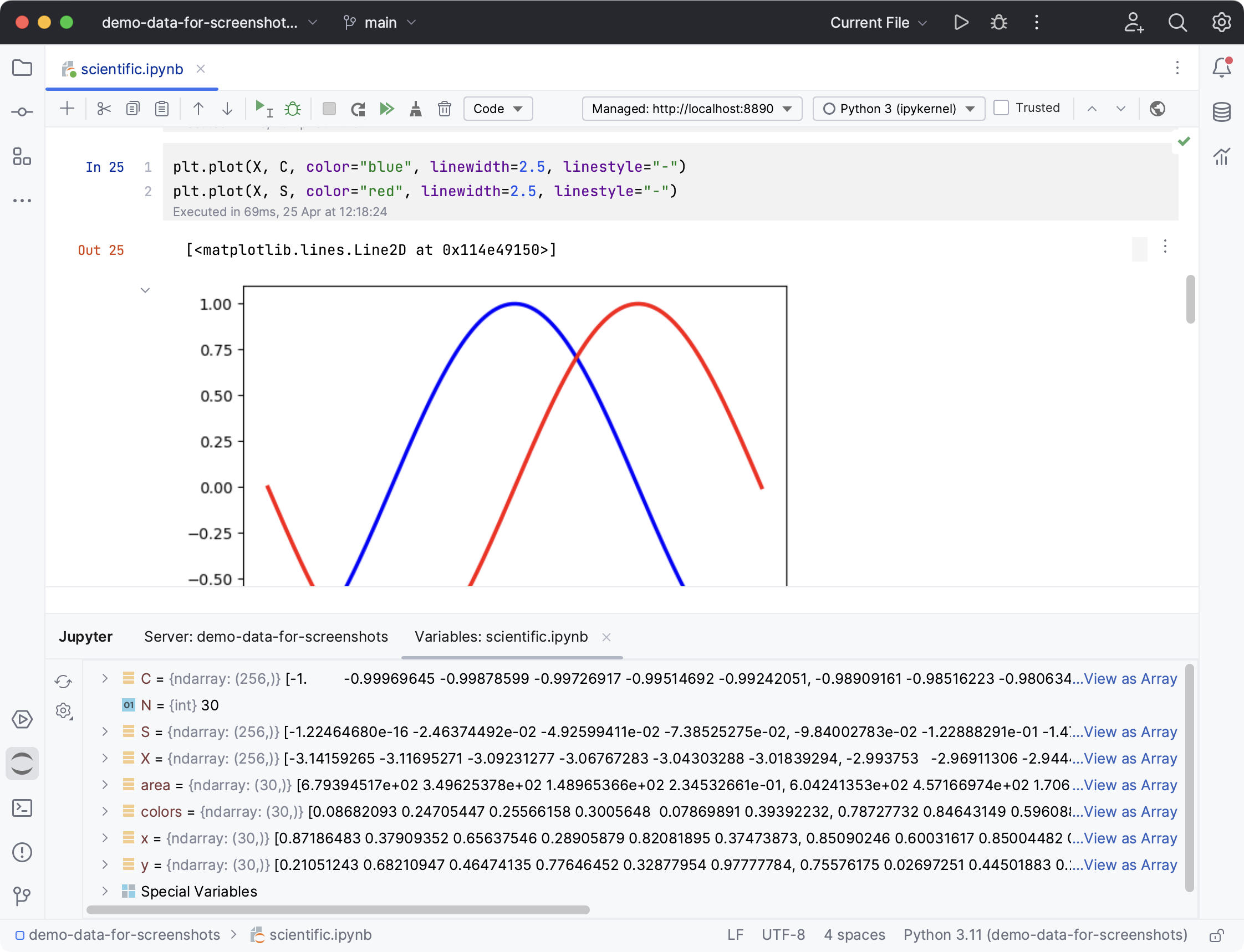
With PyCharm Pro, you can analyze and visualize various scientific and statistical data. Jupyter Notebook integration enables editing, executing, and debugging notebook source code and examining execution outputs, including stream data, images, and other media.
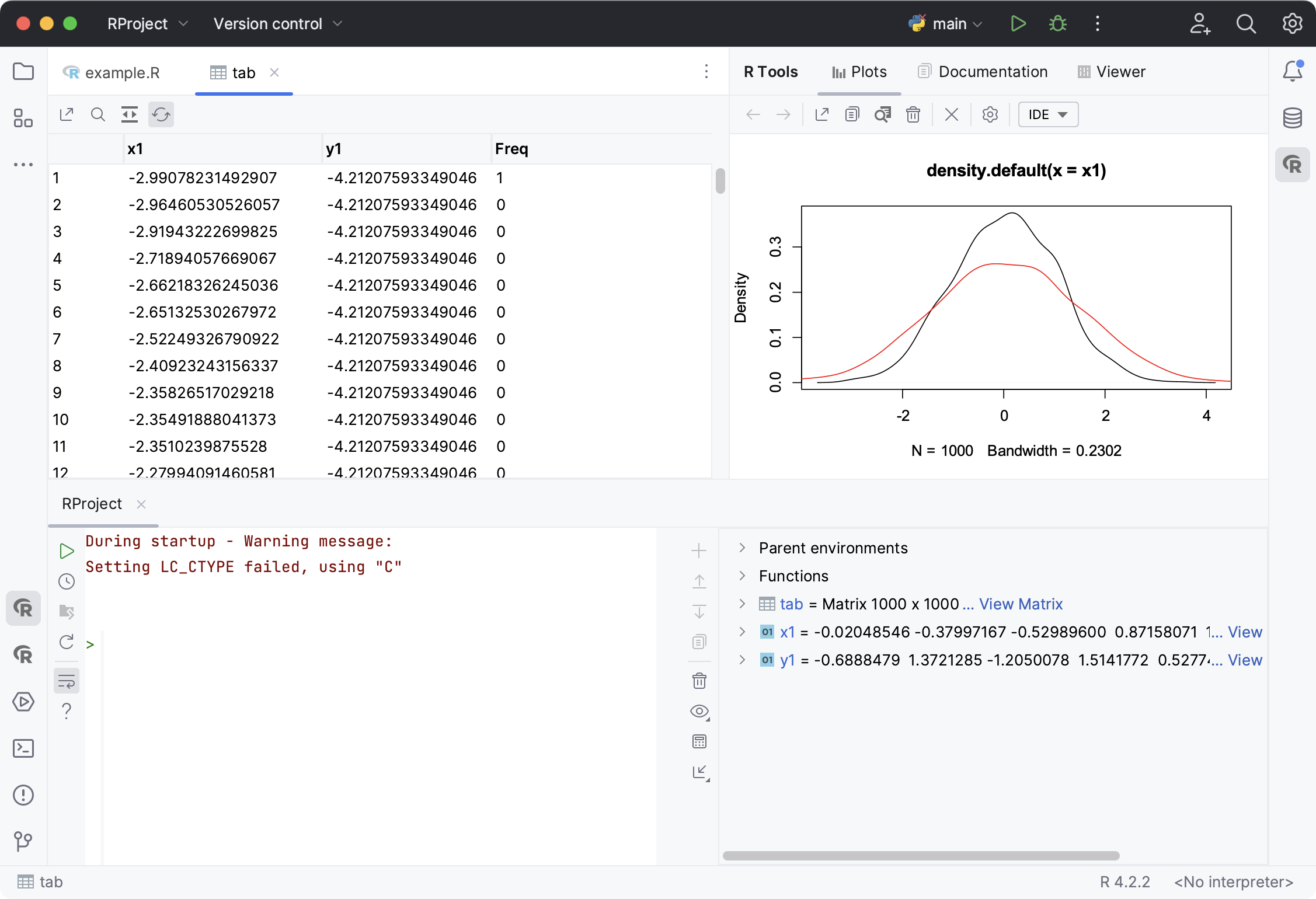
With the R plugin installed in PyCharm, you can perform various statistical computing using R language and use coding assistance, visual debugging, smart running and preview tools, and other popular IDE features.
As you might have noticed already, creating projects of the various types (Django, for example) requires a data source. It is also quite possible that you inject SQL statements into your source code.
PyCharm Pro does not enable you to create databases, but provides facilities to manage and query them. Once you are granted access to a certain database, you can configure one or more data sources within PyCharm that reflect the structure of the database and store the database access credentials. Based on this information, PyCharm establishes a connection to the database and provides the ability to retrieve or change information contained therein.
Access to the databases is provided by the Database window (). This tool window allows you to work with the databases. It lets you view and modify data structures in your databases, and perform other associated tasks.
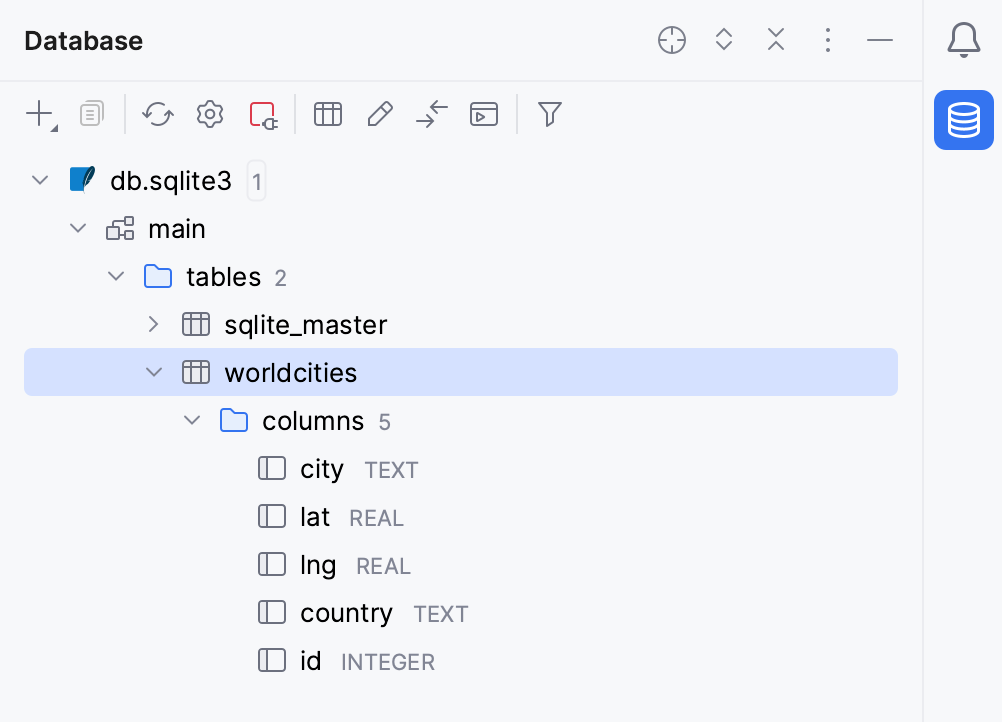
For more information, refer to Database Tools and SQL.
Customize your environment
Feel free to tweak the IDE so it suits your needs perfectly and is as helpful and comfortable as it can be. Go to Settings to see the list of available customization options.
Appearance
The first thing to fine-tune is the general "look and feel." Go to File | Settings | Appearance and Behavior | Appearance ( for macOS users) to select the IDE theme: the light themes or Darcula if you prefer a darker setting.
Editor
The many pages available under File | Settings | Editor ( for macOS users) help you adjust every aspect of the editor’s behavior. A lot of options are available here, from general settings (like Drag'n'Drop enabling, scrolling configuration, and so on.), to color configuration for each available language and use case, to tabs and code folding settings, to code completion behavior and even postfix templates.
For more information, refer to Configuring PyCharm settings.
Code style
Code style can be defined for each language under File | Settings | Editor | Code Style ( for macOS users). You can also create and save your own coding style scheme.
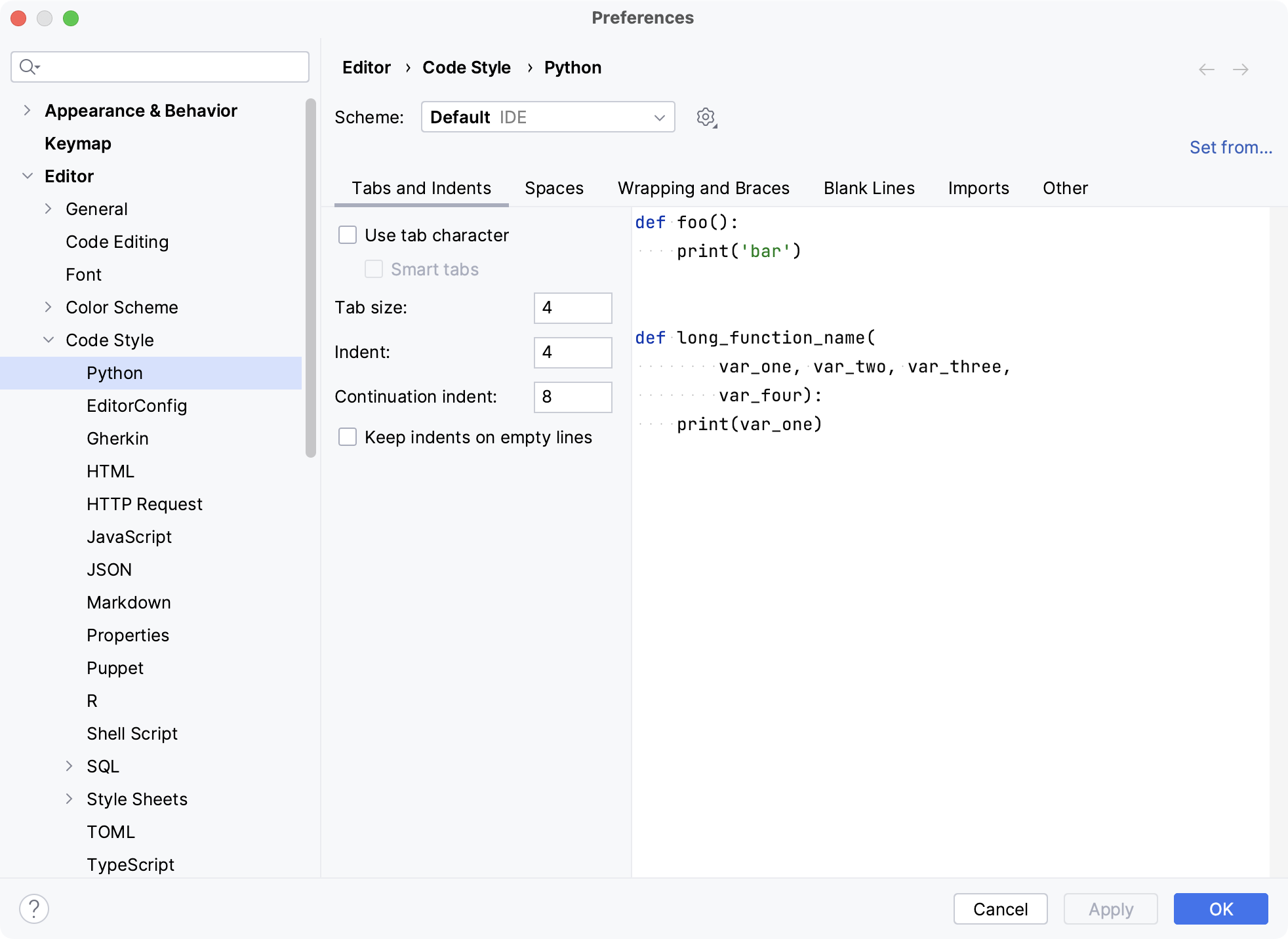
For more information, refer to Configuring code style and Code Quality Assistance Tips and Tricks, or How to Make Your Code Look Pretty?.
Keymap
PyCharm uses the keyboard-centric approach, meaning that nearly all actions possible in the IDE are mapped to keyboard shortcuts.
The set of keyboard shortcuts you work with is one of your most intimate habits — your fingers "remember" certain combinations of keys, and changing this habit is easier said than done. PyCharm supplies you with a default keymap (choose from the main menu) making your coding really productive and convenient. However, you can always change it going to File | Settings | Keymap ( for macOS users).
There are also some pre-defined keymaps (like Emacs, Visual Studio, Eclipse, NetBeans and so on), and you can also create your own keymap based on an existing one.
If you feel most productive with vi/Vim, an emulation mode will give you the best of both worlds. Enable the IdeaVim plugin in the IDE and select the vim keymap.
For more information, refer to Configure keyboard shortcuts.
That’s it! Go ahead and develop with pleasure!
We hope this brief overview of essential PyCharm features will give you a quick start. There are many important features that make a developer’s life easier and more fun, and the source code neater and cleaner. Take these first few steps now, and then dig deeper when you feel the time is right:
Enjoy PyCharm! With any questions visit our Discussion Forum, twitter and blog, where you can find news, updates, and useful tips and tricks. Also, don't hesitate to report any problems to our support team or the PyCharm issue tracker.