Creating Google App Engine Project
A Google App Engine project is intended for productive development of web applications in the Google infrastructure. PyCharm takes care of creating the specific directory structure and settings.
To create a Google App Engine project, follow these steps
Note that PyCharm always uses the Python 2.7 runtime when creating a new project.
In the main menu, go to , or click the New Project button in the Welcome screen.
In the New Project dialog, do the following:
Select Google App Engine as the project type.
Specify the project location.
Select Create Git repository to put the project under Git version control.
If you want to proceed with the Project venv or Base conda interpreter, select the corresponding option and click Create.
- Project venv
PyCharm creates a virtualenv environment based on the system Python in the project folder.
- Base conda
PyCharm configures conda base environment as the project interpreter.
To configure an interpreter of other type or to use an existing environment, select Custom environment.
The following steps depend on your choice:
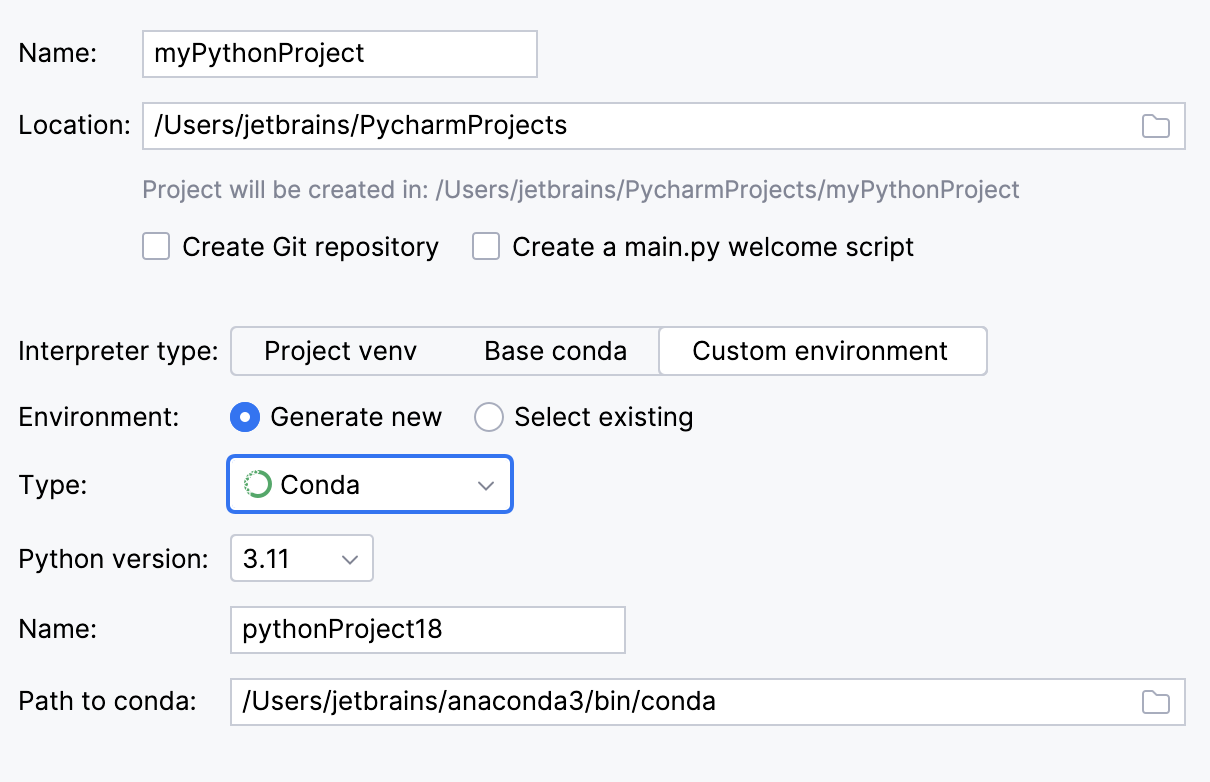
Select the Python version from the list.
Normally, PyCharm will detect conda installation.
Otherwise, specify the location of the conda executable, or click
 to browse for it.
Specify the environment name.
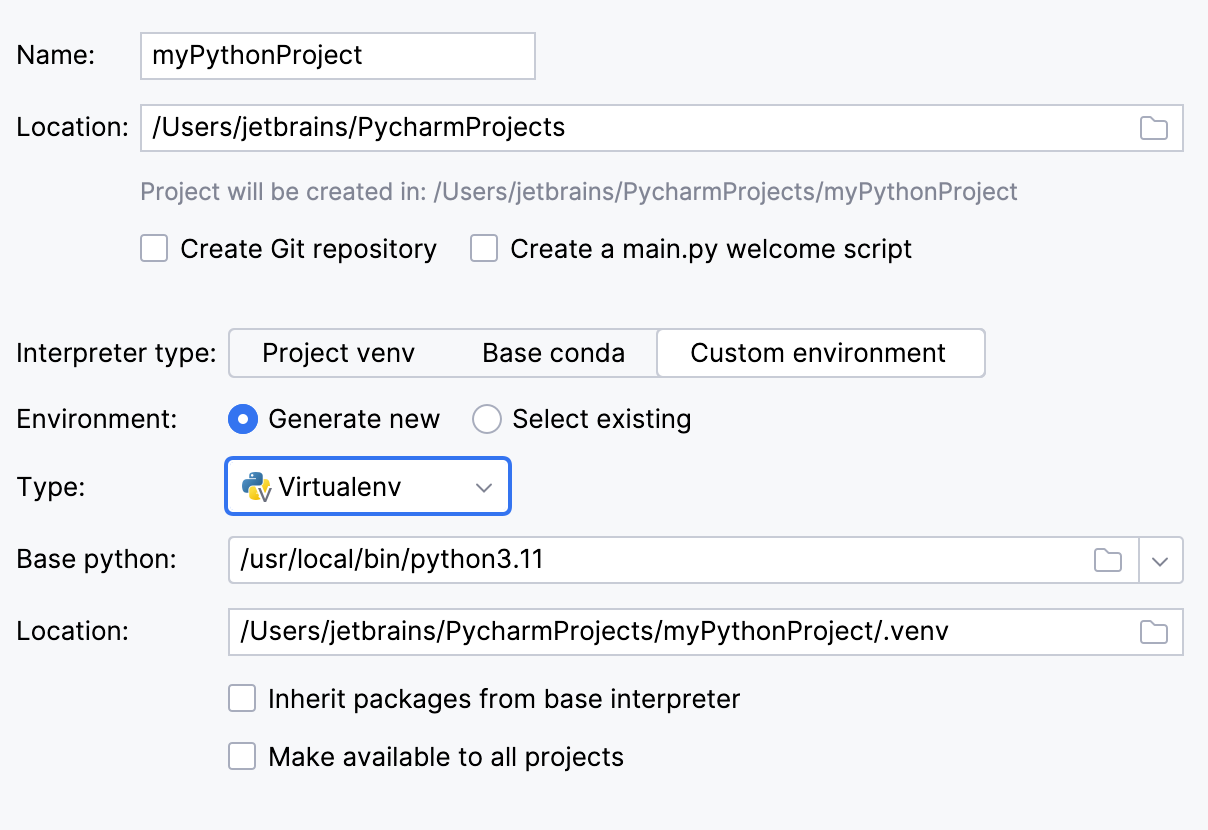
Specify the location of the new virtual environment in the Location field, or click
and browse for the desired location in your file system. The directory for the new virtual environment should be empty.Choose the base interpreter from the list, or click
and find the desired Python executable in your file system.Select the Inherit global site-packages checkbox if you want all packages installed in the global Python on your machine to be added to the virtual environment you're going to create. This checkbox corresponds to the
--system-site-packagesoption of the virtualenv tool.Select the Make available to all projects checkbox if you want to reuse this environment when creating Python interpreters in PyCharm.
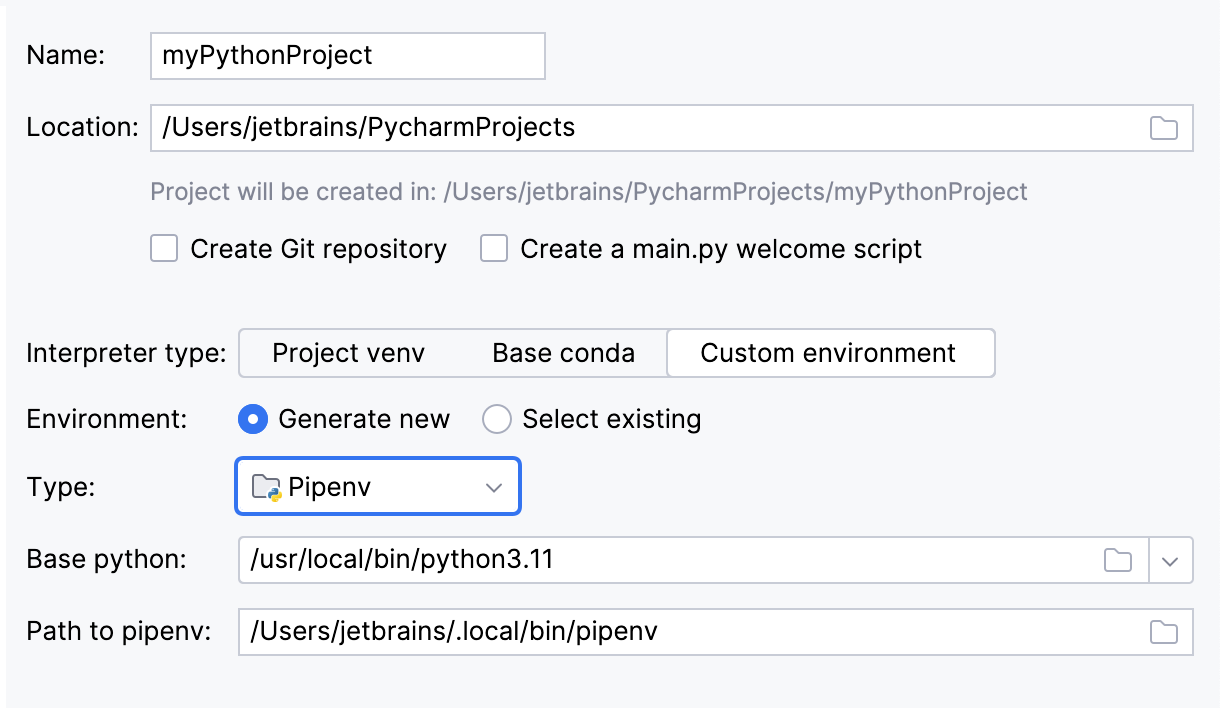
Choose the base interpreter from the list, or click
and find the desired Python executable in your file system.If you have added the base binary directory to your
PATHenvironmental variable, you don't need to set any additional options: the path to the pipenv executable will be autodetected.If the pipenv executable is not found, follow the pipenv installation procedure to discover the executable path, and then specify it in the dialog.
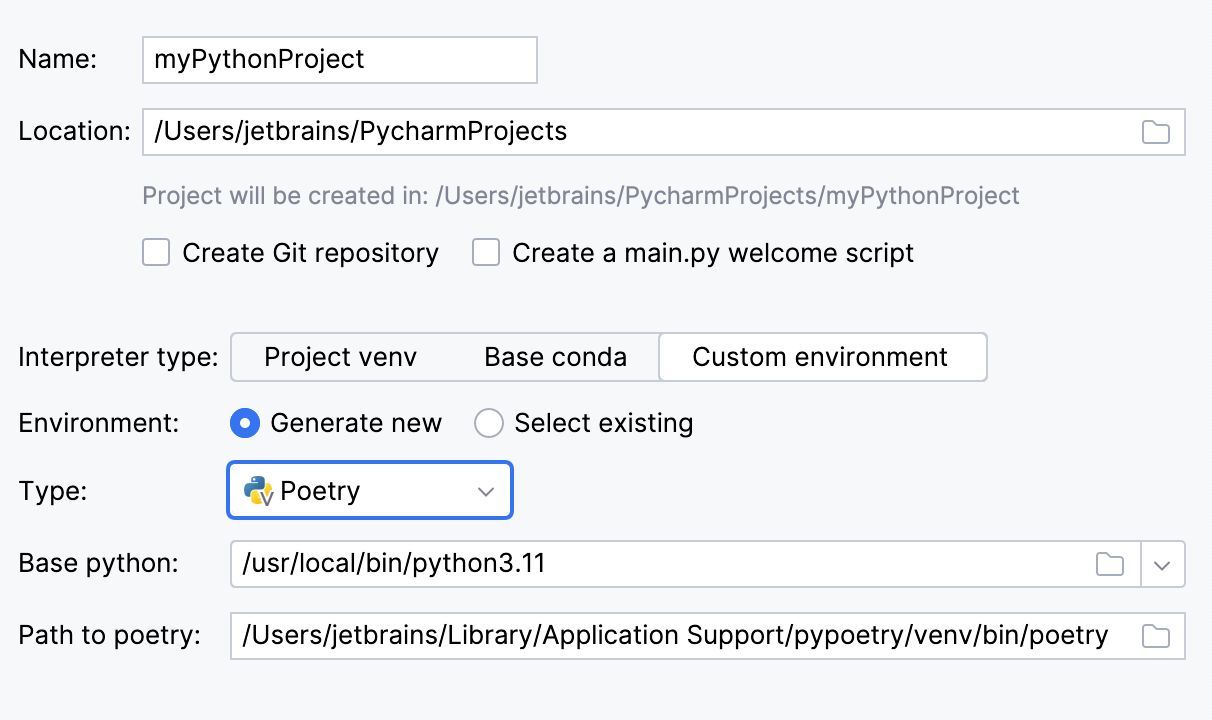
Choose the base interpreter from the list, or click
and find the desired Python executable in your file system.If PyCharm doesn't detect the poetry executable, specify the following path in the dialog, replacing
jetbrainswith your username:/Users/jetbrains/Library/Application Support/pypoetry/venv/bin/poetryC:\Users\jetbrains\AppData\Roaming\pypoetry\venv\Scripts\poetry.exe/home/jetbrains/.local/bin/poetry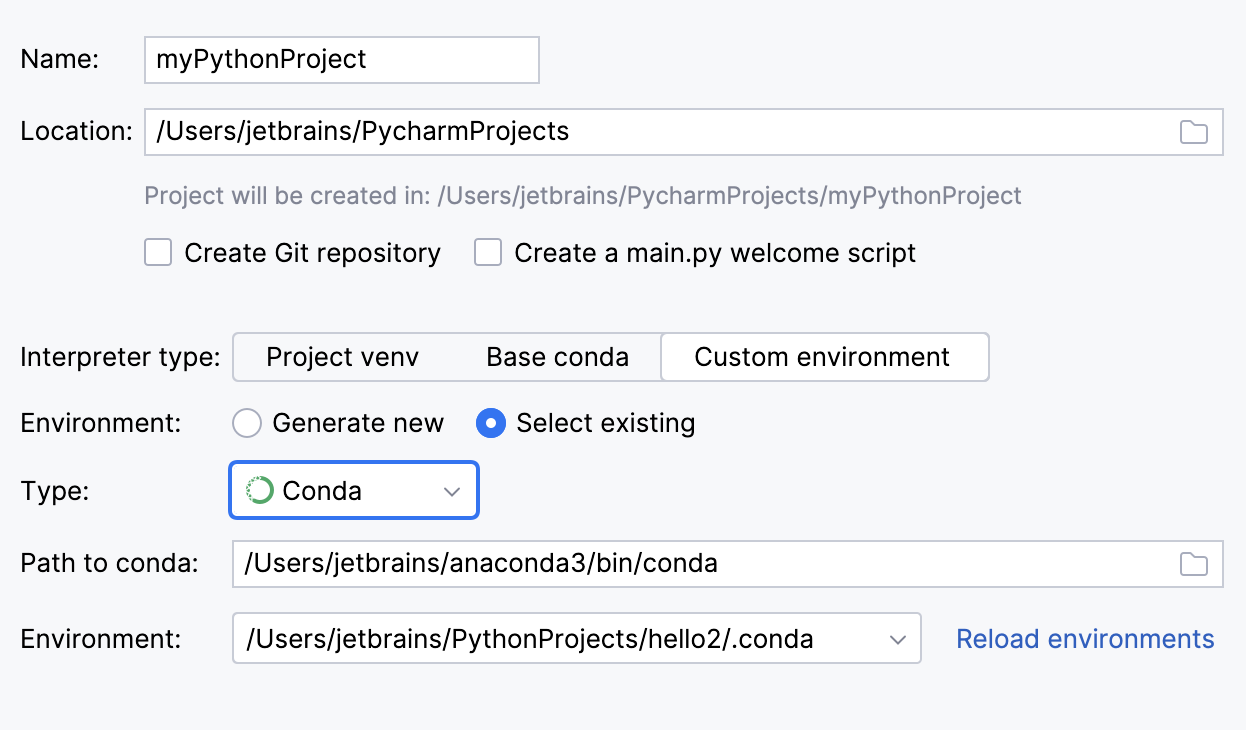
To reuse an existing conda environment:
Switch Type to Conda.
Normally, PyCharm will detect conda installation.
Otherwise, specify the location of the conda executable, or click
to browse for it.Select the environment from the list. If you specified the path to conda manually, you may need to reload environments.
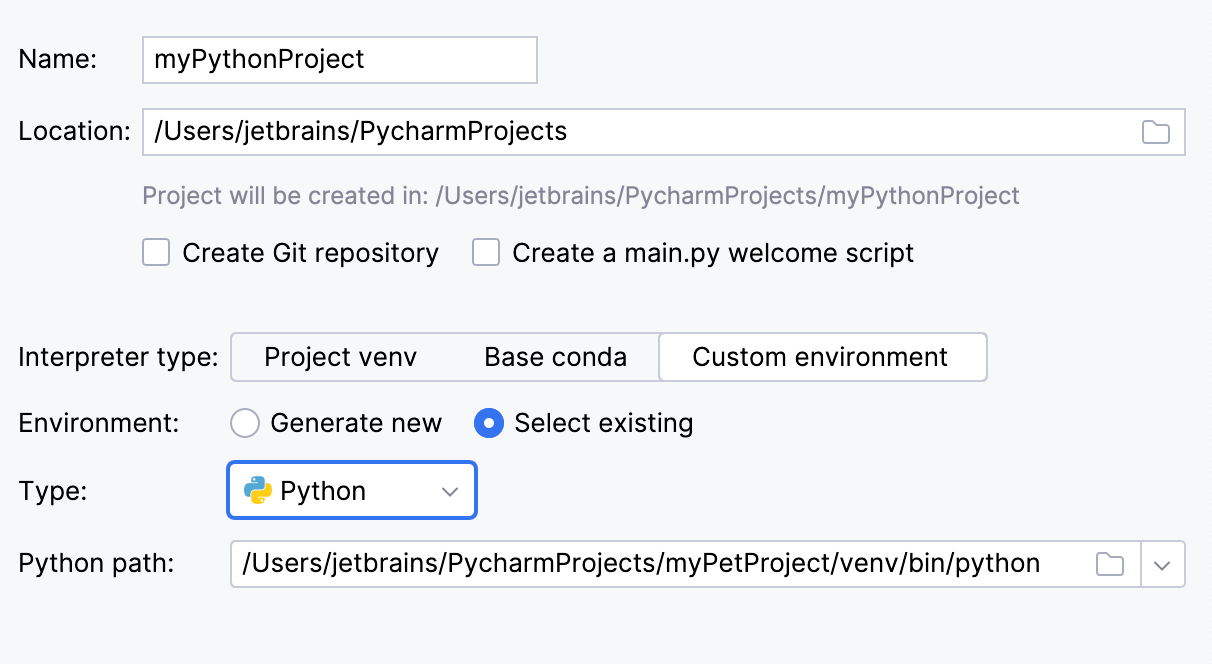
To reuse a Virtualenv, Pipenv, or Poetry environment:
Switch Type to Python.
Select the Python executable from the list or click
to browse for it.
Click
 More Settings, and specify the following:
In the Application ID field, enter the identifier that you have already defined on the Create application page of the Google App Engine. The project identifier should meet certain requirements: only lower-case letters, digits, and "-" characters are allowed; the application id should not begin with "-".
App Engine SDK directory - the location of the App Engine SDK on your machine. If this SDK is missing from the
pathvariable, type it manually or click and locate the required directory from the file system. If the SDK directory is added to the
 pathvariable during installation, it is detected automatically.
Click Create.
Once the project is created, you should see the following files in the Project tool window:
app.yml: a file to configure your App Engine app's settings. See more details and examples in the app.yaml reference.
main.py: an application boilerplate. If you enable using third-party libraries when creating the project, the corresponding code templates, for example, Django or Flask, will be added.
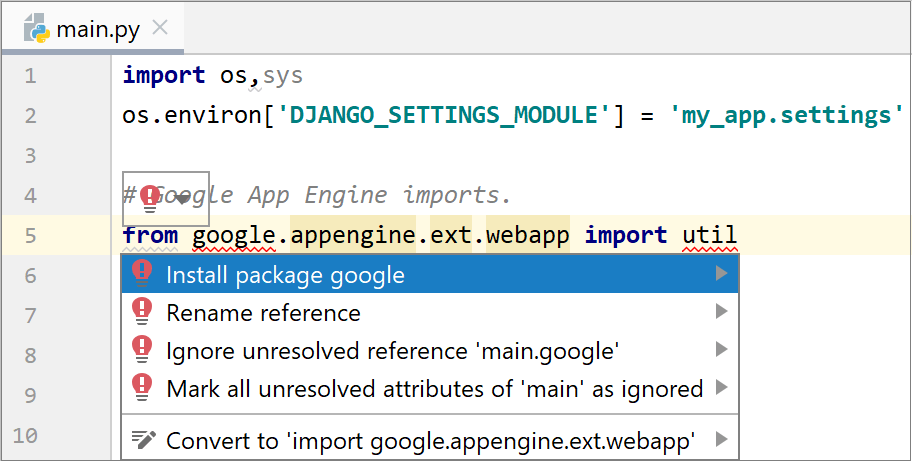
Use code intentions and quick fixes to install the missing packages