Console tab
This tab is marked with  and shows the output and error stream messages.
Console toolbar
Item | Tooltip and shortcut | Description |
|---|---|---|
| Up/down the Stack Trace Ctrl+Alt+Up     Ctrl+Alt+Down | Click this button to navigate up or down in the stack trace and have the caret jump to the corresponding location in the source code. |
| Use Soft Wraps | Click this button to toggle the soft wrap mode of the output. |
| Scroll to the end | Click this button to navigate to the bottom of the stack trace and have the caret jump to the corresponding location in the source code. |
| Click this button to send the console text to the default printer. | |
| Clear All | Click this button to remove all text from the console. This function is also available from the context menu of the console. |
| Show Python prompt | This button is available in the Debug console. If it is pressed, you can enter commands in the console and view output. Note that in the debug console, code completion is available: 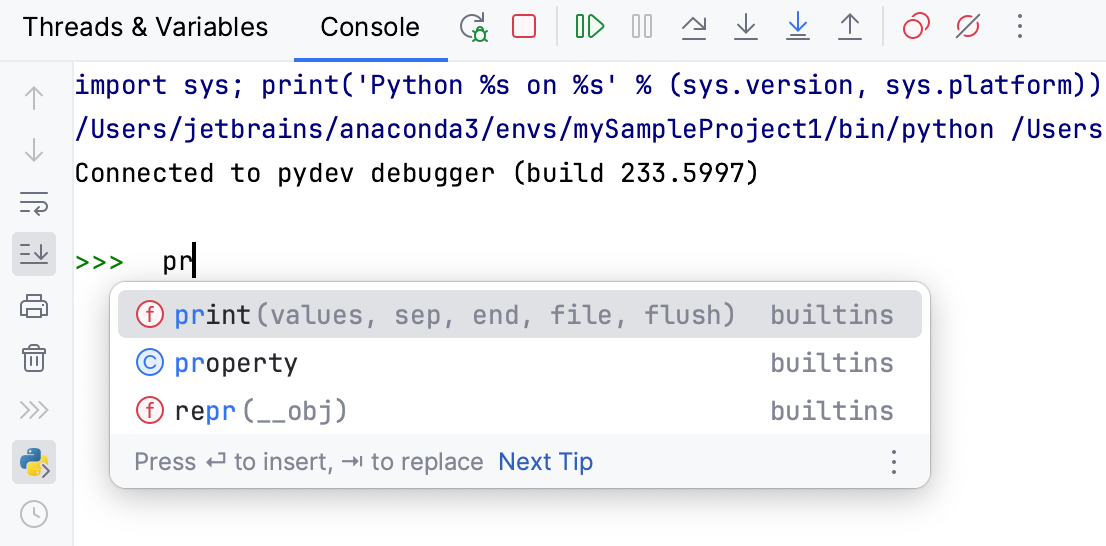 It's also possible to scroll through the history of commands with the up and down arrow keys. |
| Browse history Ctrl+Alt+E | Press this button to show the Debug Console History dialog, where one can view the console entries and navigate through them, using the arrow keys. Click OK to close the dialog. |


Context menu options
Item | Description |
|---|---|
Compare with Clipboard | Opens the Clipboard vs Editor dialog that allows you to view the differences between the selection from the editor and the current clipboard content. This dialog is a regular comparing tool that enables you to copy the line at caret to the clipboard, find text, navigate between differences and manage white spaces. |
Copy URL | Choose this command to copy the current URL to the system clipboard. This command only shows on a URL, if it is included in an application's output. |
Create Gist | Choose this command to open the Create Gist dialog. |
Clear All | Clears the output window. |
Keyboard shortcuts
The Ctrl+D key combination allows you to send EOF (end of file), that is to signal that no more data can be read from a data source.