Bookmarks
If you work with large projects, searching for files and folders can be time-consuming. For such cases, PyCharm features bookmarks. You can bookmark the necessary lines of code to be able to find them easier. You can also bookmark the project files and folders that you need more often than other project items.
All your bookmarks are grouped in lists in the Bookmarks tool window that you can open by selecting from the main menu or by pressing Alt+2. The tool window also shows all breakpoints that are automatically added to the dedicated list once you place them in your code.
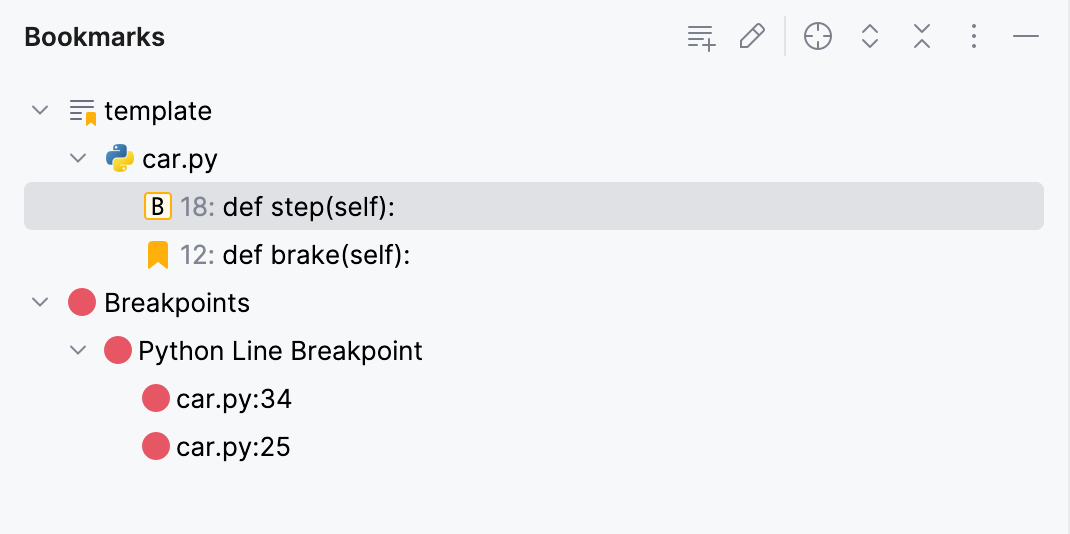
PyCharm has two types of bookmarks:
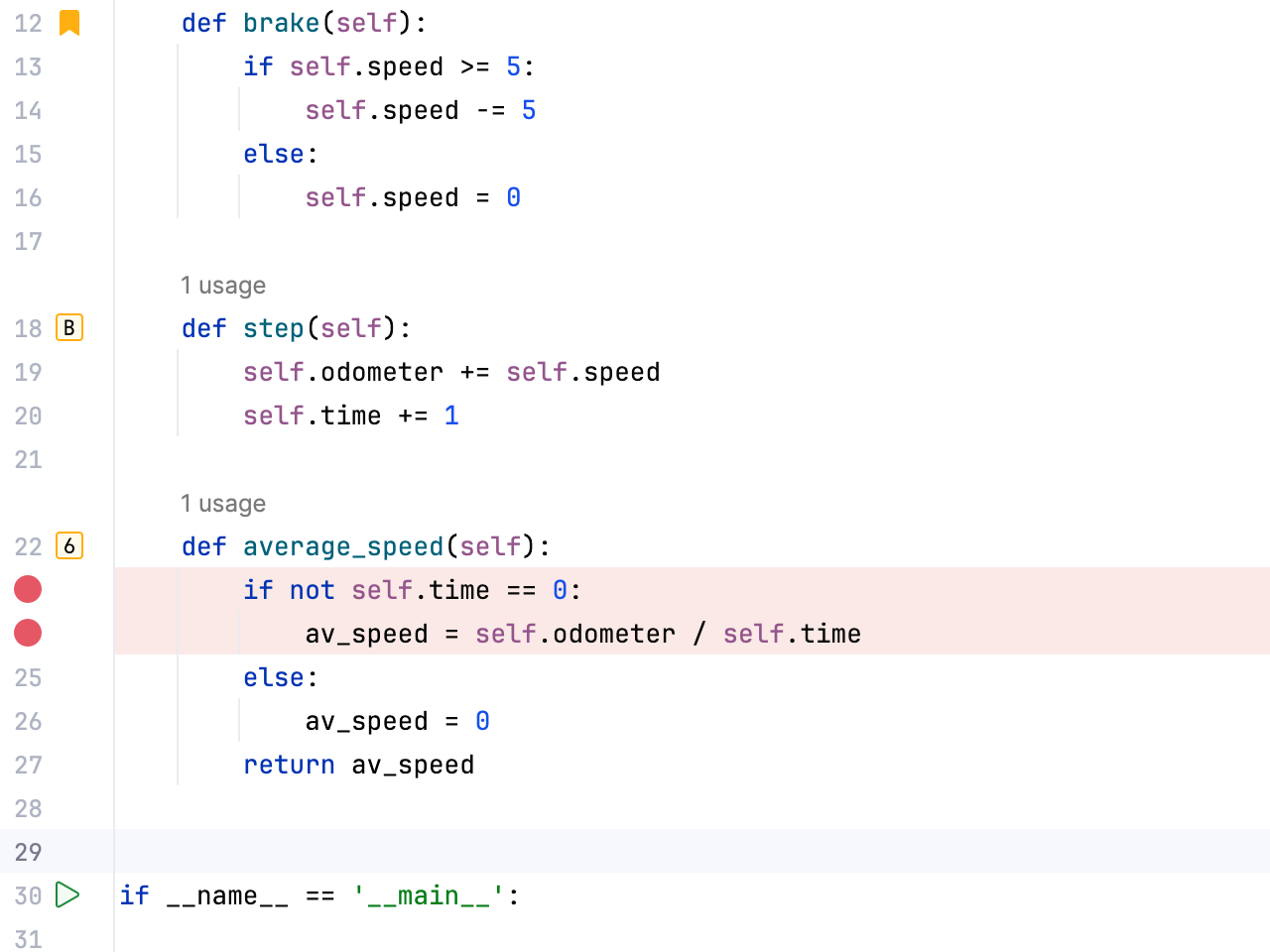
Anonymous bookmarks don't have an identifier and allow you to place as many bookmarks as you want. Files and lines marked with anonymous bookmarks have a bookmark icon.
Mnemonic bookmarks allow you to create bookmarks with numbers (0 to 9) or letters (A to Z). Files and lines marked with mnemonic bookmarks have the corresponding letter or number icon in a frame.
Add bookmarks
PyCharm adds your bookmarks to the predefined list in the Bookmarks tool window that is created automatically and has the same name as the project. You can create more lists and set another list as default.
Add an anonymous line bookmark
In the editor, place the caret at a line of code and press F11.
Alternatively, right-click the gutter next to the line of code that you want to bookmark and select Add Bookmark.
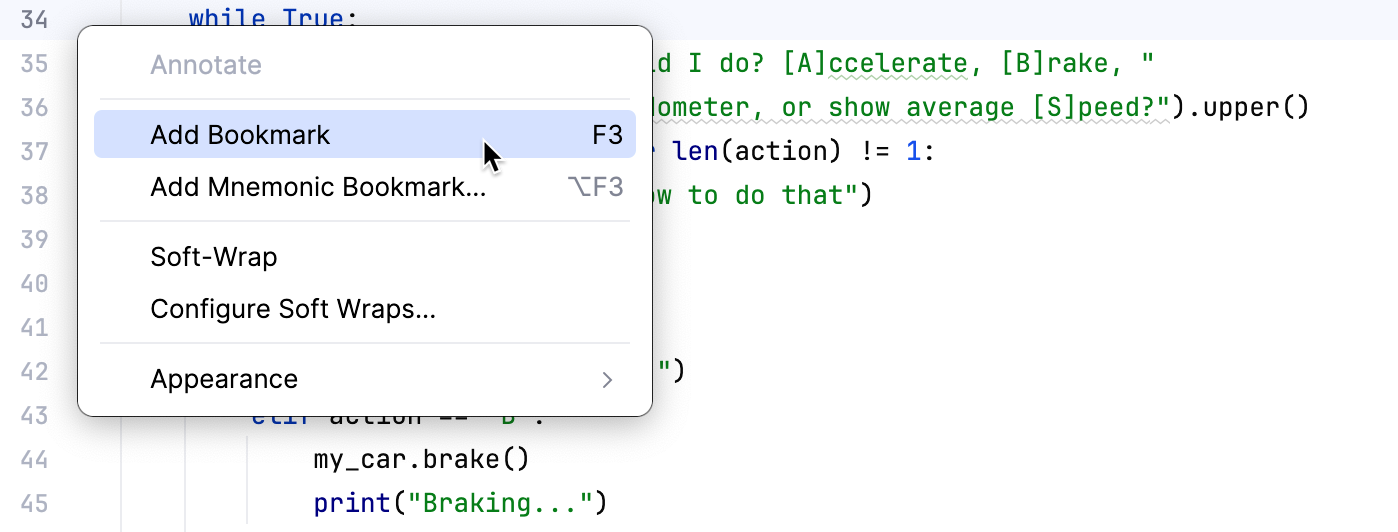
A bookmark icon appears in the gutter next to the bookmarked line.

Add a mnemonic line bookmark
In the editor, place the caret at a line of code and press Ctrl+F11.
Alternatively, right-click the gutter next to the line of code that you want to bookmark and select Add Mnemonic Bookmark.
In the popup that opens, select a number or a letter that you want to use as an identifier for this bookmark.
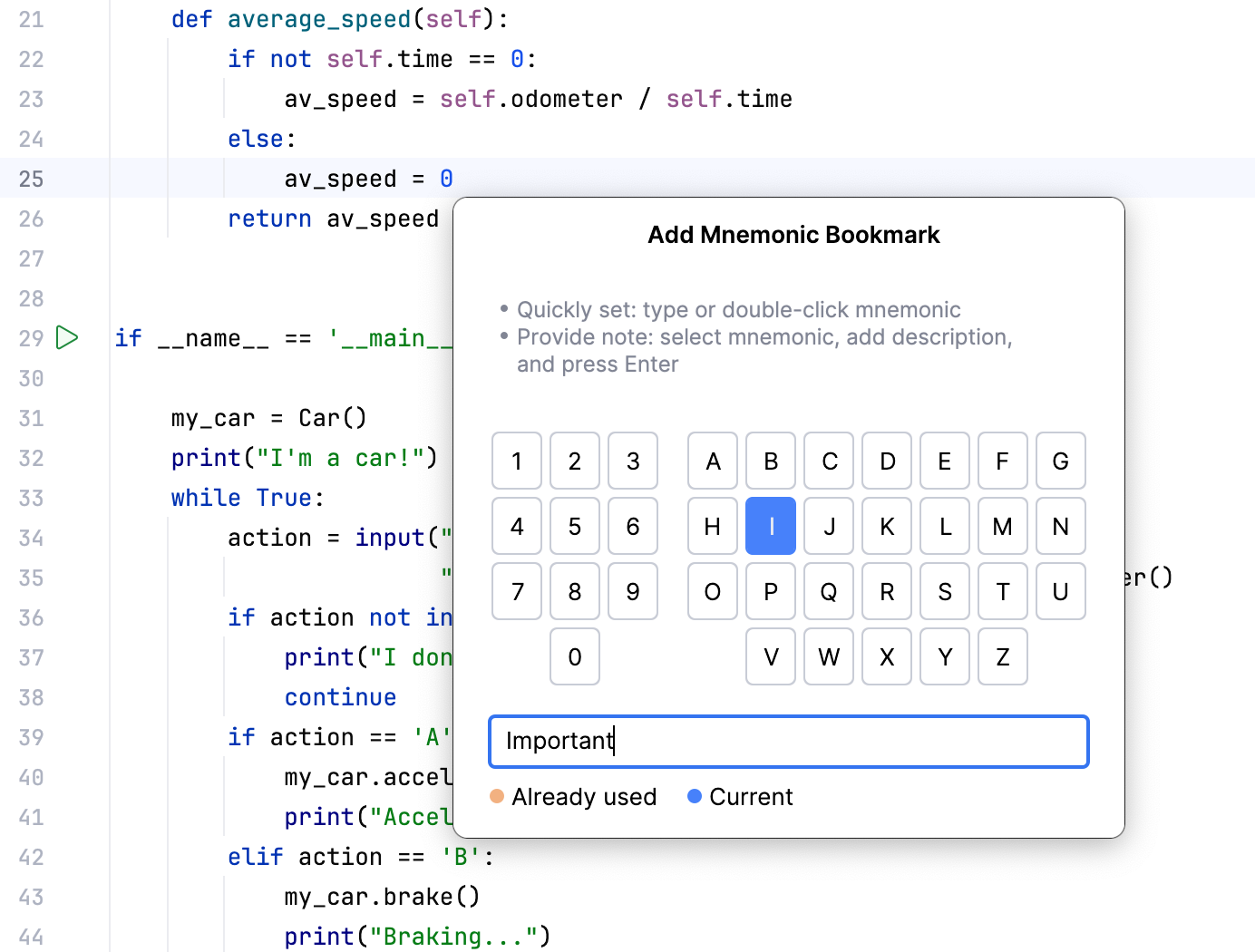
If the selected mnemonic is already used, the IDE will ask you whether you want to overwrite an existing bookmark with the new one. Select the Don't ask again option to silently overwrite mnemonics.
Optionally, provide a description for the new bookmark.
Press Enter or click the selected letter or number once again to save the bookmark.
A letter or a number bookmark icon appears in the gutter next to the bookmarked line.
Bookmark files and folders
In the Project tool window (Alt+1) , right-click an item that you want to bookmark and select (F11) or Add Mnemonic Bookmark (Ctrl+F11).
To bookmark multiple items, select them in the tool window, right-click one of them, and select (F11).
For mnemonic bookmarks, select a number or a letter that you want to use as an identifier for this bookmark.
Press Enter or click the selected letter or number once again to save the bookmark.
Bookmark an editor tab
You can bookmark files from editor tabs one by one. These bookmarks will be added to the default list.
Right-click the tab with the file that you want to bookmark and select (F11) to add an anonymous bookmark or Add Mnemonic Bookmark (Ctrl+F11) to add a bookmark with an identifier.
For mnemonic bookmarks, select a number or a letter that you want to use as an identifier for this bookmark.
Press Enter or click the selected letter or number once again to save the bookmark.
Bookmark all editor tabs
You can quickly bookmark all open files and add these bookmarks to the new list.
Click the Recent Files, Tab Actions, and More icon
 that is on the tab bar and select .
 Name the new list.
You can use this list for new bookmarks by default: enable the Use as default list option.
The IDE will create a new list and add to this list all files from the open tabs.
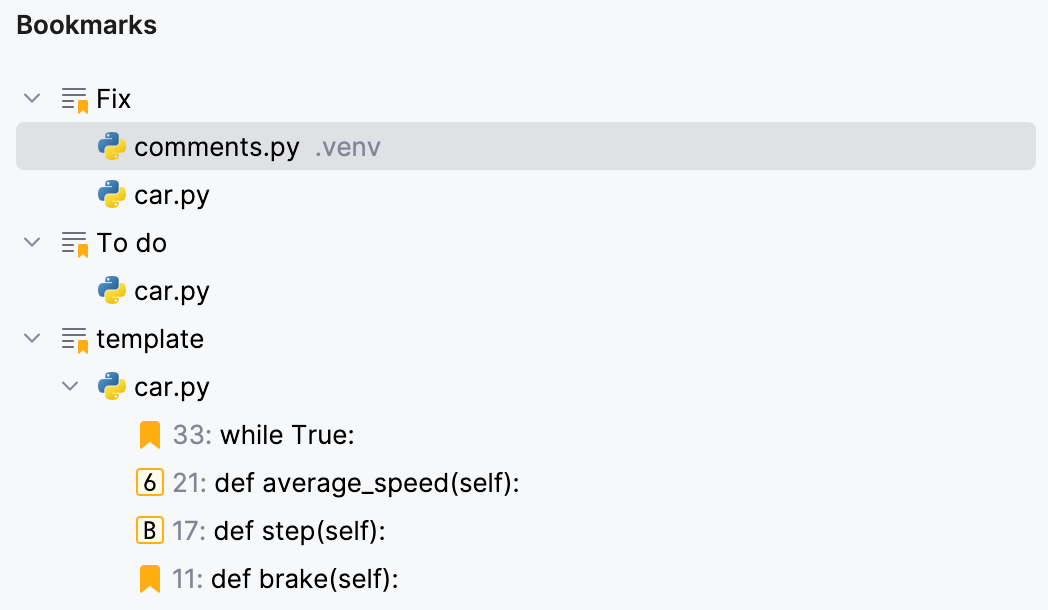
Navigate between bookmarks
Jump to a mnemonic bookmark with a digit
Hold Ctrl and press the mnemonic digit on the keyboard.
For example, to jump to the bookmark with mnemonic 5, press Ctrl+5.
Jump to a mnemonic bookmark with a letter
By default, the shortcuts for navigating to bookmarks with letter mnemonics are not assigned, but you can set your custom shortcuts.
Press Ctrl+Alt+S to open settings and then select .
In the list of shortcuts, expand and configure shortcuts as you like.
Press the configured shortcuts to navigate to letter bookmarks in the editor.
Navigate line bookmarks
By default, the shortcuts for navigating line bookmarks are not assigned, but you can set custom shortcuts.
Press Ctrl+Alt+S to open settings and then select .
In the list of shortcuts, expand and configure shortcuts for:
Next Line Bookmark/Previous Line Bookmark to navigate all line bookmarks.
Next Line Bookmark in Editor/Previous Line Bookmark in Editor to navigate bookmarks in open files.
Navigate line bookmarks in the popup
Press Shift+F11 or go to in the main menu.
Double-click the bookmark or select it with the keyboard and press Enter.
For mnemonic bookmarks, press the corresponding digit or letter.
By default, PyCharm shows only line bookmarks in the bookmarks popup. You can configure the settings to see other bookmarked items (for example, files or folders): press Ctrl+Alt+S to open the IDE settings, select Advanced Settings, and disable the Show only line bookmarks in popup option.
Navigate to a bookmark from a list
In the main menu, go to or press Alt+2 to open the Bookmarks tool window.
Expand the desired bookmark list or click Expand all to expand all lists.
Double-click a bookmark on the list to navigate to it or press:
Ctrl+Alt+Down () to jump to the next bookmark.
Ctrl+Alt+Up () to return to the previous bookmark.
Modify bookmarks
Rename bookmarks
Bookmarks have short descriptions. By default, they contain the code from the line or the name of the item on which they are placed. If necessary, you can give bookmarks your own short descriptions.
Hold Alt and click the bookmark icon in the editor gutter.
You can also right-click a bookmark icon in the editor gutter, a bookmarked item in the Project tool window (Alt+1) , or a bookmark in the Bookmarks tool window, and select Rename Bookmark….
In the dialog that opens, specify a new description and click OK.
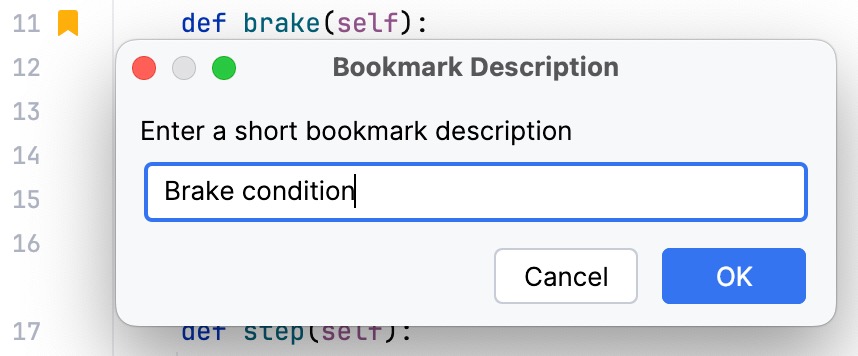
You can view descriptions of bookmarks in the Bookmarks tool window, or in the editor: hover over a bookmark icon in the gutter to see a tooltip with the bookmark's description.
Assign a mnemonic to an anonymous bookmark
You can convert an anonymous bookmark to a mnemonic one.
Right-click a bookmark icon in the editor gutter, a bookmarked item in the Project tool window (Alt+1) or a bookmark in the Bookmarks tool window, and select Assign Mnemonic (or press Ctrl+F11).
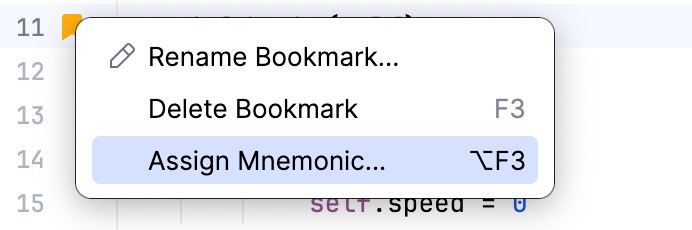
In the popup that opens, select a number or a letter that you want to use as an identifier for this bookmark.
Optionally, provide a description.
Press Enter or click the selected letter or number once again to save the bookmark.
Change a mnemonic identifier
Right-click a bookmark icon in the editor gutter, a bookmarked item in the Project tool window (Alt+1) , and select Change Mnemonic (or press Ctrl+F11).
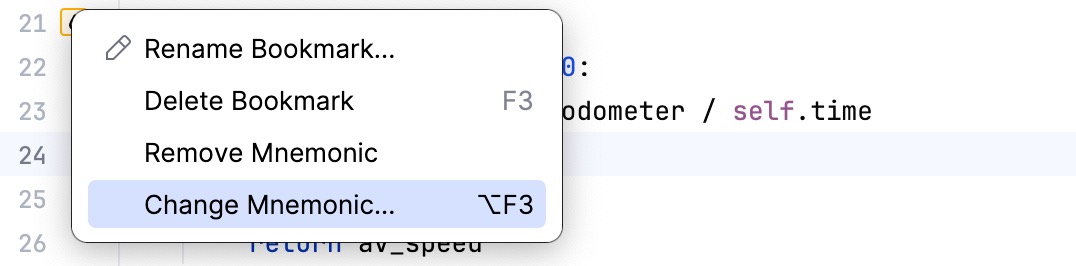
In the popup that opens, select another identifier. If necessary, change the description as well.
Press Enter or click the selected letter or number once again to save the bookmark.
Anonymize mnemonic bookmarks
You can convert a mnemonic bookmark to an anonymous one.
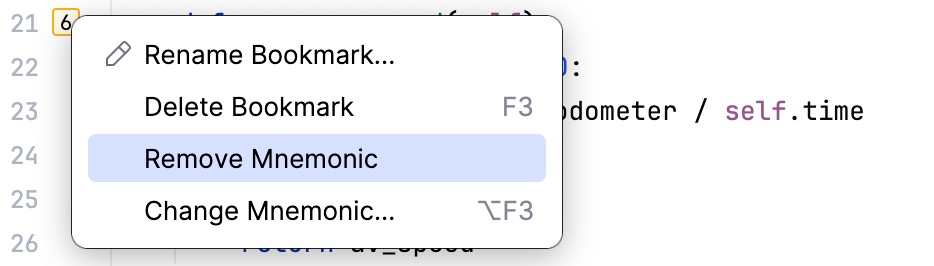
Right-click a bookmark icon in the editor gutter, a bookmarked item in the Project tool window (Alt+1) , or a bookmark in the Bookmarks tool window, and select Remove Mnemonic.
Delete bookmarks
To delete a bookmark from the Bookmarks tool window or from the gutter, right-click it and select Delete Bookmark.
To delete a bookmark from the Project tool window (Alt+1) , right-click a bookmarked item and select .
Lists of bookmarks
There's one predefined empty bookmark list that has the same name as the project. By default, PyCharm adds your bookmarks there. If necessary, you can use another list as the default. You can also create multiple lists and move items between them.
Create a bookmark list
In the main menu, go to or press Alt+2 to open the Bookmarks tool window.
In the tool window, click
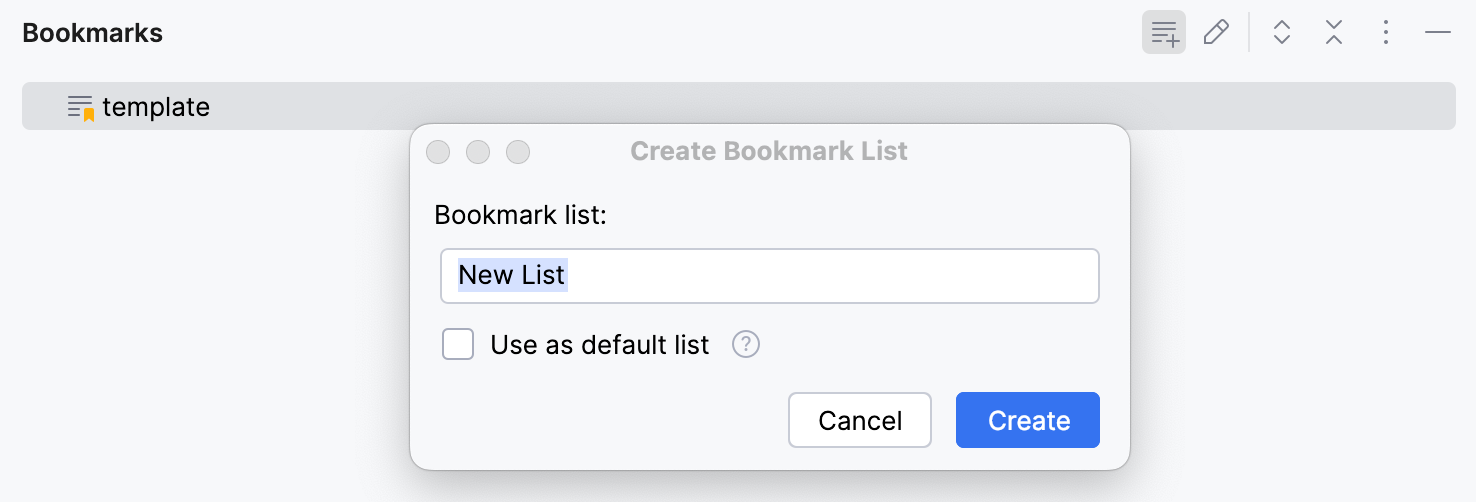
 and name the new list in the dialog that opens.
Enable the Use as default list option if you want your bookmarks to go to this list automatically and click Create.
Move a bookmark to another list
Go to or press Alt+2 to open the Bookmarks tool window and drag a bookmark to another list.
In the Project tool window (Alt+1) , right-click a bookmarked item and select .
Sort bookmarks
To move a bookmark up or down the list, right-click it in the Bookmarks tool window and select Move Up or Move Down.
To display line bookmarks in the tool window grouped by file, click
in the Bookmarks tool window and select the Group Line Bookmarks by File option.
Change the default list
PyCharm adds all your bookmarks to the list that is configured as the default one. If necessary, you can use another default list for your bookmarks.
In the main menu, go to or press Alt+2 to open the Bookmarks tool window.
Right-click the list that you want to use as your default bookmark list and select Mark List as Default.
The list is now located above others in the tool window and has the Default tag.

Delete a list of bookmarks
After you delete a list, all bookmarks from it are removed from code and project items.
In the main menu, go to or press Alt+2 to open the Bookmarks tool window.
Right-click the list that you want to delete and select Delete Bookmark List.