Open, reopen, and close projects
If you open your project for the very first time, you see the Welcome Screen. You can either open your project from the disk, or download it from the version control system.
Opening a project
Open your project from disk
Do one of the following:
Go to .
On the Welcome Screen, click Open.
In the Open File or Project dialog that opens, find the location of the desired project directory. The PyCharm projects are marked with
 and projects created in other IDEs or in a dedicated editor are marked with
  .
.If you select a non-PyCharm directory, PyCharm creates a new IDE project and sets up a Python interpreter.
Click Open (on Mac) or OK (on Windows).
Open a project from Git
Do one of the following:
In the left-hand pane of the Welcome Screen, click Clone.
Go to .
Select the version control system where your project is stored.
Specify the path to the repository and select the directory to which a project will be cloned. Alternatively, you can select GitHub on the left, login using your credentials, and select any project you want to work with.
Click Clone.
Open a project from the command line
In the command prompt, type:
<PyCharm> <path_to_the_project folder>See Open files from the command line for more information.
Once you have opened the project, you should configure Python interpreter for it, and set up your project.
If your project was previously configured with any interpreter that is not currently available, PyCharm shows a warning and provides two options: select an interpreter that fits the previous configuration or configure another Python interpreter:

You can close a project that has been added to the currently opened one (primary project).
Managing multiple projects
PyCharm suggests the following alternatives to work with several projects simultaneously:
Each project is opened in its own window. The projects are independent and cannot share information, except for the Clipboard operations. All the projects run in the same instance of PyCharm and use the same memory space.
A newly opened project shares the same window as the already opened one. The project that has already been opened is considered the primary project, and is always shown first in the Project tool window. All the other projects are attached to the primary project. You can import classes and methods from dependent projects
Open multiple projects
Open a project, while another one is already opened.
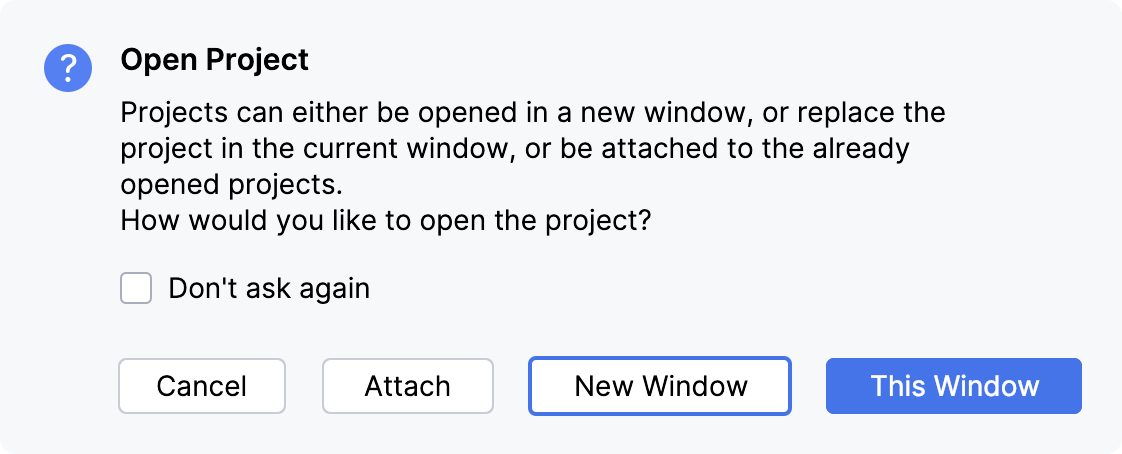
Then, depending on the option selected in the Project section of the page of the Settings dialog (Ctrl+Alt+S) , PyCharm can ask you for the following alternatives:
If the New Window option is selected, the new project silently opens in a new window. The Attach option appears in the menu.
If the This Window option is selected, the new project silently opens in the same window, replacing the currently opened project. The Attach Project command appears in the menu.
If the Attach option is selected, PyCharm attaches the new project to the currently opened project. The project that has already been opened is the primary project.
Merge project windows (macOS)
On macOS, you can merge all opened project windows into one, turning them into tabs.
Make sure that there are several PyCharm projects opened in separate windows.
In the main menu, go to .
Drag a project's tab to work with the project in a separate window again.
With default macOS settings, tabs will be lost after you restart the IDE, and projects will open in separate windows. If you would like the IDE to reopen projects in tabs, configure your macOS to always use tabs when opening documents.
Manage project dependencies
Press Ctrl+Alt+S to open settings and select Project <project name> | Project Dependencies.
Select a project in the Projects pane, then select the checkboxes to the left of the names of the required projects to add them as dependencies.
Use the arrow buttons

 to change the order of the dependent projects, in which they appear in the
 PYTHONPATHvariable.
Some settings (such as Django, template languages, Python interpreters, content roots) can be configured separately for each project.
You can close a project that has been attached to the currently opened one (primary project).
Detach a project
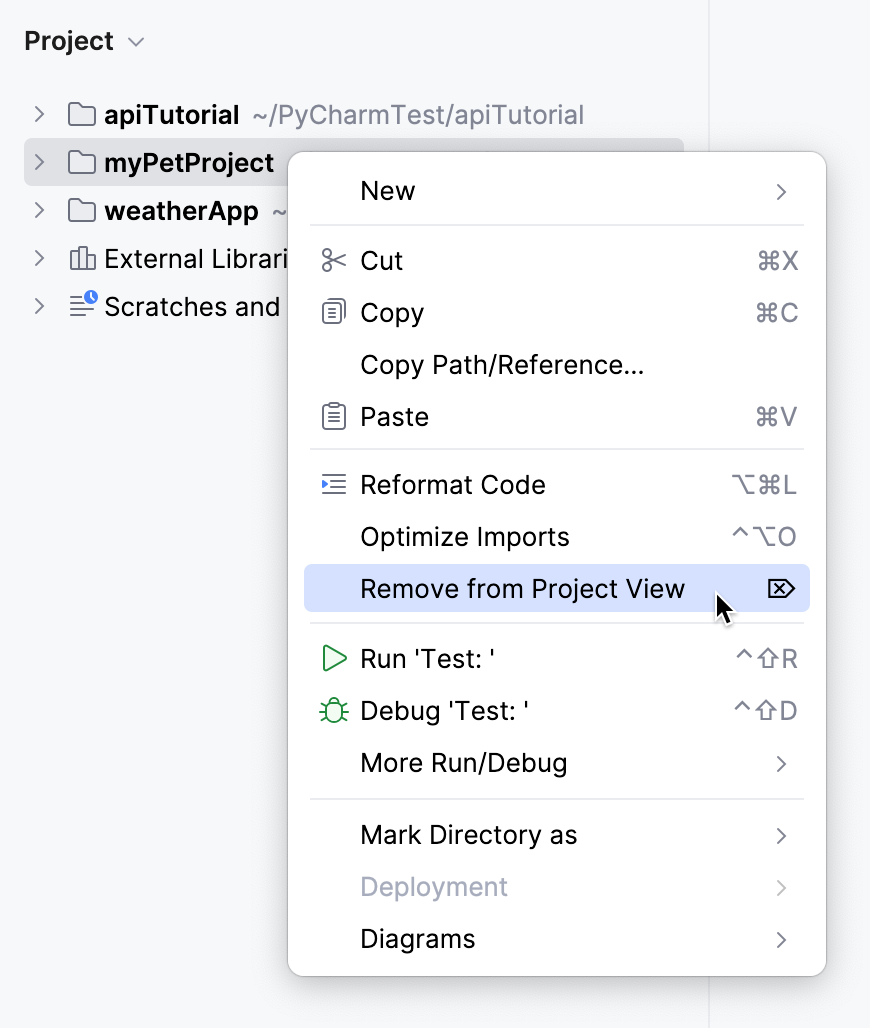
In the Project tool window, right-click the project to be detached.
From the context menu of the selection, choose Remove from Project View or press Delete:
When PyCharm starts, the most recent project reopens by default (unless this option is disabled on the System Settings page of the Settings dialog (Ctrl+Alt+S) .
Reopening recent projects
PyCharm keeps the history list of the recent projects, from which you can select the desired one.
When PyCharm starts, the most recent project reopens by default (unless this option is disabled on the System Settings page of the Settings dialog (Ctrl+Alt+S) .
Open a recent project
Call from the main menu and select the desired project from the list.
Note that the list also contains the projects that share one window.
Specify whether you want to open the project in a new window, reuse the current window, or attach it to the currently opened project.
On the Welcome screen, select the project from the list in the left-hand pane. Start typing in the Search projects field to filter the list of recent projects.
Closing projects
If you need to close only one project, you can either close the project window or select from the main menu.
If you work with multiple projects, use the following actions to close many projects at once:
Close all projects
Go to .
This action closes all projects that are currently opened in PyCharm.
Close all but the current project
Go to .
This action closes all opened projects except the current one.
When you have only one open project and you close it, PyCharm displays the Welcome screen. In case of multiple projects, each one is closed with its frame.
Remove a project from the list of recent projects
Click on the menu, then click Manage Projects at the very bottom of the recent project list.
Click the
 icon next the project that you want to remove. The selected project will be removed from the list of recent projects in the Recent Projects menu and on the Welcome screen.
Switching between projects
To switch between open projects, you can use the following commands of the menu:
Ctrl+Alt+]
Ctrl+Alt+[