Import missing namespaces
When you use types whose namespaces have not been imported in the file, ReSharper helps you locate these types and add the missing namespace import directives. If there are several missing namespaces for an unresolved type, for example, after you paste a block of code in the file, ReSharper would help you import all these namespaces in a single action.
ReSharper looks for non-imported namespaces in the following assemblies: assemblies referenced in the current project, assemblies referenced in other projects in the solution, assemblies that are referenced transitively. If the type is found in a module that is not referenced in the current project, ReSharper also suggests adding a reference to this module.
The missing namespaces are imported according to your namespace import preferences (for example, import directives are inserted or type names qualifiers are added).
The import directives are added in a fixed order: all System.* namespaces go first, sorted alphabetically by the second word after the dot; all other namespaces go next, in alphabetical order.
When you edit a code file, types with missing namespaces are detected with the design-time code inspection (so make sure that it is enabled) and highlighted as errors. By default, the action that imports missing namespaces differs from the normal quick-fix: it is displayed as a popup that hovers either over the first unresolved symbol regardless of your caret position:

or after a pasted code bock:
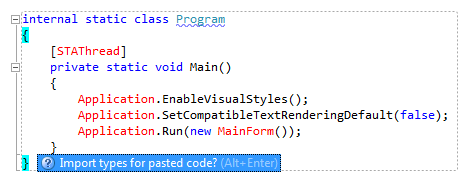
Thus, you can apply this fix for all unresolved types with the habitual Alt+Enter shortcut without changing your current caret position, so your editing session is not interrupted. Note that the Import types for pasted code action only appears if all non-imported types in the pasted code block can be unambiguously found in the referenced modules of the current project.
In case several namespace contain the unresolved symbol, ReSharper lets you choose the namespace to import:
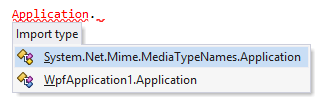
If you chose not to import a required namespace when the popup was displayed, or if you disabled Show the 'Import missing references' popup in editor on the page of ReSharper options Alt+R, O, you can import a type at any time by placing the caret at the type, pressing Alt+Enter and choosing the corresponding quick-fix.
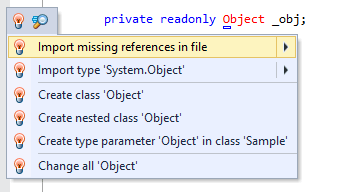
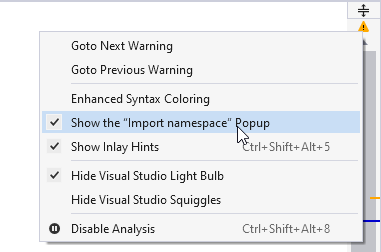
To quickly choose whether to show import suggestions via the popup, or an entry in the Alt+Enter menu, use the context menu of the file status indicator:
You may want some namespaces not to be suggested, for example, if you have something similar to a system type in your solution, say MyFramework.MyCollections.List, but you are not actually using it. To exclude such items from the suggestions, add them to the Exclude from import and completion list on the page of ReSharper options Alt+R, O.
The format of the entries is Fully.Qualified.Name, Fully.Qualified.Name.Prefix*, or *Fully.Qualified.Name.Suffix. Generic types are specified as List`1.
This feature is supported in the following languages and technologies:
|
|
|
|
|
|
|
|
|
|---|---|---|---|---|---|---|---|---|
|
| |
|
| | | | |


The instructions and examples given here address the use of the feature in C#. For more information about other languages, refer to corresponding topics in the Languages and frameworks section.