Highlighting of matching code elements
When you move through the code using the keyboard, ReSharper helps you quickly understand code structure by highlighting code elements that match the one where your caret is
Matching delimiters
ReSharper highlights the opening or closing delimiter ((), [], {}, and <>) when you place the caret at its pair. Any opening parenthesis, bracket, brace or quote (altogether called "delimiters") can be highlighted with color or outline whenever you place the caret at the corresponding closing delimiter, and vice versa.
If necessary, you can disable highlighting of matching delimiters or configure their behavior:
When to highlight matching delimiters: when the caret is directly to the left or to the right of one of the delimiters or only when it is at the outer side.
Whether to highlight matching delimiters with a configurable background color
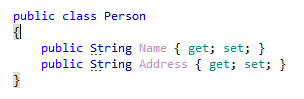
or with an outline border:
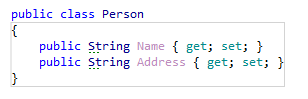
To define how ReSharper highlights matching delimiters, use the Highlight matching delimiters preference on the page of ReSharper options Alt+R, O.
To specify the color to highlight matching delimiters, go to Visual Studio options (), open the Environment | Fonts and Colors page, and select the desired colors for the ReSharper Brace Outline and/or ReSharper Matched Brace items.
Matching control flow keywords
ReSharper highlights matching control flow keywords such as return, yield, and throw together with the corresponding return type; if and else that are parts of the same condition; case and default together with the corresponding switch; break and continue with the corresponding for, foreach, or while; as well as related async and await keywords in the same method.
In the example below, ReSharper highlights all places where the method can return when the caret is at one of the return or throw statements.
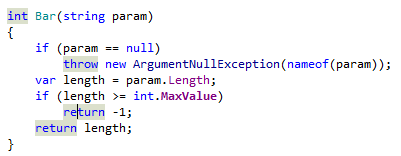
You can configure some of these highlightings with the Highlight context exits and Highlight related async/await keywords options on the page of ReSharper options Alt+R, O.
Matching logical and conditional operators
ReSharper highlights matching logical and conditional operators (|, ||, &, &&, as well as ? and ? pairs) that work together in a complex expressions when your caret is at one of such operators.
In the example below, %product helps understand that the highlighted operators will be evaluated together, while the value1 > 1 || value2 >= 2 && condition1 part will be evaluated before, and the || value6 %lt; value7 || condition2 part will be evaluated after, according to the operator precedence.
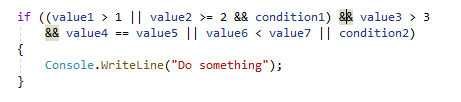
You can disable this highlighting by clearing the Highlight condition elements checkbox on the page of ReSharper options Alt+R, O.
This feature is supported in the following languages and technologies:
|
|
|
|
|
|
|
|
|
|---|---|---|---|---|---|---|---|---|
|
|
|
|
|
|
|
| |


The instructions and examples given here address the use of the feature in C#. For more information about other languages, refer to corresponding topics in the Languages and frameworks section.