Introduce Field refactoring
This refactoring allows you to create a new field based on a selected expression, initialize it with the expression or from the constructor, and replace occurrences of the expression in the current type with references to the newly introduced field.
In the example below, we use this refactoring to replace two occurrences of the same string with a new constant field:
Introduce a field
Select an expression in the editor.
Do one of the following:
Press Control+Alt+D.
Press Control+Shift+R and then choose Introduce Field.
Right-click and choose Refactor | Introduce Field from the context menu.
Choose from the main menu.
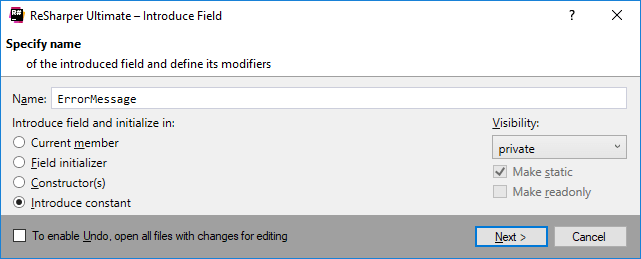
The Introduce Field dialog opens. Specify the name for the new field and choose the access modifier. Optionally, specify whether to add
staticandreadonlymodifiers to the field.Choose how to initialize the field:
Current member: initializes the field in the current member (this option is only available if you chose to replace a single occurrence or if all occurrences are within the current member).
Field initializer: initializes the field in the declaration.
Constructor(s): initializes the field in the constructor or constructors of the containing class; if there are no constructors, a parameterless constructor is created to initialize the field.
Introduce constant: creates a constant field. This option is only available if the value of the selected expression corresponds to a built-in type.
To apply the refactoring, click Next.
If no conflicts are found, ReSharper performs the refactoring immediately. Otherwise, it prompts you to resolve conflicts.
This feature is supported in the following languages and technologies:
|
|
|
|
|
|
|
|
|
|---|---|---|---|---|---|---|---|---|
|
| | | | | | | |


The instructions and examples given here address the use of the feature in C#. For more information about other languages, refer to corresponding topics in the Languages and frameworks section.