Editor Appearance
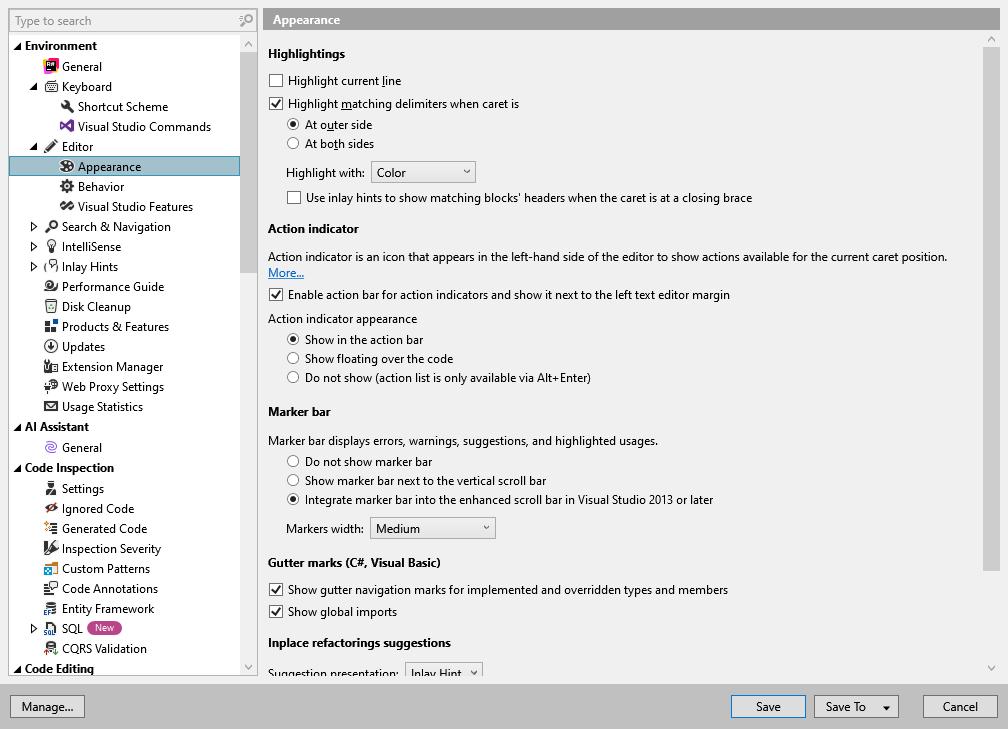
This page of ReSharper options allows you to adjust how the ReSharper's features appear in the editor.
Highlightings
Highlight current line | Select this checkbox to allow the current line to be highlighted as you work with the code. You can set the color of the highlight in the Visual Studio options, by choosing and adjusting options for the ReSharper Current Line display item. |
Highlight matching delimiters | When this checkbox is selected, any closing delimiter (bracket, brace, parenthesis or quote) is highlighted when the caret is:
You can also use the Highlight with radio buttons to choose one of two ways to highlight matching brackets and quotes: with color or with slightly less distinguishable outlines. For more information, refer to Highlighting of matching code elements. |
Use inlay hints to show matching blocks' headers... | When you are at the end of a large code block, it is often not clear what the closing brace represents: it can denote the end of a nested type, a method, or a complex statement. Inlay hints can quickly clarify the code structure by showing what exactly each closing brace is the end of: 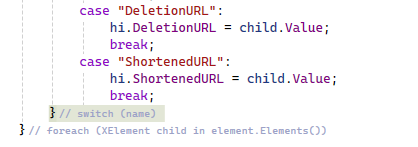 To reduce the visual noise, these hints only appear for blocks that are longer than 10 lines, and only when your caret is set to a closing brace. |
Action Indicators
Enable action bar... | Shows or hides the Action bar. |
Action indicator appearance | You can choose the way action indicators appears in the editor.
|
Marker Bar
The radio buttons allow choosing how to display the marker bar.
Markers width (only available since Visual Studio 2013) | These radio buttons allow choosing relative width of the markers on the marker bar. They only apply when the Integrate into enhanced scroll bar (since Visual Studio 2013) option is selected. |
Gutter Marks C#, Visual Basic
Show gutter navigation marks for implemented and overridden types and members | When a type or a member has inheritors in the current solution, ReSharper adds a special icon (for example, 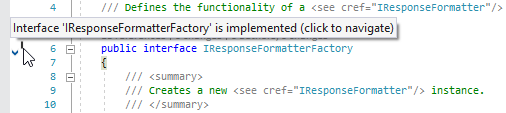 To find out whether the type or a member has inheritors and display the corresponding gutter mark, ReSharper has to perform some calculations. Although these calculations are performed efficiently and without any performance impact in most cases, large inheritance hierarchies with the combination of weak hardware could lead to some performance degradation. If such cases, you can clear this checkbox to avoid complex calculations and thus improve performance. On the other hand, on-the-fly detection of base types or members is much cheaper performance-wise. Therefore, the hierarchy marks for types and members that implement or override other types or members are not disabled with this option. If you choose to disable the gutter marks, you can always use explicit navigation commands — Go to Derived Symbols Alt+Control+B and Go to Implementation Control+Shift+Alt+B — to study derived members, or visually explore full inheritance hierarchy of the current member. |
Show global imports |
.png "ThemedIcon.HasOverrides.Screen.(Gray).png") ) to the left of the declaration. You can click the icon to expand the list of derived symbols and navigate.
) to the left of the declaration. You can click the icon to expand the list of derived symbols and navigate.Inplace refactorings suggestions
Suggestion presentation |
C/C++
Show gutter navigation marks | ReSharper displays special gutter icons for types that inherit from other types or implement interfaces and for members that override, implement, or hide members from base types. To reduce possible clutter on the gutter, you can configure the icons visibility. |
Highlight usages of the element under cursor | Select this option to automatically highlight usages of the element under the caret as you move through your code. Since this feature is also provided by Visual Studio’s IntelliSense, ReSharper’s highlighting is turned off by default. |