General
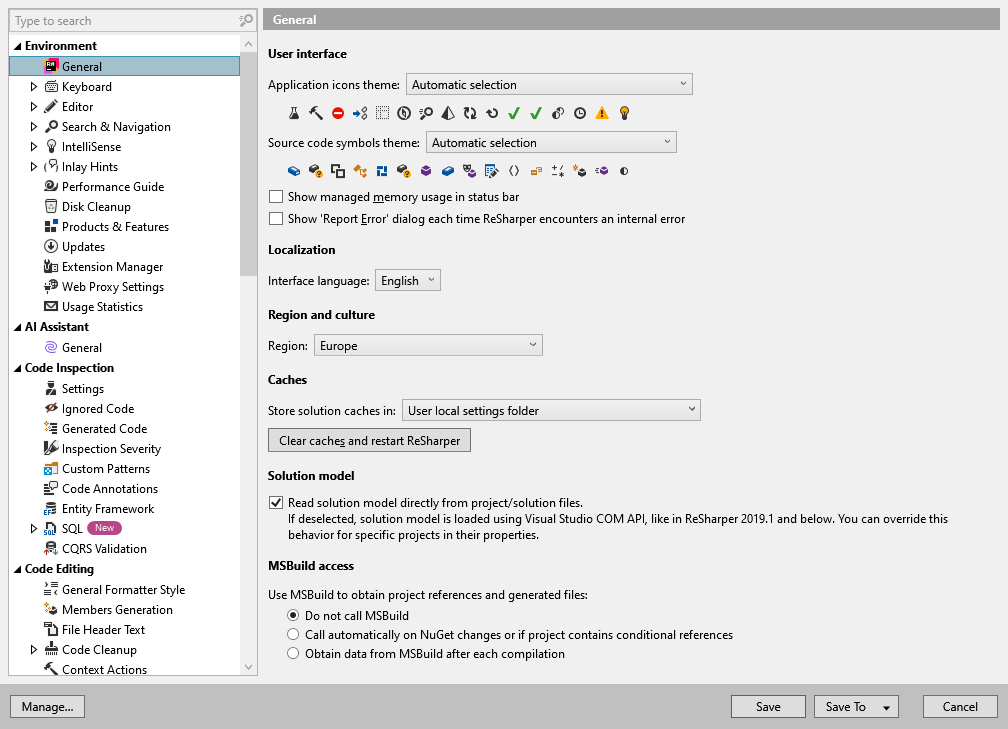
This page of ReSharper options summarizes general settings of the ReSharper environment.
User interface
Application icons theme | These radio buttons let you switch between different sets of ReSharper UI icons. You can leave the default option of automatic selection or choose an icon set that will be most comfortable for you for the selected Visual Studio theme. |
Source code symbol icons theme | These radio buttons let you switch between different sets of code symbol icons. You can leave the default option of automatic selection or choose an icon set that will be most comfortable for you for the selected Visual Studio theme. You can feel the difference between different sets by using Go to features or Explore type hierarchy. |
Show managed memory usage in status bar | If this checkbox is selected, the amount of managed memory used by the whole process is shown in the rightmost position of the status bar. This value indicates not only the amount of managed memory used by ReSharper but also the amount of managed memory used by other third-party plug-ins and Visual Studio itself. |
Language
Interface language | Use this selector to change the user interface language to Chinese, Japanese, or Korean. |
Region and culture
Region | The region preference affects how ReSharper work by adapting to regional specifications. For example, it can change the URLs used to access various services, switch to a region-specific LLM provider for AI Assistant, or route traffic through a local proxy. Such adjustments optimize ReSharper performance and ensure that its functionality complies with local regulations. |
Caches
Store solution caches in | ReSharper caches a lot of its temporary data. For example, results of code analysis. If you do not share the solution, you can choose solution folder. If you share your solution using a VCS, it is better to choose the system temp folder so that ReSharper gets them out of the solution folder and therefore out of the way of your VCS. It is recommended to choose a custom folder. The problem with the 'User local settings folder' %LOCALAPPDATA% is that Visual Studio's directory watcher could be triggered when ReSharper writes to this folder, which happens very often. You need to reopen your solution for changing caches location to take effect. |
Clear Caches | Clears the cache of the current solution. Normally, you do not need to clear solution cache, but some events (for example, sudden power off or an upgrade that skips several versions) may corrupt the cache, and that's when you need to use this button. Signals of corrupted cache may be a lot of unresolved code or absence of ReSharper inspections in some files. After clearing the cache you need to reopen your solution and wait a little while ReSharper rebuilds the cache. |
Solution Model
Read solution model directly from project/solution files | For most of its features (including navigation, code analysis, refactorings, and code completion) , ReSharper builds and maintains a model of the current solution. The model is cached and then used to instantly access any item in the solution structure. By default, ReSharper reads project and solution files independently of Visual Studio. This method is preferred because:
However, it has some minor side effects:
If some of the above is a problem, clear this checkbox to make ReSharper read solution structure via Visual Studio COM API, which can be a bit slower. Alternatively, you can configure this behavior per project: right-click the project in the Solution Explorer, select Edit project item properties, then choose Read project model from project file | True or False. |
MSBuild Access
Use MSBuild to obtain project references and generated files | This selector allows you to define whether to call MSBuild to analyze project references in web projects or projects that have NuGet references. Results of this analysis are used by code inspection and other related features. It helps you choose the appropriate balance between performance and the precision of the analysis.
|