Completion Appearance
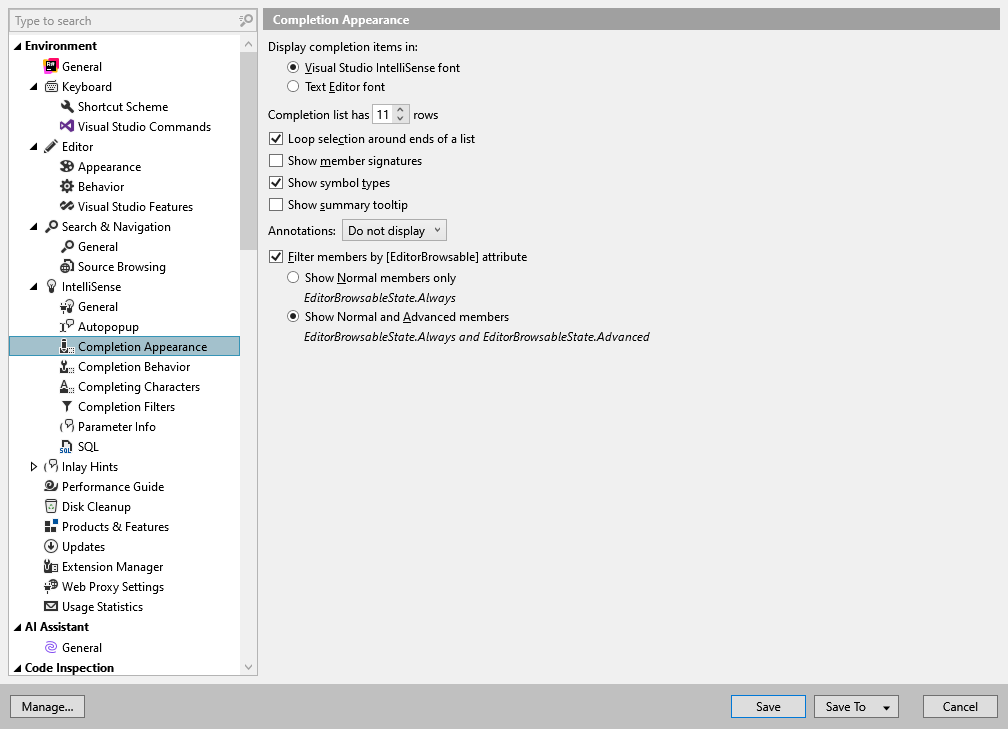
In this page of ReSharper options, you can adjust the appearance of ReSharper's IntelliSense popup. For more information, refer to Code completion and Parameter Information features.
Display completion items in | These radio buttons let you switch between Visual Studio IntelliSense and Text Editor fonts in code completion lists. In Visual Studio 2015 and earlier, if you change your IntelliSense or Text Editor font in Visual Studio options (), ReSharper can only match the new font after you restart Visual Studio. In Visual Studio 2017 and later, restart is not required. |
Completion list has [value] rows | Sets max number of rows in code completion lists. |
Loop selection around ends of a list | If this checkbox is selected, any time you scroll a list selection with keyboard arrow keys, ReSharper loops the scrolling. This option applies for the set of Navigate and search and Code completion features where lists are used. |
Show member signatures | By default, all overloads of a method are shown as a single method name without a signature in the suggestion list. When you select it, the list of overloads, if any, appears in a popup where you can study them. To switch between signatures in the popup, you can press Control+P. If you want to see each signature of an overloaded method separately in the completion list, select this checkbox. |
Show symbol types | Use this checkbox to define whether to display types of fields and properties and return types of methods next to them in the completion list. |
Show summary | This checkbox determines whether the Parameter Information displays next to the selected item in the code completion list. |
Annotations | Use this selector to define whether to display code annotation attributes next to items in the completion list. ReSharper will display both annotations from source code of symbols and annotations added externally to library symbols. You can choose to show either only the most popular NotNull or CanBeNull annotation attributes or all attributes. |
Highlight new items | This checkbox defines whether to highlight with green the items that were added to the completion list after you pressed the corresponding completion shortcut for the second time, that is when double completion applies. For example: 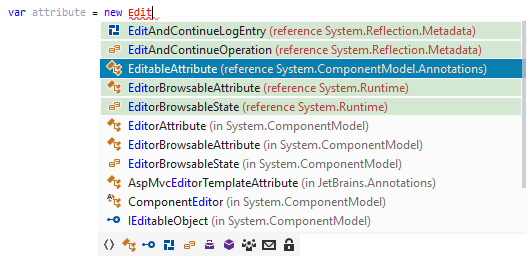 |
Filter members by [EditorBrowsable] attribute | This checkbox enables filtering of members marked with the System.ComponentModel.EditorBrowsable attribute that appear in code completion lists. If you select this checkbox, you can choose to show members assigned with a specific level. |