Editor
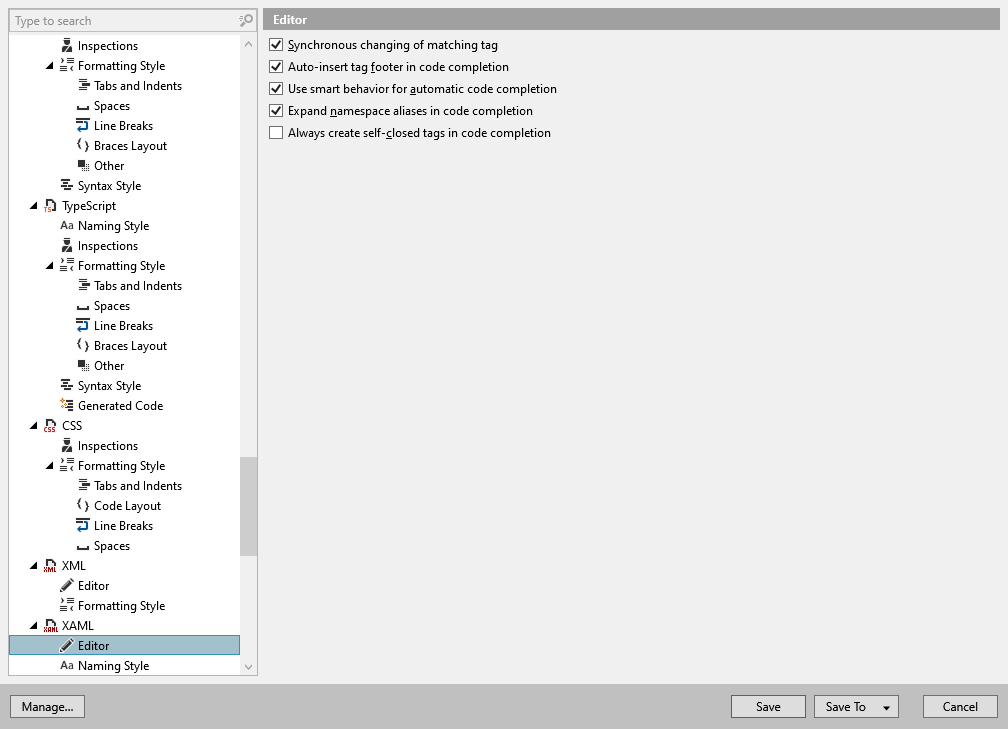
This page lets you adjust ReSharper's XAML features in the editor. These are language-specific settings that complement the main set of editor features.
Synchronous changing of matching tag | If this checkbox is selected, ReSharper simultaneously changes the closing tag when you are editing the opening tag of an element and vice versa. |
Auto-insert tag footer in code completion | If this checkbox is selected, ReSharper will insert the footer (closing) tag as soon as you apply any code completion. If unselected, the closing tag is inserted when you close the opening tag. |
Use smart behavior for automatic code completion | If this checkbox is selected, ReSharper will apply Smart completion as automatic code completion; if unselected, the Basic completion is applied by default. When working with XAML files, basic completion often provides too many completion suggestions, and type-matching completion suggestions are more helpful in most cases. If this option is selected, you can use Control+Space to fall back to the symbol completion and get more suggestions. |
Expand namespace aliases in code completion | If this checkbox is selected, full namespace names are shown in the completion list, otherwise, short aliases are shown. |
Always create self-closed tags on code completion | If this checkbox is selected, ReSharper will insert self-closed tags whenever the code completion inserts new tags. Otherwise, a pair of opening and closing tags is created |