Templates Explorer window
The Templates Explorer window lists all Code templates and provides necessary controls for creating, editing and managing code templates.
The window has three tabs to manage three types of ReSharper templates:
Live Templates
This tab is used to manage live templates. It lets you browse available templates for different languages. On the left there are Template scopes and user categories; on the right, a list of templates filtered by the selected scope and category is displayed.
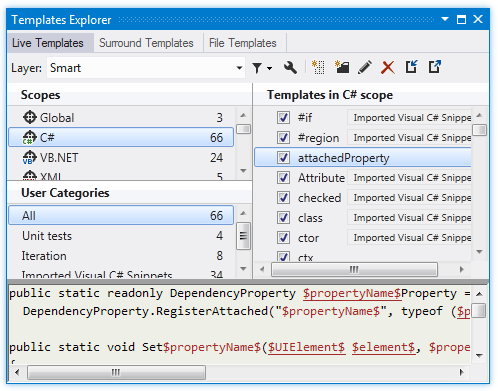
There is also a preview area at the bottom, which displays contents of the selected template, and a toolbar with a set of buttons to manage the templates.
Surround Templates
This tab is used to manage surround templates. It lets you browse available templates for different languages. On the left there are Template scopes and user categories; on the right, a list of templates filtered by the selected scope and category is displayed. The templates on the right are divided into two groups: In quicklist and Not in quicklist depending on whether they are added to the quick access list.
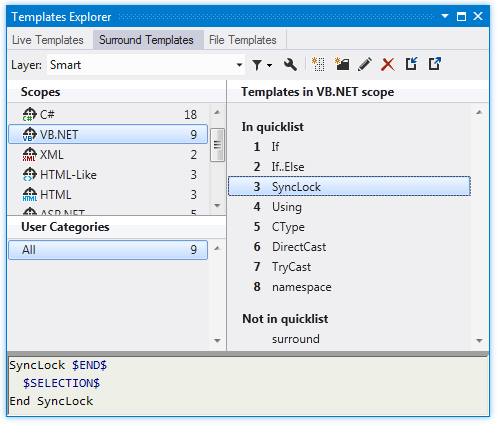
There is also a preview area at the bottom, which displays contents of the selected template, and a toolbar with a set of buttons to manage the templates.
File Templates
This tab is used to manage file templates. It lets you browse available templates for different languages. On the left there are Template scopes and user categories; on the right, a list of templates filtered by the selected scope and category is displayed. The templates on the right are divided into two groups: In quicklist and Not in quicklist depending on whether they are added to the quick access list.
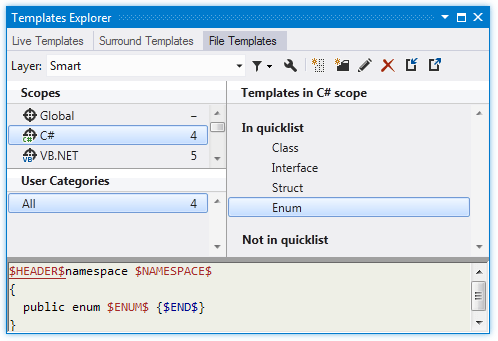
There is also a preview area at the bottom, which displays contents of the selected template, and a toolbar with a set of buttons to manage the templates.
Toolbar Controls
Control | Name | Description |
|---|---|---|
Layer | Specifies the settings layer to display only templates saved in this layer and to create new templates in this layer. For more information about settings layers, see Manage and share ReSharper settings. | |
| Filter Templates | Allows displaying predefined templates when a user layer is selected. By default, predefined templates are shown only when the Smart option is selected in the Layer selector. |
| Manage layers | Opens the Settings Layers dialog to manage settings layers. |
| New Template | Opens the Template editor to create a new template. |
| New Category | Puts a selected template into a new category (a single template can be assigned to multiple categories). For more information, refer to Organize templates. |
| Edit Template | Opens the Template editor for editing the selected template. |
| Delete | Deletes a selected template or category. |
| Import | Imports templates from an XML file. For more information, refer to Import and export templates. |
| Export | Exports templates to an XML file. For more information, refer to Import and export templates. |
.png "ThemedIcon.Filter.Screen.(Gray).png")
.png "ThemedIcon.Settings.Screen.(Gray).png")
.png "ThemedIcon.AddLiveTemplate.Screen.(Gray).png")
.png "ThemedIcon.NewFolder.Screen.(Gray).png")
.png "ThemedIcon.Edit.Screen.(Gray).png")
.png "ThemedIcon.Remove.Screen.(Gray).png")
.png "ThemedIcon.Import.Screen.(Gray).png")
.png "ThemedIcon.Export.Screen.(Gray).png")